

The iRobot Roomba s9+ error message usually means a blocked part, dirty sensor, full bin, or charging issue.
If you own an iRobot Roomba s9+ Robot Vacuum, you already know it is one of the most capable robot vacuums you can buy. I have spent a lot of time testing robot vacuums in real homes, and the s9+ stands out for its strong suction and smart mapping, but like any smart device, it can throw error messages when something is off. This guide breaks down the most common iRobot Roomba s9+ Robot Vacuum error message problems, what they mean, and how to fix them fast without wasting time guessing.

36% off Today’s Exclusive Deals
Limited-time Exclusive Deals. Check current discount on Amazon.
Check Price on Amazon As an Amazon Associate I earn from qualifying purchases.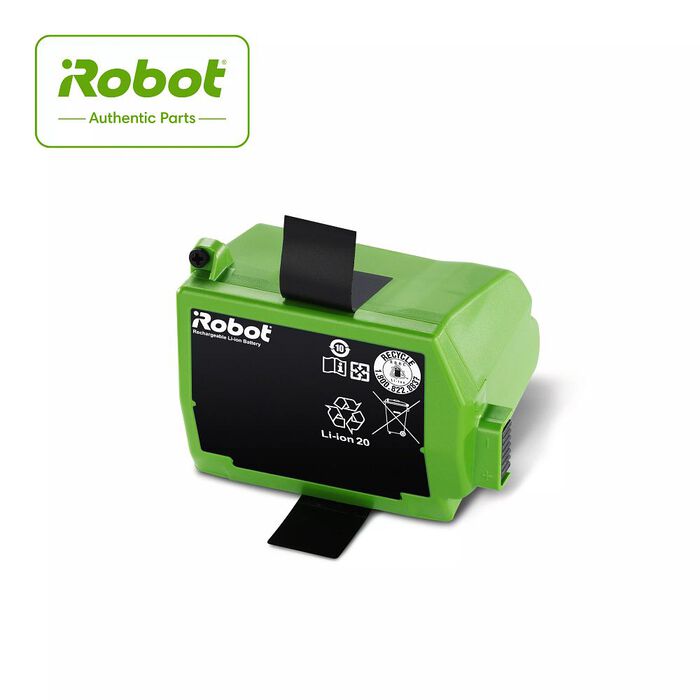
What an iRobot Roomba s9+ Robot Vacuum error message means
An iRobot Roomba s9+ Robot Vacuum error message is the machine’s way of telling you something is preventing normal cleaning. It may be a simple issue like a brush jam, a dirty cliff sensor, a bad battery connection, or a navigation problem.
In my experience, most alerts are not serious. They are more like a dashboard warning light than a broken-motor alarm. The key is to read the message correctly, then check the most likely cause first.
Common signs include:
- The vacuum stops and speaks an error code
- The app shows a cleaning or charging problem
- The dock light behavior changes
- The robot spins, pauses, or keeps retrying the same spot
The iRobot Roomba s9+ Robot Vacuum error message is helpful because it narrows the problem down. That saves time, but only if you know what to look for.
Most common iRobot Roomba s9+ Robot Vacuum error message causes
The iRobot Roomba s9+ Robot Vacuum error message often comes from a few repeat issues. These are the ones I see most often during troubleshooting.
Brush and roller blockage
Hair, string, carpet thread, and pet fur can wrap around the dual rubber brushes. When that happens, the robot may stop and show an error because the brushes cannot turn freely.
What to do:
- Remove both brushes
- Cut away wrapped hair
- Clean the brush caps and bearings
- Reinstall the brushes firmly
Dirty sensors
The s9+ uses sensors to see walls, stairs, and dirt. Dust on these sensors can confuse the robot and trigger an iRobot Roomba s9+ Robot Vacuum error message.
What to do:
- Wipe the bottom sensors with a dry microfiber cloth
- Clean the front bumper area
- Check the charging contacts too
Bin or filter problems
A full bin or clogged filter can make the robot act weak or stop early. I once saw this happen after a heavy pet hair cleanup, and the robot looked “broken” when it was really just suffocating on dust.
What to do:
- Empty the bin
- Clean or replace the filter
- Make sure the bin sits fully in place
Wheel or bumper obstruction
If a wheel cannot move or the bumper is stuck, the robot may think it hit an obstacle or is trapped. This can cause an iRobot Roomba s9+ Robot Vacuum error message during cleaning.
What to do:
- Lift the robot and inspect both wheels
- Press the bumper a few times to make sure it moves freely
- Remove debris like thread or small objects
### Charging dock or battery issues
Sometimes the robot cleans fine but fails to dock or charge. That can lead to a charging-related iRobot Roomba s9+ Robot Vacuum error message.
What to do:
- Clean the charging contacts on the robot and dock
- Reposition the dock on flat ground
- Check that the outlet works
- Let the robot charge for a while before retrying
Common iRobot Roomba s9+ error messages and what they usually mean
The exact wording can vary by app version or voice prompt, but the logic is usually the same. Here is a simple way to understand the most common alerts.
“Error 1” or movement-related problem
This often points to a stuck wheel, low battery, or an obstacle blocking movement. It can also mean the robot needs a reset after a hard stop.
Fix it by:
- Moving the robot to a clear floor
- Cleaning the wheels
- Restarting the robot after charging
“Error 2” or brush-related problem
This usually means the main brush assembly is jammed. Hair buildup is the top cause, especially in homes with pets.
Fix it by:
- Removing debris from the brushes
- Checking the brush caps
- Cleaning the brush well inside the robot
“Error 10” or side wheel issue
This often suggests the wheel is stuck or cannot turn properly. A tiny piece of dirt can be enough to cause it.
Fix it by:
- Spinning the wheel by hand
- Removing lint or hair
- Checking for damage to the wheel axle
“Charging error” or dock issue
This means the robot is not making a stable connection with the Home Base or cannot charge correctly.
Fix it by:
- Cleaning contacts
- Moving the dock
- Checking power to the base
- Reseating the battery if needed
“Stuck” or “entangled” message
This is one of the most common iRobot Roomba s9+ Robot Vacuum error message alerts. It usually means the robot hit something, got caught on a rug fringe, or tangled with cords.
Fix it by:
- Clearing cords and shoelaces
- Lifting loose rugs
- Checking for long hair near the brushes and wheels

Step-by-step fixes for the iRobot Roomba s9+ Robot Vacuum error message
When the iRobot Roomba s9+ Robot Vacuum error message appears, I suggest using a simple order. Start with the easiest checks first. That keeps you from missing the obvious.
1. Power the robot off and restart it
A restart can clear temporary sensor or software glitches. This is worth trying before you take anything apart.
Steps:
- Press and hold the Clean button
- Wait for the robot to power off
- Turn it back on and start a new cleaning cycle
2. Clean the brushes and wheels
This is the biggest fix in real life. Most s9+ issues I have seen were linked to hair, dust, or small debris.
Steps:
- Remove the main brushes
- Clean the brush chamber
- Inspect both wheels for blockage
- Wipe all moving parts dry
3. Empty the bin and clean the filter
A packed bin can stress airflow and cause odd behavior. The filter can also clog faster than people expect, especially in pet homes.
Steps:
- Empty the bin into a trash can
- Tap out dust from the filter
- Replace the filter if it looks gray and blocked
4. Clean sensors and charging contacts
Sensors help the robot move safely and dock correctly. Dirty contacts can make the robot think it is not charging.
Steps:
- Use a soft dry cloth
- Wipe the front cliff sensors
- Clean the underside sensors
- Wipe the dock and robot contacts
5. Check your room setup
The robot can confuse certain home layouts. Dark rugs, loose wires, and tight spaces can all trigger an iRobot Roomba s9+ Robot Vacuum error message.
Steps:
- Move cables off the floor
- Lift fringe rugs
- Make sure the robot has enough space around the dock
- Reduce clutter near stairs and thresholds
6. Update the app and firmware
Software updates can fix navigation bugs and charging glitches. I always recommend checking this before assuming a hardware failure.
Steps:
- Open the iRobot Home app
- Check for updates
- Let the robot finish any pending firmware update
- Restart the robot after the update
7. Reset the robot if the problem keeps coming back
A reset is not the first step, but it can help when repeated alerts keep showing up. Use this only after the basic cleaning and restart steps.
Before resetting:
- Note the exact error message
- Try another cleaning cycle
- Make sure the dock and battery are working normally

How to prevent future iRobot Roomba s9+ Robot Vacuum error message alerts
Prevention is the easiest repair. A little routine care saves a lot of frustration later.
Clean it on a schedule
Set a simple routine:
- Empty the bin after each messy job
- Clean the brushes weekly
- Wipe sensors every few weeks
- Replace the filter when airflow drops
Keep floors robot-friendly
Your robot works best when the floor is ready for it. Think of it like giving the vacuum a clear road instead of a maze.
Helpful habits:
- Pick up charging cords
- Move socks and toys
- Secure loose rug edges
- Keep pet bowls out of the path
Watch for early warning signs
Small noises often show up before a full iRobot Roomba s9+ Robot Vacuum error message. If you hear rubbing, clicking, or rough wheel movement, inspect the robot right away.
Use the dock correctly
Place the Home Base on a flat surface with enough open space. Bad dock placement can create charging and docking issues that look like bigger problems.
When the iRobot Roomba s9+ Robot Vacuum error message may mean hardware trouble
Most issues are simple, but not all of them are. If the same iRobot Roomba s9+ Robot Vacuum error message keeps coming back after cleaning and restarting, the problem may be deeper.
Possible hardware concerns:
- Worn-out battery
- Damaged wheel motor
- Faulty brush motor
- Broken bumper sensor
- Charging contact damage
If the robot is still under warranty, this is the point where support or repair may make more sense than repeated DIY fixes. I have seen users waste hours on a unit that clearly needed a part replacement, so it is smart to know when to stop troubleshooting.
Practical tips from real-world use
After using and testing robot vacuums in busy homes, a few lessons always hold true with the iRobot Roomba s9+ Robot Vacuum error message.
What works best:
- Clean the robot before it starts acting up
- Check brushes first, not last
- Keep the dock in a stable, open spot
- Treat the app as a helpful clue, not the whole answer
Mistakes to avoid:
- Ignoring small hair buildup
- Resetting the robot before checking for jams
- Using the vacuum on cluttered floors
- Assuming every error means a broken motor
The s9+ is smart, but it is still a machine that needs a little care. Think of it like a car: it can do a lot, but it still needs clean parts and clear paths to run well.
Frequently Asked Questions of iRobot Roomba s9+ Robot Vacuum error message
Why does my iRobot Roomba s9+ keep stopping with an error message?
The most common reasons are brush jams, dirty sensors, or wheel blockages. Start with a full cleaning of the brushes, wheels, and contacts before assuming a bigger fault.
How do I clear an iRobot Roomba s9+ Robot Vacuum error message?
Restart the robot, remove debris from the brushes and wheels, and clean the sensors and charging contacts. If the message returns, check for firmware updates or a docking issue.
Can a dirty filter cause an iRobot Roomba s9+ Robot Vacuum error message?
Yes, a clogged filter can reduce airflow and make the robot act weak or stop early. It may not always trigger a direct error, but it can contribute to cleaning problems and shutdowns.
Why does my Roomba s9+ fail to dock or charge?
Dirty contacts, poor dock placement, or power problems are the usual causes. Clean the contacts and make sure the Home Base sits on a flat, open surface.
When should I contact support about an iRobot Roomba s9+ Robot Vacuum error message?
Contact support if the same error keeps coming back after basic cleaning, restarting, and updating. That may point to a worn battery, a sensor failure, or another hardware issue.
Conclusion
The iRobot Roomba s9+ Robot Vacuum error message is usually a sign of a simple fix, not a major breakdown. In most cases, the real culprit is a jammed brush, dirty sensor, full bin, or charging issue that you can solve in minutes.
If you stay ahead of maintenance and keep the floor clear, the s9+ can run smoothly and save you a lot of work. Try the step-by-step fixes first, watch for repeat patterns, and don’t be afraid to ask for support if the same alert keeps returning.

