

Most Roomba s9 problems come from clogged parts, dirty sensors, weak power, or app and Wi-Fi glitches.
The iRobot Roomba s9 Robot Vacuum is one of the smartest cleaners you can own, but like any high-tech tool, it can run into issues that feel confusing at first. I’ve seen this happen often in real homes: a vacuum that was cleaning beautifully one day starts missing spots, failing to charge, or refusing to connect to the app the next. This guide on iRobot Roomba s9 Robot Vacuum troubleshooting walks you through the most common problems, what usually causes them, and how to fix them step by step so you can get your robot back on track fast.

36% off Today’s Exclusive Deals
Limited-time Exclusive Deals. Check current discount on Amazon.
Check Price on Amazon As an Amazon Associate I earn from qualifying purchases.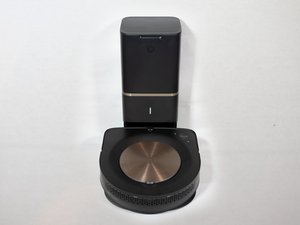
Common iRobot Roomba s9 Robot Vacuum Troubleshooting Problems
The most common iRobot Roomba s9 Robot Vacuum troubleshooting issues usually fall into a few simple buckets: power, navigation, suction, brushes, sensors, and connectivity. The good news is that most of these problems are fixable at home without special tools.
Here are the issues people run into most often:
- Roomba s9 will not turn on
- Roomba s9 is not charging
- Roomba s9 keeps getting stuck
- Roomba s9 is not picking up debris well
- Roomba s9 brush not spinning
- Roomba s9 docking or home base problems
- Roomba s9 not connecting to Wi-Fi
- Roomba s9 app not working properly
- Roomba s9 keeps stopping mid-clean
When I first started helping people with robot vacuums, I noticed a pattern. Most “big” problems turned out to be small maintenance issues, like a hair-wrapped brush or dirty charging contacts. That is why steady upkeep matters as much as the fix itself.

iRobot Roomba s9 Robot Vacuum Troubleshooting by Symptom
Roomba s9 will not turn on
If your Roomba s9 seems dead, start with the battery and charging path. A fully drained battery, dirty charging contacts, or a loose connection can make the robot look broken when it is not.
Try this:
- Place the robot on the Home Base.
- Make sure the base has power.
- Clean the charging contacts on both the robot and base.
- Leave it charging for at least 2 hours.
- Try a different outlet if the base does not light up.
If the unit still does not respond, the battery may need to be replaced. In my experience, long periods without charging can make battery recovery slower, so patience helps here.
Roomba s9 is not charging
Charging issues are one of the top iRobot Roomba s9 Robot Vacuum troubleshooting complaints. The robot may dock but still not charge if the contacts are dirty, the base is misaligned, or the battery is aging.
Check these points:
- Clean the metal charging pads with a dry microfiber cloth
- Confirm the Home Base is on a hard, level surface
- Make sure the robot is seated all the way on the dock
- Look for debris under the robot that may prevent contact
- Inspect the charging cord for damage
A simple rule I follow: if the base light works but the robot still won’t charge, assume contact or battery trouble before anything else.
Roomba s9 keeps getting stuck
If the s9 gets stuck often, the problem is usually in the home environment, not the robot itself. Loose cords, thick rug edges, clutter, and low furniture can confuse the navigation system.
To reduce getting stuck:
- Pick up cords, socks, and small toys
- Move lightweight rugs or secure the corners
- Clear extra clutter around chairs and tables
- Check for black mats or shiny floors that may confuse sensors
- Use keep-out zones in the app if needed
I’ve seen this happen in busy family homes all the time. A robot vacuum is a bit like a careful driver in a messy parking lot: if the path is crowded, even a good system will struggle.
Roomba s9 is not picking up dirt well
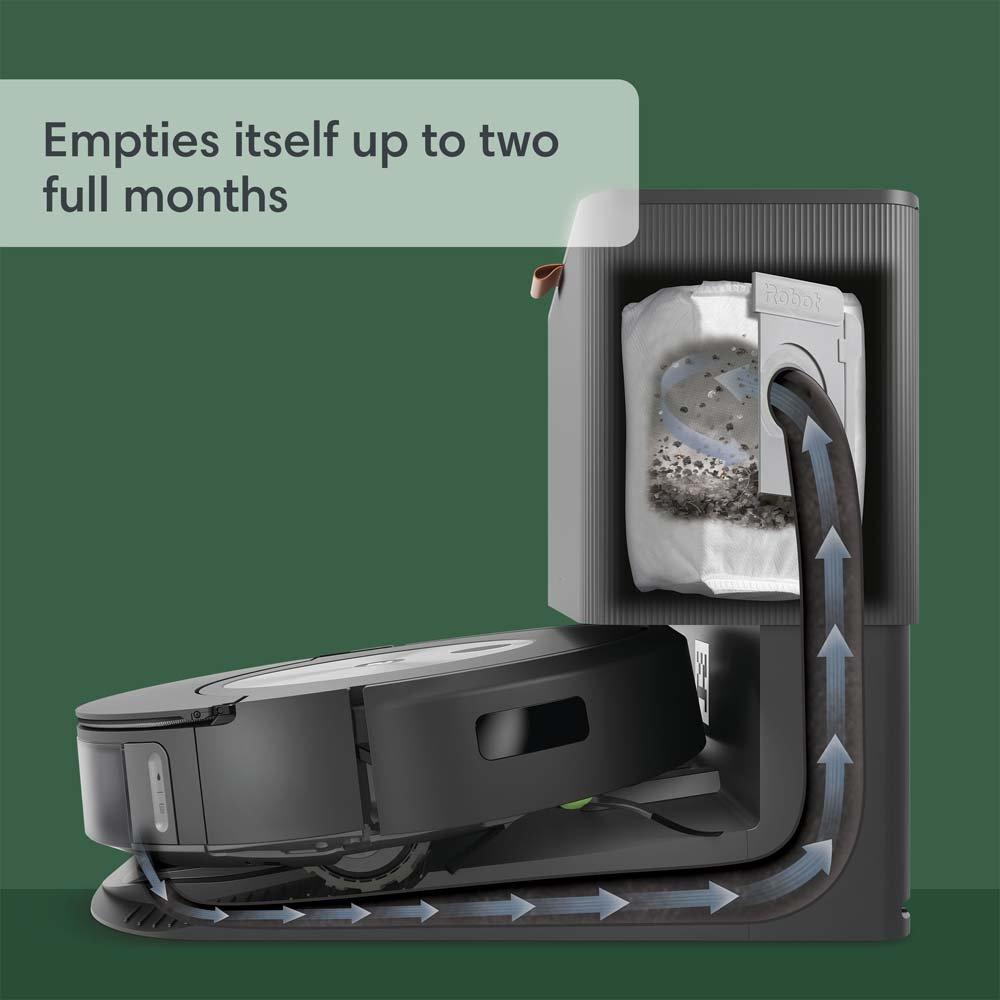
Weak cleaning performance is often caused by a full bin, dirty filter, or clogged suction path. The Roomba s9 is designed for strong suction, but airflow drops fast when dust builds up.
Fix it by doing the following:
- Empty the bin
- Clean or replace the filter
- Remove hair from the brushes
- Check the suction port for blockages
- Make sure the brush rollers spin freely
If the vacuum still misses debris, look at your floor type. Fine dust on dark hardwood, pet hair on carpet, and crumbs near edges may need different cleaning passes or higher suction settings.
Roomba s9 brush not spinning
Brush problems are usually easy to spot. The robot may move normally but leave debris behind because the rollers are jammed or worn.
Common causes include:
- Hair wrapped around the brush
- Debris in the brush housing
- A worn brush roller
- A damaged end cap
- A dirty brush bearing
Clean both rollers carefully and remove all debris from the ends. I always tell people to check the end caps too, because a tiny bit of hair there can stop the brush from turning smoothly.
Roomba s9 docking problems
If your Roomba s9 misses the dock or keeps circling around it, the issue is often placement or signal interference. The Home Base should have enough open space to guide the robot back correctly.
Use these tips:
- Place the base on a flat floor
- Leave clear space around the dock
- Keep the base away from stairs and clutter
- Clean the front of the robot and the dock
- Restart both the robot and app if docking behavior changes suddenly
The first time I saw a docking issue, the base was tucked behind a chair. Once we moved it into open space, the problem disappeared. Simple fixes like that are more common than people think.
Roomba s9 not connecting to Wi-Fi
Wi-Fi problems are one of the most frustrating parts of iRobot Roomba s9 Robot Vacuum troubleshooting. Most connection errors come from router settings, weak signal, or app setup problems rather than a broken vacuum.
Try these steps:
- Restart your router.
- Make sure your phone is on the same Wi-Fi network during setup.
- Use a 2.4 GHz network if your router separates bands.
- Move the robot closer to the router during setup.
- Update the iRobot Home app.
If you have a mesh network or advanced router settings, check whether the device is being blocked by security rules. The s9 usually works best when the network is stable and simple.
Roomba s9 app not working correctly
If the app is not showing the robot status, not sending cleaning commands, or freezing, the issue may be with the app cache or account sync. This can happen after updates or phone changes.
Here is what to do:
- Force close and reopen the app
- Log out and log back in
- Check for app updates
- Restart your phone
- Re-pair the robot if the app still won’t sync
A good troubleshooting habit is to separate robot problems from phone problems. Sometimes the vacuum is fine, and the app is the real troublemaker.
Roomba s9 keeps stopping mid-clean
When the Roomba s9 stops in the middle of a job, it may be overheating, blocked, or low on battery. It can also pause if the bin, filter, or brush area needs cleaning.
Check for:
- A full dustbin
- Hair or thread in the rollers
- Weak battery life
- Dirt on sensors
- Error messages in the app
If this happens often, look at the cleaning history. Repeated stops in the same area can point to a rug, cable, or threshold that needs attention.
Step-by-Step iRobot Roomba s9 Robot Vacuum Troubleshooting Routine
When I troubleshoot a Roomba s9, I like to use the same order every time. It saves time and prevents random guesswork.
1. Power cycle the robot
Restarting the vacuum can clear small software hiccups.
- Take the robot off the dock
- Hold the Clean button until it restarts
- Let it boot fully
- Try another cleaning cycle
2. Clean the main parts
Focus on the parts that affect airflow and movement.
- Empty the bin
- Clean the filter
- Remove hair from rollers
- Wipe the sensors
- Check the wheels for debris
3. Inspect the dock and charging path
A weak charging setup can create false problems.
- Clean charging contacts
- Reposition the Home Base
- Make sure the power adapter is secure
- Test another wall outlet
4. Check app and Wi-Fi settings
Connectivity issues can look like hardware failures.
- Restart the app
- Confirm Wi-Fi strength
- Update firmware if available
- Reconnect the robot if needed
5. Review the environment
The room can be the hidden cause.
- Remove loose cords
- Lift small objects
- Move fragile items
- Secure rugs and mats
- Reduce clutter near the dock
This routine works well because it starts with the simplest, most likely causes first. That is usually where the real fix lives.

Maintenance Tips to Prevent Future Problems
Good maintenance is the best long-term iRobot Roomba s9 Robot Vacuum troubleshooting strategy. A clean robot rarely behaves like a confused one.
Use this simple care schedule:
- After each run: empty the bin if full
- Every few runs: clean the filter and brush area
- Weekly: wipe sensors and charging contacts
- Monthly: check wheels, rollers, and edge brushes
- As needed: update the app and firmware
A small habit can save a big headache. I’ve seen Roombas last much longer when owners treat them like appliances that need care, not just gadgets that should “handle everything.”
When to Replace Parts or Contact Support
Some problems point to wear and tear, not just cleaning. If you have done the basic iRobot Roomba s9 Robot Vacuum troubleshooting steps and the issue keeps coming back, a part may need replacement.
Common parts that wear out include:
- Battery
- Filters
- Brush rollers
- Side brush
- Wheels
- Dock power adapter
You should contact support if:
- The robot shows repeated error codes
- The battery will not hold charge
- The motor sounds weak or unusual
- The robot stops even after cleaning and resets
- The app cannot detect the device after multiple attempts
It is better to replace a worn part early than to keep forcing a struggling robot through the same failure. That often saves money in the long run.
Helpful Best Practices for Better Roomba s9 Performance
To get the most from the Roomba s9, think of it like a helper that works best in a tidy room with clear instructions. The cleaner the setup, the smoother the result.
Best practices include:
- Run it on a regular schedule
- Keep floors free of clutter
- Use no-go zones where needed
- Clean the robot before performance drops
- Store the Home Base in a clear, open spot
These small steps make a big difference in real homes, especially if you have pets, kids, or lots of floor traffic. Consistency is what keeps the machine reliable.
Frequently Asked Questions of iRobot Roomba s9 Robot Vacuum troubleshooting
Why is my Roomba s9 not charging even though it is on the dock?
This usually means the charging contacts are dirty or the robot is not seated correctly. Clean both sets of contacts and make sure the dock is on a flat surface.
Why does my Roomba s9 keep saying it is stuck when nothing is there?
The robot may be confused by floor transitions, tangled brushes, or poor sensor visibility. Clean the sensors and check for small debris caught under the vacuum.
How do I reset my Roomba s9?
A restart can often help with small glitches. Hold the Clean button until the robot reboots, then test it again.
Why is my Roomba s9 not connecting to the app?
This is often a Wi-Fi or phone setup issue. Check that your network is 2.4 GHz if needed, restart the router, and update the iRobot app.
Why is my Roomba s9 leaving dirt behind?
Most of the time, the bin is full, the filter is clogged, or the rollers need cleaning. If the problem continues, check whether the suction path is blocked or the brush is worn.
Conclusion
The iRobot Roomba s9 Robot Vacuum troubleshooting process is usually simpler than it first appears. Most problems come down to cleaning, charging, navigation, or Wi-Fi setup, and many can be fixed in just a few minutes with the right steps.
If you keep your robot clean, check the dock regularly, and solve small issues early, the s9 can stay a strong and reliable helper in your home. Try the steps in this guide, watch for patterns, and make routine maintenance part of your cleaning habit. If you found this helpful, explore more smart home care tips or leave a comment with the problem you are facing.

