

Changing phones can feel overwhelming, especially when you have important photos, contacts, and apps on your old device. Many people worry about losing data or making mistakes. But with the right steps, transferring data to a new phone can be smooth and safe.
This guide will help you move your information, whether you’re switching between Android, iPhone, or crossing from one system to another. You’ll learn simple methods, common mistakes to avoid, and practical tips for keeping your data secure. By the end, you’ll feel confident about setting up your new phone without stress.

36% off Today’s Exclusive Deals
Limited-time Exclusive Deals. Check current discount on Amazon.
Check Price on Amazon As an Amazon Associate I earn from qualifying purchases.Understanding Data Transfer Basics
Data transfer means moving information from your old phone to your new one. This includes:
- Contacts
- Photos & videos
- Messages
- Apps & app data
- Documents
- Music
- Settings
The best method depends on your phones’ operating systems. Transferring from Android to Android or iPhone to iPhone is usually easier because both devices use similar software. If you switch from Android to iPhone or vice versa, extra steps are needed.
A good data transfer starts with preparation. Check your old phone for:
- Enough battery life
- Updated software
- Space on your new phone
Most phones now offer built-in transfer tools, but you can also use cloud services or third-party apps. Choosing the right method matters. For example, using Wi-Fi is faster than Bluetooth for large files.
Preparing For Your Data Transfer
Before you start, make sure your phones are ready. This step prevents issues and saves time later.
Backup Your Old Phone
Backing up means saving your data in a safe place, like the cloud or a computer. If something goes wrong during transfer, you won’t lose your information.
- Android: Use Google Backup. Go to Settings > Google > Backup, then turn on backup for your data.
- IPhone: Use iCloud Backup. Go to Settings > [your name] > iCloud > iCloud Backup, then tap “Back Up Now.”
If you have sensitive files, consider backing up to a computer using iTunes (for iPhone) or Smart Switch (for Samsung).
Organize Your Data
Delete unwanted files, apps, or photos. This reduces transfer time and frees up space on your new phone. It’s also a good chance to review what’s important.
Check Storage Space
Make sure your new phone has enough storage. Transferring too much data to a phone with limited space causes problems.
Here’s a quick comparison of storage needs:
| Data Type | Average Size | Minimum Space Needed |
|---|---|---|
| Photos (1000) | 2 GB | 2 GB |
| Videos (1 hour HD) | 3 GB | 3 GB |
| Apps (20) | 1 GB | 1 GB |
| Music (100 songs) | 500 MB | 500 MB |
If your new phone has less space than your old phone, consider deleting or moving some files to cloud storage.
Transferring Data Between Android Phones
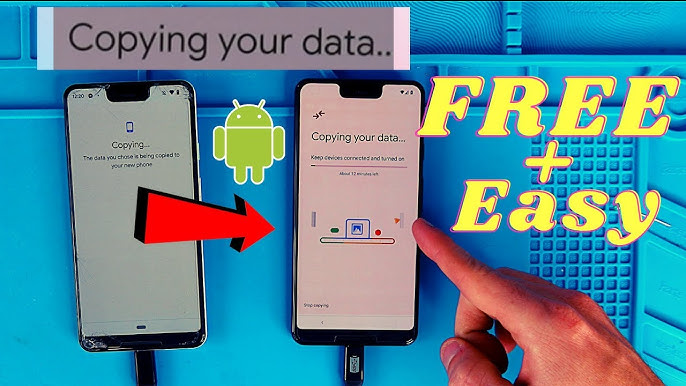
Moving data between Android devices is straightforward thanks to Google’s built-in tools.
Using Google Backup And Restore
- Backup your old phone: Go to Settings > Google > Backup.
- Turn on backup: Make sure all options (contacts, photos, apps) are checked.
- Start your new phone: During setup, connect to Wi-Fi and log into your Google account.
- Restore data: Choose “Restore from backup.” Select your old phone’s backup.
Most data transfers automatically, including contacts, calendar, photos, and apps. Some app settings may not transfer.
Using Samsung Smart Switch
If you have a Samsung phone, Smart Switch is a fast way to transfer data.
- Install Smart Switch on both phones.
- Connect phones: Use a cable or Wi-Fi.
- Select data types: Choose what you want to transfer—contacts, messages, photos, apps.
- Start transfer: Wait until all data moves.
Smart Switch works for Android-to-Android and even Android-to-iPhone transfers, but full app data may not transfer between systems.
Transfer With A Cable
Using a USB cable is reliable and fast.
- Connect both phones with a USB cable.
- Follow on-screen instructions to transfer data.
- Choose what to move: Photos, contacts, apps.
Cable transfer is better for large files, like videos.
Transferring Data Between Iphones
Moving data between iPhones is simple with Apple’s tools.
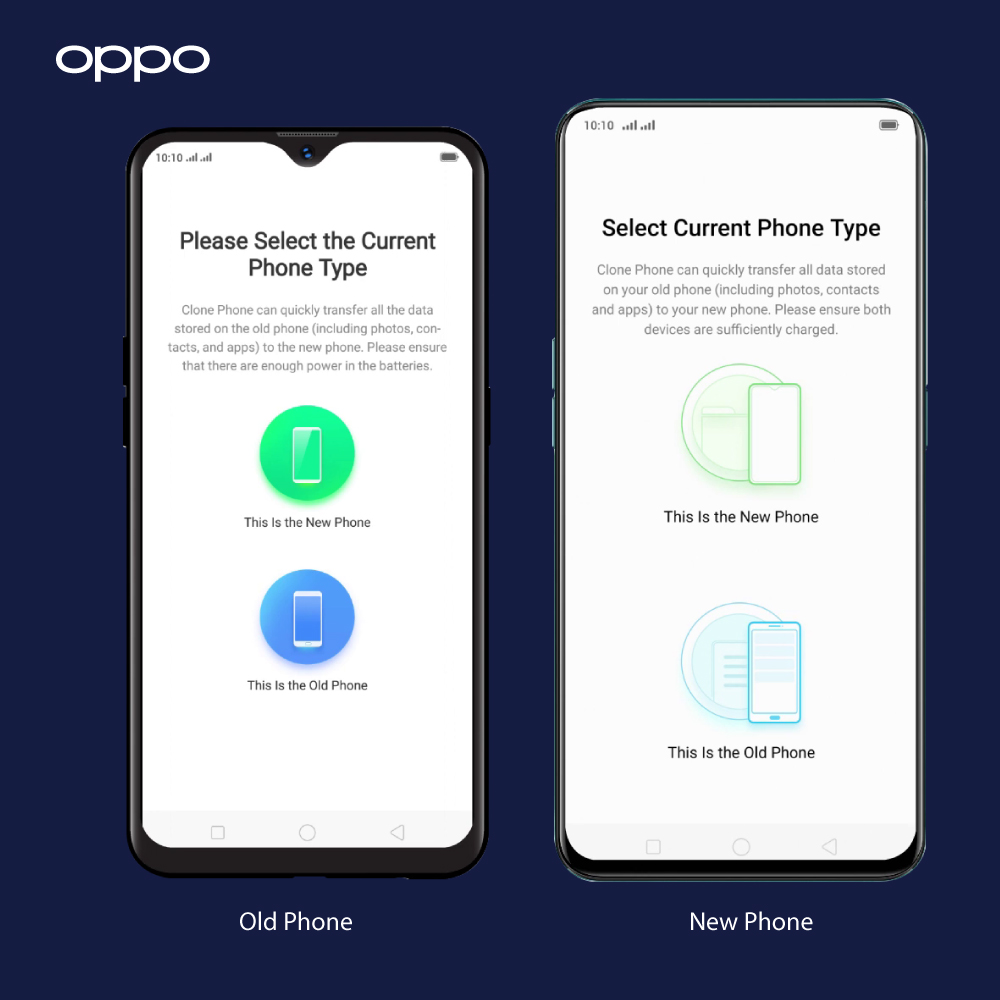
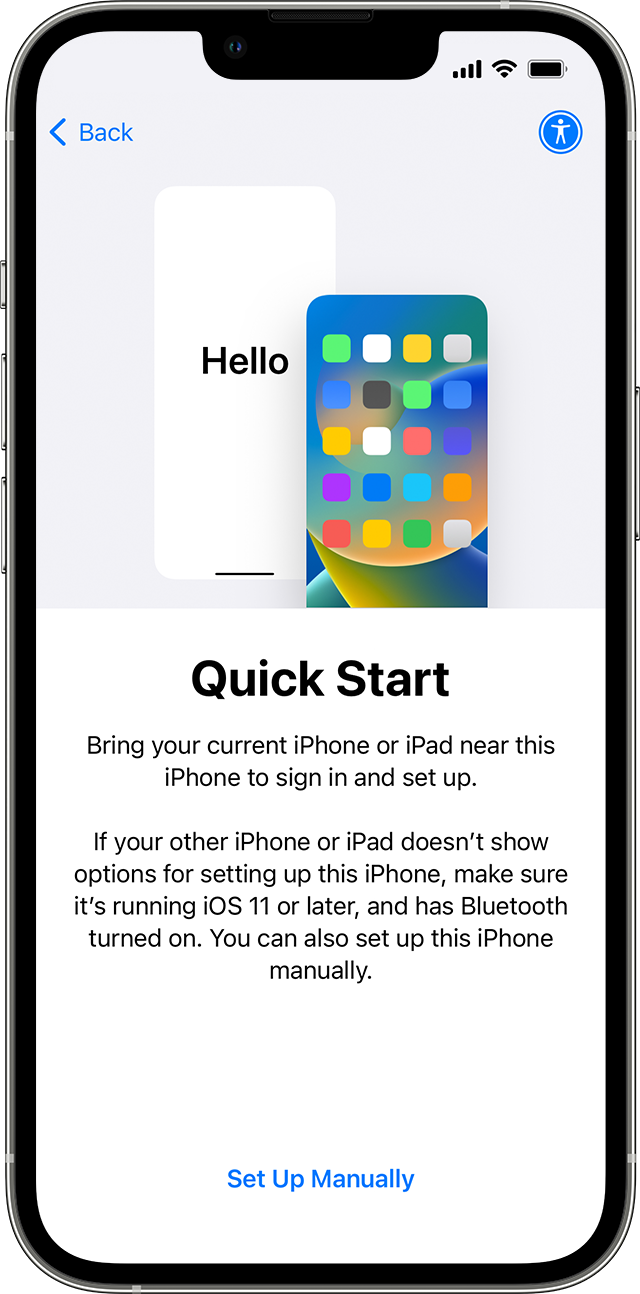
Using Quick Start
- Turn on your new iPhone: Place it near your old iPhone.
- Quick Start appears: Follow on-screen instructions.
- Connect phones: You may need to scan a code or use Bluetooth.
- Transfer data: Choose “Transfer from iPhone.” Wait until the process finishes.
Quick Start copies almost everything, including settings and app data. It’s faster if you use a cable.
Using Icloud Backup
- Backup your old iPhone: Go to Settings > [your name] > iCloud > iCloud Backup > “Back Up Now.”
- Start your new iPhone: Choose “Restore from iCloud Backup” during setup.
- Select the backup: Pick the latest one.
ICloud backup is convenient, but you need enough space in your iCloud account. Free accounts get 5 GB; you may need to buy more.
Transfer With Itunes
- Connect your old iPhone to a computer and open iTunes.
- Create a backup: Click “Back Up Now.”
- Connect your new iPhone: Restore from the backup.
This method is good if you have poor Wi-Fi or want extra security.
Transferring Data Between Android And Iphone
Switching between Android and iPhone takes extra steps because the systems are different.
Using Move To Ios
Apple’s Move to iOS app helps transfer from Android to iPhone.
- Install Move to iOS on your Android phone.
- Start your new iPhone: During setup, choose “Move Data from Android.”
- Open Move to iOS: Enter the code shown on your iPhone.
- Select data: Choose contacts, messages, photos, videos, and Google account.
- Transfer: Wait for the process to finish.
Some app data and apps won’t transfer. You’ll need to download iOS versions of your apps.
Using Google Drive
You can transfer contacts, calendar, and photos from Android to iPhone using Google Drive.
- Backup your Android data to Google Drive.
- On your iPhone, install Google Drive and log in.
- Access your files: Contacts and calendar sync automatically if you add your Google account.
Media files (photos, videos) remain in Google Drive, not directly in your iPhone’s Photos app. You can move them manually.
Manual Transfer
If you prefer, you can move files using a computer.
- Connect your Android phone to your computer.
- Copy files (photos, music, documents) to your computer.
- Connect your iPhone: Use iTunes to sync files.
This method is slower but works for files that don’t transfer through apps.
Transferring Data Between Iphone And Android
Moving from iPhone to Android also needs special tools.
Using Samsung Smart Switch
Samsung’s Smart Switch can pull data from an iPhone.
- Install Smart Switch on your Android phone.
- Connect your iPhone with a cable or use iCloud backup.
- Choose data: Contacts, photos, calendar, music.
- Transfer: Follow instructions.
Not all app data or apps will transfer. You’ll need Android versions.
Using Google Account
Sync your contacts, calendar, and emails to Google.
- On your iPhone: Add your Google account.
- Sync contacts and calendar: Go to Settings > Accounts > Google.
- On your Android phone: Log in to the same Google account.
Files like photos must be moved manually or through Google Photos.
Manual Transfer With Computer
- Connect your iPhone to your computer.
- Export contacts: Use iCloud.com to download contacts as a .vcf file.
- Import to Android: Use the Contacts app or Google Contacts.
Photos and music can be copied using iTunes and then transferred to your Android phone.
Transferring Data Using Cloud Services
Cloud services like Google Drive, iCloud, Dropbox, and OneDrive are useful for storing and moving files.
- Google Drive: Works on both Android and iPhone. Good for documents, photos, and videos.
- ICloud: Best for iPhone users.
- Dropbox/OneDrive: Good for sharing files across different systems.
To use cloud services:
- Upload files to the cloud from your old phone.
- Download or sync files on your new phone.
Cloud transfer is ideal for large files or when switching between systems. But remember, free accounts have storage limits.
| Cloud Service | Free Storage | Platforms Supported |
|---|---|---|
| Google Drive | 15 GB | Android, iOS, Windows, Mac |
| iCloud | 5 GB | iOS, Mac, Windows |
| Dropbox | 2 GB | Android, iOS, Windows, Mac |
| OneDrive | 5 GB | Android, iOS, Windows, Mac |
Transferring Apps And App Data
Apps are a big part of your phone experience. However, not all apps transfer perfectly.
- Android to Android: Most apps transfer, but some app data may not.
- IPhone to iPhone: Almost all apps and data transfer.
- Android to iPhone: You must download new versions. App data usually does not transfer.
- IPhone to Android: Same as above.
Some apps have built-in backup tools. For example, WhatsApp lets you backup chats to Google Drive (Android) or iCloud (iPhone). To restore, use the same account on your new phone.
Transferring Contacts, Messages, And Calendars
Contacts, messages, and calendar events are usually easy to transfer.
- Google Account: Sync contacts and calendar across Android and iPhone.
- ICloud: Sync contacts and calendar across iPhones and Macs.
- SIM Card: If your contacts are saved to your SIM, move the card to your new phone. But not all phones support this.
For messages, use built-in transfer tools (Smart Switch, Move to iOS) or third-party apps like SMS Backup & Restore.
Transferring Photos, Videos, And Music
These files often take up the most space.
Using Google Photos
Google Photos is free and works on both Android and iPhone. You can upload your photos and videos, then access them on your new phone.
- Free unlimited storage (for compressed photos) ended in June 2021. Now, photos count toward your Google Drive storage.
Using Icloud Photos
For iPhones, iCloud Photos syncs your pictures across devices. Make sure it’s enabled in Settings > Photos > iCloud Photos.
Manual Transfer
Connect your phone to a computer and copy files directly. This is useful for large videos or music collections.
Transferring Documents And Files
Documents like PDFs, Word files, or spreadsheets can be moved using cloud services or manually.
- Google Drive, Dropbox, OneDrive: Upload on your old phone, download on your new one.
- Manual transfer: Connect to a computer, copy files.
For business users, secure transfer is important. Make sure files are encrypted if they contain sensitive information.
Transferring Settings And Customizations
Settings like Wi-Fi passwords, wallpaper, and home screen layout may not transfer between different systems. On Android or iPhone, built-in tools can copy most settings. For cross-platform moves, you’ll need to set up manually.
Some settings, like accessibility features or notification preferences, must be adjusted on your new phone.
Common Mistakes To Avoid
Even with good tools, mistakes can happen. Here are errors to watch for:
- Not backing up before transfer: Always backup your old phone.
- Low battery: Charge both phones fully.
- Insufficient storage: Check space on your new phone.
- Skipping app re-downloads: Some apps need to be downloaded again.
- Ignoring privacy settings: Review permissions on your new phone.
- Forgetting to sign out: Remove accounts from your old phone before selling or recycling.
- Missing important files: Double-check for files in hidden folders or apps.
Many beginners forget to unlink their old device from accounts like Google or Apple. This can cause security problems if you sell or give away your old phone.
Data Security During Transfer
Security is important. When transferring data:
- Use official tools (Smart Switch, Move to iOS, Google Backup).
- Avoid public Wi-Fi for cloud transfers.
- Make sure your new phone is updated.
- Delete personal data from your old phone before recycling.
- Consider using two-factor authentication for accounts.
If you use third-party apps, research their reputation first. Some may collect your data without permission.
Practical Tips For A Smooth Transfer
- Start transfer early in the day. It can take hours if you have lots of data.
- Keep both phones close and connected to Wi-Fi.
- Use a cable for faster, safer transfer.
- After transfer, check your new phone for missing files.
- Don’t rush. It’s better to move slowly and double-check.
- If you change phone numbers, update your contacts and messaging apps.
- For work phones, check with your IT department about secure transfer.
Many people overlook their two-factor authentication settings. Make sure to update your codes and backup methods on your new phone.
Advanced Data Transfer: Using Third-party Apps
Sometimes, built-in tools don’t cover everything. Third-party apps offer more features.
- MobileTrans: Transfers contacts, messages, photos, and even WhatsApp data between devices.
- Dr.Fone – Phone Transfer: Supports cross-platform moves, including music and app data.
- SMS Backup & Restore: Good for saving text messages.
Check reviews and privacy policies before using. Some apps require payment for extra features.
How Long Does Data Transfer Take?
Transfer time depends on the amount of data and method used.
| Method | Average Transfer Time | Best For |
|---|---|---|
| Wi-Fi Transfer | 15–45 minutes | Photos, contacts, settings |
| Cable Transfer | 10–30 minutes | Large files, full device |
| Cloud Transfer | Varies (depends on internet) | Documents, media |
| Manual Transfer | 30–60 minutes | Selected files |
If you have over 64 GB of data, allow extra time. Most users underestimate transfer time, especially with videos and apps.
Real-life Example: Transferring From Android To Iphone
Sarah had a Samsung phone with 10 GB of photos, 200 contacts, and 30 apps. She used “Move to iOS” and Google Drive to transfer her data. The process took about 50 minutes. She found that some app data didn’t transfer.
Sarah had to re-download her favorite apps from the App Store and set up her WhatsApp chat history again. Her contacts and photos moved smoothly, but she lost some music files stored in a third-party app.
This shows the importance of checking each file and app after transfer. If you rely on specific apps, look for backup options inside each app.
When To Ask For Help
If you run into problems:
- Visit your phone store. Staff often help with transfers.
- Check the official support pages for Google, Apple, or Samsung.
- Look for guides online, like this Apple Official Support.
Complex transfers, like moving business phones or encrypted files, may need expert help.
Frequently Asked Questions
How Do I Transfer Whatsapp Messages To A New Phone?
WhatsApp lets you backup chats to Google Drive (Android) or iCloud (iPhone). On your old phone, go to WhatsApp Settings > Chats > Chat Backup. On your new phone, install WhatsApp, verify your number, and restore chats from backup. For cross-platform moves (Android to iPhone), use WhatsApp’s “Move to iOS” feature.
Can I Transfer Data If My Old Phone Is Broken?
If your old phone turns on, you can use cloud backup or connect to a computer. If it’s completely dead, data recovery is difficult. Some repair shops offer data recovery services, but they can be expensive and don’t guarantee success.
What Happens To My Old Phone After Transfer?
After moving your data, reset your old phone to factory settings. This deletes your personal information. Remove SIM and memory cards. If you plan to sell or recycle, check for any linked accounts.
Do All Apps Transfer To My New Phone?
Most apps transfer within the same system (Android to Android or iPhone to iPhone). When switching systems, you must download new versions. App data may not transfer unless the app has a backup feature.
Is It Safe To Use Third-party Transfer Apps?
Many third-party apps are safe, but always check reviews and privacy policies. Official apps (Smart Switch, Move to iOS, Google Backup) are more secure. Avoid unknown apps, especially if they ask for sensitive data.
Moving to a new phone is a big step, but with careful planning, you can keep your information safe and organized. Always backup before you start, choose the best transfer method for your devices, and double-check your data afterward. If you need help, don’t hesitate to ask experts or use official support resources.
This way, you’ll enjoy your new phone with all your favorite memories and contacts ready to go.

