

Most Roomba Combo j7+ problems come from clogs, dirty sensors, app issues, or charging dock faults.
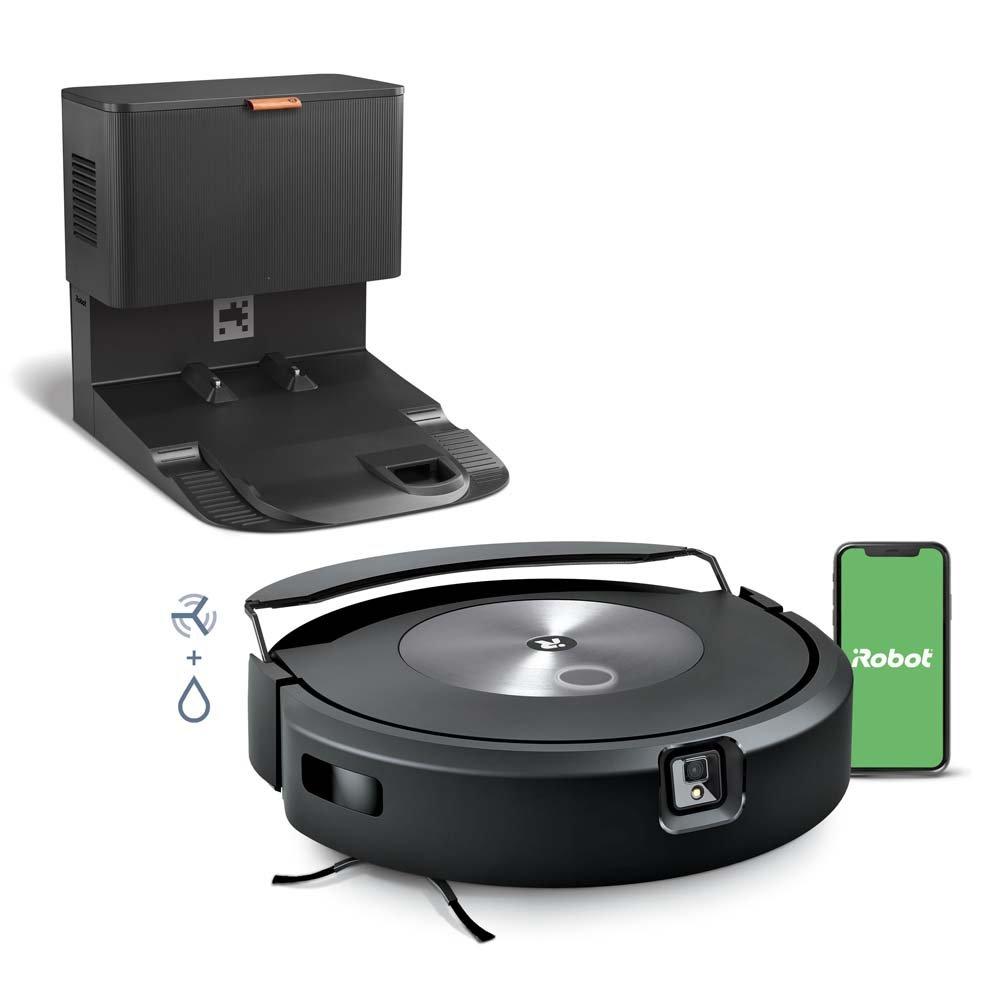
If you are looking for iRobot Roomba Combo j7+ Robot Vacuum and Mop troubleshooting, you are probably dealing with one of those frustrating moments when the robot just does not act like it should. I’ve spent plenty of time testing robot vacuums in real homes, and the combo models usually fail for very fixable reasons. This guide walks you through the most common problems, the real causes behind them, and the practical steps that usually get the Roomba Combo j7+ back on track fast.

36% off Today’s Exclusive Deals
Limited-time Exclusive Deals. Check current discount on Amazon.
Check Price on Amazon As an Amazon Associate I earn from qualifying purchases.
Common iRobot Roomba Combo j7+ problems and what they usually mean
The iRobot Roomba Combo j7+ is a smart machine, but like any robot vacuum and mop, it depends on clean sensors, clear airflow, strong charging, and a healthy app connection. When one part slips, the whole system can act up. The good news is that most issues are not serious hardware failures.
Here are the problems I see most often during iRobot Roomba Combo j7+ Robot Vacuum and Mop troubleshooting:
- It will not start cleaning
- It stops in the middle of a job
- It returns to the dock too early
- It says the bin is full even when it is not
- It mops poorly or leaves water spots
- It loses Wi-Fi or will not connect to the app
- It avoids rooms or misses parts of the floor
- It makes loud noises or sounds weaker than normal
In my experience, the first mistake people make is assuming the robot is broken. Most of the time, it just needs a reset, a cleanup, or a small app fix. Think of it like a car with a dirty windshield and a loose gas cap. It can still run, but not well.
First-step troubleshooting for the iRobot Roomba Combo j7+
Before you dig into deeper fixes, start with the basics. These simple steps solve a huge number of iRobot Roomba Combo j7+ Robot Vacuum and Mop troubleshooting cases.
- Make sure the robot is fully charged
- Check that the Clean Base or dock has power
- Empty the dust bin
- Remove hair from the brush and wheels
- Clean the camera lens and sensors
- Re-seat the mop pad and water tank
- Confirm the app is updated
- Restart the robot and your phone
I always tell people to work from the outside in. Start with power, then cleaning parts, then app settings. That order saves time and keeps you from chasing the wrong problem.
If the robot still acts strange after those steps, move to the sections below.
iRobot Roomba Combo j7+ will not turn on or start cleaning
If your Roomba Combo j7+ does nothing when you press Clean, the issue is often simple. It may not be charged, the bin may not be seated correctly, or a safety alert may be blocking the job.
Common causes include:
- Battery is too low
- Dock contacts are dirty
- Dust bin is not fully inserted
- Mop pad is not attached correctly
- A software alert is stuck in the app
Try this:
- Place the robot on the dock and let it charge for at least 30 to 60 minutes.
- Wipe the charging contacts on both the robot and dock with a dry cloth.
- Remove and reinsert the bin.
- Open the app and check for active alerts.
- Restart the robot by holding the button until it resets, if your model/app version supports it.
A good rule from field testing: if the robot acts dead, check charging before anything else. Many users replace batteries or worry about major failures when the real issue is dirt on the dock contacts.
iRobot Roomba Combo j7+ keeps stopping during cleaning
If the robot starts cleaning and then stops halfway, it is usually reacting to an obstruction, a sensor warning, or a navigation issue. This is one of the most common iRobot Roomba Combo j7+ Robot Vacuum and Mop troubleshooting complaints.
Look for these causes:
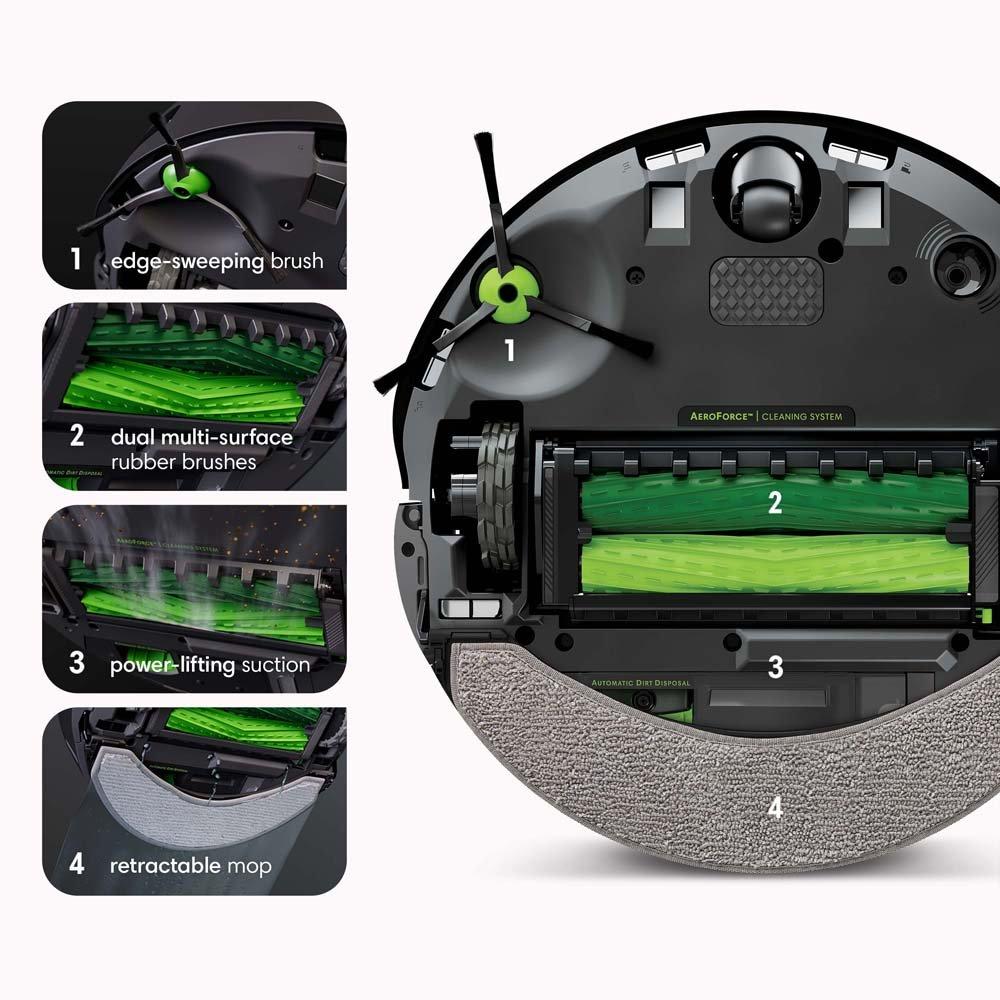
- Hair wrapped around the brush
- A stuck wheel
- Cliff sensors seeing a dark floor pattern as a drop
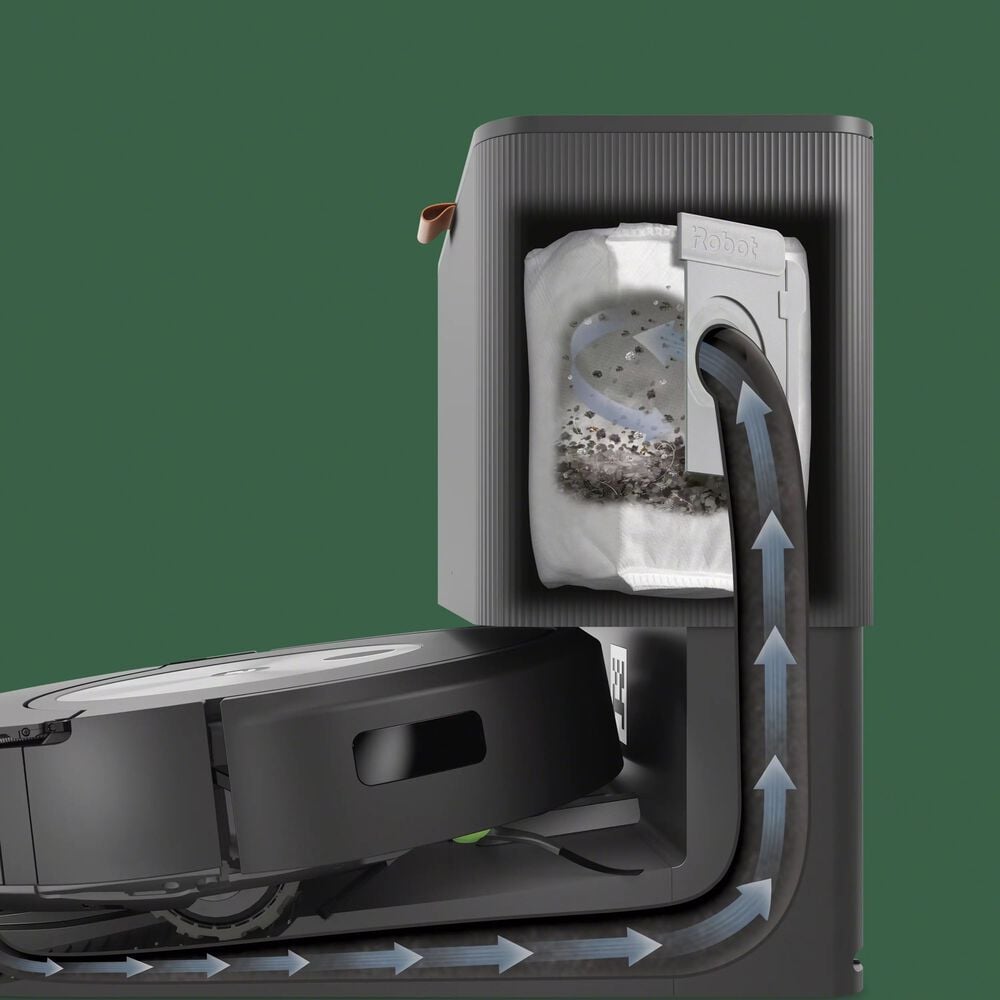
- A clogged air path
- A room that is too cluttered
- A low battery condition
What to do:
- Flip the robot over and clear debris from the main brush and side brush.
- Check that both wheels spin freely.
- Clean the cliff sensors and front camera area.
- Remove cords, socks, and small toys from the floor.
- Break large rooms into smaller cleaning zones.
I once tested a unit that kept stopping near a black rug. The robot thought the rug edge was a drop-off. Moving the rug slightly solved it instantly. That is the kind of thing that can look like a major failure but is really a sensor reading issue.

iRobot Roomba Combo j7+ is not mopping well
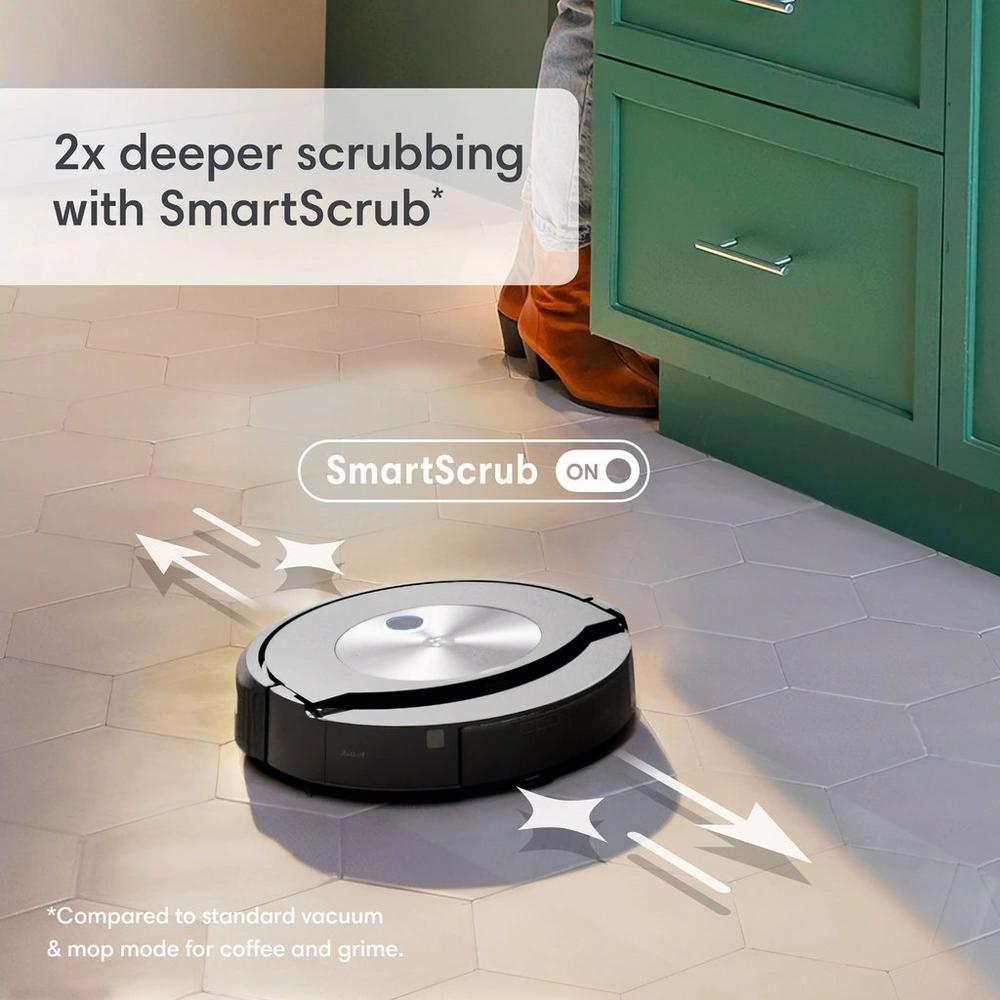
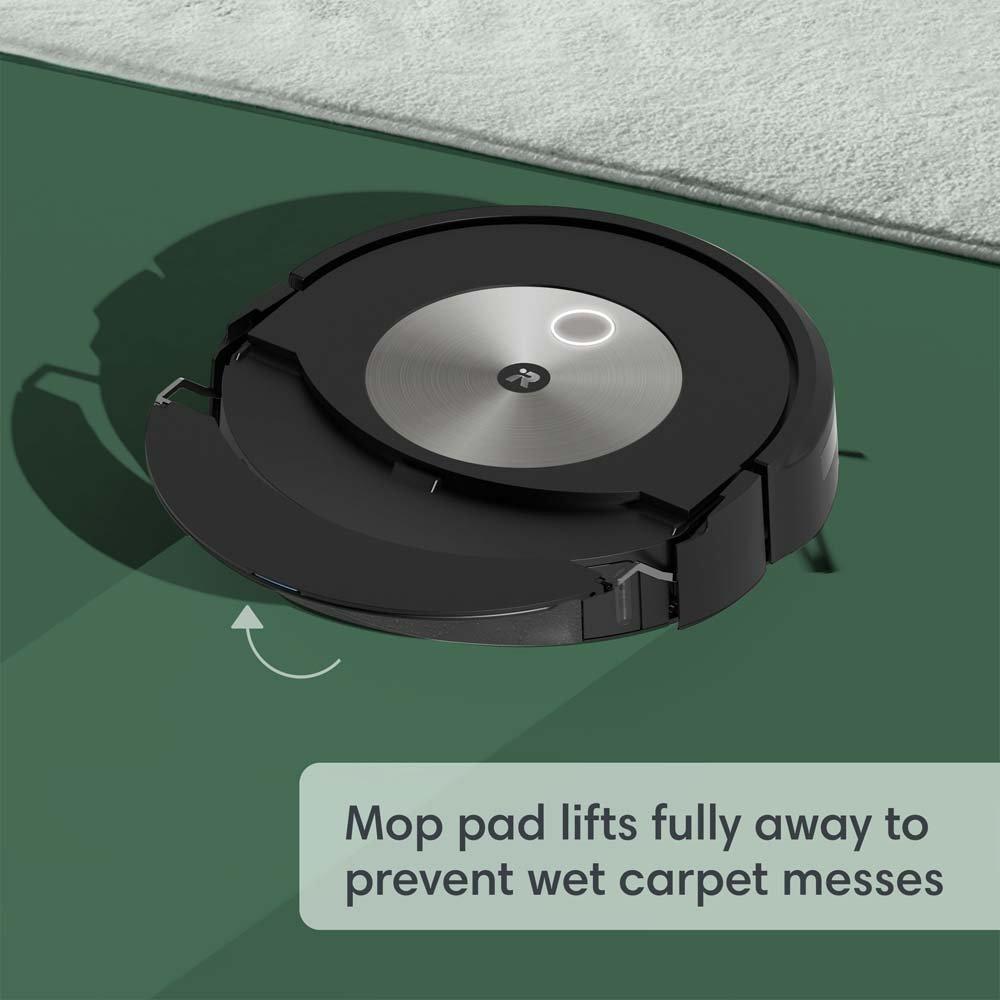
Poor mopping performance is often about water flow, pad contact, or dirty parts. The Roomba Combo j7+ uses a mopping system that works best on hard floors with the right setup.
Possible reasons for weak mopping:
- Water tank is empty or not seated right
- Mop pad is dirty or worn out
- Floor is greasy or very dusty
- Wrong floor type or carpet mode is active
- Water settings are set too low
- The pad is not making full contact with the floor
Try these fixes:
- Refill the tank with clean water only unless the manual allows a solution.
- Wash or replace the mop pad.
- Confirm the robot is in mop mode and not avoiding the wrong rooms.
- Increase water output in the app if available.
- Clean the pad mount and underside of the robot.
A small tip from real use: mop pads wear out faster than many people think. If the pad feels stiff or smells musty, performance drops fast. Fresh pads usually make a bigger difference than users expect.
iRobot Roomba Combo j7+ is not connecting to Wi-Fi or the app
App and Wi-Fi issues can make the robot feel useless even when the hardware is fine. This is a major part of iRobot Roomba Combo j7+ Robot Vacuum and Mop troubleshooting because many smart features depend on a stable connection.
Common causes include:
- Weak Wi-Fi signal
- Router changes or password changes
- App not updated
- Phone Bluetooth or location permissions turned off
- Network using unsupported settings
- Temporary cloud or server sync delay
Try this:
- Confirm your phone is on the same Wi-Fi network you want the robot to use.
- Restart the router.
- Turn Bluetooth on.
- Allow the app location access if requested.
- Update the iRobot app.
- Remove and re-add the robot if needed.
If your router uses a combined 2.4 GHz and 5 GHz network, the robot may behave better on the 2.4 GHz band. That is common in smart home devices because many of them still prefer that frequency for range and stability.
iRobot Roomba Combo j7+ charging and docking issues
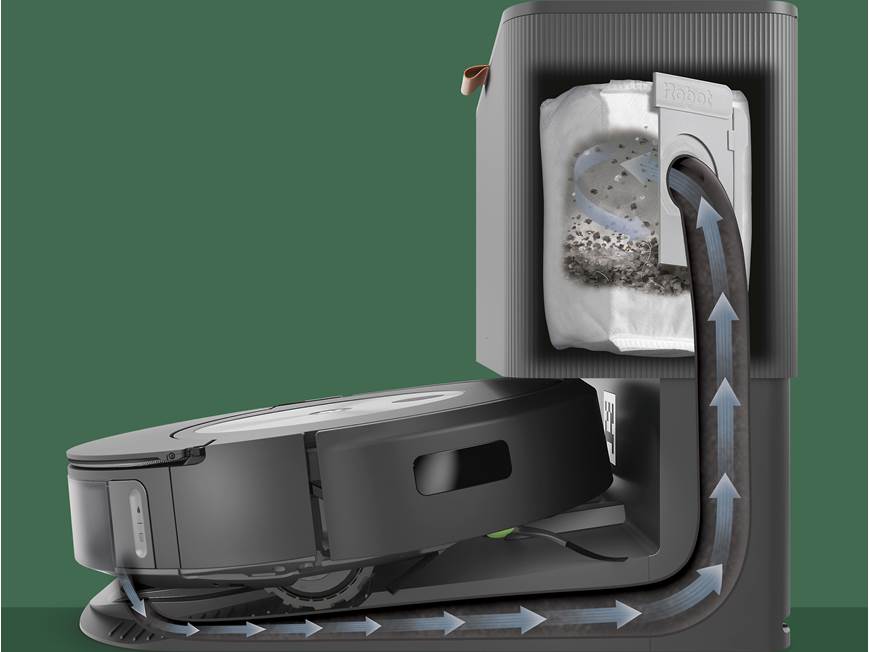
If the Roomba Combo j7+ misses the dock, fails to charge, or keeps saying it is not connected properly, the problem is usually with alignment or dirty contacts.
Things to check:
- Dock is on a flat surface with open space around it
- Power cord is fully plugged in
- Dock contacts are clean
- Robot charging pads are clean
- No debris is blocking the dock path
- The robot’s wheels and front caster move smoothly
Helpful steps:
- Move the dock away from mirrors, sunlight, and clutter.
- Clean both sets of charging points with a dry microfiber cloth.
- Make sure the dock is against a wall and on a hard floor, if possible.
- Test whether the robot can dock in a more open space.
A lot of docking trouble is actually navigation trouble. If the robot cannot approach the dock cleanly, it may look like a charging issue when it is really a pathing issue.
iRobot Roomba Combo j7+ navigation and mapping problems
If the robot misses rooms, creates bad maps, or seems confused, the navigation system may be getting bad sensor input. This is where the camera, bumper, and mapping software all work together.
Likely causes:
- Dirty camera lens or sensors
- Room too dark
- Furniture moved since the map was saved
- Glass walls or mirrors confusing the robot
- Map needs to be refreshed
- Temporary software glitch
Fix it by:
- Cleaning the front camera area and sensors gently.
- Turning on lights during cleaning.
- Checking for new obstacles.
- Updating the map in the app if the layout changed.
- Rebuilding the map if the home layout changed a lot.
From experience, mapping issues often show up after people move furniture. The robot is not being stubborn. It is working from an old mental picture of the room, and that picture no longer matches reality.

iRobot Roomba Combo j7+ making loud noise or weak suction
Noise and weak suction often point to blockages or worn parts. If the robot sounds harsher than usual, do not ignore it. That can lead to motor strain over time.
Possible causes:
- Brush clogged with hair
- Dust path blocked
- Filter dirty or overdue for replacement
- Side brush bent or damaged
- Wheel jammed with debris
- Internal fan area clogged
What to do:
- Remove the main brush and clean both ends.
- Clear the brush bearings.
- Empty the bin and check the filter.
- Tap out the filter or replace it if it is old.
- Inspect the side brush for bent bristles.
In real-world testing, weak suction almost always comes back to airflow. The robot cannot pull dirt well if the filter or brush channel is packed with dust. That is why regular maintenance matters so much.
Cleaning and maintenance tips that prevent future problems
Good maintenance is the easiest way to reduce iRobot Roomba Combo j7+ Robot Vacuum and Mop troubleshooting later. A little care goes a long way.
Follow this routine:
- Empty the bin after messy jobs
- Clean brushes weekly if you have pets
- Wipe sensors every few days
- Wash mop pads after use
- Check wheels for tangled hair
- Replace filters when performance drops
- Keep the dock area open and clear
A simple habit helps a lot: do a quick 2 minute inspection once a week. That tiny check catches hair wraps, dirty sensors, and water tank issues before they become bigger headaches.
If you have pets, maintenance matters even more. Pet hair and fine dust are like sand in the gears. They build up fast and can affect both vacuuming and mopping.
When to reset, update, or contact support
Sometimes troubleshooting reaches a point where software or hardware needs a deeper fix. If the robot still misbehaves after cleaning and basic checks, move to the next layer.
Consider these steps:
- Perform a soft reset if the robot freezes or behaves oddly.
- Check for firmware updates in the app.
- Remove and re-add the device if pairing breaks.
- Factory reset only if other steps fail and you are ready to set it up again.
- Contact support if you hear grinding, smell burning, or see repeated charging failure.
Be careful with factory resets. They can help, but they also erase settings and maps. I usually recommend them only after you have tried simpler fixes and documented what changed.
If the robot is under warranty and the dock or battery seems faulty, it may be better to get official service rather than keep forcing it.
Frequently Asked Questions of iRobot Roomba Combo j7+ Robot Vacuum and Mop troubleshooting
Why is my iRobot Roomba Combo j7+ not mopping?
It may be because the water tank is empty, the mop pad is dirty, or the pad is not seated properly. Check the app settings too, because mop mode and water level can affect results.
Why does my Roomba Combo j7+ keep saying the bin is full?
This usually means the dust bin sensor is dirty or the bin is not inserted correctly. Remove the bin, clean the sensor area, and re-seat it firmly.
How do I fix Wi-Fi problems on the Roomba Combo j7+?
Restart your router, confirm the robot is on a supported network, and make sure the app has the needed permissions. If needed, remove and reconnect the robot in the app.
Why is my Roomba Combo j7+ not returning to the dock?
The dock path may be blocked, or the charging contacts may be dirty. Place the dock in an open area and clean both the robot and dock contacts.
Why does my Roomba Combo j7+ miss spots on the floor?
Dirty sensors, bad mapping, or clutter can cause it to skip areas. Clean the sensors and make sure the home map is accurate before the next run.
How often should I clean the Roomba Combo j7+?
Light cleaning after every few uses is smart, while deeper cleaning is best weekly. If you have pets or lots of dust, you may need to clean it more often.
Conclusion
iRobot Roomba Combo j7+ Robot Vacuum and Mop troubleshooting becomes much easier when you break it into simple steps. Most problems come down to dirt buildup, sensor issues, charging problems, or app connection trouble, not a dead robot. Once you know what to check, you can solve most issues fast and keep the machine running smoothly.
The best takeaway is this: treat the robot like a small appliance that needs regular care, not a one-and-done gadget. Clean it often, keep the dock clear, and update the app when needed. If you want, try the fixes in this guide one by one and see how quickly your Roomba Combo j7+ gets back to work.

