

Every workspace, school, and home needs order. The Brother P Touch label maker helps you organize with easy-to-read labels for files, cables, shelves, and more. But even the best tools can have problems. When your label maker stops working right, it can be frustrating—especially if you’re in the middle of a big project. Whether the device won’t turn on, labels print poorly, or error messages pop up, these issues can slow you down.
This guide dives deep into Brother P Touch label maker troubleshooting. You’ll learn to solve common problems, discover tips that most beginners miss, and get confident with your device. We’ll cover power issues, print quality, tape jams, error codes, and more. You’ll also see real-world examples, side-by-side model comparisons, and quick-reference tables for clear decision-making. No matter your level of experience, you’ll find practical advice to get your label maker working like new.

36% off Today’s Exclusive Deals
Limited-time Exclusive Deals. Check current discount on Amazon.
Check Price on Amazon As an Amazon Associate I earn from qualifying purchases.Understanding Your Brother P Touch Label Maker
Before fixing problems, it helps to know the basics. The Brother P Touch series includes many models, from simple handheld devices to advanced desktop printers. Most models use TZ or TZe laminated tape, which is durable and comes in different widths and colors. They print using thermal transfer technology—no ink required.
Key features found in most P Touch label makers:
- QWERTY keyboard for easy typing
- LCD display to preview labels
- Cutter lever for clean tape cuts
- Battery or AC adapter power options
Knowing your model number (usually on the back or inside the battery cover) is important. Some troubleshooting steps depend on the exact device.
Power Problems And Solutions
If your Brother P Touch label maker won’t turn on, the cause is often simple. Start with these steps:
1. Check The Batteries
- Remove the battery cover.
- Make sure batteries are installed correctly (positive and negative ends).
- Try replacing old batteries with fresh alkaline batteries.
- For rechargeable models, make sure the battery is charged fully.
2. Inspect The Ac Adapter
- Use only the adapter recommended by Brother.
- Plug the adapter firmly into both the label maker and the wall outlet.
- Test the outlet with another device to rule out a power problem.
3. Look For Corrosion Or Damage
- Check for battery corrosion (white or green powder on contacts).
- Clean contacts with a cotton swab and a little vinegar or rubbing alcohol (unplug device first).
4. Reset The Device
- Some issues clear with a simple reset. Find the reset button or procedure for your model in the manual.
Power Comparison Table
Here’s a quick look at common power options for popular Brother P Touch models:
| Model | Batteries | AC Adapter | Rechargeable |
|---|---|---|---|
| PT-D210 | 6 x AAA | Yes (AD-24) | No |
| PT-P710BT | No | Yes (USB) | Yes |
| PT-H110 | 6 x AAA | Yes (AD-24ES) | No |
Non-obvious tip: Some models refuse to power on with mix-matched battery brands or old batteries mixed with new. Always use a full set of new, same-brand batteries.
Tape And Print Quality Issues
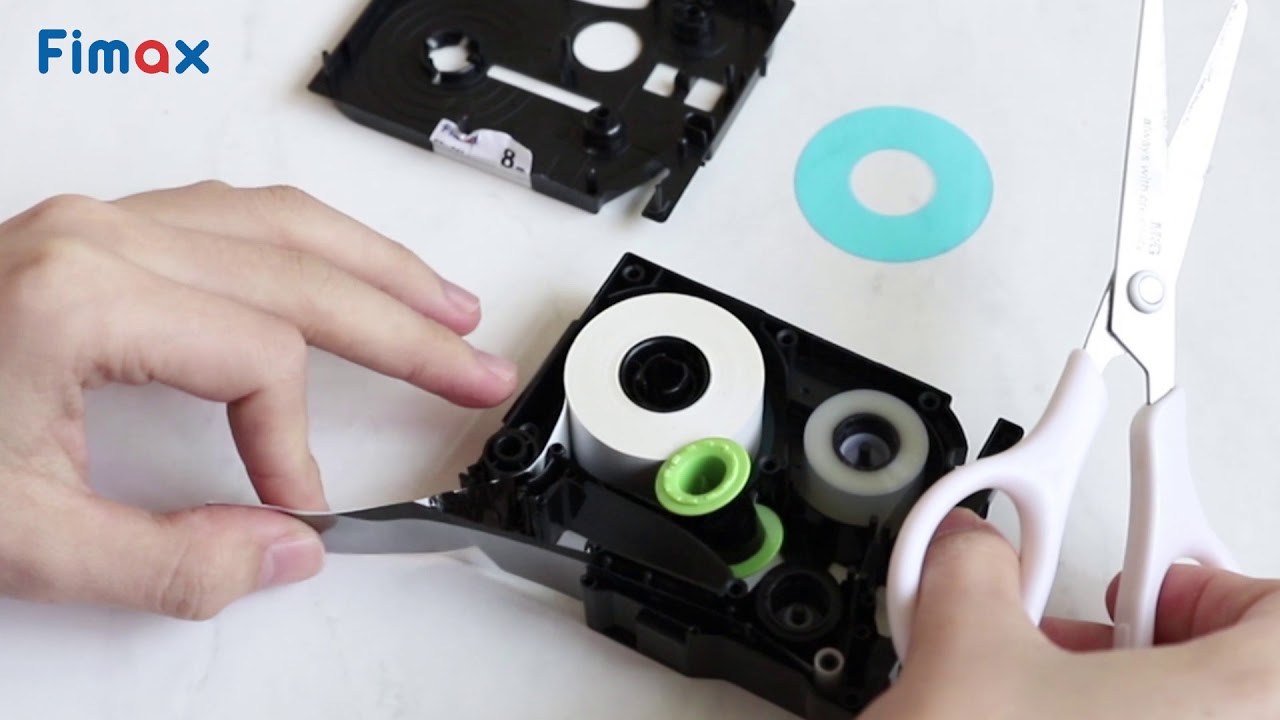
Labels that print blank, fade, or misalign are common complaints. Tape problems often have simple fixes.
1. Tape Not Feeding Or Printing
- Open the tape compartment and check if the tape cassette is installed correctly.
- Remove the tape and make sure the end of the tape is straight, not bent or jammed.
- Press the cutter lever to ensure it’s not stuck.
2. Poor Print Quality
- Faded labels may mean low batteries—replace them first.
- Use only genuine Brother tape. Off-brand tapes can cause poor print or jams.
- Clean the print head with a cotton swab and isopropyl alcohol. The print head is a small black bar inside the tape compartment.
3. Label Misalignment
- Check the tape width setting in your label maker.
- Reset the device to default settings.
- Ensure the tape guides are not loose or blocked.
4. Blank Labels
- Make sure the ink ribbon (if present) and tape are both installed.
- If using a laminated tape, the clear film should face up.
- Clean the print head.
Print Quality Comparison Table
Models handle tape and printing differently. Here’s a comparison:
| Model | Max Tape Width | Print Resolution (dpi) | Auto Cutter |
|---|---|---|---|
| PT-D400 | 18 mm | 180 | No (Manual) |
| PT-P900W | 36 mm | 360 | Yes |
| PT-H110 | 12 mm | 180 | No (Manual) |
Beginner mistake: Ignoring the “low battery” warning can cause faded printing or incomplete labels. Always replace batteries at the first sign of fading.
Tape Jam And Cutter Problems
Tape jams are annoying and can waste expensive tape. Fix them with care to avoid damaging the device.
1. Clearing A Tape Jam
- Turn off the label maker and remove the tape cassette.
- Look for crumpled tape or bits stuck near the cutter.
- Gently pull out any jammed tape. Don’t use sharp objects.
- Check the cutter lever—press it a few times to make sure it moves freely.
2. Preventing Jams
- Never pull the tape while printing.
- Use only approved tape widths for your model.
- Replace the tape cassette if the backing paper is peeling.
3. Cutter Not Working
- Debris can block the cutter. Clean the area gently.
- If the cutter is stuck, avoid forcing it—reset the device first.
- In some models, a small spring controls the cutter lever. If it comes loose, a technician may be needed.
Tape Jam: What To Do
If you regularly get tape jams, try these steps:
- Clean the print head and tape path monthly.
- Don’t store the label maker in humid or dusty places.
- Store tape cassettes flat, not upright.
Non-obvious insight: Sometimes, tape jams happen because the tape cassette is not fully clicked in. Make sure it snaps into place before printing.

Error Messages And What They Mean
Brother P Touch label makers use error messages to guide you. Here are the most common ones:
1. “tape End” Or “no Tape”
- The tape cassette is empty or not installed correctly.
- Reinstall or replace the tape.
2. “cutter Error”
- The cutter lever is stuck.
- Open the tape cover, move the lever, and close the cover.
3. “battery Low”
- Replace all batteries with new ones.
- For rechargeable models, charge fully or replace the battery pack if it won’t hold a charge.
4. “text Too Long”
- The label is longer than the tape.
- Edit your label or use a wider tape.
5. “init Error” Or “system Error”
- Reset the label maker. Check the manual for the reset procedure.
- If the error continues, contact Brother support.
Error Message Table
A quick guide to common errors:
| Error Message | Meaning | Solution |
|---|---|---|
| Tape End | No tape or empty | Insert new tape cassette |
| Cutter Error | Cutter stuck | Open cover, reset lever |
| Battery Low | Insufficient power | Replace/charge batteries |
| Text Too Long | Label exceeds tape length | Edit text or use wider tape |
Confidence tip: If a reset doesn’t clear a system error, it’s often a sign of a hardware problem. Don’t waste tape—contact Brother support.
Connectivity Issues (for Pc And Bluetooth Models)
Some Brother P Touch label makers connect to computers or smartphones. If your device won’t connect, try these steps.
1. Usb Connection Problems
- Use the original USB cable.
- Check if the label maker is powered on.
- Try a different USB port on your PC.
2. Software And Driver Issues
- Install the latest P-touch Editor software from Brother’s website.
- Update drivers for your model.
- Restart both the computer and label maker.
3. Bluetooth Connection Problems
- Make sure Bluetooth is enabled on your phone or computer.
- Pair within close range (less than 10 feet).
- If the device doesn’t appear, reset Bluetooth on both ends.
4. Mobile App Troubles
- Use the official Brother iPrint&Label app.
- Update the app to the latest version.
- Restart your phone if the label maker won’t connect.
Beginner mistake: Many users skip installing the latest drivers, which causes connection failures. Always check for updates before troubleshooting hardware.
Software And Formatting Errors
Formatting a perfect label can be tricky. Issues here are often user mistakes or overlooked features.
1. Incorrect Font Or Symbols
- Double-check the font size, style, and symbols chosen.
- Some symbols or fonts are not supported on all tape widths.
2. Margins Too Wide Or Narrow
- Adjust margin settings in the label maker or software.
- Use “narrow” or “chain print” mode for less tape waste.
3. Label Preview Not Matching Print
- Some models show a preview. If the printed label doesn’t match, reset formatting to default.
- Update the label maker’s firmware if available.
4. Memory Full
- Delete old labels from memory.
- Some models have a “clear memory” function in the menu.
Non-obvious insight: The default margin setting is often “wide” to prevent tape jams during shipping. Change it to “narrow” for normal use to save tape.
Maintenance And Preventive Care
A little maintenance keeps your label maker working well for years.
1. Clean The Print Head
- Every 3-6 months, gently wipe the print head with isopropyl alcohol.
- Let it dry before installing the tape.
2. Store Properly
- Keep the label maker and tapes in a cool, dry place.
- Avoid direct sunlight and moisture.
3. Use Genuine Supplies
- Use only Brother tapes and batteries for best results.
- Off-brand tape can cause jams, poor prints, and even damage.
4. Update Software
- For PC-connected models, update the P-touch Editor and firmware regularly.
Confidence tip: A well-cared-for P Touch can last 5–10 years with only minor part replacements.
When To Contact Brother Support
Sometimes, DIY fixes aren’t enough. If you see smoke, smell burning, or find broken parts, stop using the label maker. Contact Brother support if:
- The device won’t turn on after all power checks
- Error messages won’t clear after a reset
- Tape jams keep happening with new cassettes
- Print quality is poor after cleaning the print head
Keep your model and serial number handy when you call or email for help.
For more details, visit the official Brother support page.
Frequently Asked Questions
Why Does My Brother P Touch Label Maker Print Blank Labels?
Most blank labels are caused by a dirty print head or using non-genuine tape. Try cleaning the print head with alcohol and a cotton swab. Make sure the tape cassette is installed correctly and the clear film faces up.
How Do I Clear A Tape Jam Without Damaging The Label Maker?
Turn off the device and gently remove the tape cassette. Pull out any stuck tape without using sharp objects. Check the cutter lever for movement and reinstall the tape, making sure it clicks into place.
What Should I Do If My Label Maker Shows A “cutter Error”?
Open the tape compartment, press the cutter lever a few times, and close the cover firmly. If the error continues, reset the device following your model’s manual.
Can I Use Off-brand Tape Cassettes In My Brother P Touch Label Maker?
It’s not recommended. Non-genuine tapes can cause jams, poor print quality, or even damage the print head. For best results, use Brother-brand tapes.
How Do I Reset My Brother P Touch Label Maker To Factory Settings?
Each model has a slightly different reset method. Usually, you press and hold the “Clear” or “Reset” button while turning on the device. Check your user manual for exact steps.
Getting organized should be simple—not stressful. With these troubleshooting steps, your Brother P Touch label maker can keep working smoothly, saving you time and money. Remember: regular care and using the right supplies prevent most problems. And when in doubt, Brother’s support team is there to help. Organize confidently, knowing you can fix small issues before they become big headaches.

