

Most Bose Tv Speaker issues come from cables, settings, or outdated firmware—simple fixes usually help.
I’ve spent years fixing home audio gear and helping people troubleshoot Bose Tv Speaker problems. This guide gives clear, practical steps for diagnosing sound, connection, and setup issues. You will learn easy checks, step-by-step fixes, advanced diagnostics, and when to call support. Read on to get your Bose Tv Speaker working reliably and sounding great.

36% off Today’s Exclusive Deals
Limited-time Exclusive Deals. Check current discount on Amazon.
Check Price on Amazon As an Amazon Associate I earn from qualifying purchases.
How the Bose Tv Speaker works
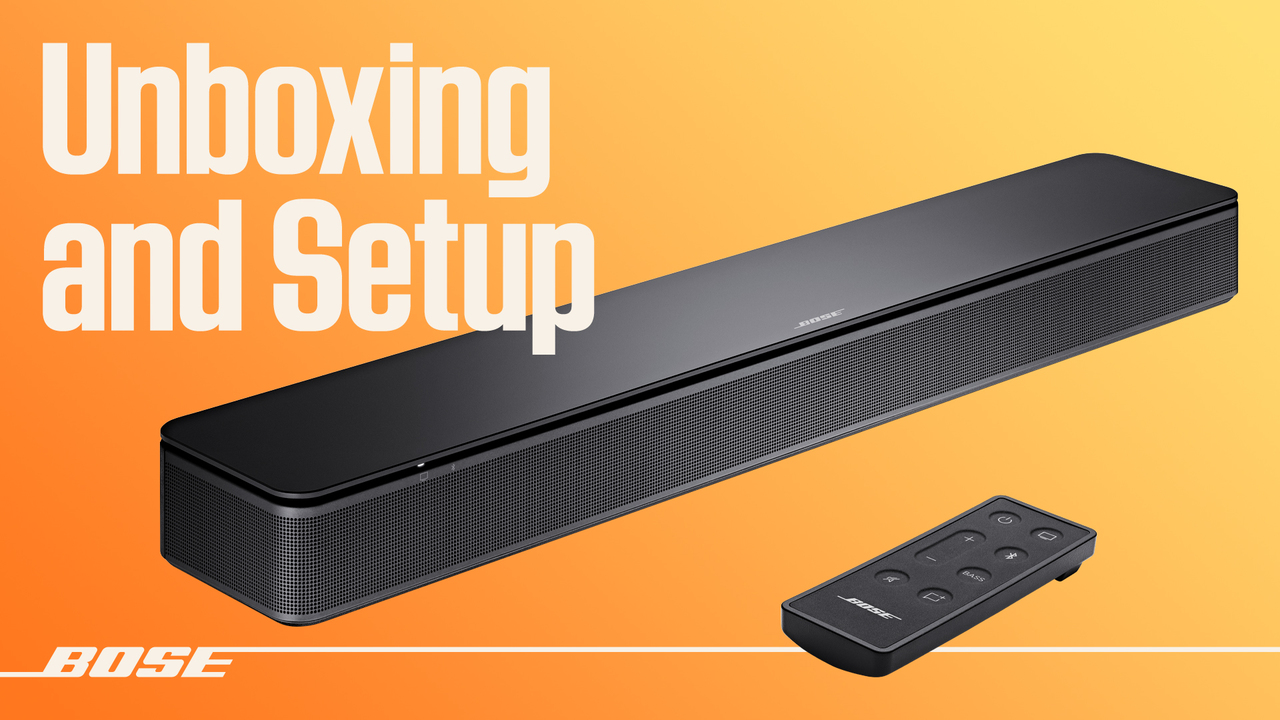
The Bose Tv Speaker is a compact soundbar designed to boost TV audio with a single, simple device. It receives audio from your TV via optical, HDMI ARC, or Bluetooth. The speaker relies on correct TV settings, proper cabling, and current firmware to work well.
From my experience, most faults show up as configuration or connection errors. Knowing how the speaker connects and what each input does speeds up Bose Tv Speaker troubleshooting. Simple checks often reveal the root cause within minutes.

Common issues and causes for Bose Tv Speaker Troubleshooting
Here are the typical problems people face and why they occur. Each entry ties a symptom to a likely cause to help you focus your troubleshooting.
- No power or unit won’t turn on.
Faulty power cable, bad outlet, or internal power fault. - No sound from the Bose Tv Speaker.
Wrong TV audio output, muted TV, bad optical/HDMI cable, or incorrect input on the speaker. - Distorted sound or static.
Damaged cable, loose connection, electromagnetic interference, or a failing speaker component. - Sound cuts in and out.
Loose connector, ARC handshake errors, Bluetooth interference, or firmware bugs. - Remote or TV volume control not working.
Incorrect CEC or ARC settings, IR learning needed, or remote battery/line-of-sight issues. - Bluetooth pairing problems.
Paired to another device, low battery on remote device, or out-of-range signal.
Knowing these causes helps prioritize steps during Bose Tv Speaker troubleshooting. Start with the simplest fix and move to deeper checks only as needed.

Step-by-step troubleshooting guide for Bose Tv Speaker Troubleshooting
Follow these steps in order. Many issues resolve in the first few steps.
- Basic power and cable checks
- Confirm the power cord is firmly plugged into the speaker and wall outlet.
- Try a different outlet or power strip.
- Verify TV audio output and input selection
- Set your TV audio output to the correct port (Optical or HDMI ARC).
- Confirm the Bose Tv Speaker is set to the matching input.
- Inspect and swap cables
- Use a known-good optical or HDMI cable.
- Replace any frayed or bent cables.
- Check TV volume and source controls
- Unmute TV and increase volume.
- Test other TV apps or channels to rule out source issues.
- Power cycle both devices
- Turn off TV and speaker. Unplug both for 30 seconds, then plug back in and restart.
- Test another source or device
- Connect a phone or laptop via Bluetooth or an alternate input to isolate the problem.
- Reset or factory restore the speaker
- Follow Bose’s reset steps for your model to clear persistent software issues.
- Update firmware
- Check for firmware updates via the Bose app or TV connection and install them.
- Verify ARC and CEC settings (for HDMI)
- Enable HDMI-CEC and ARC on both the TV and speaker. Restart devices to complete the ARC handshake.
- Run a Bluetooth pairing routine
- Clear old pairings on the speaker and on your phone, then pair afresh.
I once fixed a no-sound issue in ten minutes by swapping the optical cable. In many cases, a single cable swap or power cycle ends the need for deeper work.

Advanced troubleshooting and diagnostics for Bose Tv Speaker Troubleshooting
If basic steps fail, try these advanced checks to find rarer issues.
- Inspect the TV’s audio format output
- Some TVs output DTS or Dolby formats that small soundbars cannot decode. Switch the TV to PCM or stereo.
- Test ARC handshake logs and behavior
- ARC failures often show as delayed sound or no volume control. Toggling CEC off and on can help.
- Use a different TV to isolate component faults
- If the speaker works with another TV, the issue is likely the original TV settings or port.
- Check for electromagnetic interference
- Move Wi-Fi routers, cordless phones, or other wireless devices away from the speaker and cables.
- Measure continuity for optical/HDMI lines (for technicians)
- Use simple continuity tools to ensure cables conduct properly.
- Consider hardware failure signs
- Persistent distortion, buzzing at all volumes, or internal noises suggest a failing amplifier or driver.
Advanced Bose Tv Speaker troubleshooting might reveal a hardware issue that requires professional repair. Be honest about limits—don’t disassemble sealed units unless you’re trained.

Maintenance and preventive tips for Bose Tv Speaker Troubleshooting
Small habits stop many future issues. Here are practical tips I use to keep systems stable.
- Keep firmware current
- Regular updates fix bugs and improve compatibility with TVs.
- Use quality cables and cleaner ports
- Good cables reduce signal loss. Clean ports gently with compressed air.
- Place the speaker to avoid vibration and blockage
- Ensure the speaker’s vents are clear and not trapped behind furniture.
- Label cables and document setup
- Notes on which TV output you use speed future troubleshooting.
- Avoid frequent rapid reboots
- If you must restart often, log the behavior before calling support.
These preventive steps lower the need for Bose Tv Speaker troubleshooting later.
When to contact Bose support or a technician about Bose Tv Speaker Troubleshooting
Contact support or a certified technician when you hit these limits.
- The speaker shows no power after testing multiple outlets and cords.
- Firmware updates fail repeatedly or leave the speaker unresponsive.
- You hear mechanical noise or severe distortion at all volumes.
- The unit is under warranty and hardware issues are suspected.
Before calling, gather model number, serial number, purchase date, symptom timeline, and steps already tried. This saves time and leads to faster resolution.

Frequently Asked Questions of Bose Tv Speaker Troubleshooting
Why is there no sound from my Bose Tv Speaker even though it's on?
Check the TV audio output and the speaker input first. Also confirm cables are seated and the TV audio is not muted or set to a format the speaker cannot decode.
How do I update firmware on my Bose Tv Speaker?
Use the Bose mobile app or a TV-connected update method and follow on-screen prompts. Make sure the speaker has power and a stable connection during the update.
My Bose Tv Speaker loses connection intermittently. What should I try?
Power cycle both the TV and speaker, replace cables, and move potential interference sources away. If Bluetooth drops, re-pair devices and check for other active Bluetooth connections.
Can HDMI ARC issues cause volume control problems?
Yes. ARC and HDMI-CEC must both be enabled and functioning on TV and speaker. Toggling CEC off and on and restarting devices often re-establishes volume control.
Is a factory reset safe for troubleshooting?
A factory reset is safe and clears settings that might cause issues, but it will erase custom settings and pairings. Use it after other steps fail and note your settings before resetting.
How do I know if the speaker needs repair?
If you have tried power, cables, resets, and firmware updates and the issue persists, the speaker may have hardware faults. Contact Bose support or an authorized service center for diagnosis.
Conclusion
You can solve most Bose Tv Speaker issues with simple checks, correct TV settings, and good cables. Start with power and connections, then move to settings, firmware, and resets. If problems persist, use the advanced steps and contact support with clear notes about what you tried.
Take action today: try the basic checks, document what changes you make, and test sound after each step. If this guide helped, consider subscribing for more tips or leave a comment with your problem so others can learn from your experience.

