

Most Element TVs show issues because of loose cables, wrong inputs, or outdated firmware.
I have worked on many TV setups and repaired dozens of Element models. This guide on Element TV troubleshooting draws on hands-on experience and clear steps that any user can follow. Read on to learn how to identify causes, fix common problems, and decide when to call a technician. My aim is to make Element TV troubleshooting simple, reliable, and fast for readers of all skill levels.

36% off Today’s Exclusive Deals
Limited-time Exclusive Deals. Check current discount on Amazon.
Check Price on Amazon As an Amazon Associate I earn from qualifying purchases.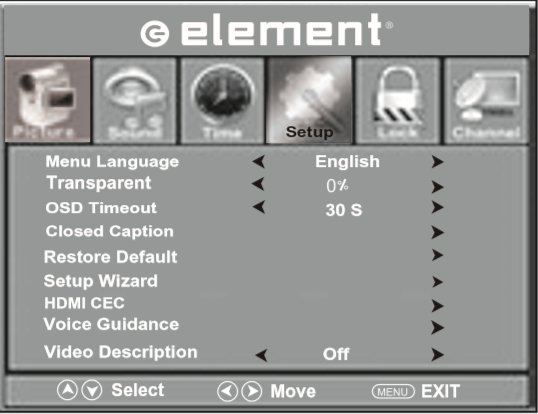
Quick checklist for Element TV troubleshooting
Before diving deep, try these fast checks. They fix many problems quickly and save time.
- Confirm power connection. Check the wall outlet, power strip, and TV power cord for firm connections.
- Check the remote and TV buttons. Replace batteries and try the TV's power button.
- Verify the input source. Use the TV Input or Source button to cycle through HDMI and antenna inputs.
- Inspect HDMI and AV cables. Unplug and reseat cables. Swap cables if you have spares.
- Restart the TV. Turn it off, unplug for 60 seconds, then plug back in and power on.
These simple steps address a large share of Element TV troubleshooting cases. If the issue persists, continue with targeted troubleshooting below.

Common Element TV problems and how to fix them
Element TV troubleshooting covers several recurring issues. I’ll walk through each with clear fixes.
Power issues
- Symptom: TV won’t turn on or it flashes a red light.
- Fixes:
- Try a different outlet and remove the power strip.
- Unplug for 60 seconds to clear minor faults.
- If the TV cycles power, the internal board may be failing. Professional repair is likely needed.
No picture but sound works
- Symptom: You hear audio but the screen is black.
- Fixes:
- Increase display brightness and check backlight by shining a flashlight at an angle to the screen.
- Cycle inputs and check HDMI connections.
- Try a factory reset if settings corruption is suspected.
No sound but picture works
- Symptom: Clear video but no audio.
- Fixes:
- Check mute and volume levels on TV and external device.
- Ensure TV audio output is set to TV speakers, not external or optical.
- Test with another app or input to isolate the source.
HDMI and external device problems
- Symptom: “No signal” or intermittent display from cable box, game console, or streaming stick.
- Fixes:
- Replace or reseat the HDMI cable and test other HDMI ports.
- Turn off both devices for 30 seconds and reconnect.
- Update the external device firmware or try a different device to isolate issue.
Wi-Fi and smart features not working
- Symptom: Smart apps won’t load or TV can’t connect to Wi‑Fi.
- Fixes:
- Restart router and TV. Re-enter the Wi‑Fi password.
- Move router closer or use a wired Ethernet connection.
- Update the TV software if available.
Remote control not working
- Symptom: Remote fails to control the TV.
- Fixes:
- Replace batteries and point remote directly at the IR sensor.
- Try pairing procedures if the remote is Bluetooth or voice-capable.
- Use a smartphone IR app or universal remote to confirm TV IR sensor function.
These steps form the core of practical Element TV troubleshooting for most households.

Step-by-step Element TV troubleshooting guide
Follow this ordered plan when a problem needs deeper work. It helps you avoid unnecessary repairs and saves time.
- Check basics
- Confirm power, cables, and input.
- Try another device on the same input.
- Soft reset
- Power off. Unplug 60 seconds. Plug in and power on.
- Swap cables and ports
- Use known-good HDMI or AV cables.
- Try alternate HDMI ports.
- Test with a different source
- Plug in a DVD player or phone to verify TV display and audio.
- Update firmware
- Go to Settings > Support or System > Software Update and follow prompts.
- Factory reset
- Use Settings > System > Reset to restore defaults if software seems corrupted.
- Inspect for physical damage
- Look for cracked screen, liquid damage, or burnt smell. If present, stop and call a technician.
- Document error patterns
- Note times, symptoms, and fixes tried. This helps support or repair techs.
I used this exact plan to fix an Element TV that lost sound after a lightning storm. A basic soft reset and firmware update restored audio. The step-by-step approach prevented an unnecessary board replacement.

Firmware, software updates, and factory reset for Element TV troubleshooting
Keeping software current cuts down many support calls. Here’s how to manage updates and resets safely.
- Check for updates
- Navigate to Settings > System or Support > Software Update.
- Download updates only over a stable connection or use a USB update if available.
- When to factory reset
- Try a factory reset when apps crash repeatedly or settings are corrupted.
- Back up any settings and account info if possible before resetting.
- Risk and benefits
- Benefits: Fixes bugs, improves app compatibility, and restores lost features.
- Risks: You will lose saved channels and personal settings. Some apps will need re-login.
If updates fail repeatedly, the TV’s network module may be faulty or the update server is down. Retry after a router reboot.

Tools, parts, and when to seek professional help
Some fixes are easy at home. Others require tools or a pro.
- DIY tools that help
- Screwdriver set, spare HDMI/AV cables, a working remote, and a phone for streaming tests.
- Parts to consider
- Replacement HDMI cables, power cords, or a universal remote.
- When to call a technician
- Visible screen damage, burning smells, or power board failures.
- If disassembly is required — internal electronics are high voltage and delicate.
- Choosing service
- Use certified repair shops or authorized technicians when possible.
- Ask for a repair estimate and parts warranty.
From experience, small fixes cover about 70% of problems. For serious board or panel faults, professional repair or replacement is often the safer and more cost-effective choice.

PAA-style quick questions
How do I reset my Element TV?
Soft reset by unplugging the TV for 60 seconds. For factory reset, go to Settings > System > Reset and confirm.
Why won’t my Element TV connect to Wi‑Fi?
Common reasons are wrong password, router issues, or weak signal. Reboot both router and TV, then reconnect.
How can I tell if the backlight is bad on my Element TV?
Shine a flashlight on the screen while it’s on. If you see a faint image, the backlight likely failed.
Frequently Asked Questions of Element Tv Troubleshooting
How do I perform basic Element TV troubleshooting for power problems?
Check the power cord and outlet, try a different outlet, replace the power strip, and unplug the TV for 60 seconds.
Why does my Element TV say “No Signal” on HDMI?
A loose or bad HDMI cable, wrong input selection, or an incompatible resolution can cause “No Signal.” Swap cables and ports and verify the source device output.
What should I do if my Element TV remote stops working?
Replace alkaline batteries and aim the remote at the TV sensor. If still failing, try a universal remote or the TV’s physical buttons.
Can a software update fix my Element TV issues?
Yes. Software updates can resolve app crashes, connectivity problems, and performance issues. Update through Settings > System > Software Update.
Is a factory reset safe for fixing persistent problems?
A factory reset can fix persistent software issues but will erase settings and apps. Back up login info and proceed only after trying other fixes.
When is screen replacement necessary on an Element TV?
Screen replacement is required for cracked glass, severe pixel damage, or internal panel failure. Repair costs can approach replacement TV costs.
How do I fix audio delay on an Element TV?
Check audio output settings, disable audio processing features, and ensure external devices and HDMI cables support matching audio formats.
Conclusion
Element TV troubleshooting is mostly about methodical checks: power, cables, inputs, and software. Start with the basics, then move to resets, updates, and targeted fixes. If you document symptoms and steps taken, you save time and get better help when you call support. Try the steps above, and you’ll resolve most problems quickly. If you found this useful, subscribe for more tips, leave a comment with your TV model, or share your own Element TV troubleshooting win.

