

Signia Hearing Aid Troubleshooting starts with simple checks: battery, fit, cleaning, and rebooting.
I have worked with hearing tech and tested many Signia devices. This guide on Signia Hearing Aid Troubleshooting breaks down common faults, simple fixes, and when to get professional help. Read on for clear steps, real-world tips from my experience, and a handy checklist you can follow now.

36% off Today’s Exclusive Deals
Limited-time Exclusive Deals. Check current discount on Amazon.
Check Price on Amazon As an Amazon Associate I earn from qualifying purchases.
Common Signia Hearing Aid Problems and What They Mean
Signia Hearing Aid Troubleshooting often begins with the same set of issues. Many users see weak sound, intermittent audio, feedback, or connection drops. Each symptom points to a few likely causes you can check fast.
Common issues and likely causes:
- No sound or low volume — dead battery, blocked mic, or wrong program.
- Intermittent sound — loose battery/receiver, water damage, or pairing drop.
- Feedback or whistling — poor fit, wax build-up, or ear mold problems.
- Bluetooth pairing problems — outdated app, low battery, or phone settings.
- Distorted sound — damaged receiver, moisture, or incorrect program settings.
Real-life note: I once fixed a Signia device by replacing the battery and cleaning the microphone ports. The user thought the aid was failing, but care and a fresh battery solved it.

Step-by-Step Signia Hearing Aid Troubleshooting Guide
Follow these steps in order. They move from the easiest fixes to more involved checks.
Quick checks to start
- Turn the hearing aids off and on to reboot them.
- Swap or recharge batteries and ensure contacts are clean.
- Change to a known program or volume level using the device or app.
- Look and listen for physical damage or blocked ports.
Battery and power checks
- For disposable batteries, insert a new one and wait 30 seconds before closing the door.
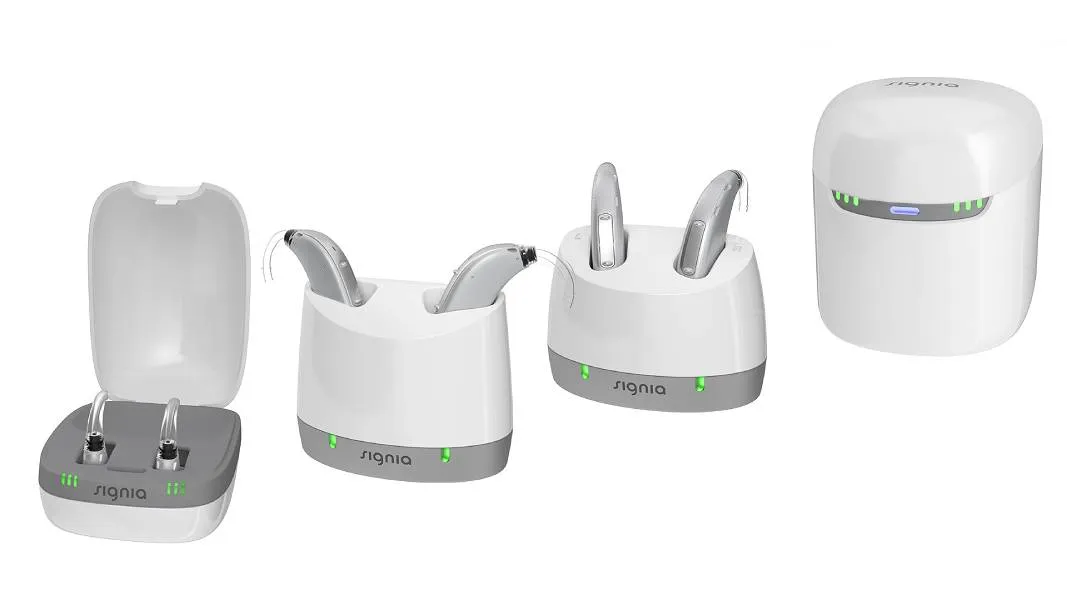
- For rechargeable models, place them in the charger and confirm the charging light turns on.
- If charging fails, try a different power cable or charger outlet.
Cleaning and fit checks
- Remove wax and debris from microphones and receivers with a soft brush.
- Replace wax guards on receiver-in-canal models when needed.
- Check the dome or mold for cracks and replace if it fits poorly.
- Re-seat the aid in the ear to stop feedback caused by movement.
Sound and feedback fixes
- Reduce volume slightly to test if feedback stops.
- Switch to a noise program or the app’s “soft speech” setting to isolate issues.
- If you hear static or distortion, swap ears to see if the problem follows the device.
Connectivity and app troubleshooting
- Close and reopen the Signia app. Restart your phone if pairing fails.
- Forget the hearing aid in Bluetooth settings and pair again.
- Ensure phone OS and Signia app are up to date.
When to try a factory reset
- If software or pairing issues persist after updates, a reset can help.
- Follow model-specific reset steps in the manual or app.
- Note: Resetting will erase custom settings. Save programs if possible.
From my work: resetting a device twice fixed a persistent Bluetooth drop for a client after a software update.
Firmware, Software, and Signia App Issues
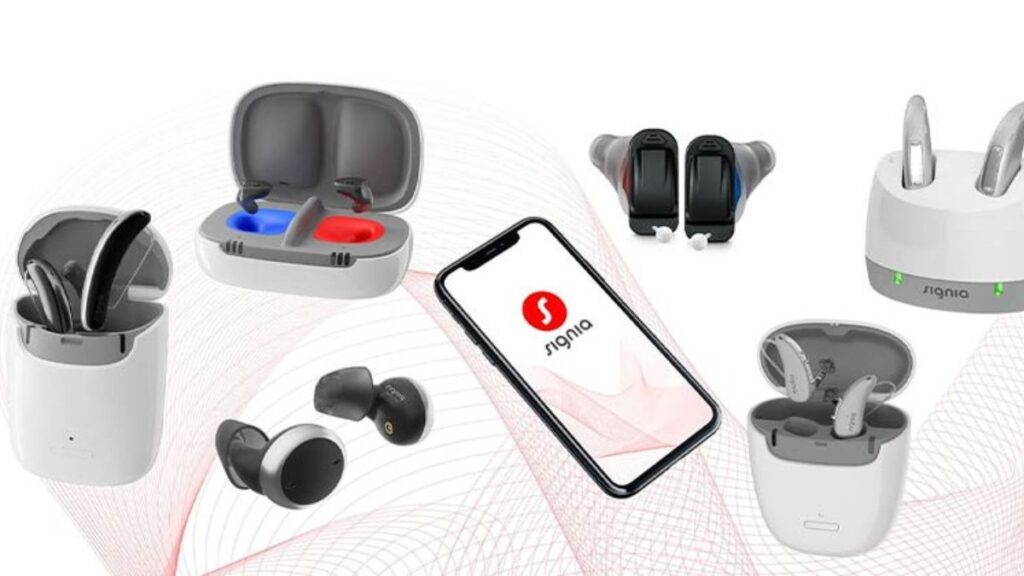
Signia Hearing Aid Troubleshooting often involves software. Firmware updates fix bugs and improve sound. But updates can also introduce temporary issues.
Best practices for software issues:
- Check for firmware updates in the Signia app and apply them when connected to Wi-Fi.
- Update your phone’s operating system to the latest stable version.
- If an update causes trouble, contact Signia support for recommended rollback or patch.
Troubleshooting app-specific problems:
- Reinstall the app if controls are unresponsive.
- Grant required permissions for Bluetooth and location to the app.
- Use a different phone to test pairing to rule out phone-specific quirks.
My tip: schedule firmware updates when you have time to test afterward. If you rely on your aids daily, avoid updating right before travel or events.
Cleaning, Maintenance, and Long-Term Care
Good care reduces the need for Signia Hearing Aid Troubleshooting. Small habits prevent most common faults.
Daily and weekly care routine:
- Wipe the device with a soft, dry cloth after use.
- Use a brush to clear wax from ports and receivers.
- Open battery doors overnight to air out moisture for disposable batteries.
- Place rechargeable aids in their charger nightly.
Monthly maintenance tasks:
- Replace wax guards and domes as recommended.
- Inspect tubing or molds for cracks and proper seal.
- Visit your hearing provider for a professional clean and test every 6 to 12 months.
Common mistakes to avoid:
- Do not expose aids to water or extreme heat.
- Avoid using household cleaners or solvents on parts.
- Do not insert tools into the microphone or receiver ports.
Personal note: I learned the hard way to always carry spare domes and batteries when traveling. A small kit solved multiple unexpected problems on the road.

When to Contact an Audiologist or Signia Support
Some problems need expert help. If basic Signia Hearing Aid Troubleshooting steps fail, seek professional support.
Signs you should get help:
- Complete loss of function after trying batteries and resets.
- Physical damage, corrosion, or water exposure.
- Persistent distortion or feedback that cleaning cannot fix.
- Firmware updates that leave the device unstable.
What your clinician or support team will do:
- Run diagnostic tests and firmware checks.
- Replace receivers, tubes, or internal parts under warranty if applicable.
- Refit custom molds or reprogram hearing profiles for better performance.
I recommend saving receipts and serial numbers for warranty claims. That makes repairs faster and easier.
Troubleshooting Checklist (Printable Steps)
Use this quick checklist for fast fixes before calling for help.
- Turn device off and on.
- Replace or charge batteries.
- Clean microphones and receivers.
- Check fit and ear mold condition.
- Test with the Signia app; update if needed.
- Forget and re-pair Bluetooth connection.
- Reset device if problems persist.
- Contact audiologist or Signia support if unresolved.
Keep this list on your phone for easy access during travel or outings.

Frequently Asked Questions of Signia Hearing Aid Troubleshooting
How do I reset my Signia hearing aid?
Reset steps vary by model. Usually, power the aid off, remove the battery or use the app to find a reset option, then restart the device.
Why won’t my Signia hearing aid pair with my phone?
Common causes are low battery, app permissions, or outdated firmware. Close the app, restart your phone, and try pairing again after charging the aid.
How often should I replace wax guards on Signia receivers?
Replace wax guards every 1 to 4 weeks depending on earwax level and use. Replace sooner if sound becomes muffled or feedback starts.
What causes feedback in Signia hearing aids?
Feedback is often caused by poor fit, blocked receivers, or worn domes. Clean and reseat the aid; replace domes if needed.
Can firmware updates fix sound problems on Signia aids?
Yes. Firmware updates address bugs and can improve sound quality. Always back up settings and update when stable internet is available.
Conclusion
Signia Hearing Aid Troubleshooting is mostly about simple checks, regular care, and informed use of the app and firmware tools. Start with batteries, cleaning, and fit. Move to app checks and resets only if quick fixes fail. When in doubt, contact your audiologist or Signia support for diagnostics and repairs. Take action today: run the quick checklist, keep spare parts handy, and schedule a routine professional check-up. If this helped, leave a comment or share your own troubleshooting tip.

