

Starkey Hearing Aid Troubleshooting: quick fixes for common sound, fit, and connectivity problems.
I have spent years helping people solve hearing aid issues. I know Starkey Hearing Aid Troubleshooting inside and out. This guide walks you through clear steps, real examples, and easy fixes. Read on to learn how to diagnose, fix, and prevent the most common Starkey Hearing Aid Troubleshooting problems.

36% off Today’s Exclusive Deals
Limited-time Exclusive Deals. Check current discount on Amazon.
Check Price on Amazon As an Amazon Associate I earn from qualifying purchases.
Common Starkey Hearing Aid Problems and What They Mean
Starkey Hearing Aid Troubleshooting starts with knowing the common issues. Here are the typical problems users face and what they usually mean.
- No sound or low sound. This often points to dead batteries, blocked sound outlets, or program settings.
- Intermittent sound. This can mean loose connections, moisture, or Bluetooth dropouts.
- Whistling or feedback. This often happens when the device does not fit well or when wax blocks the receiver.
- Distorted or tinny sound. This can result from earwax, damaged receivers, or incorrect programming.
- Bluetooth or app pairing issues. These are usually software or phone-compatibility problems.
- Rapid battery drain. Could be a faulty battery, high wireless use, or moisture exposure.
- Comfort and fit issues. These affect sound and cause feedback when the seal is poor.
Starkey Hearing Aid Troubleshooting is mostly methodical. Start with simple checks and move to complex fixes. This saves time and avoids unnecessary trips to the clinic.
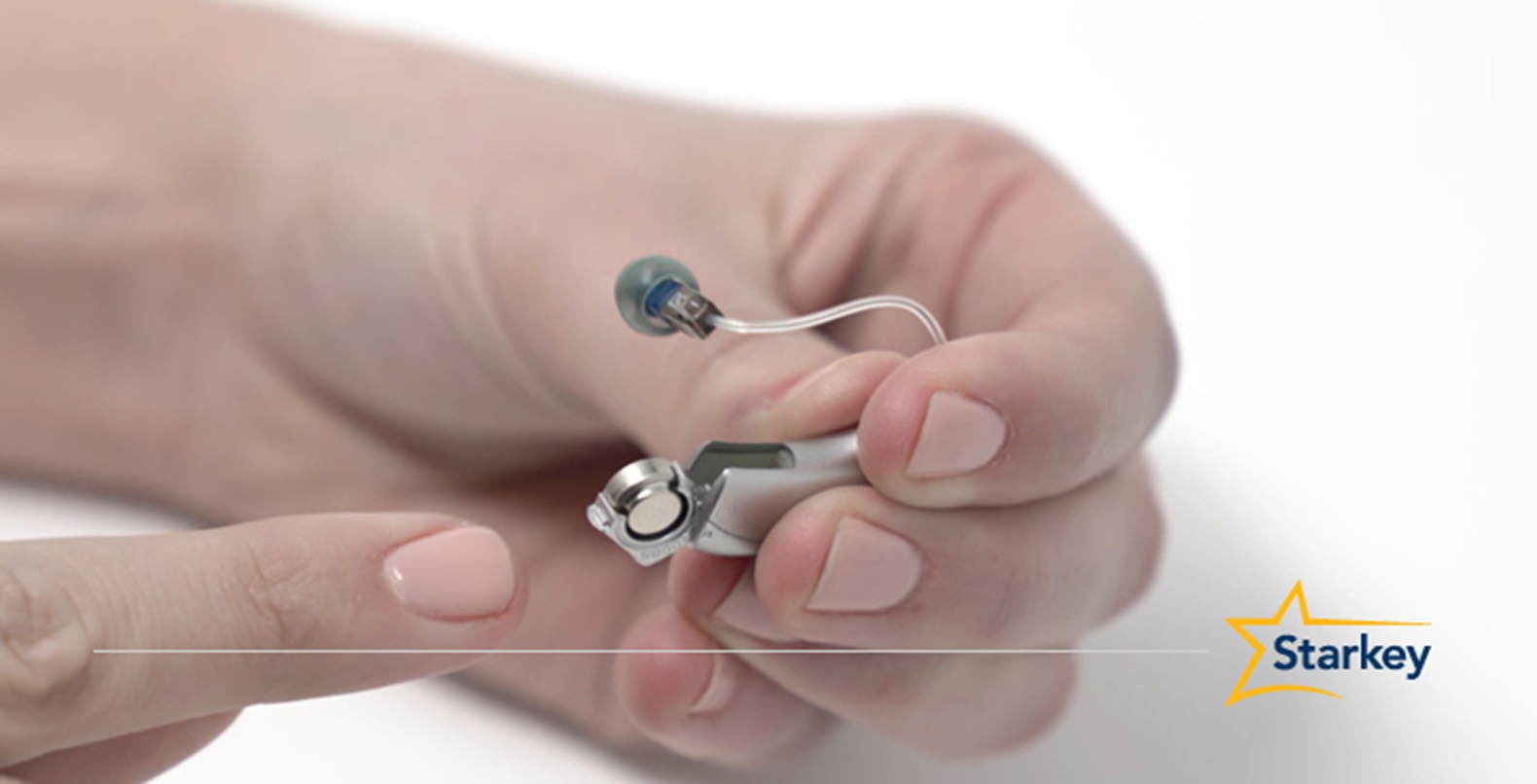
Step-by-Step Starkey Hearing Aid Troubleshooting Checklist
Use this checklist when you need a quick fix. The steps go from easy to advanced.
- Visual check
- Look for dirt, wax, or moisture.
- Inspect domes, tubing, and vents.
- Power cycle
- Turn off the device, wait 10 seconds, then turn on.
- Check batteries or charger
- Replace disposable batteries or confirm charger lights.
- Clean sound outlet
- Use a soft brush or pick designed for hearing aids.
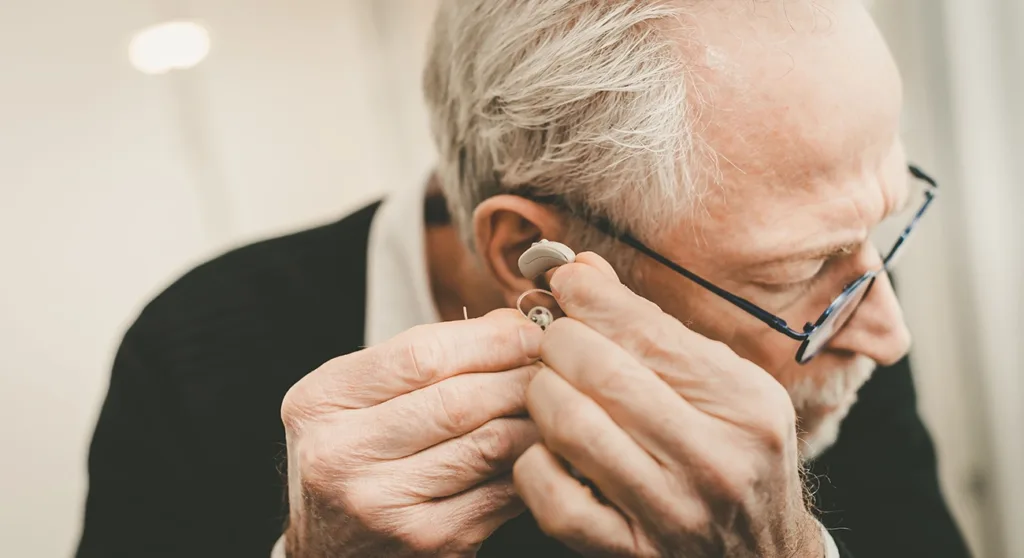
- Re-fit and re-seat
- Make sure the ear tip sits firmly and comfortably.
- Test with phone or tester
- Play a familiar sound to confirm output.
- Reset settings or program
- Use the Starkey app or device controls to reset.
- Update firmware
- Check the app for updates and install them if available.
When in doubt, repeat basic steps. Starkey Hearing Aid Troubleshooting often resolves with a simple cleaning or reboot.
Fixing Sound and Feedback Issues
Feedback and poor sound are the most common reasons people seek help. Here is how to handle them.
Whistling or feedback
- Clean the sound outlet and dome.
- Re-seat the device so it seals the ear canal.
- Try a smaller or larger dome to stop leaks.
- If feedback persists, the receiver may be damaged and need replacement.
Muffled or weak sound
- Replace the battery or fully charge the device.
- Check for earwax in your ear or in the hearing aid.
- Change the program to a louder setting or use the app to increase volume.
- If still muffled, test with another known-good device to isolate the issue.
Starkey Hearing Aid Troubleshooting for sound issues usually focuses on seal and cleanliness. Small physical fixes often restore clear sound.
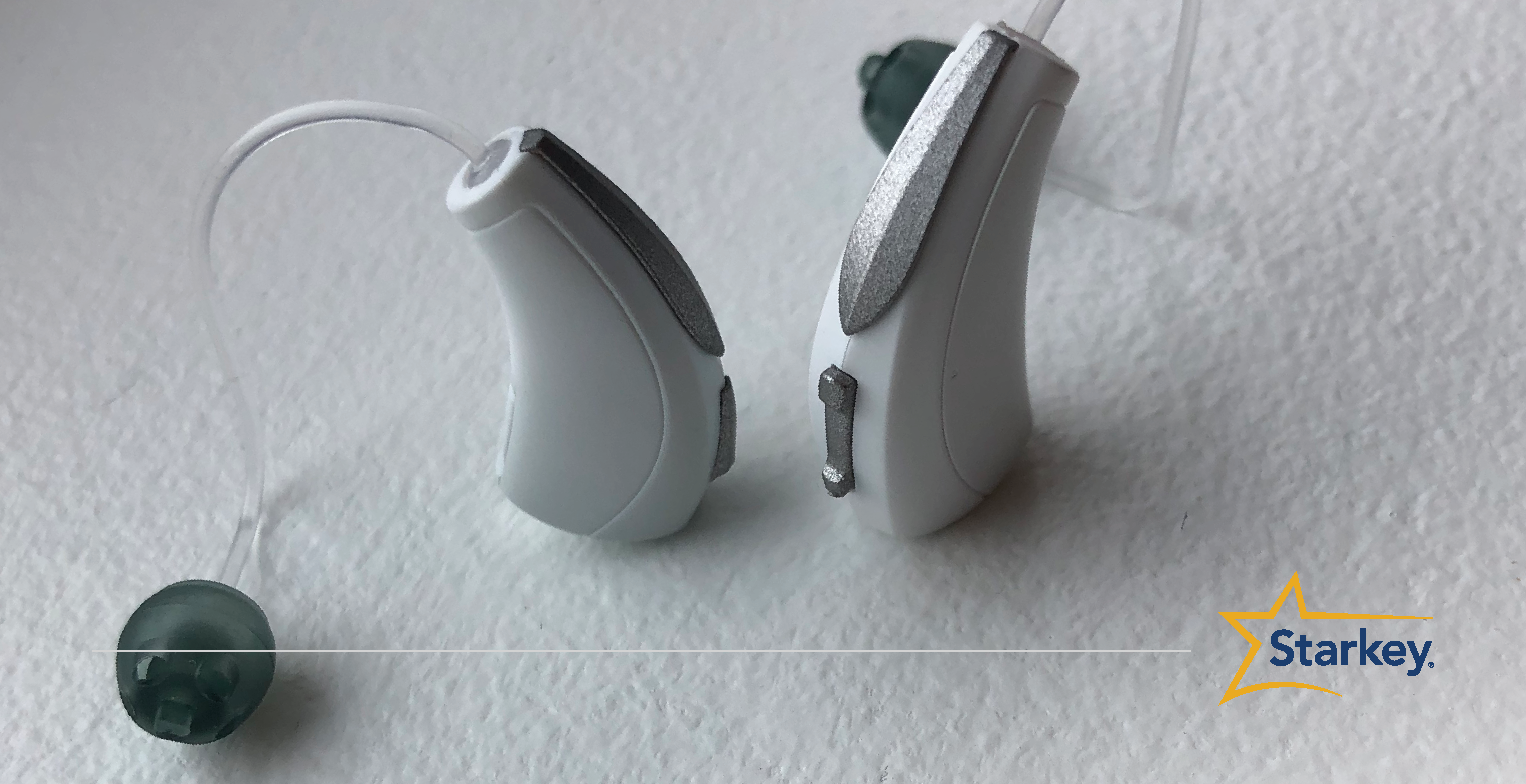
Connectivity and Starkey App Troubleshooting
Bluetooth and app problems cause frustration. Follow these steps for smoother connections.
- Confirm the phone supports the Starkey app and Bluetooth version.
- Close and reopen the app if it won’t connect.
- Turn Bluetooth off and on on your phone.
- Forget the device in phone settings and pair again.
- Ensure the hearing aids have good battery levels while pairing.
- Check for app or firmware updates and install them.
- Restart your phone and the hearing aids after an update.
If pairing repeatedly fails, try the app on another phone. This helps identify whether the problem is the phone or the hearing aid. Starkey Hearing Aid Troubleshooting often needs a fresh pairing to fix glitches.
Battery, Charging, and Power Solutions
Power problems are easy to check and fix. Here is what to do.
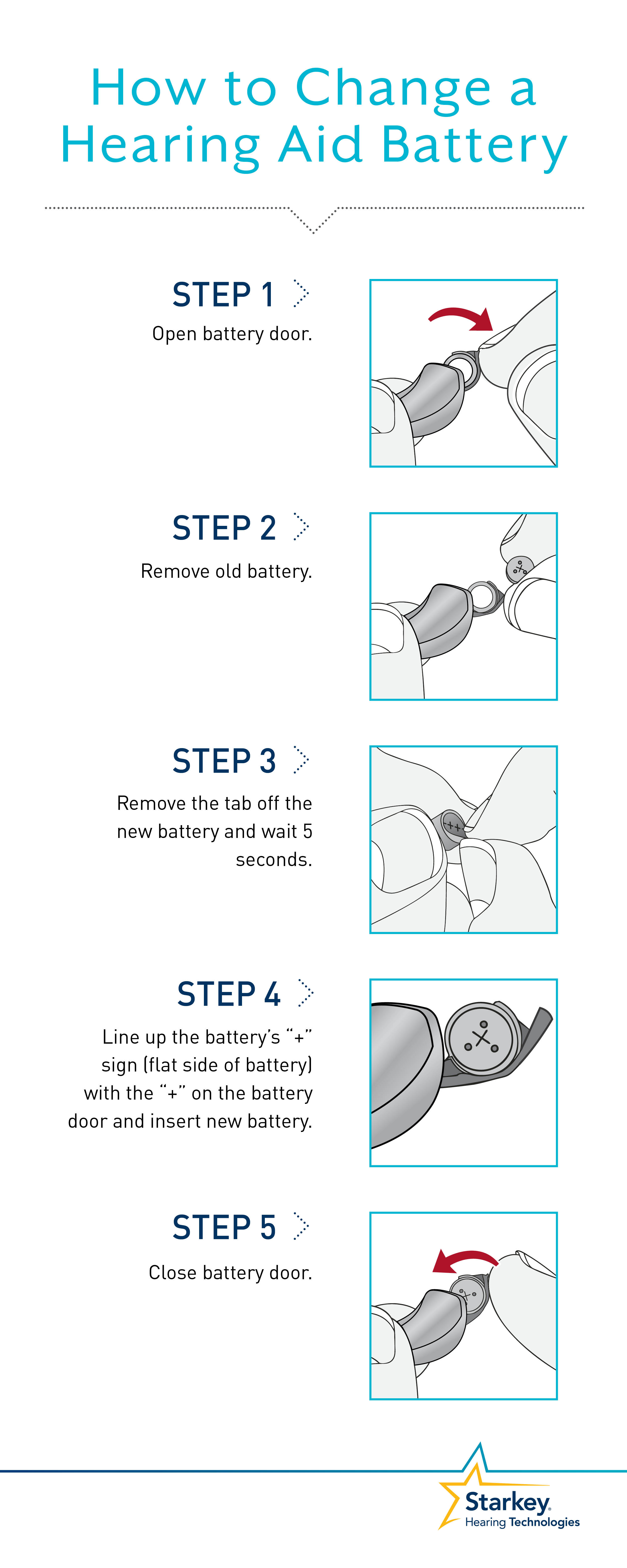
- For disposable batteries, check the expiration and air the battery tab for a minute.
- For rechargeable models, confirm the charger lights show charging.
- Clean contact points on the charger and the hearing aid with a dry cloth.
- Avoid charging in very hot or cold places.
- If batteries drain fast, reduce wireless streaming time or check for moisture.
- Replace rechargeable cells if they no longer hold a charge after many cycles.
Starkey Hearing Aid Troubleshooting often finds that a worn battery or a dirty contact is the root cause. Replacing the battery or cycling the charger usually helps.
Cleaning, Maintenance, and Physical Care
Good care prevents many issues. Use a routine to keep devices working well.
- Wipe hearing aids daily with a soft, dry cloth.
- Remove earwax from domes and sound outlets with the tool provided.
- Use a wax guard and replace it as recommended.
- Keep the aids in a dry case overnight or use a dehumidifier for hearing aids.
- Avoid showering or swimming with aids in place.
- Have a professional clean and inspect devices every 6 months.
Starkey Hearing Aid Troubleshooting is easier when the device is clean. Regular maintenance reduces repair visits and improves sound quality.
Software Updates, Resetting, and Factory Restore
Firmware and software keep features stable. Follow safe steps before resetting.
- Check the Starkey app for firmware updates regularly.
- Back up your custom programs in the app if possible.
- Soft reset by powering the device off, waiting, then powering on.
- Factory reset if problems persist after other steps. Note that this erases custom settings.
- Re-pair with your phone after any reset.
Only perform a factory reset when simpler fixes fail. Starkey Hearing Aid Troubleshooting can require resets for persistent bugs, but you will lose saved preferences.

When to Contact Starkey Support or Your Audiologist
Know the signs that you need professional help.
- Device won’t turn on after charging or battery replacement.
- Persistent feedback after cleaning and re-fitting.
- Water damage or visible corrosion.
- Major physical damage or lost parts.
- Sudden and severe change in hearing quality.
Contact support if the device is under warranty. Your audiologist can reprogram or repair the device. Starkey Hearing Aid Troubleshooting should escalate to professionals when basic steps don’t fix the problem.

Personal Experience and Practical Tips
I have fit and troubleshot Starkey aids for many clients. I remember a patient whose mic port was full of pocket lint. A quick clean fixed their muffled sound. Another client had pairing problems caused by an old phone OS. Upgrading the phone solved it.
Lessons I learned
- Start simple. Check batteries and cleanliness first.
- Keep a small care kit with a brush, wax pick, and extra domes.
- Note when issues began. This helps the audiologist find the cause.
- Don’t force parts. Gentle handling prevents damage.
- Record program changes so you can revert if a new setting causes problems.
Starkey Hearing Aid Troubleshooting improves with patience. Small checks save time and money.
Frequently Asked Questions of Starkey Hearing Aid Troubleshooting
Why is my Starkey hearing aid whistling?
Whistling usually means the ear tip is not sealing the ear canal or wax is blocking the receiver. Try cleaning and re-seating the device or changing the dome size.
How do I reset my Starkey hearing aid?
Power off the aid, wait 10 seconds, then power it back on. Use the Starkey app or consult your manual for a factory reset if needed.
My Starkey hearing aid won’t pair with my phone. What should I do?
Turn Bluetooth off and on, restart your phone and hearing aids, and re-pair through phone settings. If issues continue, update the phone OS and the Starkey app.
How often should I clean my Starkey hearing aid?
Clean daily with a soft cloth and inspect sound ports weekly. Replace wax guards as recommended by your provider.
When should I see an audiologist for Starkey hearing aid issues?
See an audiologist if cleaning and basic troubleshooting don’t help, if there is water damage, or if sound quality suddenly worsens. Professional service may be needed.
Can software updates fix performance problems?
Yes. Firmware and app updates often fix bugs and improve connectivity. Always backup custom settings before a major update.
Conclusion
Starkey Hearing Aid Troubleshooting is manageable when you follow a clear plan. Start with simple checks: power, cleanliness, and fit. Move to app updates and resets only when needed. Keep devices dry and clean to prevent most issues. If problems persist, reach out to Starkey support or your audiologist for repair and reprogramming.
Take action today: try the checklist, keep a care kit, and note any changes. If you found this guide helpful, subscribe for more tips or leave a comment about your experience.

