

Restarting and checking connections fixes most Fire Tv Stick Troubleshooting issues fast.
I’ve spent years fixing streaming devices and training users to solve streaming hiccups. This guide on Fire Tv Stick Troubleshooting walks you through easy checks, step-by-step fixes, and smart prevention. You’ll get practical tips, real-world examples, and a clear checklist so you can fix most problems at home with confidence.

36% off Today’s Exclusive Deals
Limited-time Exclusive Deals. Check current discount on Amazon.
Check Price on Amazon As an Amazon Associate I earn from qualifying purchases.:max_bytes(150000):strip_icc()/firestickremotebatteries-5bd7532446e0fb00269c0da8.jpg)
What is Fire Tv Stick Troubleshooting and why it matters
Fire Tv Stick Troubleshooting means finding and fixing problems that stop the stick from streaming smoothly. Common problems include no picture, remote not working, buffering, apps crashing, and Wi-Fi drops. Knowing basic troubleshooting saves time, avoids unnecessary purchases, and gets you back to watching faster. I’ll show simple fixes first, then move to advanced steps if needed.
Quick checks: first-line Fire Tv Stick Troubleshooting
Start with these checks before deeper troubleshooting:
- Confirm the Fire Tv Stick is plugged into a powered USB port or the supplied power adapter.
- Ensure the HDMI connection is secure and the TV is set to the correct HDMI input.
- Replace or re-pair the remote and check batteries.
- Test the Wi-Fi connection with another device to rule out internet issues.
- Restart the Fire Tv Stick by unplugging power for 10 seconds, then plug back in.
These quick checks resolve most issues and are the fastest way to test the device.
Step-by-step detailed Fire Tv Stick Troubleshooting
Below are clear steps for common problems. Follow them in order and test after each step.
Power and startup issues
If the Fire Tv Stick won’t power on, try another power adapter and outlet. Avoid TV USB ports that may not provide enough current; use the included wall adapter. If the stick shows a logo but won’t boot, hold the Select and Play/Pause buttons for 10 seconds to force a reboot.
HDMI and display problems
No picture or black screen often means a bad HDMI handshake. Re-seat the Fire Tv Stick, try a different HDMI port, or use an HDMI extender. Change TV’s HDMI mode or try another TV to isolate the issue.
Remote not working
If the remote is unresponsive, swap batteries first. Re-pair the remote by holding the Home button for 10 seconds. If voice or volume keys fail, confirm the remote is a compatible model and test with a replacement remote or the Fire TV app.
Wi-Fi and network troubleshooting
For buffering or connection drops, move the router closer or use a 5 GHz network for less interference. Restart the router and modem. Set a static DNS like 1.1.1.1 or 8.8.8.8 if the device has DNS resolution issues.
App crashes or streaming errors
Clear app cache and data in Settings > Applications. Update the app or reinstall it. Sign out and sign back into the streaming service to refresh credentials.
Audio and video sync or quality issues
Check TV and app audio settings. Try toggling surround sound options. Lower streaming bitrate in app settings if bandwidth is low. Use a wired Ethernet adapter if Wi-Fi is unreliable.
Freezing, slowness, and overheating
Close background apps and uninstall unused apps. Unplug the stick and let it cool for 10 minutes. Ensure vents are not blocked and avoid placing the stick behind the TV without airflow.
Software updates and system problems
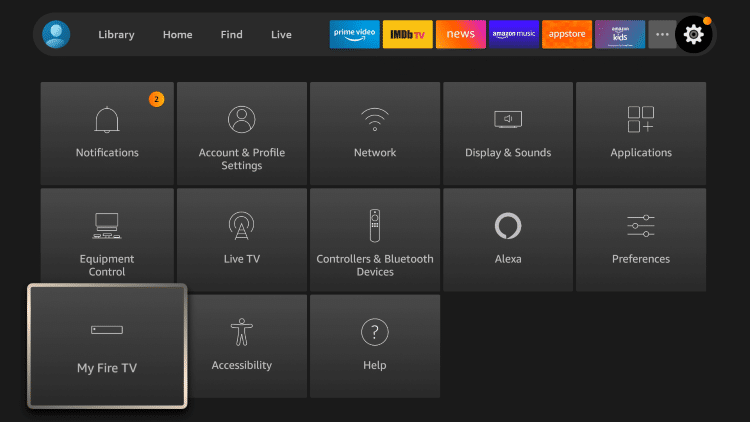
Keep the Fire Tv Stick software current via Settings > My Fire TV > About > Check for Updates. If update installs fail, try restarting and ensure stable internet during the process.
Pairing and Alexa issues
Re-link Alexa by signing into the correct Amazon account and checking the Alexa app for settings. Re-pair Bluetooth devices from the Bluetooth menu if they disconnect.
:max_bytes(150000):strip_icc()/fire-stick-d685897b03a64821947ce8277f47ea81.jpg)
Advanced Fire Tv Stick Troubleshooting and factory reset
When basic steps fail, advanced fixes can help. Back up any account info and settings before attempting them.
- Factory reset from Settings > My Fire TV > Reset to Factory Defaults. Use only if other steps fail because this erases apps and settings.
- Use ADB debugging only if you are comfortable with developer tools. Enable ADB in Developer Options and use a PC to sideload or inspect logs.
- Reinstall problematic apps from the Appstore rather than sideloading when possible to keep updates working.
- Contact support with device serial and error codes for warranty or RMA options.
Advanced steps can solve deep software corruption but come with data loss risk. Proceed carefully.
Maintenance, prevention, and optimization
Good habits reduce future troubleshooting needs:
- Keep system and apps updated regularly.
- Use the supplied power adapter to prevent brownouts.
- Remove unused apps to free up storage and memory.
- Clear cache monthly for high-use apps.
- Use a Wi-Fi extender or Ethernet adapter for stable streaming.
These small steps make Fire Tv Stick Troubleshooting less frequent and easier when issues arise.
Personal experience and lessons learned
I once repaired a client’s repeat-freezing Fire Tv Stick that only needed a better power adapter. They had been using the TV’s USB port. Lesson learned: always start with power and connections.
Another time, an app crash was fixed by clearing cache and reinstalling—no reset required. I recommend testing fixes one at a time so you know what solved the issue. Avoid rushing to factory reset; often a targeted fix works.
Troubleshooting checklist (printable)
Follow this ordered checklist when troubleshooting:
- Check power: use wall adapter and try another outlet.
- Verify HDMI: re-seat, change port, or use HDMI extender.
- Restart device: unplug power for 10 seconds, then restart.
- Test remote: replace batteries and re-pair.
- Verify network: reboot router, test another device, try 5 GHz.
- Update software: check for Fire TV and app updates.
- Clear app cache: Settings > Applications > Manage Installed Applications.
- Try another TV or input to isolate hardware vs. TV problem.
- Factory reset as last resort and note account login info first.
Use this list to work quickly and avoid missing simple fixes.
People also ask
How do I restart my Fire Tv Stick?
Unplug the power from the Fire Tv Stick for 10 seconds, then plug it back in. You can also restart from Settings > My Fire TV > Restart.
Why does my Fire Tv Stick keep buffering?
Buffering usually means weak Wi-Fi or low bandwidth. Move the router closer, switch to 5 GHz, or restart the router and Fire Tv Stick.
Can a bad HDMI port cause no signal?
Yes. A loose or damaged HDMI port can block the signal. Try another HDMI port, cable, or use an HDMI extender.
Frequently Asked Questions of Fire Tv Stick Troubleshooting
How do I fix a Fire Tv Stick that won’t turn on?
Try a different wall outlet and the original power adapter. Unplug for 10 seconds and plug back in; if it still fails, test another USB power source or contact support.
My remote won’t pair—what should I do?
Replace batteries and hold the Home button for 10 seconds to pair. If pairing fails, restart the stick and try pairing again or use the Fire TV app as a remote.
Apps keep crashing on my Fire Tv Stick—how can I stop this?
Clear the app cache and data, then update or reinstall the app. Ensure there is enough device storage and the Fire Tv Stick software is updated.
How do I fix audio out-of-sync or no sound?
Check the TV audio settings and app audio options. Toggle surround sound or use a different HDMI port, and reboot the Fire Tv Stick.
When should I factory reset my Fire Tv Stick?
Factory reset only after all other troubleshooting fails. Back up account details first because reset erases apps and settings.
Conclusion
You can fix most problems with clear Fire Tv Stick Troubleshooting steps: check power and HDMI, restart, test the remote, confirm Wi-Fi, update software, and clear app cache. Start with the quick checks and use the checklist for a systematic approach. Try these tips, keep your device maintained, and leave a comment sharing what worked for you or what issue you still need help with.

