

Most Honeywell T6 Pro troubleshooting issues are wiring, power, or configuration errors.
I have worked on many thermostats and I know the Honeywell T6 Pro inside out. This guide covers Honeywell T6 Pro troubleshooting step by step. You will get quick fixes, clear wiring checks, Wi‑Fi and zone tips, and safe reset steps. Read on to solve problems fast and avoid service calls.

36% off Today’s Exclusive Deals
Limited-time Exclusive Deals. Check current discount on Amazon.
Check Price on Amazon As an Amazon Associate I earn from qualifying purchases.
What the Honeywell T6 Pro is and why troubleshooting matters
The Honeywell T6 Pro is a smart thermostat used in many homes and small businesses. It controls heating and cooling systems. When it stops working, comfort and energy use suffer. Good Honeywell T6 Pro troubleshooting saves money and time by fixing simple faults fast.

Common problems with Honeywell T6 Pro and quick causes
Most issues are easy to spot. Below are common problems and likely causes.
• Unit will not power on — missing C‑wire or tripped breaker.
• Display shows error or blank screen — firmware glitch or low power.
• Thermostat not calling for heat or cool — incorrect wiring or mode set wrong.
• Schedule not following — bad configuration or time/date wrong.
• Wi‑Fi or app not connecting — wrong password, router band, or network setting.
These are the core areas I check first when doing Honeywell T6 Pro troubleshooting.
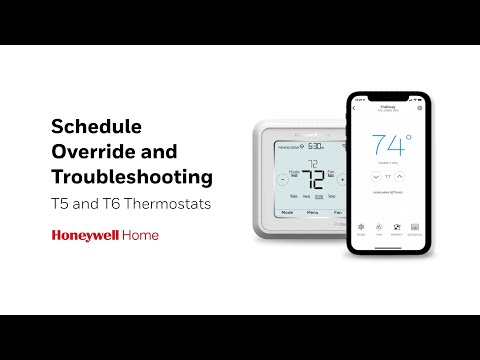
Step-by-step Honeywell T6 Pro troubleshooting checklist
Follow this checklist in order. Each step fixes many issues.
- Check power and breaker.
- Inspect the C‑wire and R wire at the furnace or air handler.
- Look for loose or corroded terminals.
- Confirm system type in settings (heat/cool or heat pump).
- Reboot or soft reset the thermostat.
- Update firmware via app if available.
- Test control by forcing a heat or cool call at the thermostat.
- If Wi‑Fi issues persist, reboot the router and thermostat and rejoin the network.
I use this list on every job. It speeds diagnosis and often resolves the issue in minutes.

Power and wiring checks
Power and wiring cause most failures. Do these checks safely.
• Turn off HVAC power at the breaker before touching wires.
• Verify the C‑wire is present and securely on the C terminal. No C‑wire? Use an adapter or a power extender kit.
• Check R and Rc jumper if system uses separate transformers.
• Look for frayed wires or visible corrosion at the furnace terminals.
• Use a multimeter to confirm 24VAC between R and C.
If voltage is absent, the problem is at the furnace or breaker, not the thermostat. I once fixed a dead T6 Pro by tightening a loose screw on the C terminal at the air handler.
Display, firmware, and reset steps
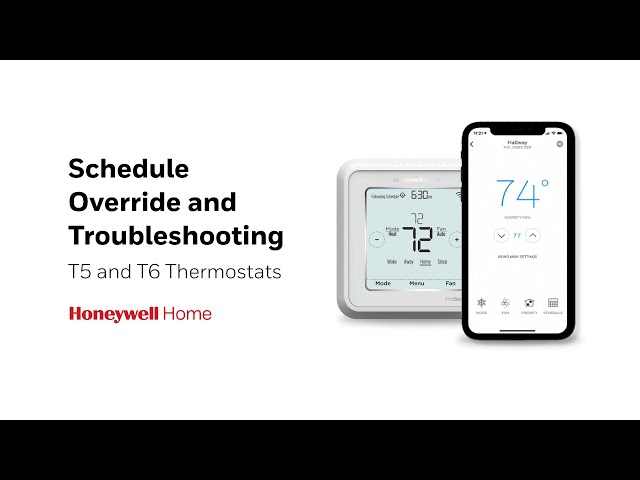
A blank screen or odd behavior often needs a reboot or firmware update.
• Soft reset: remove thermostat from wall plate for 30 seconds then reattach.
• Factory reset: use settings menu to restore defaults if configuration seems corrupt.
• Firmware update: check app or thermostat menus for updates and install them.
• If the screen is dim, the thermostat may be underpowered; check the C‑wire and charging.
Note that factory reset clears schedules and Wi‑Fi links. I only reset after other steps fail.

Wi‑Fi, app, and smart features troubleshooting
Wi‑Fi issues are usually network related. Try these steps.
• Confirm the router is 2.4 GHz if the thermostat does not support 5 GHz.
• Check Wi‑Fi password and network name; rejoin the network if needed.
• Reboot the router and appliance to clear IP conflicts.
• Ensure the thermostat firmware is current; older firmware can block app login.
• Disable MAC filtering or add the device to allowed devices list if needed.
A stable Wi‑Fi makes remote control and firmware updates smooth. I keep a mobile hotspot for quick testing when the home network is flaky.

Schedule and programming problems
If your schedule is ignored, check these items.
• Verify the correct mode (Auto/Heat/Cool) is selected.
• Check AM/PM and the correct day set on the thermostat.
• Review hold settings; a permanent hold can block schedules.
• Recreate the schedule if it has corrupted entries.
• Use the app for easier schedule edits if available.
Schedules are often fixed by clearing a hold or correcting the time zone. I recommend testing changes for one day.
Heat pump and multi‑stage systems
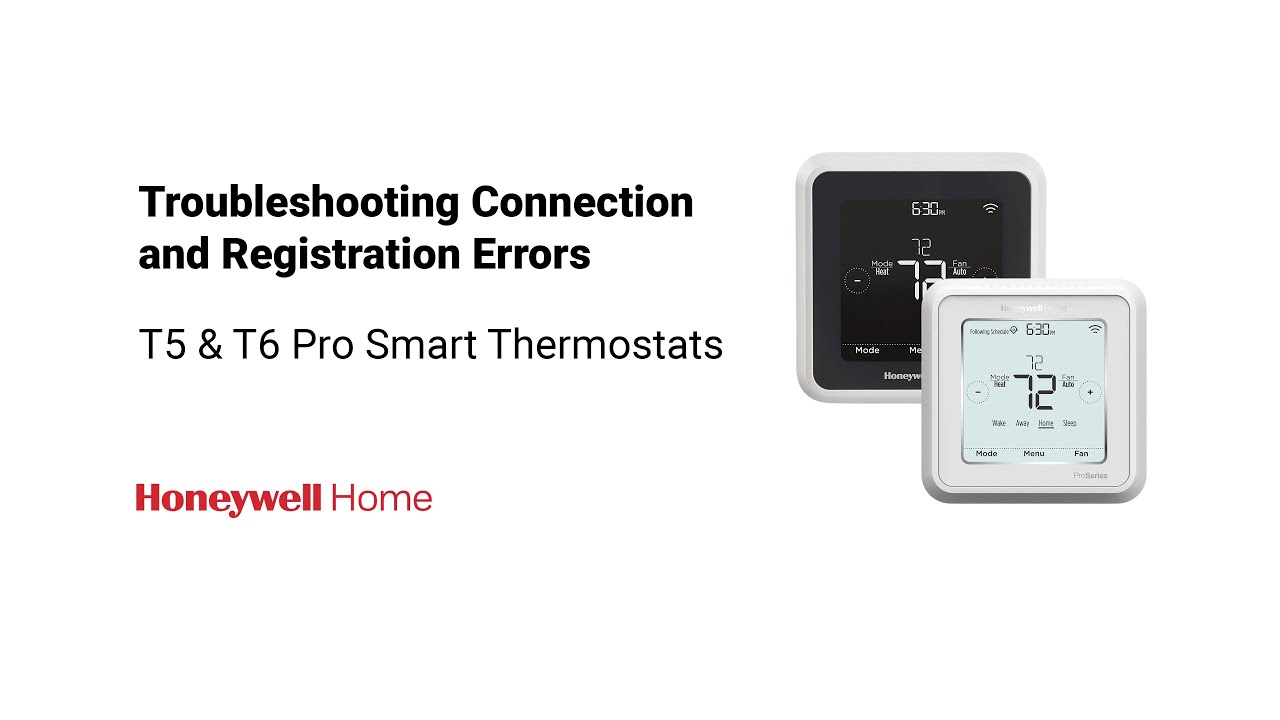
The T6 Pro supports many system types but needs correct setup.
• Confirm system type in setup (furnace, heat pump, electric).
• For multi‑stage systems, ensure stage wiring matches terminal labels.
• Test auxiliary and emergency heat calls on a heat pump.
• Use installer setup menus for advanced configuration options.
Wrong system type will cause erratic calls. I once saw a two‑stage furnace wired as single‑stage and it cycled heavily until I corrected the installer setup.

Advanced diagnostics and error codes
When simple fixes fail, use advanced checks.
• Check error messages on the thermostat and note codes.
• Use multimeter tests on control circuits at the equipment.
• Inspect furnace or air handler error lights and logs.
• Record symptoms: time of day, weather, and sequence of events.
• Consider a professional HVAC scan tool for complex faults.
Documenting exact errors speeds repair time. Technicians often rely on logs from the air handler to find intermittent faults.
Maintenance and prevention tips
Regular care reduces Honeywell T6 Pro troubleshooting needs.
• Replace HVAC filters per schedule to keep systems stable.
• Tighten wires at the furnace yearly to avoid loose connections.
• Keep thermostat firmware up to date for stability and security.
• Avoid mounting near heat sources, vents, or direct sun.
• Test schedule and system calls each season change.
Small checks prevent most thermostat visits. I advise homeowners to add a quick seasonal check to their calendar.
When to call a professional
Some problems need a pro. Call help if:
• You find no 24VAC power at the furnace after checks.
• You see signs of water, soot, or electrical burning.
• The system cycles off and on rapidly or makes unusual noises.
• Advanced wiring or control board replacement is needed.
A licensed pro can test transformers and control boards safely. If you are unsure about any step, get help.
People also ask
What causes a Honeywell T6 Pro to lose Wi‑Fi?
Wi‑Fi loss is usually from router settings, a weak signal, or a changed password. Firmware or DHCP conflicts can also block reconnection.
How do I add a C‑wire for Honeywell T6 Pro troubleshooting?
You can use a common wire adapter or run a new C‑wire from the furnace. A power extender kit is a good no‑rewire option.
Will a factory reset fix a Honeywell T6 Pro?
A factory reset will clear settings and often fix software issues, but it will not fix wiring or power faults. Try reboot and wiring checks first.
Can firmware updates break thermostat functions?
Rarely. Updates aim to fix bugs and add features, but power loss during update can cause issues. Ensure stable power and a strong Wi‑Fi connection before updating.
How long should a Honeywell T6 Pro thermostat last?
With proper care it can last 7–10 years or more. Regular maintenance and correct wiring extend life.
Frequently Asked Questions of Honeywell T6 Pro Troubleshooting
Why is my Honeywell T6 Pro not powering on?
Check the breaker and furnace power first. If power is present, confirm a secure C‑wire connection and test for 24VAC between R and C.
How do I reset my Honeywell T6 Pro?
Try a soft reset by removing the thermostat from the wall plate for 30 seconds and reattaching. If that fails, use the settings menu to perform a factory reset, knowing it erases schedules.
Why won't my Honeywell T6 Pro connect to the app?
Ensure the thermostat is on the correct Wi‑Fi band and the password is correct. Also check for firmware updates and reboot your router if needed.
What if my thermostat calls for heat but furnace won't start?
Check the furnace switch, power, and error lights on the air handler. Verify the control wires and confirm the system type is set correctly in the thermostat.
Is a C‑wire always required for the Honeywell T6 Pro?
A C‑wire is recommended to provide steady power for Wi‑Fi and backlight. If no C‑wire exists, use a power extender kit or adapter to avoid intermittent issues.
Conclusion
Honeywell T6 Pro troubleshooting is usually straightforward when you follow a clear checklist. Start with power and wiring, then move to resets, firmware, and network checks. Keep maintenance simple and document errors to save time. Try the steps here, and if you still have trouble, contact a licensed HVAC pro for a safe diagnosis. If this guide helped, subscribe for more HVAC tips or leave a comment with your model and symptoms.

