

Most Honeywell thermostat issues are simple fixes: power, batteries, wiring, or Wi‑Fi glitches.
I have spent years installing and fixing thermostats for homes and small businesses, so I know Honeywell Thermostat Troubleshooting inside and out. This article gives step‑by‑step fixes, clear causes, and real tips you can use right now to diagnose and repair common Honeywell thermostat problems. Read on and you’ll learn quick checks, safe wiring steps, Wi‑Fi fixes, error code meanings, and when to call a pro.

36% off Today’s Exclusive Deals
Limited-time Exclusive Deals. Check current discount on Amazon.
Check Price on Amazon As an Amazon Associate I earn from qualifying purchases.
How Honeywell Thermostats Work
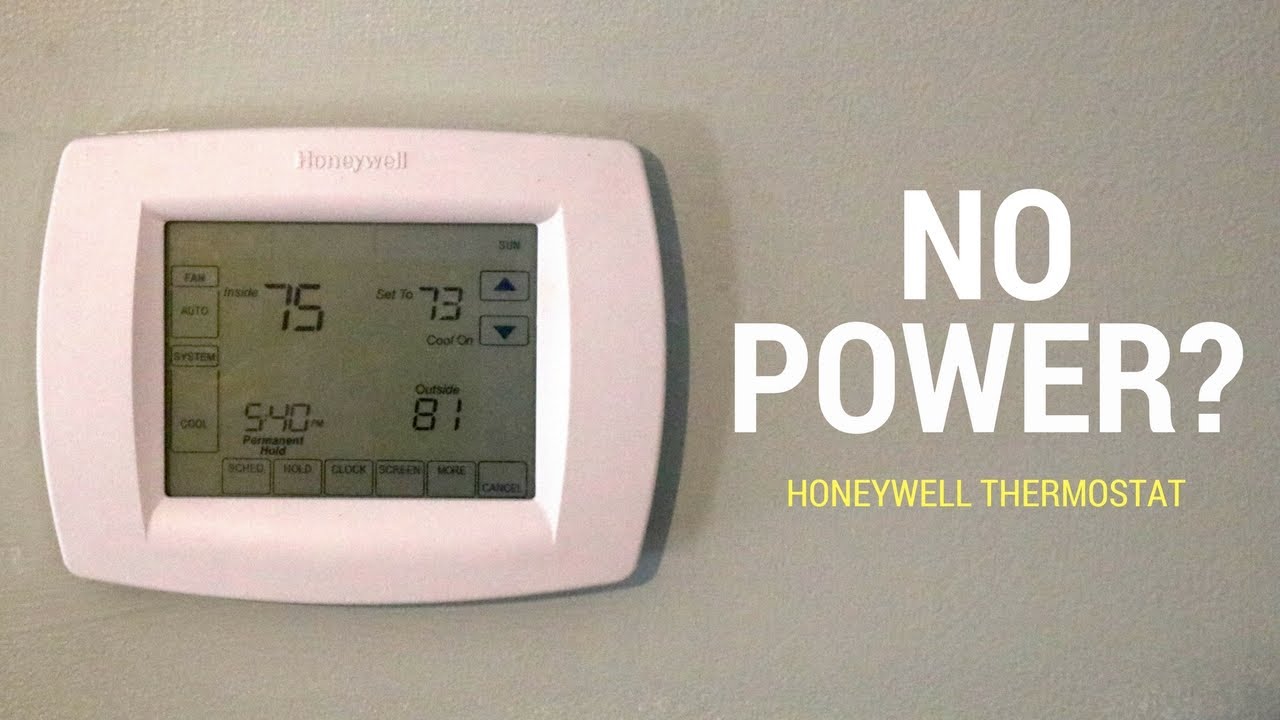
A Honeywell thermostat is a control device for your heating and cooling system. It reads indoor temperature and tells the HVAC system when to turn on or off. Many models use batteries or a C wire for power. Smart Honeywell models add Wi‑Fi, scheduling, and app controls.
Honeywell Thermostat Troubleshooting starts with knowing how your thermostat gets power and how it talks to the HVAC. If you know the basics, you can solve many problems fast.

Common Honeywell Thermostat Issues and Causes
Below are the most common issues I see with Honeywell thermostats and their typical causes.
- Thermostat has no power
- Dead batteries, tripped breaker, or missing C wire can cause loss of power.
- Display is blank or flickering
- Low battery or loose wiring often causes a blank screen or strange display.
- System won’t turn on
- Incorrect mode, wrong schedule, or wiring mistakes can stop heating or cooling.
- Thermostat shows “offline”
- Wi‑Fi problems, app account issues, or router settings can disconnect smart models.
- Wrong temperature readings
- Thermostat placement near drafts, sunlight, or appliances gives wrong readings.
- Erratic cycling or short cycling
- Wiring errors or incompatible HVAC systems often cause rapid on/off cycles.
- Error codes or locked out
- Internal sensors or setup errors can trigger codes or a locked display.
Each one of these calls for different Honeywell Thermostat Troubleshooting steps. A quick check often fixes the issue.

Step-by-step Honeywell Thermostat Troubleshooting Guide
Follow these steps in order. The short checks take minutes and fix many issues.
- Check power first
- Look at the display. If it’s blank, change the batteries or check the breaker.
- Reset any tripped circuit breaker. Replace batteries with fresh alkaline cells.
- Reboot the thermostat
- Remove the thermostat from its base for 30 seconds, then reattach it.
- Many simple software glitches clear after a reboot.
- Verify mode and temperature settings
- Ensure the thermostat is set to heat or cool, not off or fan only.
- Confirm the set temperature is above or below the room temperature as needed.
- Inspect wiring
- Turn power off at the breaker.
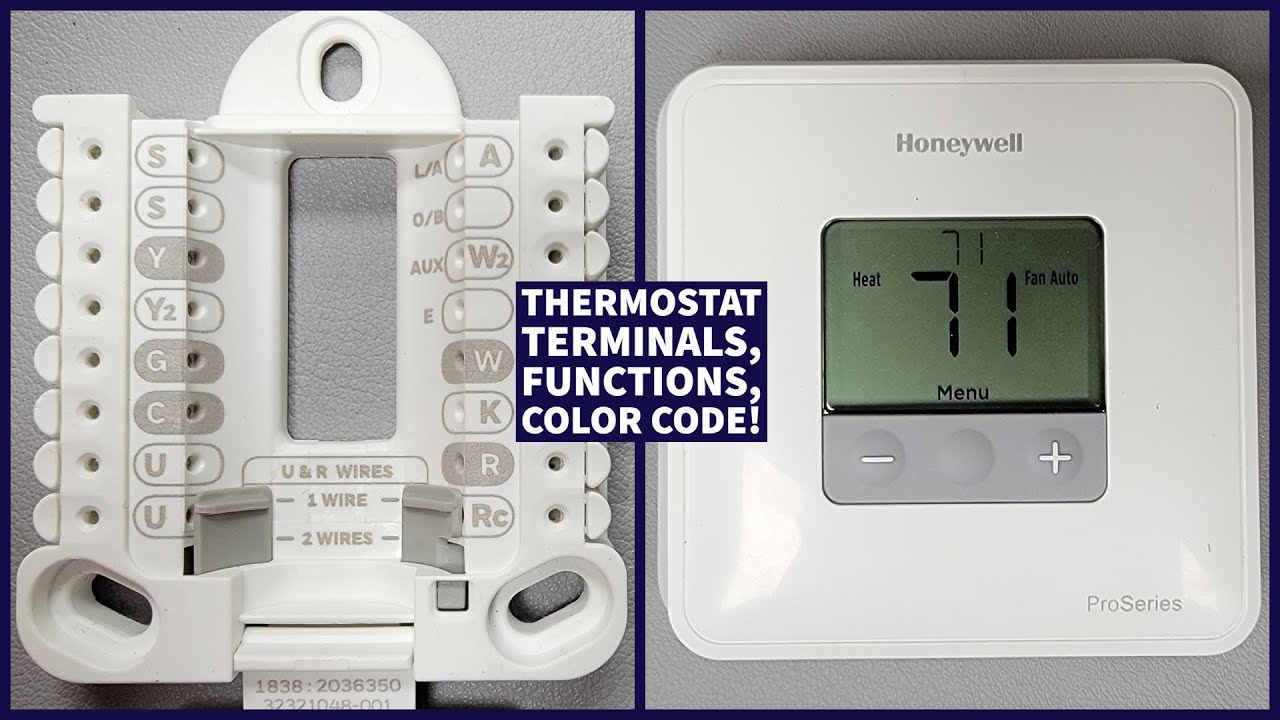
- Check that the common wires (R, C, W, Y, G) are seated firmly on the terminal block.
- If you see loose wires or corrosion, tighten and clean contacts.
- Check the C wire or power adapter
– If your model needs a C wire and none is present, add one or use a power adapter.- Lack of a common can cause reboot loops and Wi‑Fi loss.
- Test HVAC responses
- Change the setpoint and listen for the furnace or AC to start.
- If nothing happens, the problem may be at the furnace or air handler.
- Factory reset as a last resort
- Save your settings, then follow the manual to reset the thermostat.
- Reconfigure the Wi‑Fi and preferences after reset.
I once fixed a smart Honeywell thermostat that kept rebooting. The cause was a loose C wire at the furnace. Tightening that terminal solved the problem in five minutes. Small steps like that save time.

Wi‑Fi, App, and Smart Features Troubleshooting
Smart thermostats add convenience and complexity. These checks focus on connectivity and app issues.
- Confirm Wi‑Fi band
- Many Honeywell smart thermostats only use 2.4 GHz networks. Ensure your router broadcasts that band.
- Reboot router and thermostat
- Power cycle both devices. This often restores the connection.
- Re-login to the app
- Sign out and sign back in to refresh account tokens and links.
- Update firmware and app
- Install the latest firmware on the thermostat and the latest app version on your phone.
- Check account settings
- Make sure the thermostat is added to the right account and location in the app.
Why is my thermostat offline?
- Most offline issues stem from Wi‑Fi changes, router settings, or power loss. Rebooting both devices and ensuring the thermostat has power usually restores the link.
How do I reconnect to Wi‑Fi?
- Use the thermostat’s network settings to scan for your SSID. Enter the password carefully and prefer a 2.4 GHz network for best compatibility.
Can a weak Wi‑Fi signal cause errors?
- Yes. Weak or unstable Wi‑Fi can cause the thermostat to appear offline or show delayed responses. Move your router or add a range extender if needed.
Error Codes and Display Messages
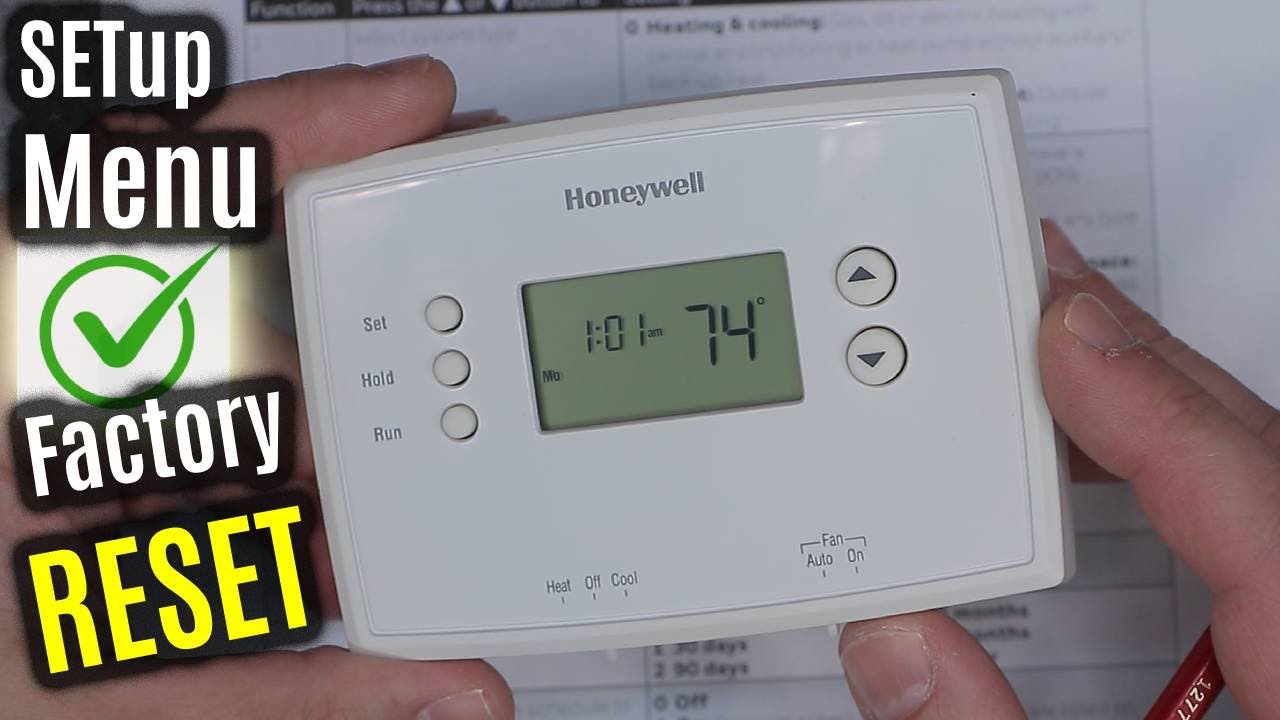
Some Honeywell models show codes or messages. Here are common ones and what to do.
- LO or Err indicating low temperature
- Move the thermostat away from cold drafts. Check sensor connections.
- HI or high temperature error
- Shield the thermostat from direct sun or heat sources.
- 888 or blank segments
- Power surge or internal boot error. Reboot or replace batteries. Reset if needed.
- “Check System” or HVAC warnings
- Inspect the furnace or air handler for faults and error lights. Some HVAC units will show a diagnostic code at the unit.
- “Service” or locked out
- This may need a pro. It can indicate an HVAC safety lock or sensor failure.
If a code persists after basic fixes, take a photo of the display and consult the manual or a technician. Documenting codes helps the technician diagnose faster.
Battery and Power Problems
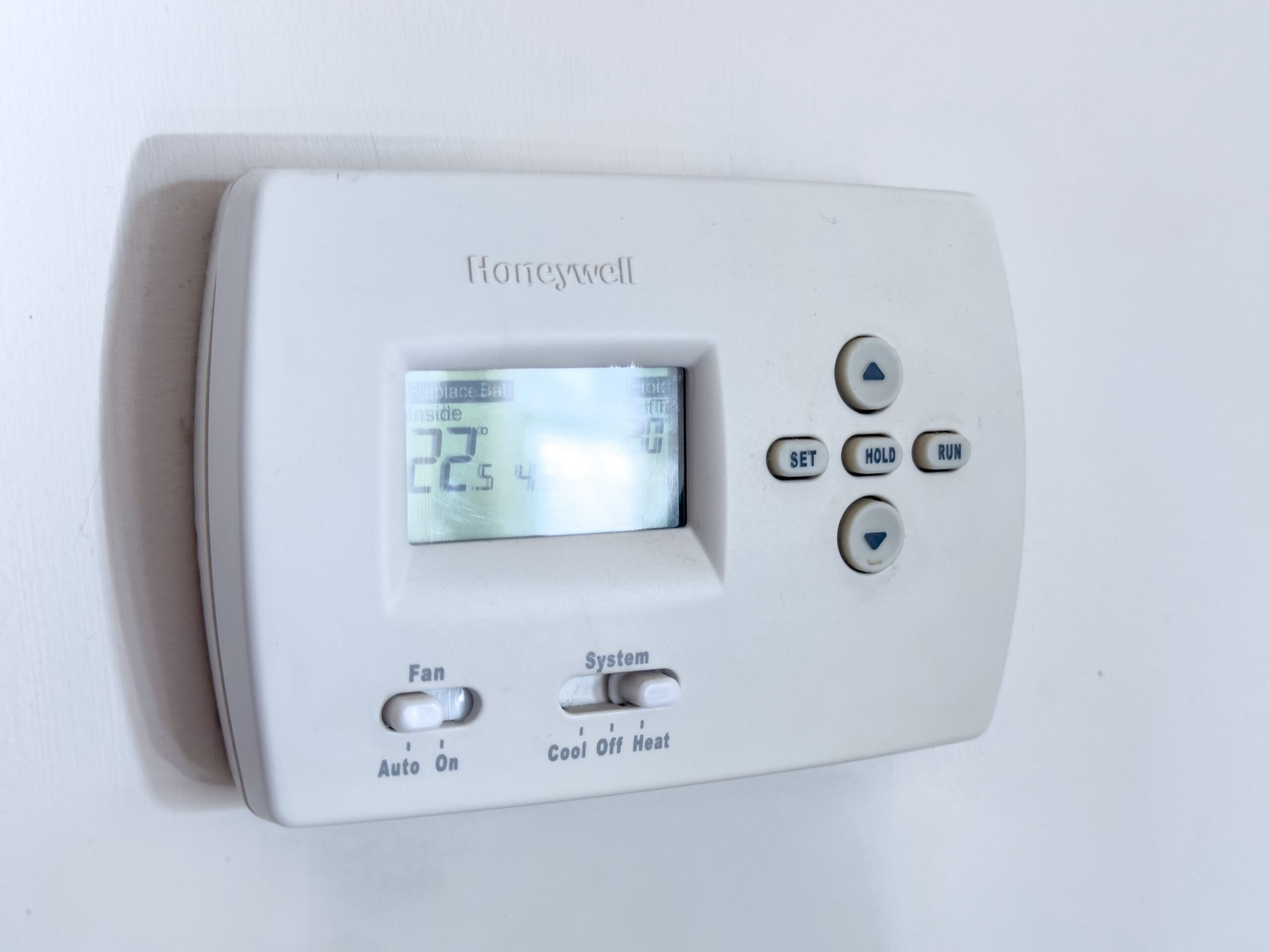
Power issues are the most common cause of thermostat trouble.
- Replace batteries annually
- Old batteries can cause flicker, rebooting, and Wi‑Fi loss.
- Confirm correct battery type
- Use the recommended alkaline batteries for stable voltage.
- Check the C wire
- If your thermostat drains batteries fast, you may need a C wire or a power adapter.
- Inspect the HVAC power
- A tripped breaker or blown fuse at the furnace or air handler can cause intermittent power.
I learned to always keep spare batteries in my toolbox. A fresh pair solved many service calls that seemed like major problems.
When to Call a Professional
Some problems need an HVAC pro or electrician. Call a pro when:
- You suspect wiring issues beyond tightening wires.
- The furnace or AC does not respond after you set the thermostat.
- You see HVAC error lights or system codes at the furnace.
- You are not comfortable turning off power at the breaker.
- You need a C wire installed or the system needs compatibility checks.
A trained technician can test voltages, replace control boards, and ensure safe wiring. Don’t force wiring or touch live terminals if you are unsure.
Maintenance Tips to Prevent Future Problems
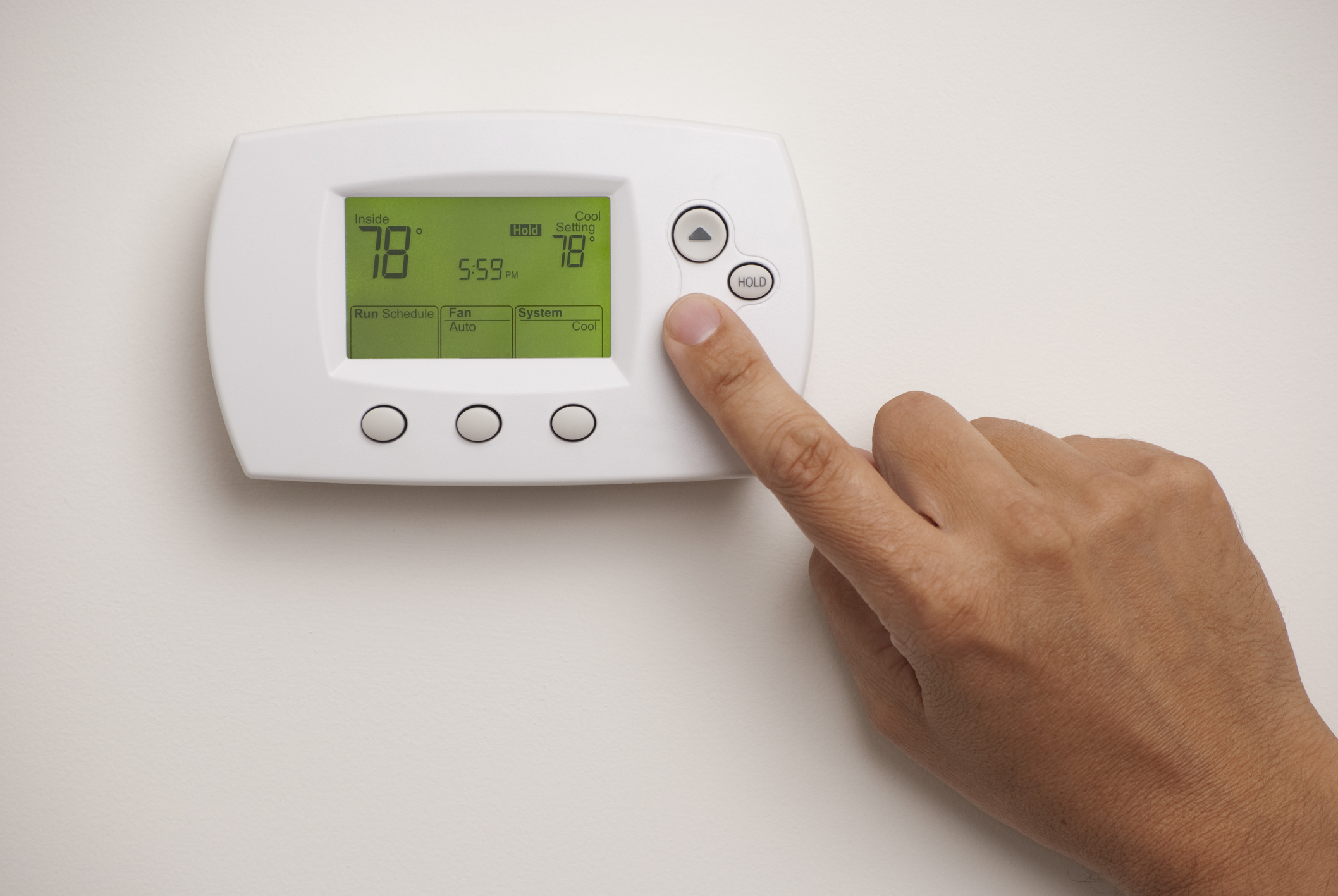
Routine care keeps Honeywell thermostats working well.
- Change batteries every 12 months
- Fresh batteries prevent odd behavior.
- Keep the thermostat clean
- Dust and debris can affect sensors and buttons.
- Update firmware and app regularly
- Updates improve stability and security.
- Avoid direct sun and drafts
- Proper placement ensures accurate readings.
- Check wiring annually
- Tight terminals avoid intermittent faults.
Simple maintenance reduces the need for major Honeywell Thermostat Troubleshooting later on.
Frequently Asked Questions of Honeywell Thermostat Troubleshooting
Why won’t my Honeywell thermostat power on?
Check batteries first. Then check the breaker and the C wire connection. Replace batteries or restore power to the HVAC if needed.
How do I reset my Honeywell thermostat?
Power it off, remove it from the base for 30 seconds, and reattach. If needed, run the factory reset from the settings menu and reconfigure your Wi‑Fi and schedules.
My thermostat shows the wrong temperature. What should I do?
Move the thermostat away from heat sources, direct sun, and drafts. Calibrate the thermostat or compare with a reliable thermometer and replace if the sensor fails.
Why is my smart Honeywell thermostat offline in the app?
Usually a Wi‑Fi or power issue. Reboot the router and thermostat, confirm 2.4 GHz network, and re-enter the Wi‑Fi password in the thermostat settings.
Can I install a Honeywell thermostat myself?
Yes, if you are comfortable with basic wiring and power shutoff. Turn off the power, label wires, and follow the installation guide. Call a pro for complex systems or if unsure.
Conclusion
Honeywell Thermostat Troubleshooting is often simple when you know where to look. Start with power and batteries, check wiring, reboot devices, and fix Wi‑Fi first. Use this guide to run quick checks and safe fixes, and call a pro for wiring or HVAC system faults. Take one small step today: check your thermostat batteries or reboot your router. If this article helped, leave a comment, subscribe for more HVAC tips, or share your own troubleshooting story.

