

Resetting a laptop can solve many problems, from slow performance to software errors or virus infections. Sometimes, you may want to reset your laptop before selling it or giving it to someone else, to protect your privacy. Whatever your reason, knowing how to reset your laptop safely and correctly is essential.
This guide will walk you through the different methods, explain the steps for Windows and Mac laptops, and share practical tips to avoid common mistakes.

36% off Today’s Exclusive Deals
Limited-time Exclusive Deals. Check current discount on Amazon.
Check Price on Amazon As an Amazon Associate I earn from qualifying purchases.Resetting a laptop can seem complicated, especially if you worry about losing files or not being able to use your device afterward. But with the right guidance and a clear plan, anyone can do it—even if you’re not a tech expert.
Let’s dive into the details and help you reset your laptop with confidence.
Understanding What “reset” Means
Before starting, it’s important to know what resetting a laptop actually does. When you reset a laptop, you bring it back to its original state. There are usually two main options:
- Factory reset: This removes all your files, apps, and settings, returning the laptop to how it was when you first bought it.
- Reset with file retention: Some systems allow you to keep personal files while removing apps and settings.
A reset can fix major software problems, remove viruses, and prepare the laptop for a new owner. However, it also means you might lose important data if you don’t back it up first.
When Should You Reset Your Laptop?
Not every problem needs a reset. Try simple solutions first, like restarting the laptop, uninstalling problem apps, or running antivirus scans. But a reset is a good idea if you notice:
- Your laptop is very slow, even after cleaning up files
- Frequent crashes or blue screens
- Virus or malware infections that won’t go away
- Planning to sell, donate, or give away your device
- Software errors you can’t fix by other means
Remember, a reset should not be your first step. But if nothing else works, or you want a fresh start, it’s an effective solution.
Preparing To Reset Your Laptop
A successful reset starts with proper preparation. Skipping these steps can lead to lost data or wasted time.
1. Back Up Your Important Data
Backing up is crucial. Resetting often deletes files, so save anything you want to keep. You can use:
- An external hard drive or USB stick
- Cloud storage, like Google Drive, OneDrive, or Dropbox
- Network drives, if your office or school provides them
Don’t forget to save:
- Documents, spreadsheets, and presentations
- Photos and videos
- Music and downloads
- Important app data (like browser bookmarks or email archives)
2. Make A List Of Apps And Product Keys
After a reset, you’ll need to reinstall your favorite programs. Write down:
- A list of installed programs
- License or product keys for paid software (like Microsoft Office or Adobe apps)
- Any special settings you want to re-apply
Some tools, like Belarc Advisor (for Windows), can help you list installed programs and keys.
3. Ensure You Have Power And Internet
A laptop reset can take from 30 minutes to several hours. Plug your laptop into power to avoid interruptions. You may also need an internet connection to download system files or updates during or after the reset.
4. Sign Out Of Accounts And Deauthorize Devices
If you’re selling or giving away your laptop, sign out of all accounts:
- Email (Gmail, Outlook, etc.)
- ICloud or Apple ID (for Macs)
- Microsoft account (for Windows)
- Adobe, iTunes, or other subscriptions
Also, deauthorize your device from accounts that limit the number of active devices.
Methods Of Resetting A Laptop
There is more than one way to reset a laptop. The right method depends on your operating system, the problem you’re facing, and what you want to achieve.
Common Reset Methods
- Using Built-in Reset Tools: Most modern laptops have a built-in reset option in the operating system.
- Using Recovery Partition: Some laptops come with a hidden recovery area on the hard drive.
- Using a Recovery Drive or Installation Media: If the built-in tools don’t work, you can use a USB drive or DVD with recovery files.
- Manual Reinstallation: For advanced users, you can manually reinstall the operating system.
Let’s look at these options in detail for Windows and Mac laptops.
How To Reset A Windows Laptop
Windows laptops are the most common, and most have easy-to-use reset features. Here’s how you can reset a Windows laptop step by step.
Using “reset This Pc” In Windows 10 And 11
The Reset This PC feature is the simplest way to reset most modern Windows laptops.
Steps:
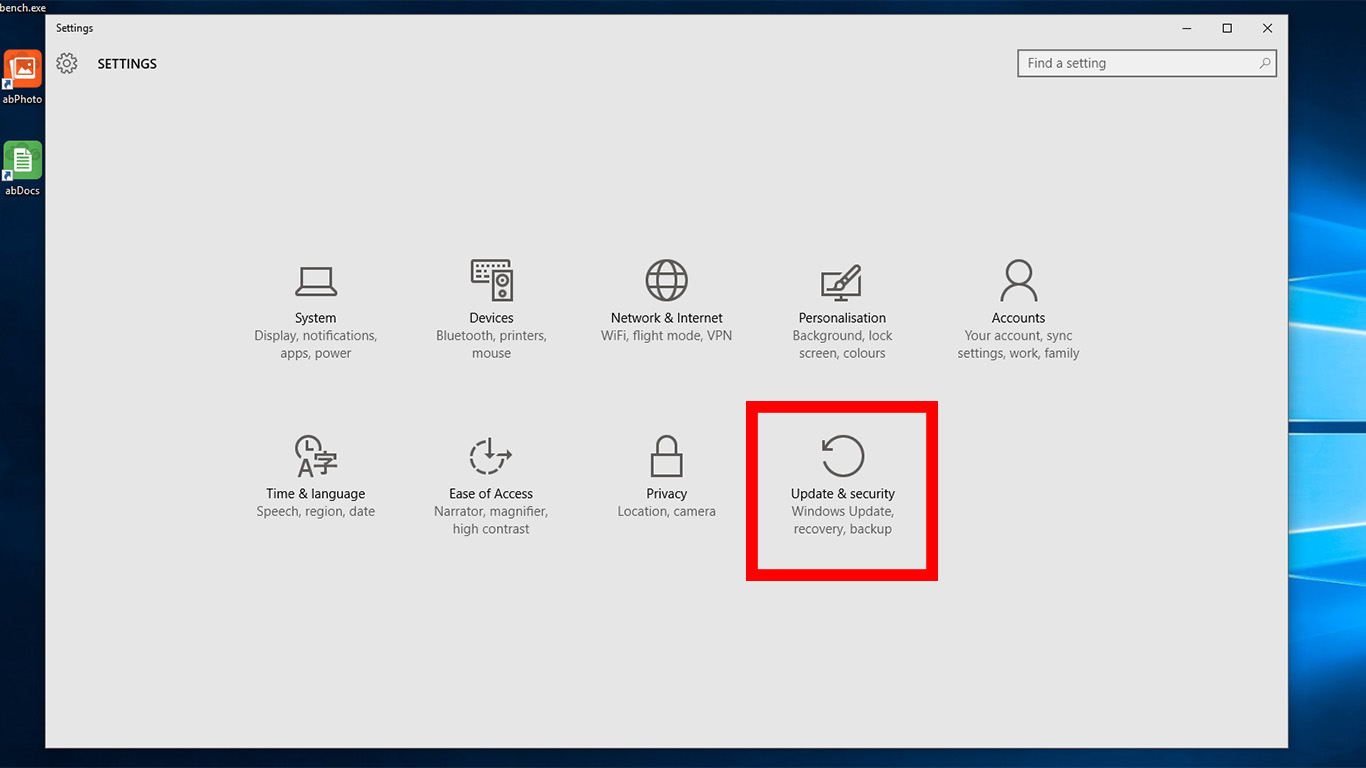
- Click the Start menu and select Settings.
- Go to Update & Security (Windows 10) or System > Recovery (Windows 11).
- Click Recovery.
- Under Reset this PC, click Get started.
- Choose either Keep my files (removes apps and settings, keeps personal files) or Remove everything (deletes everything).
- Follow the on-screen instructions to complete the reset.
What Happens:
- Keep my files: Your documents, photos, and videos stay, but apps and settings are removed. You’ll need to reinstall programs.
- Remove everything: All data, apps, and settings are deleted. This is best for selling or giving away the laptop.
Extra Insights:
- If you choose Remove everything, select Remove files and clean the drive for better security. This makes it harder for someone to recover your old files.
- If your laptop uses BitLocker encryption, make sure you know your recovery key before resetting.
Using Recovery Partition
Some laptops (especially from Dell, HP, Lenovo, Acer) have a recovery partition. This is a hidden part of the hard drive with factory settings.
How To Use:
- Restart your laptop and press the special key (often F11, F8, or Esc) during boot.
- Choose Troubleshoot or Recovery.
- Select Reset or Restore to factory settings.
Check your laptop’s manual or the manufacturer’s website for the correct key.
Using A Recovery Drive Or Installation Media
If Windows won’t start, you can use a recovery USB drive or Windows installation media.
Steps:
- Insert the recovery drive or DVD.
- Restart the laptop and boot from the recovery device.
- Choose Troubleshoot > Reset this PC.
This method is helpful if your system files are damaged or Windows won’t load.
Manual Reinstallation
Advanced users might prefer a clean installation using the latest Windows version.
- Download the Windows Media Creation Tool from Microsoft’s website.
- Create a bootable USB drive.
- Boot from the USB and follow instructions to install Windows.
This removes everything and installs a fresh system.
Windows Reset Methods Comparison
Here’s a quick comparison of the main reset options for Windows:
| Reset Method | Ease of Use | Keeps Files | Requires External Media | Best For |
|---|---|---|---|---|
| Reset This PC | Very easy | Optional | No | Most users |
| Recovery Partition | Easy | No | No | Factory reset |
| Recovery Drive | Medium | No | Yes | System won’t start |
| Manual Reinstall | Advanced | No | Yes | Severe problems |
How To Reset A Macbook Or Other Mac Laptop
Apple’s reset process is different from Windows, but also straightforward. There are several types of resets, depending on your needs.
Using Macos Recovery
MacOS Recovery is the main tool for resetting a MacBook.
Steps:
- Turn off your Mac.
- Hold Command (⌘) + R and press the power button.
- When the Apple logo appears, release the keys.
- In the macOS Utilities window, select Disk Utility.
- Erase your startup disk (Macintosh HD).
- After erasing, close Disk Utility.
- Select Reinstall macOS and follow the prompts.
This process wipes everything and installs a fresh copy of macOS.
Additional Details:
- For Apple Silicon (M1/M2) Macs, hold the power button until “Options” appears, then choose Options > Continue.
- Make sure you’re connected to Wi-Fi to download the OS.
- For older Macs, you may need different key combinations (like Option + Command + R) for internet recovery.
Using “erase All Content And Settings” (macos Monterey And Later)
If your Mac runs macOS Monterey or later, there’s a faster reset:
- Go to System Settings > General > Transfer or Reset Mac.
- Click Erase All Content and Settings.
- Follow the instructions.
This method is similar to the “factory reset” on iPhones. It’s fast and easy, but only works on newer versions.
Deauthorizing And Signing Out
Before resetting a Mac, don’t forget to:
- Sign out of iCloud (Apple menu > System Settings > Apple ID > Sign Out)
- Deauthorize iTunes (if you use it)
- Sign out of Messages and other apps
This ensures your Apple ID isn’t linked to the device.
Mac Reset Methods Comparison
Here’s a side-by-side look at the main Mac reset options:
| Reset Method | macOS Version | Erases All Data | Ease of Use | Best For |
|---|---|---|---|---|
| macOS Recovery | All | Yes | Medium | Fresh start |
| Erase All Content and Settings | Monterey or later | Yes | Very easy | Selling or giving away |
| Manual Reinstall | All | Yes | Advanced | Major problems |
Resetting Laptops From Different Brands
The basic process is similar, but some brands add their own tools.
Dell
- Use SupportAssist OS Recovery (F12 at boot).
- Factory reset and recovery options are included.
Hp
- Use HP Recovery Manager (F11 at startup).
- Offers guided reset steps.
Lenovo
- Press the Novo button or F11 for recovery.
- Use OneKey Recovery for restoring factory settings.
Acer
- Press Alt + F10 at startup for recovery.
- Offers a clear factory reset option.
Check your laptop’s manual for exact instructions and hotkeys.
What To Do After Resetting Your Laptop
After a reset, your laptop is like new. Here’s what you should do next:
- Set up Windows or macOS: Follow the prompts to choose language, region, Wi-Fi, and user account.
- Install updates: Get the latest security patches and drivers.
- Restore your files: Copy back documents, photos, and other data from your backup.
- Reinstall software: Use your list to add needed apps, using any saved license keys.
- Check device drivers: Especially for Windows, make sure your hardware works properly.
- Sign in to accounts: Log in to email, cloud storage, and other services.
If you’re selling the laptop, you can skip these steps—just turn it off and hand it over.

Common Problems And Mistakes During Reset
Even with clear steps, some users face issues when resetting. Here are some common challenges and how to handle them:
1. Forgetting To Back Up Data
Many people start a reset and realize too late they’ve lost important files. Always double-check your backup before resetting.
2. Power Failure During Reset
If your laptop loses power mid-reset, it can cause software errors. Always plug in your device during the process.
3. Missing Product Keys Or Installers
After a reset, you’ll need to reinstall software. If you’ve lost your keys or installers, you might not be able to use paid apps. Save this information before you start.
4. Reset Not Completing
Sometimes, a reset gets stuck or fails. Causes can include:
- Hardware problems (like a failing hard drive)
- Corrupted system files
- Not enough disk space
If your reset fails, try a different method (like a recovery drive or manual reinstall).
5. Laptop Won’t Start After Reset
Very rarely, a reset can leave your laptop unable to boot. In this case, create a recovery USB on another computer and reinstall the operating system.
Data Security: How Safe Is A Laptop Reset?
A standard reset deletes your files, but it’s possible for advanced users to recover data with special tools. If you’re selling or giving away your laptop and want maximum privacy, use the option to clean the drive (Windows) or secure erase (Mac Disk Utility). For very sensitive information, consider using disk-wiping software that overwrites data multiple times.
Resetting For Specific Problems
Sometimes, you might want to reset your laptop for a particular reason. Here’s what to consider:
Removing Viruses
A full reset (especially “Remove everything”) is one of the most reliable ways to remove malware and viruses. Just make sure you don’t restore infected files from your backup.
Fixing Slow Performance
Resetting can fix slowdowns caused by too many background programs or messy system files. But sometimes, upgrading hardware (like adding RAM or an SSD) is a better solution for speed.
Preparing To Sell
A full factory reset is the safest way to remove your data. Afterward, turn off the laptop and let the new owner set it up.
Upgrading To A New Operating System
Resetting is a good time to install the latest version of Windows or macOS. This ensures you have a fresh, up-to-date system.
Practical Tips For A Smooth Reset
- Check your manufacturer’s website for specific reset instructions.
- Keep your recovery media (USB or DVDs) in a safe place. You might need them in the future.
- Label your backups clearly so you don’t confuse old and new files.
- If you’re nervous, ask a tech-savvy friend or professional to help.
- Don’t rush—take your time and double-check each step.

When Not To Reset Your Laptop
Resetting is powerful, but not always necessary. Avoid a reset if:
- You have minor problems that a simple restart or update can solve.
- You haven’t backed up important files.
- You’re unsure about reinstalling your apps or system.
- Your laptop has hardware problems—resetting won’t fix a failing hard drive or broken screen.
Useful External Resources
For more detailed, model-specific guides, check out the official support pages:
Frequently Asked Questions
How Long Does It Take To Reset A Laptop?
The time varies. A simple reset with “Keep my files” can take 30–60 minutes, while a full “Remove everything” reset may take 1–3 hours. Older laptops or those with mechanical hard drives often take longer. Downloading updates or reinstalling software adds extra time.
Will Resetting My Laptop Remove Viruses?
Yes, a full reset—especially “Remove everything” on Windows or erasing the disk on Mac—removes most viruses and malware. But make sure your backup is clean, or you might reintroduce the problem when restoring files.
Can I Reset My Laptop Without Losing Files?
Windows offers a “Keep my files” option, and macOS lets you transfer files before erasing. However, always back up important data first. Some files can still be lost, especially if the system is damaged.
What If My Laptop Doesn’t Start—can I Still Reset It?
Yes. Use a recovery USB drive or installation media to reset or reinstall the system. Most brands have their own recovery tools accessible with special keys at startup (like F11 or Option+Command+R).
Do I Need An Internet Connection To Reset My Laptop?
Not always, but it helps. Some reset methods require downloading system files or updates, especially on Mac. If you’re reinstalling from a USB or recovery partition, you may not need the internet, but connecting will make setup and updates easier.
Resetting a laptop is a powerful way to solve stubborn issues or prepare a device for a new owner. By following these steps and tips, you can reset your laptop safely and efficiently—without unwanted surprises.

