Using Google Maps without an internet connection can save you stress, time, and even money—especially when you travel abroad, visit remote places, or face spotty mobile signals. Many people think Google Maps only works online, but it has powerful offline features that help you navigate, search, and find places, all without using mobile data. This guide explains everything you need to know to use Google Maps offline like a pro, with practical steps, real examples, and answers to common questions.
Why Use Google Maps Offline?
You might wonder, why bother downloading maps if your phone is always connected? The truth is, even in cities, you can lose signal in tunnels, elevators, rural areas, or during network outages. International travelers often face expensive data roaming or limited local SIM cards. Using Google Maps offline solves these problems and keeps you in control.

36% off Today’s Exclusive Deals
Limited-time Exclusive Deals. Check current discount on Amazon.
Check Price on Amazon As an Amazon Associate I earn from qualifying purchases.Some key benefits include:
- Zero data charges: No need for Wi-Fi or mobile internet.
- Faster loading times: Maps display instantly, even in poor signal areas.
- Battery savings: Offline mode reduces background data and battery drain.
- No surprise costs: Avoid expensive roaming or overage fees.
Still, offline maps have limits—real-time traffic, transit, and some search results won’t work. But for most driving, walking, or exploring, offline maps are more than enough.
How Offline Maps Work In Google Maps
When you download an area for offline use, Google Maps saves detailed map data—including streets, points of interest, and business info—directly on your device. You can then search for places, get turn-by-turn driving directions, and view most details, even with airplane mode enabled.
Offline maps are not just images. They include searchable data, so you can:
- Find addresses or businesses
- Get driving routes (with step-by-step voice guidance)
- See landmarks and street names
But some features, like public transit info, bike routes, live traffic, and walking directions, may be limited or unavailable offline.

Devices And Platforms That Support Google Maps Offline
Google Maps’ offline feature works well on most modern smartphones and tablets. Here’s a quick comparison of platform support:
| Platform | Offline Maps Supported? | Special Notes |
|---|---|---|
| Android | Yes | Full support; more options for storage |
| iOS (iPhone/iPad) | Yes | Some features may update more slowly |
| Desktop (PC/Mac) | No | Offline maps not available in browser |
You need the Google Maps app (updated version) for Android or iOS. Offline maps do not work on the desktop web version or on older phones running unsupported operating systems.
How To Download Offline Maps
Downloading offline maps is simple, but there are a few steps to get the best results. Here’s how to do it:
- Open the Google Maps app on your phone or tablet.
- Make sure you’re connected to Wi-Fi (downloads use a lot of data).
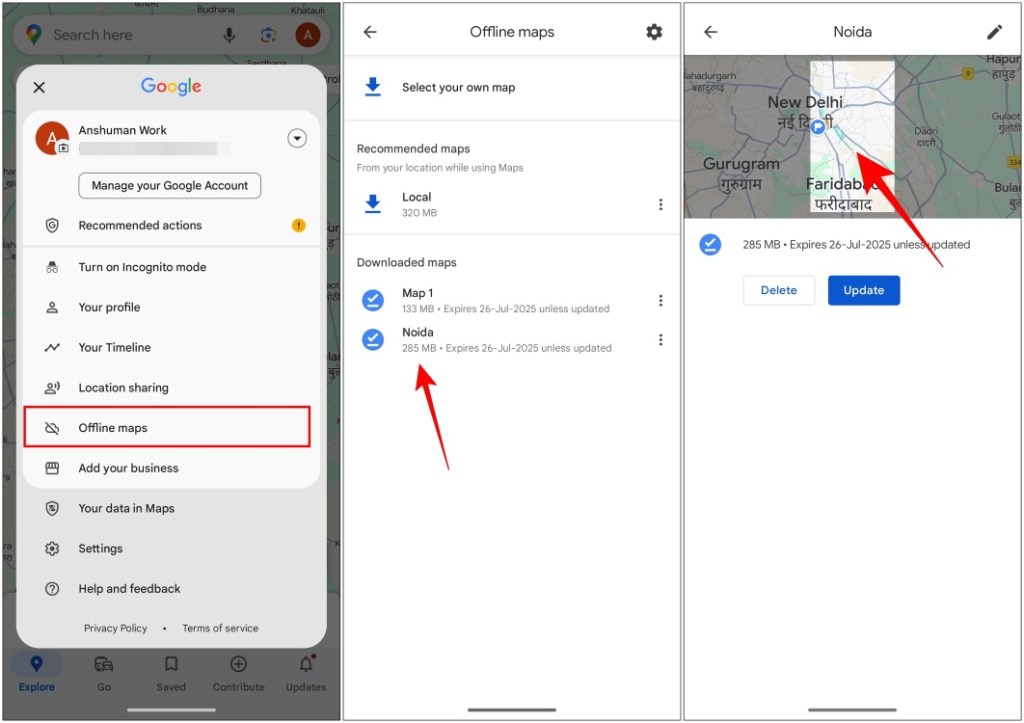
- Tap your profile picture or initials in the top right.
- Choose Offline maps from the menu.
- Tap Select your own map or choose a suggested area.
- Adjust the area with pinch/zoom. The bigger the area, the more storage required.
- Tap Download.
Google Maps will show a progress bar. Once finished, your map is saved for offline use. You can repeat these steps to download multiple areas (for example, your city, plus an upcoming travel destination).
How Much Space Do Offline Maps Use?
The space needed depends on the area size and map detail. Here’s a rough idea:
| Area Size | Approximate Storage Required |
|---|---|
| One city (e.g., Paris) | 200–300 MB |
| Large metro area (e.g., Los Angeles) | 400–600 MB |
| Entire country (e.g., Denmark) | 1–2 GB |
If your device has limited space, download only what you need. You can always delete maps later.

Using Google Maps Offline: Step-by-step Guide
Once you download your maps, using them offline is easy. But there are a few tricks to get the most out of them.
Accessing Offline Maps
Offline maps activate automatically when your phone loses internet. To test:
- Turn off Wi-Fi and mobile data (or switch to airplane mode).
- Open Google Maps. The app will show your downloaded areas. You can search, get routes, and zoom in as usual.
Searching For Places
You can search for addresses, businesses, or landmarks just like online. However:
- Results are limited to the saved area.
- Some business info (like hours or reviews) may be outdated.
- If a place was not in Google’s database when you downloaded, it won’t appear.
Getting Directions
Offline maps provide driving directions with voice guidance. To navigate:
- Enter your destination in the search bar.
- Tap Directions.
- Choose Driving (car icon). Walking and biking may work, but are less reliable offline.
- Tap Start.
You’ll get turn-by-turn instructions, even with no signal. If you leave your downloaded area, navigation will stop until you reconnect.
Managing And Updating Offline Maps
Offline maps expire after about one year, or sooner if Google updates map data. The app will try to update your maps when you’re on Wi-Fi. To update manually:
- Go to Offline maps in the app menu.
- Tap the map you want to update.
- Choose Update.
To delete a map, tap the map and select Delete. This frees up storage.
Offline Maps: What Works And What Doesn’t
Offline mode covers most basic needs, but not everything is available. Here’s a quick summary:
| Feature | Available Offline? | Notes |
|---|---|---|
| Driving Directions | Yes | Voice guidance included |
| Walking Directions | Partial | Works in some areas; no real-time info |
| Transit/Biking Directions | No | Requires internet |
| Business Info | Partial | Data may be old |
| Traffic Data | No | Live traffic not available |
| Satellite View | No | Only basic map view |
If you need live traffic, transit routes, or the latest store hours, you’ll need an internet connection. For most driving or exploring, offline maps are enough.
Advanced Tips For Using Google Maps Offline
Some advanced features and tips can help you get even more out of offline maps.
Download Maps Before You Need Them
Don’t wait until you lose signal. Download maps at home, on Wi-Fi. If you plan a road trip or travel, download all major cities and routes you might pass through.
Save Storage With Smart Downloads
- Download only the cities or regions you need.
- Delete old maps after your trip.
- Move maps to your SD card (Android only): In the Offline maps menu, tap Settings > Storage preferences > Device or SD card.
Use Offline Maps With Other Apps
Offline maps work with Google Maps’ built-in navigation, but not with every third-party app. For example, ride-hailing apps like Uber or Lyft need a live internet connection to book rides, even if Google Maps shows the route offline.
Plan Ahead For Business Info
If you need business hours, phone numbers, or reviews, check them while you’re online. Save important places as Favorites or Starred so you can find them offline.
Combine Offline Maps With Gps
Google Maps uses your phone’s built-in GPS to find your location, even without mobile data. Make sure “Location” is enabled in your device settings for best results.
Keep Your Offline Maps Updated
Offline maps can get outdated as roads, businesses, or places change. Google Maps will try to update maps when you’re on Wi-Fi, but you can also update manually before a trip.
Common Problems And How To Fix Them
Even experienced users run into issues with offline maps. Here’s how to solve the most common ones:
Download Fails Or Stops
- Make sure you have enough free storage space.
- Use a strong Wi-Fi connection.
- Restart the app or device if stuck.
Can’t Find Downloaded Maps
- Check that you’re using the same Google account.
- Maps may have expired or been deleted—download again.
Navigation Doesn’t Start
- Only driving directions are fully supported offline.
- Make sure your destination is within your downloaded area.
- Enable your device’s GPS/location.
Outdated Information
- Update your offline maps before travel.
- For the latest data (like new roads or businesses), you’ll need to go online.
Google Maps Offline Vs. Other Offline Navigation Apps
Google Maps is not the only app with offline maps. Some popular alternatives include HERE WeGo, Sygic, Maps.me, and Apple Maps (for iOS users). Here’s a basic comparison:
| App | Offline Maps | Traffic Updates | Transit Info | Price |
|---|---|---|---|---|
| Google Maps | Yes | Online only | Online only | Free |
| HERE WeGo | Yes | Online only | Partial | Free |
| Maps.me | Yes | No | No | Free |
| Sygic | Yes | Yes (with premium) | No | Free/$ (premium) |
| Apple Maps | Partial (iOS 17+) | Online only | Online only | Free |
Google Maps is the most widely used and trusted app, but for advanced features or offline walking/transit, you might try alternatives. For official information, see the Google Maps Help Center.
Safety And Privacy Considerations
Using offline maps is safe, but keep these points in mind:
- Location data: Google Maps needs access to your phone’s location, even offline. You can turn this off in device settings, but then your position won’t show on the map.
- Personal info: Offline maps don’t store your searches or movements. But if you sign in, Google may sync your activity when you reconnect.
- Data updates: Offline maps can be out of date—don’t rely on them for emergency routes or up-to-the-minute info in fast-changing situations.
When Should You Use Google Maps Offline?
Offline maps are best for:
- Traveling abroad (avoid roaming charges)
- Road trips through rural or remote areas
- Exploring cities with poor mobile coverage
- Saving battery or data on long days out
They are less useful if you need live traffic, public transport, or walking/biking navigation in real time.
Two Common Mistakes To Avoid
1. Downloading Too Small an Area
Many beginners only download a small city center. If you drive outside the area, navigation stops. Always download a larger area than you think you’ll need.
2. Not Updating Before Travel
People often forget to update maps. Roads, businesses, and landmarks can change. Update your maps right before you leave for the most accurate info.
Real-world Examples
Anna, a business traveler, downloaded offline maps of Rome before her trip. When her SIM card failed at the airport, she still found her hotel with turn-by-turn directions.
Luis went hiking in the mountains with no signal. Thanks to offline maps, he followed marked trails and found his way back safely.
Jasmine rented a car in a foreign country and avoided $100+ in roaming fees by using Google Maps offline.
Frequently Asked Questions
How Long Do Offline Maps Stay On My Device?
Offline maps usually expire after about one year. Google Maps automatically updates them when you’re on Wi-Fi. If your map is out of date, you’ll get a warning in the app.
Can I Use Public Transit Directions Offline?
No, public transit (bus, subway, train) directions require a live internet connection. Only driving directions are fully supported offline.
Will Offline Maps Use My Phone’s Gps?
Yes, offline maps use your phone’s GPS chip for location. No mobile data or Wi-Fi is needed for your dot to move on the map.
How Big An Area Can I Download?
The maximum area depends on your device’s storage space. You can download multiple smaller maps to cover a large region, but each map has a size limit set by Google.
Are Offline Maps Available Worldwide?
Most countries and regions are supported, but some places (like parts of China or North Korea) may have limited or no offline map availability due to local laws.
Google Maps offline is a travel essential. With a little planning, you can avoid getting lost, save money, and explore confidently—even where there’s no signal. Remember to download, update, and manage your offline maps before you need them, and enjoy stress-free navigation wherever you go.