

Google Sheets has become one of the most popular tools for working with data, creating spreadsheets, and collaborating online. Whether you’re a student, business owner, or just managing your daily tasks, Google Sheets offers powerful features without needing to install any software.
The platform is easy to use, flexible, and free for most users. If you’re new to Google Sheets or want to improve your skills, this guide will show you how to use Google Sheets effectively, from creating your first sheet to advanced functions and real teamwork.

36% off Today’s Exclusive Deals
Limited-time Exclusive Deals. Check current discount on Amazon.
Check Price on Amazon As an Amazon Associate I earn from qualifying purchases.With simple explanations and practical examples, you’ll learn to organize data, analyze information, and automate tasks—all inside your browser.
Getting Started With Google Sheets
Google Sheets is part of Google’s suite of online tools. All you need is a Google account to access it. Just go to sheets. google. com, and you can start creating spreadsheets instantly.
Creating Your First Spreadsheet
To make your first sheet:
- Sign in to your Google account.
- Go to Google Sheets.
- Click Blank to open a new spreadsheet.
You’ll see rows (numbered) and columns (lettered), with cells where you enter data. Each cell is identified by its column and row (like A1 or B2).
Naming And Saving Sheets
Google Sheets automatically saves your work. To name your sheet:
- Click on Untitled Spreadsheet at the top.
- Type a new name.
Every change is saved instantly, so you never need to worry about losing your work.
Importing And Exporting Files
You can import files from Excel or CSV formats. Click File > Import and choose your file. To export, use File > Download and select options like Excel (.xlsx) or PDF.
Understanding The Google Sheets Interface
The layout is simple but powerful. Here’s what you’ll see:
- Toolbar: At the top, for formatting, formulas, and tools.
- Grid: Where data goes.
- Sheet Tabs: At the bottom, for multiple sheets in a file.
- Menu Bar: Includes options like File, Edit, View, Insert, Format, Data, Tools, and Add-ons.
Navigating Sheets
- Use arrow keys or click cells to move around.
- Drag the edge of columns or rows to resize.
- Right-click for quick options like insert, delete, or format.
Entering And Formatting Data
Google Sheets is flexible with data. You can enter numbers, text, dates, and more.
Basic Data Entry
- Click a cell and type.
- Press Enter to move down, Tab to move right.
Formatting Options
You can make data easy to read by formatting:
- Bold text for headers.
- Change font size or color.
- Use alignment tools for left, center, or right.
- Format numbers as currency, percent, or date.
Conditional Formatting
Highlight cells based on values. For example, show all sales over $1,000 in green:
- Select your cells.
- Click Format > Conditional formatting.
- Set your rule (e.g., greater than 1000) and choose a color.
Using Formulas And Functions
Formulas are the heart of Google Sheets. They help you calculate, analyze, and automate data.
Writing Your First Formula
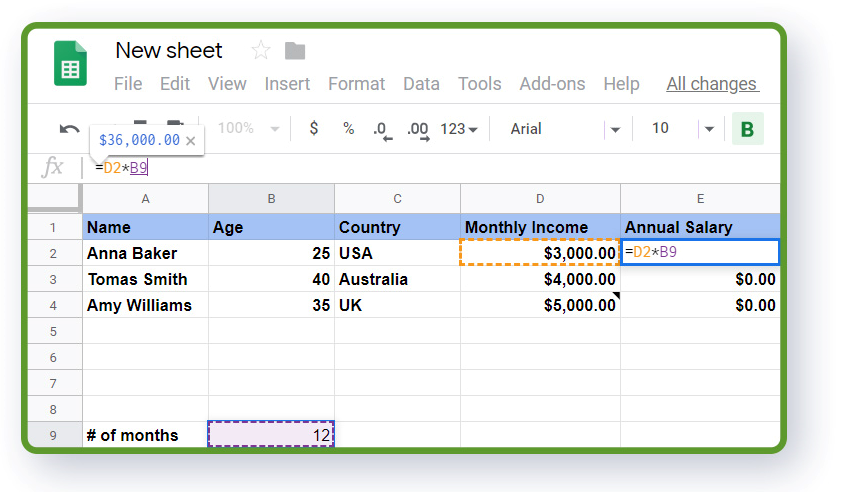
Every formula starts with an equals sign (=). For example, to add two cells:
- Type =A1+B1 in another cell.
Common Functions
- SUM: Adds numbers. `=SUM(A1:A10)`
- AVERAGE: Finds the mean. `=AVERAGE(B1:B10)`
- MAX/MIN: Shows largest or smallest. `=MAX(C1:C10)` or `=MIN(C1:C10)`
- COUNT: Counts cells with numbers. `=COUNT(D1:D10)`
- IF: Checks a condition. `=IF(E1>100, “High”, “Low”)`
Using Functions Efficiently
Many beginners miss that you can use functions on whole ranges, not just single cells. For example, `=SUM(A1:A100)` adds all 100 cells at once.
Absolute Vs Relative References
If you copy a formula, cell references may change. Use $ to fix a reference:
- A1: Relative (changes when copied)
- $A$1: Absolute (stays the same)
This is key when working with large datasets.
Organizing Data: Sorting And Filtering
Google Sheets helps you manage large amounts of data.
Sorting Data
- Select your range.
- Click Data > Sort range.
- Choose ascending or descending.
You can sort by one or multiple columns.
Filtering Data
- Click Data > Create a filter.
- Small filter icons appear in headers.
- Click an icon to filter by values or conditions.
This is useful for finding specific information fast.
Visualizing Data: Charts And Graphs
Charts make data easy to understand.
Creating Charts
- Select your data range.
- Click Insert > Chart.
Google Sheets suggests the best type, but you can change it. Common types are bar, line, and pie charts.
Customizing Charts
- Use the Chart Editor to adjust titles, colors, and axis labels.
- Move or resize charts by dragging.
Charts update automatically if your data changes.
| Chart Type | Best Use | Example |
|---|---|---|
| Bar Chart | Comparing categories | Sales by product |
| Line Chart | Showing trends over time | Monthly growth |
| Pie Chart | Showing parts of a whole | Market share |
Collaborating And Sharing
One of Google Sheets’ biggest strengths is real-time collaboration.
Sharing Sheets
- Click Share in the top right.
- Enter emails or get a link.
- Set permissions: Viewer, Commenter, or Editor.
Real-time Collaboration
Multiple people can edit at the same time. Changes appear instantly. Use comments for feedback:
- Select a cell.
- Click Insert > Comment.
You can reply, resolve, or mention someone by typing @ and their name.
Version History
See every edit:
- Click File > Version history > See version history.
- Restore old versions if needed.
This prevents accidental loss or mistakes.
| Permission Level | What They Can Do |
|---|---|
| Viewer | See data, but can’t change |
| Commenter | Add comments, but can’t edit data |
| Editor | Edit, add, and delete data |
Advanced Features: Pivot Tables, Data Validation, And More
Google Sheets offers advanced tools for deeper analysis and automation.
Pivot Tables
Pivot tables summarize large datasets. To create:
- Select your data.
- Click Data > Pivot table.
- Choose where to put it.
Set Rows, Columns, Values, and Filters to organize your data. For example, you can see sales totals by region and month.
Data Validation
Control what can be entered in a cell:
- Select your range.
- Click Data > Data validation.
- Set rules, like dropdown lists or numbers only.
This helps prevent errors and keeps data clean.
Protecting Sheets And Ranges
Keep sensitive data safe:
- Click Data > Protect sheets and ranges.
- Set who can edit specific parts.
This is useful when sharing with many people.
Using Add-ons
Add-ons expand Google Sheets. Find them in Extensions > Add-ons > Get add-ons. Examples include tools for analytics, automation, or connecting with other apps.
Automating Tasks With Google Sheets
Many daily tasks can be automated, saving time and reducing mistakes.
Using Google Sheets Scripts
Google Sheets has a built-in scripting tool called Apps Script. You can write simple code to automate tasks, like sending emails or updating data.
- Go to Extensions > Apps Script.
- Write your script in JavaScript.
A practical example: Automatically email a report every week. While scripts can be complex, even beginners can use simple ones to automate repetitive work.
Creating Simple Automation With Formulas
Some tasks don’t need scripts. For example, you can use the ARRAYFORMULA to apply a formula to a whole column, saving time.
`=ARRAYFORMULA(A1:A10*2)` doubles every number in A1 to A10.
Practical Tips For Beginners
Most new users focus only on basic functions. Here are some non-obvious insights to make your workflow smoother:
- Freeze Rows and Columns: Keep headers visible when scrolling. Click View > Freeze and choose rows or columns.
- Use Keyboard Shortcuts: Save time by learning shortcuts like Ctrl + / for help, Ctrl + Shift + V for plain paste.
- Link Between Sheets: You can reference cells in another sheet: `=Sheet2!A1`.
- Import Data Automatically: Use IMPORTDATA, IMPORTXML, or IMPORTRANGE functions to pull in live data from other sources.
- Set Notifications: Be alerted to changes. Click Tools > Notification rules.
| Shortcut | Action |
|---|---|
| Ctrl + / | Show all shortcuts |
| Ctrl + Shift + V | Paste values only |
| Ctrl + Arrow | Jump to edge of data |

Comparing Google Sheets With Excel
Many people wonder if Google Sheets is as good as Microsoft Excel. Here’s a quick comparison:
| Feature | Google Sheets | Microsoft Excel |
|---|---|---|
| Price | Free (for most users) | Paid, subscription required |
| Collaboration | Real-time, easy sharing | Limited, needs OneDrive |
| Functions | Most standard, some unique | More advanced and specialized |
| Automation | Apps Script (JavaScript) | VBA (Visual Basic) |
| Accessibility | Works in any browser | Requires software or app |
| File Limits | Up to 10 million cells | Up to 17 million cells |
| Add-ons | Easy to install | More complex |
Google Sheets is often better for teamwork and quick access, while Excel is preferred for heavy analysis and advanced features. For most users, Google Sheets is more than enough.
Security And Privacy
Google Sheets is secure, but you should know some basics:
- All data is stored in the cloud, protected by Google.
- You control who sees and edits your sheets.
- Always use strong passwords and two-factor authentication.
One common mistake is sharing sheets with Editor permission when only Viewer or Commenter is needed. Be careful with sensitive information.
For more on Google’s privacy and security, see their official documentation: Google Account Security.

Frequently Asked Questions
How Can I Use Google Sheets Offline?
You can use Google Sheets offline by enabling offline mode in Google Drive settings. This lets you edit sheets without an internet connection. Changes sync automatically when you reconnect.
What Are The Limits For Google Sheets?
Google Sheets supports up to 10 million cells per sheet. Files over this size may become slow or cannot be opened. You can have multiple sheets in one file, but the total must stay within the limit.
Can Google Sheets Connect With Other Apps?
Yes. You can use Add-ons or Apps Script to connect with apps like Slack, Mailchimp, or Salesforce. Functions like IMPORTRANGE let you link data from other sheets.
How Do I Protect My Data In Google Sheets?
Use Protect sheets and ranges to control who can edit. Always check sharing settings before sending a link. For sensitive data, limit access to trusted users and use strong account security.
Is Google Sheets Suitable For Business Use?
Google Sheets is ideal for small to medium businesses. It offers real-time collaboration, automation, and easy sharing. For large companies needing advanced analytics, Excel may be better, but Google Sheets handles most business tasks well.
Google Sheets is a tool that grows with your skills. It’s easy for beginners, but powerful for experts. By learning its features, you can organize data, automate tasks, and work with others efficiently. With practice, you’ll discover shortcuts and advanced tricks that save time and make your data more useful.
Whether you’re managing a simple list or analyzing business trends, Google Sheets makes it possible—without cost or complexity. Give it a try, explore its tools, and see how it can help you every day.

