

The iRobot Roomba Combo j7+ Robot Vacuum and Mop usually stops working because of battery, clog, or sensor issues.
If your iRobot Roomba Combo j7+ Robot Vacuum and Mop stopped working, you are not alone. This is one of those smart-home problems that feels small at first, then suddenly becomes annoying when your robot will not charge, will not move, or just sits there acting confused. I’ve seen this happen in real homes more than once, and the good news is that many failures are caused by simple things you can fix yourself.

36% off Today’s Exclusive Deals
Limited-time Exclusive Deals. Check current discount on Amazon.
Check Price on Amazon As an Amazon Associate I earn from qualifying purchases.Why the iRobot Roomba Combo j7+ Robot Vacuum and Mop Stopped Working
The iRobot Roomba Combo j7+ Robot Vacuum and Mop is a complex little machine. It uses motors, brushes, sensors, cameras, software, and a charging system that all have to work together. When one part fails, the whole robot may stop.
In my experience, the most common causes are not dramatic hardware failures. They are usually blocked brushes, dirty sensors, a weak battery, bad charging contacts, a jammed wheel, a full dust bin, or a software glitch after an update. Think of it like a chain of dominos. If one piece falls, the rest may stop too.
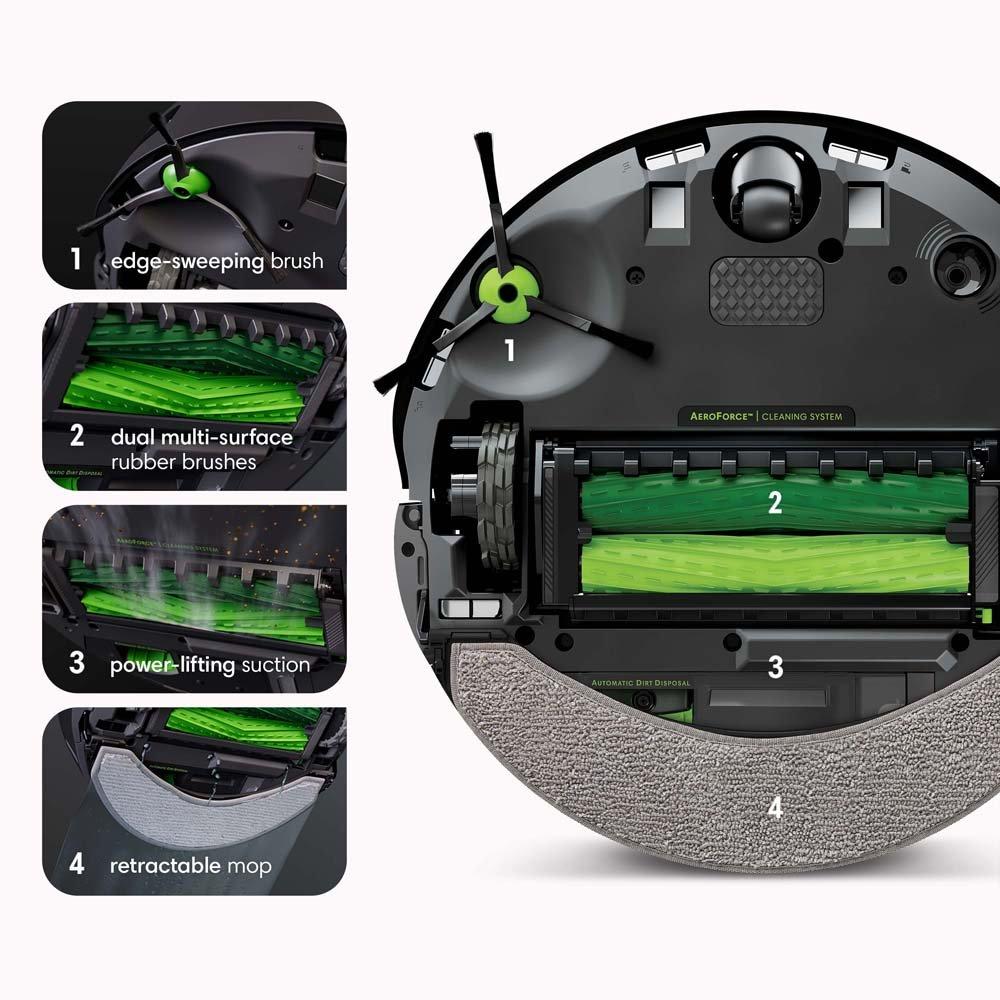
First Things to Check When Your Roomba Combo j7+ Stops Working
Before you assume the robot is broken, start with the basics. I always tell people to check power, dirt buildup, and app status first because those three things solve a lot of cases.
Here is the fastest checklist:
- Make sure the Clean Base or charger has power
- Check whether the robot is properly seated on the dock
- Inspect the charging contacts for dust or grime
- Empty the bin and check for clogs
- Remove hair from the main brush and side brush
- Look for stuck wheels or debris under the robot
- Open the iRobot Home app and check for error messages
- Confirm the battery is not completely drained
If the robot seems dead, let it charge for at least 30 to 60 minutes before testing again. A deeply drained battery can look like a total failure, but it may simply need time to wake up.

Common Reasons the iRobot Roomba Combo j7+ Robot Vacuum and Mop Stopped Working
The iRobot Roomba Combo j7+ Robot Vacuum and Mop stopped working for a few repeating reasons that show up in both everyday use and support cases. These issues are common across robot vacuums, not just this model.
Battery Problems
If the battery is old, damaged, or deeply discharged, the robot may not turn on or may shut down quickly. Rechargeable lithium-ion batteries lose capacity over time, especially if the robot is stored for long periods without use.
A battery issue often looks like this:
- The robot powers on, then dies fast
- The robot will not leave the dock
- The robot shows low battery even after charging
- The app cannot connect because the unit will not boot
If your Roomba is a few years old and has been used often, battery wear is a real possibility.
Dirty or Damaged Charging Contacts
The charging contacts on the robot and dock must touch cleanly. If dust, oxidation, or pet hair gets in the way, the robot may think it is charging when it is not.
I have seen this problem fool people for weeks. A simple wipe with a dry microfiber cloth often fixes it faster than any reset.
Clogged Brushes or Roller Assembly
Hair, string, and carpet fibers can wrap around the brush roll and stop the motor from spinning. When that happens, the robot may pause, stall, or shut down to protect itself.
This is especially common in homes with:
- Long hair
- Pets that shed
- Thick rugs
- Frayed carpets
Wheel Obstructions
If a wheel gets jammed, the robot may not move correctly or may stop with an error. Small objects like socks, cords, Lego pieces, and debris are frequent culprits.
The front caster wheel can also collect dirt and reduce movement. It sounds minor, but a dirty wheel can make the robot behave like it is stuck in mud.
Sensor Blockage or Dirt
The Combo j7+ uses multiple sensors to detect walls, edges, furniture, stairs, and obstacles. If those sensors are dirty, the robot may freeze, avoid areas incorrectly, or stop due to a navigation problem.
Common sensor trouble signs include:
- Random stopping
- Incorrect mapping
- Trouble docking
- False obstacle detection
- Repeated cleaning failure messages
Software or App Glitches
Sometimes the hardware is fine, but the software is not. A firmware update, Wi-Fi drop, or app sync issue can make the robot seem broken.
This is one of the most frustrating problems because the robot may look healthy but refuse to respond. I have seen users fix it by restarting the robot, rebooting the router, or reinstalling the app.

Step-by-Step Fixes for the iRobot Roomba Combo j7+ Robot Vacuum and Mop
When the iRobot Roomba Combo j7+ Robot Vacuum and Mop stopped working, I like to use a simple order of repairs. Start with the easiest fixes first. That saves time and avoids unnecessary panic.
1. Restart the Robot
Turn the robot off, wait a few seconds, and turn it back on. If your unit has become unresponsive, a restart can clear a temporary software hang.
If needed, reboot the dock and your Wi-Fi router too. Smart devices often need a fresh start, just like people do after a long day.
2. Clean the Charging Contacts
Use a dry, soft cloth to clean both the robot and dock contacts. Do not use water or harsh cleaners.
If the contacts are slightly dirty, the robot may fail to charge properly. This is one of the simplest fixes with the biggest payoff.
3. Remove Hair and Debris
Check the main brush, side brush, wheels, and suction path. Cut away tangled hair with scissors if needed.
Pay special attention to:
- Brush ends
- The brush bearings
- The front wheel
- Side brush screws
- Underbody edges
Even a small clump of hair can slow the motor enough to trigger an error.
4. Empty and Inspect the Dust Bin
A full bin can reduce airflow and trigger performance issues. Empty it, wash it if the manual allows, and let it dry completely before reinstalling.
If the bin smells musty or dusty, that is another sign it needs a deeper clean.
5. Check for Mop Pad or Water Tank Issues
Since this is a combo unit, the mop system can also create trouble. Make sure the pad is attached correctly, the water tank is filled properly, and nothing is blocking the mop assembly.
If the robot thinks the mop module is not seated right, it may stop or refuse to start a task.
6. Inspect the Battery and Docking Behavior
Place the robot on the dock and watch what happens. If it does not settle correctly, reposition it and check for light or sound feedback from the base.
A battery that will not hold charge may need replacement. That is especially true if the robot only runs for a short time or dies before finishing a room.
7. Update the App and Firmware
Open the iRobot Home app and check for updates. Firmware updates can fix navigation bugs, connectivity issues, and charging quirks.
Also check your phone’s app permissions. Bluetooth, Wi-Fi, and local network access can matter more than people realize.
8. Perform a Factory Reset Only if Needed
A factory reset should be a last step, not your first move. It can help with persistent software problems, but it also removes saved settings and maps.
Use it when:
- The app cannot connect
- The robot behaves strangely after updates
- Reboots and cleaning did not help
- Support recommends it

Error Signs That Help You Diagnose the Problem
The iRobot Roomba Combo j7+ Robot Vacuum and Mop stopped working in different ways depending on the fault. Reading the symptoms is like reading a fever chart. The signs tell you where to look.
Here are common patterns:
- No power at all: battery, dock, or internal power issue
- Stops mid-clean: clog, wheel jam, battery drain, or sensor problem
- Won’t dock: charging contact issue or navigation confusion
- Repeated pauses: brush obstruction or obstacle detection fault
- App cannot find robot: Wi-Fi, Bluetooth, or firmware issue
- Loud noise before stopping: roller, wheel, or debris jam
One mistake I often see is people replacing parts too quickly. Symptom matching is smarter. It helps you fix the real problem instead of guessing.
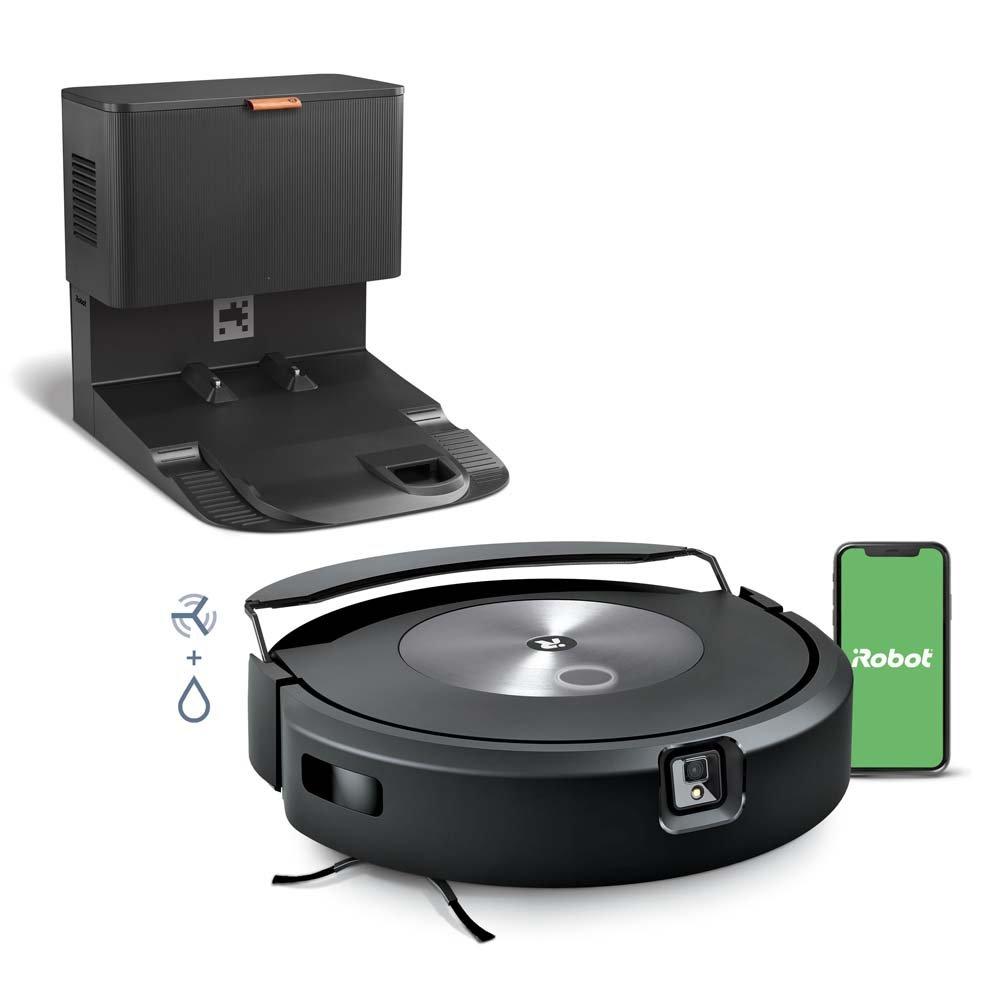
When the Problem Is Hardware, Not a Simple Fix
Sometimes the iRobot Roomba Combo j7+ Robot Vacuum and Mop stopped working because a part really failed. That does happen, especially after long use or heavy cleaning schedules.
Possible hardware failures include:
- Worn battery
- Failed motor
- Damaged wheel module
- Broken dock charging circuit
- Faulty sensor board
- Liquid damage from improper cleaning or spills
If your robot was exposed to water, sticky cleaner, or a flooded area, the chance of permanent damage rises. Robot vacuums are smart, but they are not fans of wet surprises.
How to Prevent Future Breakdowns
A little maintenance goes a long way. The best way to keep the iRobot Roomba Combo j7+ Robot Vacuum and Mop from stopping again is to treat it like a small appliance that needs regular care.
Here are the habits I recommend:
- Clean the brushes once a week
- Wipe the sensors and contacts regularly
- Empty the bin often
- Keep cords, socks, and loose objects off the floor
- Replace worn brushes and filters on schedule
- Store the robot on a clean, flat dock
- Avoid letting the battery sit fully drained for long periods
- Keep firmware updated
I have found that five minutes of care each week prevents many of the annoying “why did it stop again?” moments.
Is It Worth Repairing or Replacing?
This depends on the age of the robot, the cost of the repair, and the type of failure. If the issue is a battery, brush, or contact problem, repair is usually worth it. If the main board or motor has failed on an older unit, replacement may make more sense.
A simple rule I use is this:
- Repair it if the fix is cheap and the robot is otherwise healthy
- Replace it if the repair is expensive and the unit is older
- Contact support if the issue is under warranty or seems like a manufacturing defect
It is also worth comparing the repair cost to the price of a newer model. Sometimes the smartest move is not fixing the old one forever, but making a better buy next time.
Frequently Asked Questions of iRobot Roomba Combo j7+ Robot Vacuum and Mop stopped working
Why did my iRobot Roomba Combo j7+ Robot Vacuum and Mop suddenly stop working?
It often stops because of a clog, dead battery, dirty sensor, or charging issue. Software glitches can also make it seem dead even when the hardware is fine.
Why is my Roomba Combo j7+ not charging?
Most charging problems come from dirty contacts, a power issue with the dock, or a worn battery. Clean the contacts first, then test the dock and charging cable.
How do I reset my iRobot Roomba Combo j7+ Robot Vacuum and Mop?
You can usually restart it from the device controls or app, and a factory reset may help with deeper software issues. Use the reset only after checking the brushes, sensors, and charging system.
Why does my Roomba stop halfway through cleaning?
That usually points to a wheel jam, low battery, clogged brush, or an obstacle detection problem. Check the floor for cords and debris, then inspect the robot’s underside.
Can a dirty sensor make my Roomba stop working?
Yes, dirty sensors can confuse navigation and make the robot pause, avoid areas, or stop completely. Wiping the sensors with a soft dry cloth is a quick and useful fix.
When should I contact support?
Contact support if the robot will not power on after charging, shows repeated errors after cleaning, or seems to have internal hardware damage. If it is still under warranty, support is usually the best next step.
Conclusion
When the iRobot Roomba Combo j7+ Robot Vacuum and Mop stopped working, the cause is often something simple like dirt, a weak charge, a jam, or a software hiccup. The smart move is to troubleshoot step by step, starting with power, contacts, brushes, wheels, and app updates before assuming the worst.
With a little patience and regular care, most problems can be prevented or fixed fast. If you found this guide helpful, take a few minutes to inspect your robot now, and leave a comment or explore more maintenance tips so your home helper keeps running smoothly.

