

Most Frame TV issues fix with a power cycle, software update, or simple settings check.
I’ve worked with smart TVs and lived through many late-night fixes, so this Samsung Frame Tv Troubleshooting guide packs practical steps, clear causes, and quick wins. You’ll learn how to diagnose picture, sound, network, remote, and Art Mode problems, plus when to try a factory reset or call support. Read on for easy steps, real-world tips, and things I’ve learned the hard way to get your Frame TV back to looking like a piece of art.

36% off Today’s Exclusive Deals
Limited-time Exclusive Deals. Check current discount on Amazon.
Check Price on Amazon As an Amazon Associate I earn from qualifying purchases.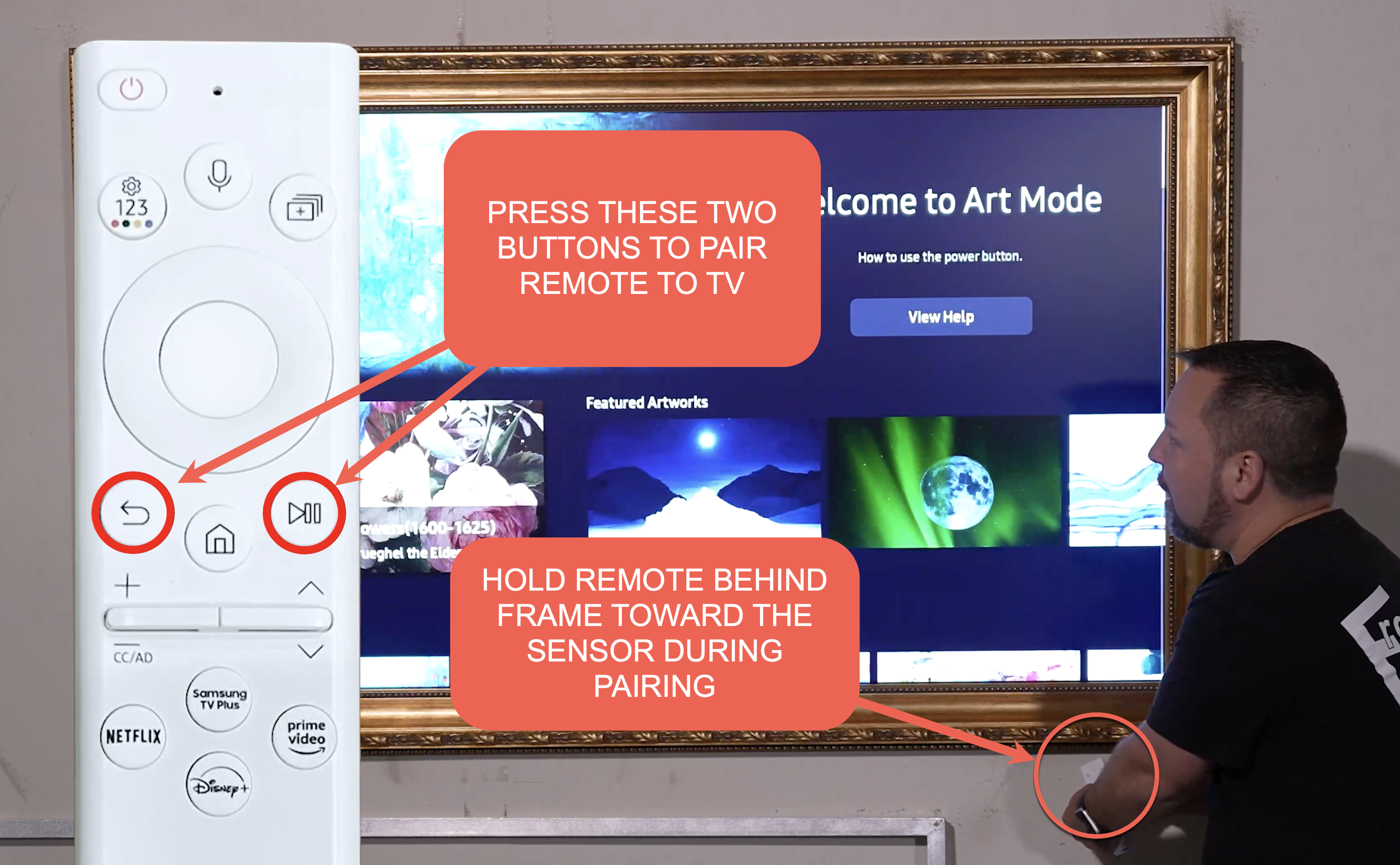
Common Samsung Frame Tv Troubleshooting Scenarios
Most owners face a few repeat problems. The TV won’t turn on, the picture is off, sound is missing, Art Mode won’t load, or apps crash. Each issue has simple causes and ordered fixes that save time and frustration.
Expect causes like loose cables, outdated firmware, network hiccups, or incorrect settings. Hardware failures are rarer but possible. This section sets the scene so you can pick the right fix fast.

Quick Basic Checks Before Deep Troubleshooting
Start with the basics to rule out simple faults. Check that the One Connect box and TV are firmly plugged in. Ensure the remote has fresh batteries and the power outlet works by testing another device.
Unplug the TV and One Connect box for 60 seconds and plug them back in. This power cycle often clears minor software glitches. Make sure HDMI and antenna cables are snug and use known-good cables when testing.
Picture Problems and How to Fix Them
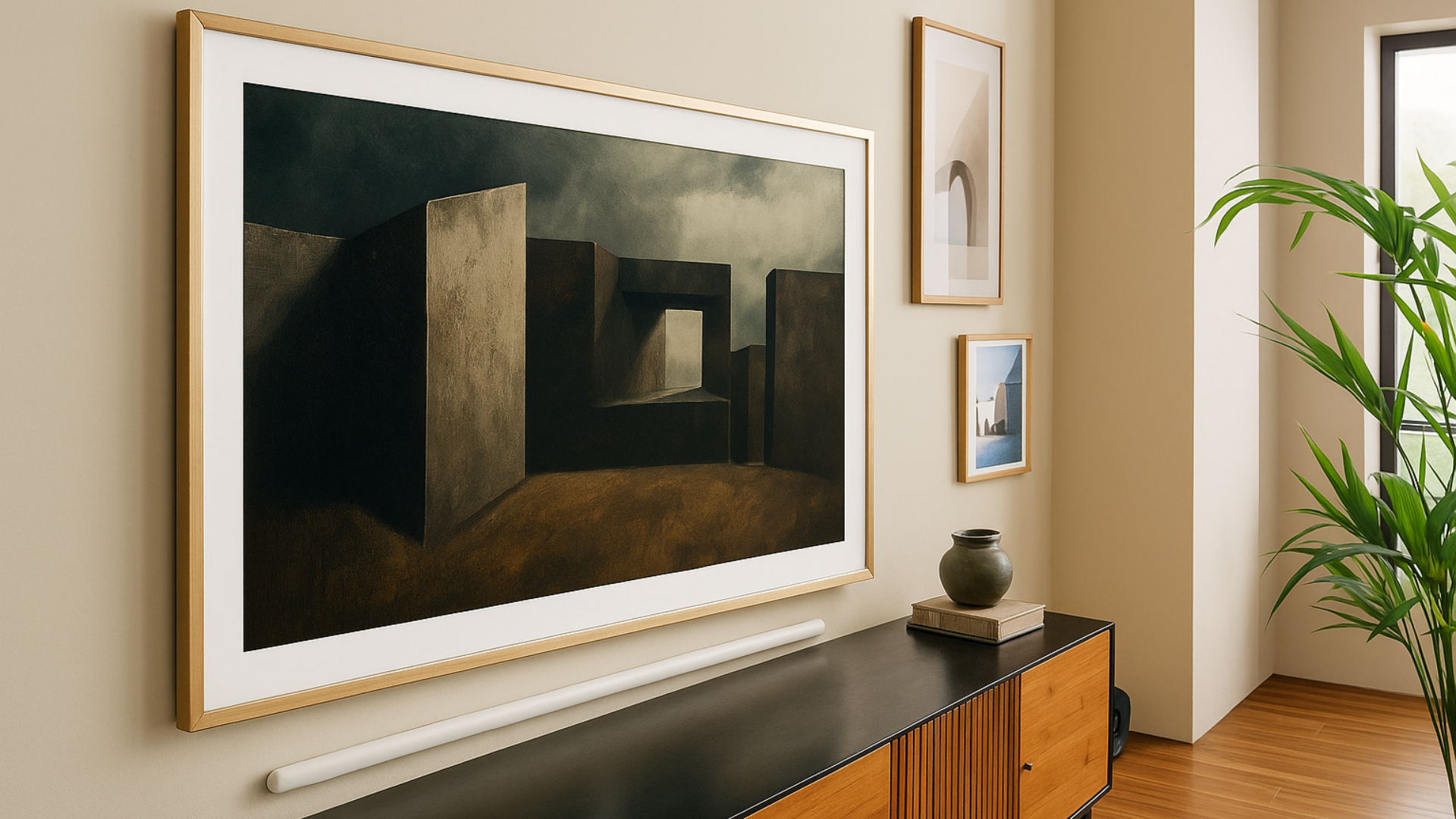
If the screen is black but power is on, confirm the TV is on the correct input. Use the remote to cycle inputs. Try a different HDMI port and cable to rule out port or cable faults.
If the picture is dim, flickering, or has lines, check Picture Mode and Eco settings. Turn off Eco/brightness sensors and try Standard mode. For color or scaling issues, check Picture Size, Sharpness, and Color Tone settings. Reset picture settings if needed.
For a stuck “No Signal” message, test another HDMI device. If other devices work, the original device may need settings or a firmware update. If no input works, update the TV firmware or try a factory reset before calling service.
Samsung Frame Tv Troubleshooting tip: I once fixed a flicker by swapping to a high-quality HDMI cable and disabling HDMI-CEC. Small changes often solve big headaches.

Sound Problems and Solutions
No sound or low volume can come from muted audio settings, wrong audio output, or external device settings. Confirm the volume is up and TV isn’t muted. Check Sound Output in settings to ensure TV speakers are selected if you aren’t using a soundbar.
If using external speakers or a receiver, verify the audio format and HDMI ARC/eARC setup. Turn off Bluetooth to ensure no stray device is paired. Update the TV software to fix audio bugs and try the TV’s built-in speaker test in the support menu.
If sound lags video, set the TV to Game Mode or adjust lip-sync/audio delay in audio settings. Persistent issues after updates may mean hardware inspection is needed.
Art Mode and Ambient Display Troubleshooting
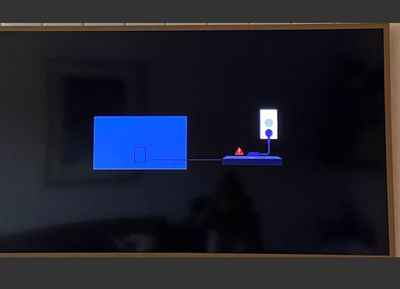
Art Mode is a signature feature but can be finicky. If Art Mode won’t activate, check that the TV is connected to your home network and the SmartThings app is up to date. Ensure the TV’s power saving settings don’t turn Art Mode off automatically.
If art images look washed or cropped, adjust Matte Display settings. Use the Art Store and SmartThings to manage images. If images won’t upload, restart the TV and reauthorize SmartThings. I fixed a stuck Art Mode by removing and re-adding the TV in the app — a simple re-link often restores full function.

Remote Control, Network and Connectivity Issues
Remote not responding? Replace batteries and re-pair the remote. For Bluetooth remotes, hold the pairing button until the on-screen prompt appears. If voice control or buttons fail, try the TV’s physical buttons to confirm TV responsiveness.
For network drops, restart your router and the TV. Use a wired Ethernet connection if Wi-Fi remains unreliable. Check network settings for IP conflicts and ensure DNS is set to automatic or a known-good DNS like 8.8.8.8 for testing.
App crashes often result from slow networks or outdated firmware. Clear app cache and data, reinstall the app, or sign out and sign back in. For persistent connectivity errors, perform a network diagnostics test from the TV’s support menu.
Software, Firmware Updates, Factory Reset, and Troubleshooting
Keeping firmware up to date solves many Samsung Frame Tv Troubleshooting issues. Go to Settings > Support > Software Update and choose Update Now. Automatic updates are handy but check manually if an issue appears.
A soft reset (power cycle) is safe and often effective. If problems persist, try a factory reset from Settings > General > Reset. Note that a factory reset erases apps and logins. Back up settings or note Wi-Fi credentials before resetting.
If firmware update fails, try a USB update using Samsung’s official firmware files. If you’re uncomfortable, contact support to avoid bricking the TV. Be transparent: software fixes help many issues but don’t replace hardware repair when needed.

Advanced Troubleshooting and When to Call Support
If you tried basic and advanced steps and issues persist, it may be hardware. Common signs include persistent screen burn, vertical/horizontal lines, or a TV that won’t power on at all. Document error codes or abnormal behaviors before you call.
Contact Samsung support with model and serial numbers ready. If the TV is under warranty, avoid opening the unit. For out-of-warranty TVs, get quotes from certified repair centers. Keep receipts and note every troubleshooting step — this helps technicians and may speed up support.
I’ve sent photos and short video clips to support when I couldn’t reproduce an issue over the phone. That often made diagnosis faster and reduced back-and-forth.
Preventive Maintenance and Best Practices
Prevent issues with simple habits. Keep firmware updated and schedule occasional reboots. Use a surge protector to protect the One Connect box and TV from power spikes.
Avoid long static images to reduce burn risk and use the TV’s pixel refresher or screen saver. Keep ventilation clear and dust-free. If you stream a lot, pick a wired connection or a strong Wi-Fi band to reduce app crashes and buffering.
Frequently Asked Questions of Samsung Frame Tv Troubleshooting
How do I force restart my Samsung Frame TV?
Unplug the TV or One Connect box from power, wait 60 seconds, then plug it back in. This full power cycle clears temporary software glitches and often restores normal function.
Why does my Samsung Frame TV show no signal?
No signal usually means the TV input doesn’t match the connected device or the cable/port is faulty. Switch inputs, try another HDMI cable or port, and test with a different device.
How do I update the firmware on my Frame TV?
Go to Settings > Support > Software Update > Update Now. You can also enable Auto Update or use a USB drive with the official firmware if network updates fail.
What should I do when Art Mode won’t display images?
Check the SmartThings app connection and network status, verify power saving settings, and reauthorize the TV in SmartThings. Rebooting the TV and re-linking the device often fixes the issue.
When should I call Samsung support or a repair technician?
Contact support if hardware symptoms persist, such as vertical lines, no power, or persistent screen burn, after trying basic and advanced troubleshooting. Provide model and serial numbers and a clear description of steps you’ve taken.
Conclusion
This Samsung Frame Tv Troubleshooting guide gives clear steps to diagnose and fix the most common problems. Start with basic checks, move through picture, sound, Art Mode, and connectivity fixes, and use firmware updates or resets when needed. If a hardware fault remains, call support with your notes and media to speed the repair.
Take action now: try the simple fixes listed here, note what changed, and bookmark this guide for future problems. If you found this helpful, leave a comment with your issue or subscribe for more tips.

