

Most Sensi thermostat problems fix with simple checks: power, wiring, Wi‑Fi, or a quick reboot.
I have worked with smart home devices for years and have guided many people through Sensi Thermostat troubleshooting. This guide covers why your Sensi may act up, how to diagnose issues step by step, and practical fixes you can try tonight. I will show clear checks for power, wiring, app and connectivity, and when to call a pro. Read on to get confident, fast results with Sensi Thermostat troubleshooting.

36% off Today’s Exclusive Deals
Limited-time Exclusive Deals. Check current discount on Amazon.
Check Price on Amazon As an Amazon Associate I earn from qualifying purchases.
How the Sensi Thermostat Works and Why Troubleshooting Matters
Sensi thermostats control HVAC systems by sending low‑voltage signals to your furnace and air conditioner. The thermostat needs steady power, correct wiring, and a stable Wi‑Fi link to the app for remote control. When any of those parts fail, the thermostat may not respond or may misread temperatures.
Understanding the basic flow—power comes from the HVAC control board, the thermostat reads sensors, and the app links via Wi‑Fi—makes troubleshooting faster and safer. This section will help you spot likely causes before you try fixes.

Common Problems and Quick Fixes
Most Sensi Thermostat troubleshooting issues fall into a few categories: power, wiring, connectivity, or software. Below are common symptoms and quick fixes you can try now.
-
Thermostat is blank or unlit
- Check circuit breaker and furnace switch. Replace thermostat batteries if present. Confirm C‑wire is attached.
-
Device won't connect to Wi‑Fi or app
- Reboot your router and thermostat. Ensure 2.4 GHz network is active and password correct. Update the Sensi app.
-
HVAC won't respond when thermostat changes settings
- Check system mode (heat/cool/auto). Verify wiring to W, Y, G, and R terminals. Confirm the system switch on the furnace board is on.
-
Erratic temperature readings
- Move thermostat away from drafts, direct sun, or heat sources. Calibrate or replace if readings stay off by several degrees.
-
Fan or compressor won’t start
- Inspect fan (G) and compressor (Y) wire connections. Look for blown fuses on the HVAC control board.
These quick checks will resolve many common Sensi Thermostat troubleshooting cases. If a fix needs wiring or internal components, power down the system first.

Step-by-Step Sensi Thermostat Troubleshooting Guide
Follow this ordered checklist for systematic troubleshooting. Each step is short and safe to do at home.
-
Check power and display
- Ensure thermostat screen is on. If blank, check home power, HVAC switch, and breaker.
- Replace batteries if your model uses them.
-
Verify wiring at the thermostat
- Turn off power at the breaker. Remove the thermostat faceplate and check wire placement.
- Confirm wires are firmly in R, C, W, Y, and G where applicable.
-
Inspect the C‑wire and power issues
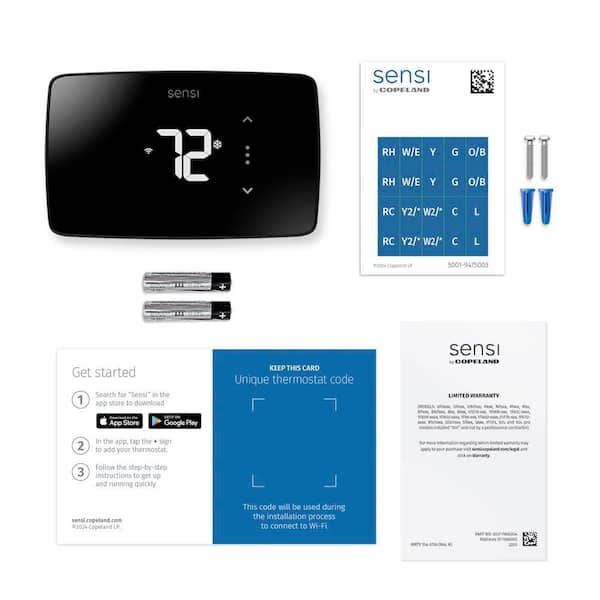
- Many smart thermostats need a C‑wire for consistent power. If missing, use a C‑wire adapter or run a common wire.
- Look for 24V at the control board with a multimeter if you are comfortable.
-
Reboot and update
- Restart the thermostat by removing power or using the restart option in settings. Update firmware via the app.
- Restart the HVAC system if needed.
-
Test HVAC responses
- Use the thermostat to call for heat, cool, and fan. Listen for relays and feel for airflow changes.
- Note any delays, clunks, or lack of response.
-
Reset and reconfigure as last resort
- Factory reset only after you record settings and schedules. Reconfigure with the app and test again.
I once fixed a Sensi that showed blank screens by flipping a small furnace switch off and on. A simple power cycle at the unit solved it. Small checks often save a service call.
Connectivity and App Issues
Wi‑Fi and app problems are a top reason people search for Sensi Thermostat troubleshooting. Below are clear checks and fixes.
-
Check network type and strength
- Sensi normally works best on 2.4 GHz. Make sure the signal at the thermostat is strong and not blocked by metal or thick walls.
-
Confirm app settings and account
- Log out and back in to the app. Remove and re‑add the thermostat if it won’t sync.
-
Router settings to watch
- Disable AP isolation and ensure your router allows device‑to‑device traffic. Open no unusual firewall rules that block outbound connections.
-
Firmware and app updates
- Keep both the thermostat firmware and the mobile app current. Updates fix bugs that cause disconnects.
If the app shows your Sensi offline but the thermostat runs HVAC locally, the problem is the cloud link or router. A router restart and firmware update often restore full remote control.

Power, Wiring, and HVAC Interactions
Many Sensi Thermostat troubleshooting steps involve wiring and the HVAC control board. Safety first: cut power before touching wires.
-
Identify your wires
- R is power, C common, W heat, Y cool, G fan. Label wires before you disconnect anything.
-
Common wiring issues
- Loose wires, damaged wire ends, or incorrect terminal placement cause intermittent issues. Tighten screws and strip wires cleanly.
-
Control board checks
- Look for blown fuses on the furnace board and tripped safety switches. Replace blown fuses only with the correct rating.
-
When to add a C‑wire
- If your thermostat loses power or reboots randomly, a C‑wire or Power Extender Kit may be needed. This provides steady 24V common.
I once replaced a corroded wire end that fixed a thermostat that rebooted on cold nights. Small wiring faults can show up only under load.

Advanced Diagnostics and Error Indicators
If basic checks fail, deeper diagnostics help pinpoint the fault. Use a multimeter and caution.
-
Measure 24V between R and C
- Reading significantly under 20V suggests a weak transformer or load issue.
-
Watch for error messages
- Note any codes, flashing patterns, or messages on the screen. These clues narrow down power, sensor, or communication faults.
-
Log behavior over time
- Track when failures occur — after a storm, at peak use, or after a firmware update. Patterns point to network or power instability.
-
Capture app logs if available
- The app may give a connection log or diagnostic readout to share with support or a technician.
If you are not comfortable with live voltage checks, call a licensed technician. Safety and correct tools matter.

When to Call a Professional
Not all Sensi Thermostat troubleshooting should be DIY. Here’s when to call an HVAC pro.
- Repeated power drops or blown fuses
- Complex wiring changes to add a C‑wire or replace a transformer
- Strange smells, smoke, or tripped safety devices
- Intermittent HVAC operation after all home checks
A pro can test the transformer, control board, and system safety in ways most homeowners cannot. If you call a technician, describe the troubleshooting steps you tried and any error messages. This saves time and cost.
People Also Ask (PAA) — Quick Answers
Q: Does Sensi require a C‑wire?
A: Many Sensi models work best with a C‑wire for steady power. Some models use batteries or offer a power adapter, but a C‑wire is more stable.
Q: How do I reset my Sensi thermostat?
A: Use the thermostat settings to restart or factory reset. Factory reset erases schedules, so note your settings first.
Q: What if Sensi is offline but HVAC runs fine?
A: The thermostat may still operate locally while the cloud link fails. Check Wi‑Fi, router settings, and firmware updates.
Q: Can I install Sensi myself?
A: Yes, many homeowners install Sensi by following guides, but turn off power first and label wires. Call a pro if wiring is unclear.
Q: Why does my fan run but not the compressor?
A: The compressor uses the Y circuit; the fan uses G. If the fan runs but the compressor does not, check Y wiring, contactor, and outdoor unit power.
Frequently Asked Questions of Sensi Thermostat Troubleshooting
Why is my Sensi thermostat blank?
A blank screen often means no power. Check the HVAC switch, circuit breaker, or batteries and confirm the C‑wire connection.
How do I reconnect my Sensi to Wi‑Fi?
Restart router and thermostat, verify 2.4 GHz SSID and password, and re‑run the setup in the Sensi app if needed. Ensure firmware is current.
What does a C‑wire do for a Sensi thermostat?
A C‑wire supplies a steady 24V return to power the thermostat. It prevents reboots and supports features like Wi‑Fi and display backlight.
Should I factory reset my Sensi thermostat?
Only reset after other steps fail and you record schedules and settings. Reset is useful for software faults but requires reconfiguration.
How do I know if wiring is wrong?
Loose, mislabelled, or corroded wires cause intermittent operation. Turn off power and visually inspect connections; tighten and clean as needed.
Conclusion
Sensi Thermostat troubleshooting is mostly a matter of checking power, wiring, and connectivity in a clear order. Start with simple fixes like power cycles, battery changes, and app updates. Move to wiring checks and C‑wire solutions when needed, and contact a licensed technician for electrical or control board faults. Try the steps here and you can often fix issues quickly and safely.
Take action now: run the quick checks listed above, note any error messages, and if you want help, leave a comment or reach out to a trusted HVAC pro.

