

Fix Songbook Pro issues by updating the app, checking files, and re-syncing your library.
I’ve spent years using and troubleshooting Songbook Pro, both on stage and in rehearsal. This guide walks you through Songbook Pro Troubleshooting with clear steps, real-world tips, and fixes I’ve tested. You’ll learn how to identify common faults, solve sync and audio problems, recover lost songs, and prevent future issues so your setlist stays solid.

36% off Today’s Exclusive Deals
Limited-time Exclusive Deals. Check current discount on Amazon.
Check Price on Amazon As an Amazon Associate I earn from qualifying purchases.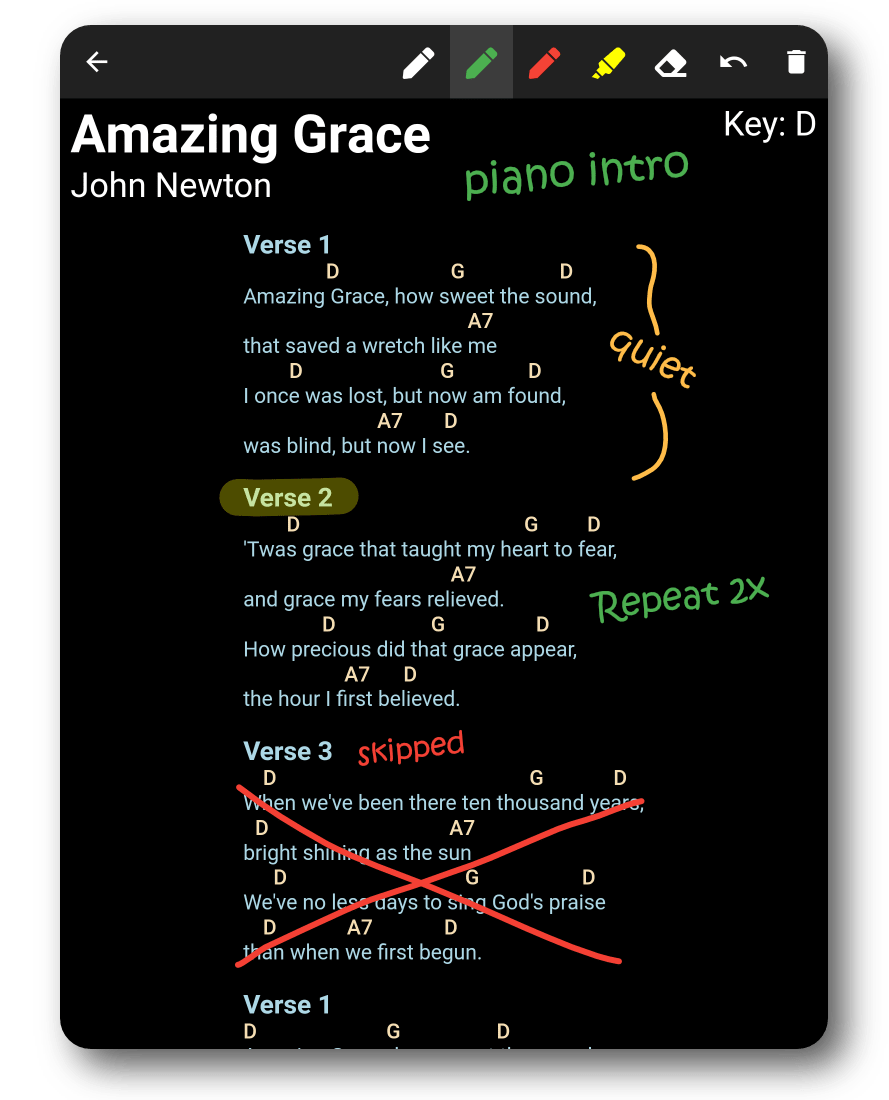
Common Problems and Quick Fixes
Songbook Pro Troubleshooting often starts with these typical issues: missing songs, failed syncs, playback errors, and app crashes. Many problems have simple fixes like updating the app, restarting the device, or re-importing a damaged PDF.
Common quick fixes
- Update the app. App updates fix bugs and add compatibility with files.
- Restart the device. A reboot clears temporary issues and frees memory.
- Re-sync or re-import. Broken imports or incomplete syncs are often the root cause.
- Check file formats. PDF and chord files must meet Songbook Pro’s requirements.
- Free storage space. Low storage can break downloads and caches.
My experience
- I once lost annotations after a crash. Re-importing the PDF from my backup restored notes.
- I learned to verify file integrity before import. It prevents corrupt files from breaking the library.

People Also Ask (PAA)
What causes Songbook Pro to crash on startup?
- Crashes at startup often come from corrupted cache, old app versions, or incompatible files that load at launch. Clearing cache or reinstalling usually fixes it.
How do I restore a missing song in Songbook Pro?
- Check cloud sync, import folders, and backups. Re-import the original file or restore from a backup export.
Is Songbook Pro compatible across devices?
- Yes, Songbook Pro supports multi-device use via cloud or manual file transfers, but platform differences can affect behavior.
Connectivity and Sync Issues
Sync failures are a top complaint in Songbook Pro Troubleshooting. Sync issues can come from network problems, cloud service errors, or mismatched file versions.
Diagnose connectivity problems
- Check Wi-Fi or mobile data. A flaky connection interrupts syncs.
- Confirm cloud service status. Sometimes the cloud provider has outages.
- Verify account login. A logged-out or expired account blocks syncing.
- Compare file versions. Conflicts occur when edits differ across devices.
Steps to fix sync problems
- Force a manual sync from the app settings.
- Log out and back in to refresh credentials.
- Export your library as a backup before attempting repairs.
- Re-import files that fail to sync.
- Use a direct file transfer (USB, AirDrop) if cloud sync continues to fail.
My tip
- I keep a local backup on my laptop before touring. It saved an entire setlist when cloud sync was down.

Import, Export, and File Format Issues
File imports can fail if formats or metadata are wrong. Songbook Pro Troubleshooting often involves validating PDFs, ChordPro, GPX, or other supported formats.
Supported file considerations
- Use well-formed PDF files without DRM.
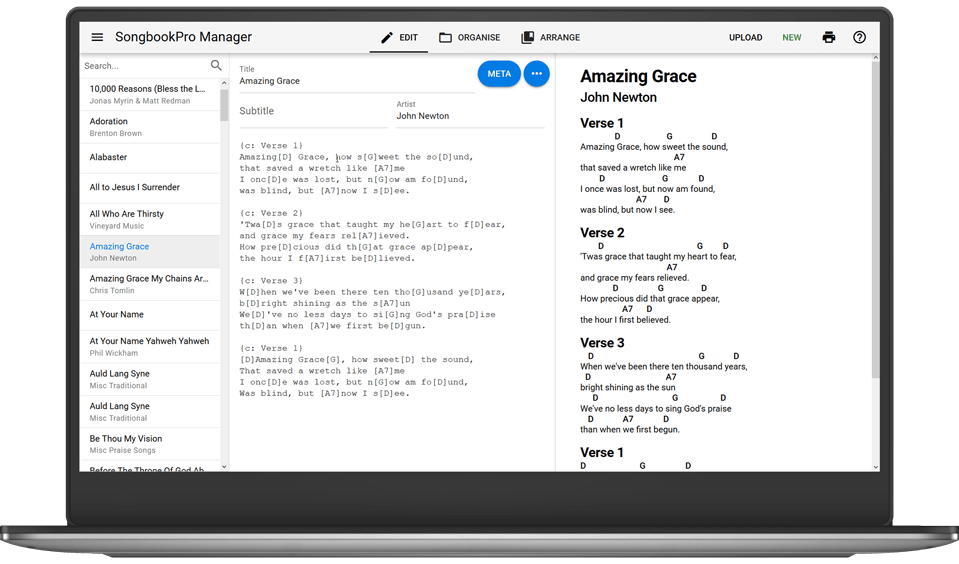
- For ChordPro, ensure proper markup tags.
- Rename files to remove special characters that may confuse import.
- Check page size and orientation for PDF imports.
Fixing import errors
- Convert PDFs to a simpler format or re-export them from the original source.
- Use a PDF repair tool if corruption is suspected.
- Recreate the file in a supported format if conversion fails.
- Verify metadata and remove invalid characters.
Practical example
- I once had a PDF with embedded fonts that crashed the app. Re-exporting the PDF with standard fonts solved it immediately.

Performance, Crashes, and App Stability
Performance issues range from slow scrolling to sudden crashes. These often relate to memory, large files, or outdated builds.
Common performance causes
- Large PDFs with many images.
- Too many annotations or overlays.
- Low system memory or old OS versions.
- Background apps consuming resources.
Stability fixes
- Close other apps to free RAM.
- Reduce PDF image size or split large PDFs.
- Clear Songbook Pro cache if the app offers this option.
- Update both the app and the device OS.
- Reinstall the app if crashes persist after backups.
Experience note
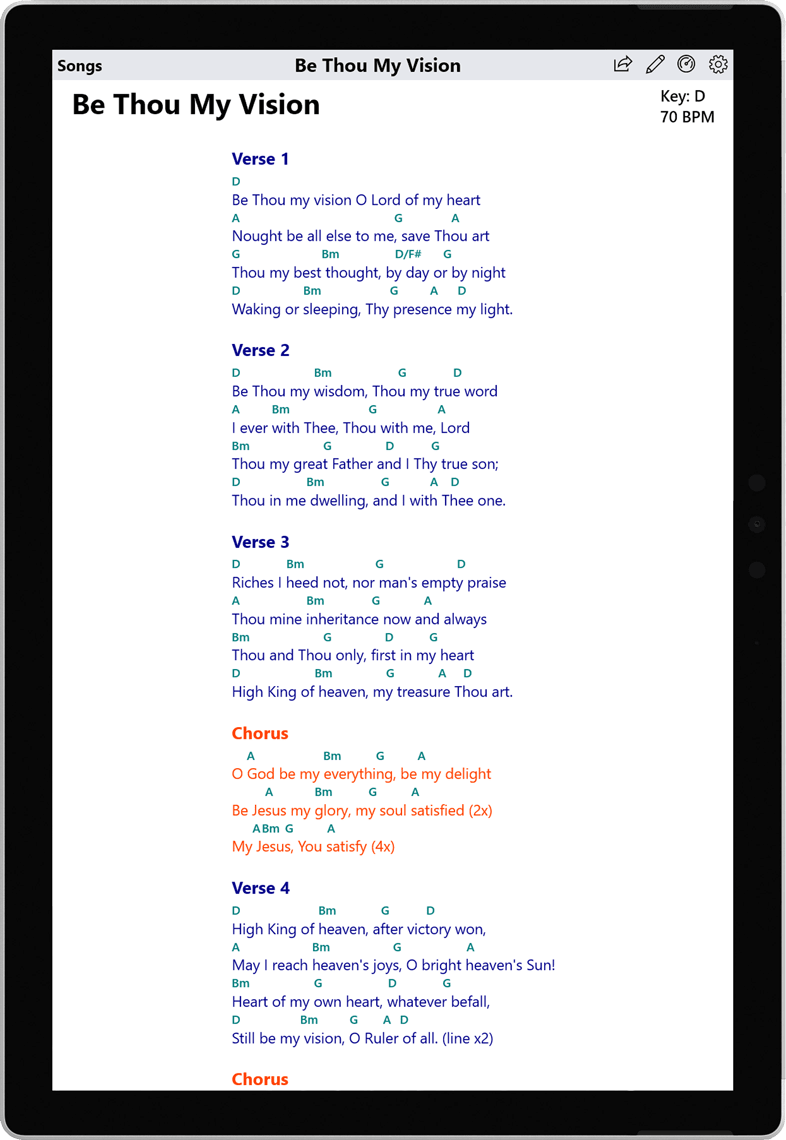
- On older tablets, I split long songbooks into per-set PDFs. Scrolling became smooth and crashes stopped.
Audio, MIDI, and Backing Track Problems
Songbook Pro Troubleshooting for audio often involves routing, permissions, and file compatibility. Backing tracks may not play or MIDI devices may fail to connect.
Audio troubleshooting checklist
- Check app permissions for audio and microphone.
- Confirm output routing to the correct device (speaker, interface).
- Test backing track files outside the app to rule out file corruption.
- For MIDI, ensure correct channel assignment and device drivers.
Common fixes
- Reassign the audio output in the device settings.
- Convert backing tracks to a widely supported format like MP3.
- Update MIDI drivers or firmware for hardware devices.
- Restart audio interfaces and re-open Songbook Pro.
Real-world tip
- I set a dedicated audio route for live shows. This cut down on last-minute sound checks and routing errors.

Setlists, Annotations, and PDF Issues
Annotation loss and setlist corruption are frequent in Songbook Pro Troubleshooting. Users often need to merge, export, or sync annotations safely.
Protecting annotations and setlists
- Export annotations and setlists as backups regularly.
- Use the app’s built-in export format for full fidelity.
- Avoid editing the original PDF outside the app unless you re-sync changes.
Fixes for lost annotations
- Check “autosave” or sync settings first.
- Re-import a backup. Always keep at least one recent backup.
- If annotations vanish after update, restore from an export file.
My habit
- I export my annotated setlist after each rehearsal. This habit saved shows when a tablet failed mid-tour.
Account, Purchases, and Subscription Problems
Subscription and purchase issues can block features. Songbook Pro Troubleshooting must address receipts, account mismatches, and platform stores.
Common account problems
- Purchases not restored after reinstall.
- Subscriptions tied to a different app store account.
- Expired payment methods or regional store issues.
Steps to resolve purchase issues
- Verify you are signed into the correct store account.
- Use the app’s “Restore Purchases” option.
- Check purchase history in the platform store for confirmation.
- Contact support with receipt information if auto-restore fails.
Practical advice
- I keep screenshots of receipts and order IDs for each purchase. It speeds support responses.

Advanced Troubleshooting: Logs, Reinstall, and Recovery
When basic steps fail, deeper diagnostics help. Songbook Pro Troubleshooting at this level uses logs, fresh installs, and staged recovery.
Advanced steps
- Export app logs if the app allows or follow the device’s logging method.
- Back up your library before a full reinstall.
- Uninstall and reinstall the app, then restore data from backup.
- Test on another device to narrow down device-specific issues.
When to escalate
- Persistent crashes after reinstall.
- Lost central account data not recoverable from backups.
- Complex MIDI or audio routing failures tied to firmware.
Experience insight
- Logs often show hidden file parsing errors. Sharing logs with support led to fast fixes in one case.

Best Practices and Preventive Measures
Good habits prevent many Songbook Pro Troubleshooting tasks. A small routine saves time and stress.
Preventive checklist
- Keep the app and device OS updated.
- Back up your library after each major change.
- Use simple, clean PDFs and avoid DRM.
- Test major changes before a live show.
- Keep offline backups for touring.
Lessons learned
- Regular backups are the single best way to avoid data loss.
- Lightweight PDFs and pre-tested audio files reduce stage issues.
Frequently Asked Questions of Songbook Pro Troubleshooting
How do I restore purchases in Songbook Pro?
Use the app’s Restore Purchases option under settings while signed into the original app store account. If that fails, provide the receipt to support for manual restoration.
Why does Songbook Pro fail to sync across devices?
Sync can fail due to network issues, incorrect login, or cloud service outages. Check connectivity, verify account details, and try a manual sync or direct transfer.
What file types does Songbook Pro support?
Songbook Pro supports PDF, ChordPro, GPX, and common audio files like MP3. Make sure files are not DRM-protected and use standard encoding.
How can I recover lost annotations or setlists?
First, check autosave and sync settings. If that fails, restore from a recent export or backup saved outside the app.
Why won’t my backing track play in Songbook Pro?
Audio issues often stem from output routing, file corruption, or missing permissions. Test the file outside the app and confirm audio settings on your device.
Can I use Songbook Pro offline for gigs?
Yes. Export and store your setlists and tracks on the device before going offline. This avoids sync or connectivity risks during live shows.
Conclusion
Songbook Pro Troubleshooting is manageable with a clear routine: update, back up, test, and document. Use the step-by-step fixes above to resolve common sync, import, audio, and stability problems. Adopt preventive habits like regular exports and simple file formats to avoid future headaches.
Take action now: export your current library, update the app, and run a short test show to confirm everything works. If you found a tip here helpful, subscribe for more guides or leave a comment with your Songbook Pro experience.

