

Most TCL Roku TV problems fix with a power cycle, network check, or a software update.
I have spent years fixing TVs and helping users with TCL Roku TV troubleshooting. This guide gives step-by-step fixes, clear causes, and smart tips. You will learn quick checks, network and HDMI fixes, audio and picture fixes, and when to reset or contact support. Read on to solve common problems fast and with confidence.

36% off Today’s Exclusive Deals
Limited-time Exclusive Deals. Check current discount on Amazon.
Check Price on Amazon As an Amazon Associate I earn from qualifying purchases.
Common problems and what they mean
Tcl Roku Tv Troubleshooting starts with knowing the usual symptoms. Common issues include no picture, no sound, remote not working, apps crashing, and poor streaming. Each symptom has a short list of likely causes. That makes it easy to pick the right fix fast.
How I approach Tcl Roku Tv Troubleshooting: I list symptoms, perform quick checks, then try fixes from least to most invasive. This keeps data safe and saves time.
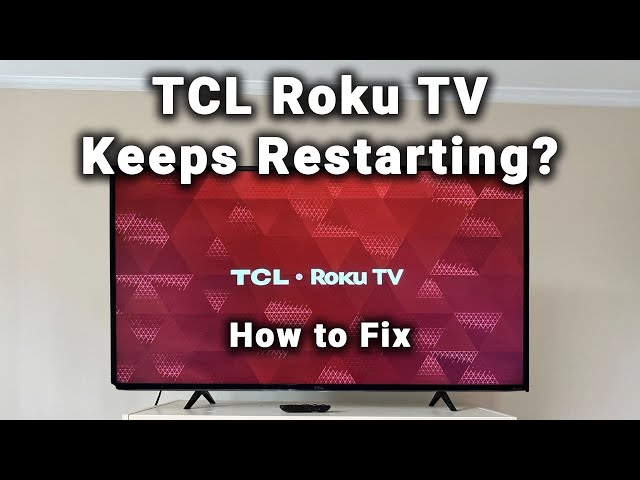
Basic checks to start troubleshooting
Start simple. Most TCL Roku TV problems come from power, cables, or the network.
- Check power. Make sure the TV is plugged in and the outlet works. Try another device on the same outlet.
- Inspect cables. Firmly seat HDMI and power cables. Replace any frayed cords.
- Use the TV buttons. If the remote seems dead, use the TV’s physical buttons to confirm power and menu access.
- Look for status lights. A blinking power light can hint at firmware or hardware issues.
I once fixed a TV that looked dead. It needed a firm press on the power button and a cable swap. Small checks often solve big headaches.
Network and streaming fixes
Streaming issues are the top reason people search for Tcl Roku Tv Troubleshooting. Slow video, buffering, or apps failing to load usually trace to the network.
- Restart the router. Unplug it for 30 seconds and reboot the TV after the router is online.
- Test Wi-Fi strength. Move the router closer or use an Ethernet cable for a quick test.
- Check other devices. If phones and laptops stream fine, the problem is likely the TV.
- Update the app and system. Go to Settings > System > System update and update apps in the Channel Store.
- Clear app cache. Remove and reinstall the troublesome channel to refresh its data.
Practical tip: I keep a spare Ethernet cable and test wired connections when wireless lags. A wired link shows if the Wi-Fi is the issue.
PAA-style questions
How do I restart my TCL Roku TV?
Press the power button on the TV or go to Settings > System > Power > System restart. You can also unplug the TV for 30 seconds, then plug it back in.
Why does streaming buffer on my TCL Roku TV?
Buffering often means low Wi-Fi speed, high network congestion, or router issues. Try a wired connection or reboot the router and TV.
HDMI and input problems
HDMI problems are common in Tcl Roku Tv Troubleshooting. No signal, wrong input, and input switching issues happen often.
- Check input source. Use the TV remote to cycle inputs and pick the right HDMI port.
- Swap HDMI ports. The port or cable may be faulty. Try a different port or cable.
- Enable HDMI-CEC carefully. Some devices send power and input commands. Turn it off if devices switch inputs unexpectedly.
- Test devices individually. Connect the cable device to another TV to confirm it works.
I once traced a blank screen to a game console that required a lower HDMI setting. Changing the console’s output fixed the issue instantly.

Picture and display troubleshooting
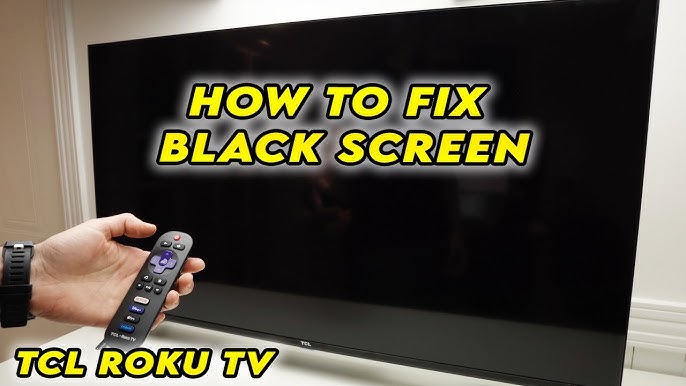
Picture problems include black screen, distorted image, or odd colors. Many fixes are simple.
- Check picture settings. Reset to default in Settings > TV picture settings.
- Inspect backlight and panel. If you see faint images or uneven light, it may be a hardware issue.
- Try a factory reset only after other fixes fail. It erases channels and sign-in data.
- Update firmware. New updates often fix display bugs and compatibility with HDMI devices.
Note: If the TV shows a faint image with backlight problems, professional repair may be needed. Be honest about repair costs versus replacement.
Audio and volume issues
Sound problems range from no audio to distorted or delayed sound. Here are direct steps.
- Mute and volume check. Make sure volume is up and mute is off.
- Verify audio output. Settings > Audio > Set audio mode to Stereo or Auto. Check if external soundbars require HDMI ARC or optical.
- Reboot sound devices. Power cycle soundbars and receivers and reselect ARC if needed.
- Check CEC settings. Some receivers take control of volume. Turn CEC off to test.
Personal note: I pair TVs with a compact soundbar. ARC setup is usually smooth but requires HDMI ARC port and ARC turned on in both devices.

Software updates, reset options, and data safety
Software often causes strange behavior. Keeping the system current solves many problems.
- Check for system updates. Settings > System > System update.
- Soft reboot first. Use Settings > System > Power > System restart.
- Factory reset last. Settings > System > Advanced system settings > Factory reset. Backup sign-in info if possible.
- Note data loss. A factory reset removes channels and saved app data. Only do it if needed.
I prefer to try updates and soft restarts twice before a factory reset. This saved me from re-entering many account details.

Advanced troubleshooting and when to call support
If basic steps fail, use these advanced checks before seeking service.
- Log error codes. Note any error messages or LED patterns for support.
- Test USB and other ports. Faulty ports can be a sign of board issues.
- Use the Roku mobile app. The app can control the TV and sometimes pairs when the physical remote fails.
- Warranty and repair. Check your TV’s warranty and authorized service providers before opening the TV.
I once sent serial logs to support. They recognized a known firmware bug and offered a targeted fix. Keeping a clear record helps support help you faster.

Troubleshooting checklist (quick reference)
Follow this checklist when you need to fix things fast.
- Check power and cables.
- Restart TV and router.
- Test Wi-Fi or use Ethernet.
- Swap HDMI cables and ports.
- Update system and apps.
- Reset picture/audio settings to default.
- Remove and reinstall problem channels.
- Factory reset as a last step.
- Contact support with serial and error info.
This checklist cuts through noise during urgent Tcl Roku Tv Troubleshooting. Use it as your step-by-step plan.
Frequently Asked Questions of Tcl Roku Tv Troubleshooting
How do I pair my TCL Roku TV remote?
Hold the pairing button inside the battery compartment until the light blinks. Follow the on-screen pairing prompts; if it fails, replace the batteries and try again.
Why does my TCL Roku TV keep buffering during shows?
Buffering is usually caused by slow Wi-Fi, network congestion, or a weak router signal. Reboot the router, move it closer, or use an Ethernet cable to reduce buffering.
How do I update my TCL Roku TV software?
Go to Settings > System > System update and select Check now. Install any available updates and restart the TV after the update finishes.
What should I do if my TCL Roku TV has no picture but has sound?
Check the input source, confirm HDMI connections, and test other devices on the same HDMI port. If a faint image is visible, the backlight or hardware may be failing.
Can I factory reset my TCL Roku TV without the remote?
Yes. Use the physical buttons on the TV to open the menu and navigate to Settings > System > Advanced system settings > Factory reset. If buttons are limited, use the Roku mobile app as a remote.
My TCL Roku TV apps keep crashing. What helps?
Remove and reinstall the app, update the TV system, and restart your TV. If problems persist, a factory reset can clear corrupted app data.
Conclusion
This guide gives clear, tested steps for Tcl Roku Tv Troubleshooting. Start with power and cable checks, then move to network, HDMI, audio, and software fixes. Use the checklist when time is short and try softer fixes before a factory reset.
Take action now: run the quick checks and update your TV. If you solved a problem, share your experience or ask a question below so others can learn from it.

