

Most Verizon Fios TV issues fix with a simple reboot, network check, or set‑top box reset.
I’ve spent years troubleshooting home video setups and helping friends and clients restore their service fast. This guide digs into Verizon Fios Tv Troubleshooting step by step. You’ll find clear definitions, common causes, practical fixes, and tips to prevent repeat problems. Read on for hands-on methods that work whether you’re dealing with picture loss, frozen menus, DVR hiccups, or streaming lag.

36% off Today’s Exclusive Deals
Limited-time Exclusive Deals. Check current discount on Amazon.
Check Price on Amazon As an Amazon Associate I earn from qualifying purchases.
What is Verizon Fios Tv Troubleshooting?
Verizon Fios Tv Troubleshooting is the process of finding and fixing problems with Fios TV service. It covers issues with the set‑top box, app streaming, DVR, remote, wiring, and your home network. The goal is to restore reliable service with the least hassle.
This topic matters because Fios combines fiber internet, digital video, and hardware. That mix means a small fault in one area can look like a big TV problem. A methodical approach saves time and avoids unnecessary service calls.

Common Verizon Fios TV Problems and their Causes
Understanding the usual faults helps you isolate trouble quickly. Common issues include:
- No picture or black screen. Often due to loose HDMI/Coax cables, wrong input, or box power faults.
- Frozen picture or buffering. Usually tied to network congestion, box software, or poor Wi‑Fi.
- No sound. Could be TV audio settings, HDMI ARC conflicts, or box audio output mismatches.
- Remote not working. Battery, pairing loss, or IR signal issues are frequent culprits.
- DVR recording or playback errors. Caused by storage errors, software bugs, or guide data problems.
- On‑demand and app failures. Often linked to account authorization, network blocks, or outdated apps.
Each issue may have more than one root cause. That’s why Verizon Fios Tv Troubleshooting uses a layered check: hardware, cabling, settings, network, then account/services.
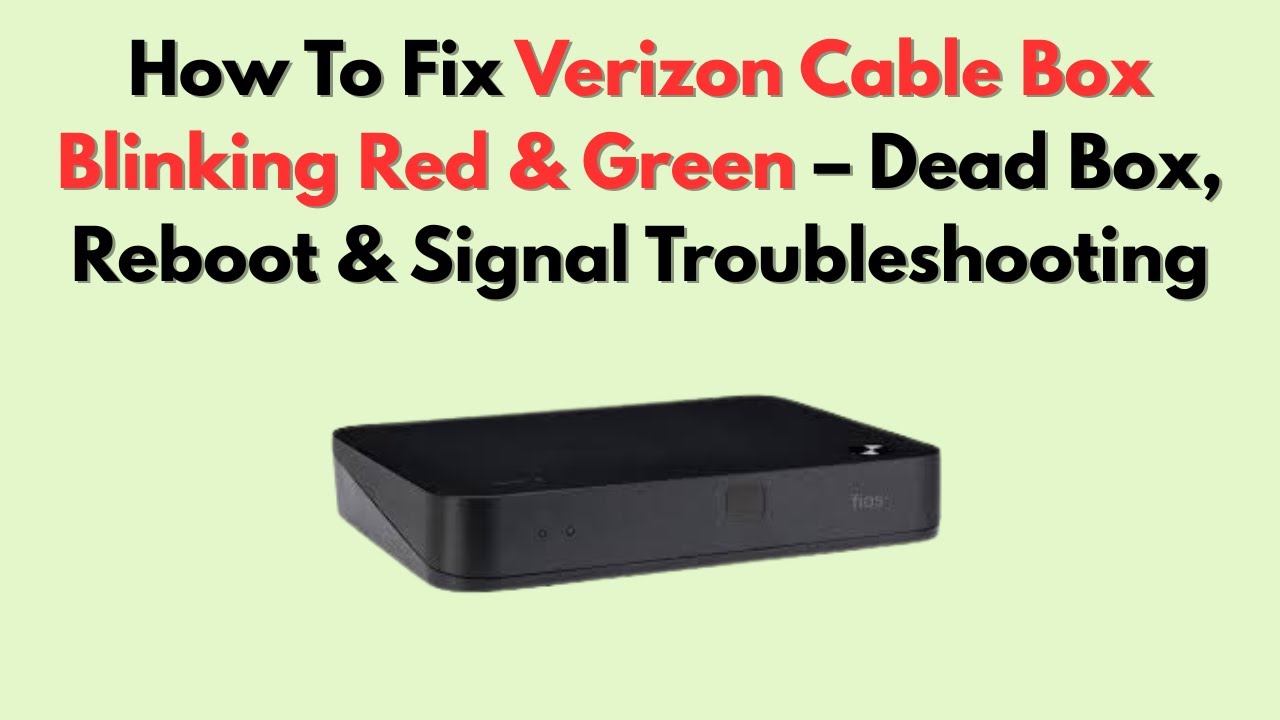
Step‑by‑Step Verizon Fios Tv Troubleshooting Guide
Below is a practical, ordered routine. Work top to bottom. This prevents wasted steps and helps you find the fix faster.
- Basic checks (2–3 minutes)
- Confirm power. Ensure the set‑top box and TV are plugged in and powered on.
- Check inputs. Set TV to the correct HDMI or Cable input.
- Inspect cables. Firmly seat HDMI, coax, and power cables. Replace frayed cords.
- Reboot sequence (5–10 minutes)
- Power cycle TV and box. Turn off both devices, wait 30 seconds, then power on the TV and then the box.
- Soft reboot via menu. If the box menu is responsive, choose Settings > System > Restart.
- Network and Wi‑Fi checks (5–15 minutes)
- Test internet speed. Use the Fios router or a phone app to confirm speeds.
- Move streaming boxes closer to the router or use wired Ethernet for critical boxes.
- Reboot router. Power cycle your router and modem to refresh connections.
- Set‑top box and software fixes (10–30 minutes)
- Check software updates. Navigate to the box settings and apply any available updates.
- Factory reset only as last resort. A full reset can erase preferences and recordings.
- Swap boxes. If you have a spare, swap to see if the box is faulty.
- Audio and video troubleshooting
- Verify TV audio settings. Switch between TV speakers and external receiver.
- Try a different HDMI port or cable. Faulty ports or cables can cause picture or sound loss.
- Disable HDMI‑CEC or ARC temporarily if you see sync issues.
- DVR‑specific steps
- Check storage space and pending recordings.
- Reboot the DVR box. Many DVR errors clear after a reboot.
- If a recording fails repeatedly, delete the scheduled task and recreate it.
- Remote and guide issues
- Replace batteries and re‑pair the remote if needed.
- Resync the remote: use the menu pairing option or the physical pairing button on newer remotes.
- Account and service checks
- Confirm account status. Ensure no service suspension or billing hold.
- Verify parental controls or PIN settings that might block channels.
When to call support
- After trying the steps above, call support if the box won’t boot, you see persistent hardware errors, or account provisioning fails. Note down error codes and exact behavior before you call.

Personal Notes from Experience
I once had a client with intermittent freezing on repeat. We tried reboots, reseated the HDMI, and finally replaced the HDMI cable. Problem solved. The lesson: don’t skip the simple checks. A bad cable can mimic software bugs.

Advanced Fixes and When to Replace Equipment
Use these advanced steps if basic troubleshooting fails.
- Check signal levels for coax. Low or noisy signals can cause pixelation and dropouts.
- Inspect splitters and amplifiers. Poor splitters degrade signal quality.
- Replace the set‑top box if it shows repeated hardware failures or won’t update.
- Consider upgrading router firmware or switching to a dual‑band router for better Wi‑Fi.
- Use wired connections for streaming boxes and DVRs whenever possible for reliability.
When replacement is needed
- Persistent hardware errors after resets.
- Repeated reboots or overheating.
- Service tech confirms a hardware fault.
These fixes require some comfort with wiring and settings. If unsure, book a professional or Verizon tech visit.

Preventive Tips to Avoid Future Problems
Keep your Fios TV running smoothly with small habits.
- Keep firmware updated on the router and set‑top boxes.
- Use good quality HDMI cables and avoid long, cheap cables.
- Label cables behind the TV for faster troubleshooting later.
- Schedule occasional reboots for routers and boxes to clear memory leaks.
- Keep the area ventilated. Heat shortens electronics life.
Small, routine steps often reduce the need for deeper Verizon Fios Tv Troubleshooting. Prevention pays off.

How to Contact Verizon Support and What to Expect
When you need help from Verizon:
- Gather info before you call: account number, box serial number, model, error codes, and steps already tried.
- Use the Verizon app or online chat for quick status and basic resets.
- Schedule a technician if the issue looks hardware or wiring related.
- Expect a troubleshooting call to attempt remote resets first. If that fails, a tech visit may be scheduled.
Service windows and fees
- Warranty and service plan details affect whether a visit costs extra. Confirm coverage when booking.
Quick PAA‑Style Questions
Why is my Fios TV freezing during live TV?
Freezing is often caused by poor signal, box memory issues, or network congestion. Reboot the box and check coax connections first.
How do I reset my Verizon set‑top box safely?
Power cycle by unplugging the box for 30 seconds and plugging it back in. Use the menu restart for a soft reset if the box is responsive.
Can Wi‑Fi affect my Fios TV quality?
Yes. Streaming through Wi‑Fi can buffer if the network is congested or the signal is weak. Wired Ethernet provides more consistent results.
Frequently Asked Questions of Verizon Fios Tv Troubleshooting
What should I do if my Fios TV says “No Signal”?
Check that the TV input matches the cable or HDMI port. Reboot the set‑top box and inspect coax and HDMI connections. If the problem remains, try a different cable or port.
How do I fix a Fios DVR that won’t record?
Restart the DVR box and check for available storage. Delete old recordings if space is low and verify the scheduled recording settings.
Why is my Fios remote not pairing?
Replace the batteries and re‑pair the remote via the settings menu or by following the pairing sequence in the manual. If it’s an IR remote, ensure nothing blocks the sensor.
What causes poor picture quality on Fios TV?
Poor picture can come from weak coax signal, faulty splitters, or bad HDMI cables. Check signal strength and swap the cable or port to isolate the issue.
How can I speed up Fios streaming on apps?
Use a wired Ethernet connection, close background apps on streaming devices, and ensure your router offers enough bandwidth for multiple users.
How long does a Verizon tech visit take?
A typical technician visit is 1–3 hours, depending on complexity. The tech may diagnose, replace hardware, or adjust wiring in your home.
Will resetting the box erase my recordings?
A soft restart will not erase recordings. A factory reset or full system restore can delete saved content, so back up or confirm before proceeding.
Conclusion
Verizon Fios Tv Troubleshooting becomes easy with a clear plan: check power, verify cables, reboot devices, test your network, and update software. Start with the simple steps and move to advanced fixes only when needed. My advice: document error codes, keep spares like HDMI cables and fresh batteries, and don’t hesitate to call support with details ready. Try these steps today, and if a problem persists, schedule a technician or reach out via the Verizon app. Share your results, ask questions, or subscribe for more practical guides.

