

Updating drivers is one of the most important tasks for anyone using a computer, whether it’s for work, gaming, or everyday browsing. Drivers are small programs that help your hardware and operating system work together. When your drivers are out of date, your computer can slow down, crash, or even stop working properly. Many users ignore driver updates, thinking their PC is “fine” as it is. But this is a mistake. New drivers can boost performance, fix bugs, and keep your system safe from security risks. In this guide, you’ll learn everything you need to know about updating drivers—why it matters, how to do it safely, and common mistakes to avoid.
What Are Drivers And Why Should You Update Them?
Drivers are like translators between your computer’s hardware and its software. If you have a printer, graphics card, or sound system, each device needs a driver to talk to Windows or macOS. Without the right driver, your hardware might not work or could work poorly.

36% off Today’s Exclusive Deals
Limited-time Exclusive Deals. Check current discount on Amazon.
Check Price on Amazon As an Amazon Associate I earn from qualifying purchases.Reasons For Updating Drivers
- Performance Boost: New drivers often make your hardware work faster or more efficiently. For example, graphics card drivers can improve your gaming experience.
- Bug Fixes: Sometimes, old drivers cause problems like crashes, freezes, or glitches. Updates can solve these issues.
- Security Updates: Hackers sometimes use driver weaknesses to attack your computer. Updated drivers can protect you.
- Compatibility: New apps or games often need new drivers. Updates help your hardware keep up with changing technology.
Most people don’t realize how often hardware makers release new drivers. For example, NVIDIA releases graphics drivers almost every month. Missing these updates means missing out on improvements and fixes.
How To Identify Which Drivers Need Updating
Before updating, you should know which drivers actually need an update. Not all drivers require frequent changes. Some, like keyboard or mouse drivers, rarely need updates unless you have problems.
Tools For Checking Driver Status
- Device Manager (Windows): This built-in tool shows all the hardware connected to your PC. It tells you if drivers are missing or outdated.
- System Information (macOS): On Macs, you can check hardware and driver details using System Information.
Signs That A Driver Needs Updating
- Your computer is slow or crashes often.
- Hardware (like a printer or graphics card) is not working as expected.
- You see error messages about drivers.
- New games or apps won’t run.
Commonly Updated Drivers
Some drivers are more important to keep updated than others. Here’s a list:
- Graphics card drivers
- Audio drivers
- Network drivers
- Printer drivers
- Chipset drivers
- Bluetooth drivers
Let’s compare the frequency and importance of updating these drivers:
| Driver Type | Update Frequency | Impact on System |
|---|---|---|
| Graphics Card | Monthly | High (gaming, visuals) |
| Audio | Rarely | Medium (sound quality) |
| Network | Quarterly | High (internet) |
| Printer | Yearly | Low (printing only) |
| Chipset | Yearly | Medium (system stability) |
| Bluetooth | Yearly | Low (wireless devices) |
Ways To Update Drivers
There are several methods for updating drivers. You should choose the one that fits your skill level and needs.
1. Windows Update
Windows Update is the easiest way to update drivers. Microsoft often includes driver updates in its regular updates. To use it:
- Open Settings
- Go to Update & Security
- Click Check for Updates
If new drivers are available, they’ll be installed automatically. However, Windows Update may not include the latest drivers, especially for graphics cards or specialized hardware.
2. Device Manager
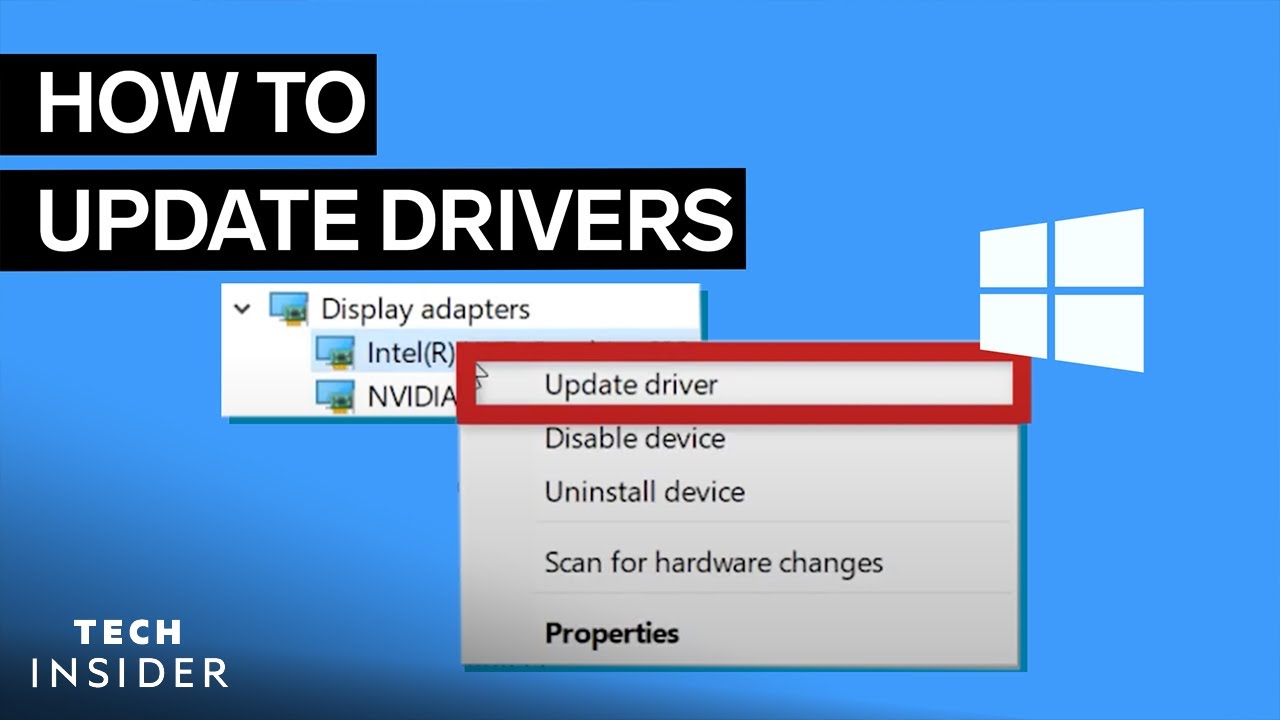
Device Manager lets you update drivers manually. Here’s how:
- Press Windows Key + X and choose Device Manager.
- Find the device you want to update (e.g., Display Adapters for graphics).
- Right-click and choose Update Driver.
- Select Search automatically for updated driver software.
This method is good for quick updates, but sometimes Device Manager won’t find the newest drivers.
3. Manufacturer Websites
For the latest drivers, go directly to the hardware manufacturer’s website. For example:
- NVIDIA for graphics cards
- Realtek for audio drivers
- Intel for network/chipset drivers
Search for your exact model and download the newest driver. Always download from official sites to avoid malware.
| Method | Ease of Use | Driver Freshness | Risk Level |
|---|---|---|---|
| Windows Update | Very Easy | Moderate | Low |
| Device Manager | Easy | Moderate | Low |
| Manufacturer Website | Medium | High | Medium |
| Third-Party Software | Easy | Varies | Medium |
4. Third-party Driver Update Tools
Many companies make software that scans your computer and updates drivers automatically. Examples include Driver Booster and Snappy Driver Installer. These tools can save time, but they sometimes install drivers that aren’t needed or are not fully tested.
Pro Tip: Always check the driver version before installing. Sometimes newer is not always better, especially if your system is stable.
Step-by-step Guide For Updating Drivers
Let’s walk through updating drivers step by step. These instructions are for Windows PCs, but the process is similar on Macs.
Step 1: Backup Your System
Before making changes, always back up your files. Use Windows Backup or another tool. If something goes wrong, you can restore your system.
Step 2: Identify Outdated Drivers
Use Device Manager or a driver scan tool to see which drivers are old. Focus on the most important ones: graphics, audio, network.
Step 3: Download The Latest Drivers
Go to the manufacturer’s website and get the newest driver for your hardware. Make sure it matches your operating system and hardware model.
Step 4: Install The Driver
- Double-click the downloaded file.
- Follow the installation instructions.
- Restart your computer if asked.
Step 5: Check Functionality
After installing, test your hardware. For graphics drivers, run a game or video. For audio, play music. If something isn’t working, roll back the driver.
Step 6: Roll Back If Necessary
If your new driver causes problems, you can go back to the old version:
- Open Device Manager.
- Right-click the device.
- Choose Properties.
- Go to the Driver tab.
- Click Roll Back Driver.
Step 7: Keep A Regular Schedule
Update drivers every few months, especially graphics and network drivers. Don’t wait until you have problems.

Common Mistakes When Updating Drivers
Many beginners make mistakes that can cause trouble. Here are some to avoid:
- Downloading from unofficial sites: This can lead to viruses or malware.
- Updating drivers when not needed: If your system works fine, some drivers (like mouse or keyboard) don’t need updates.
- Ignoring compatibility: Always check if the driver matches your operating system and hardware.
- Not backing up: Skipping backups can lead to data loss if something goes wrong.
- Using untrusted software: Some driver tools install adware or unnecessary programs.
Example Of A Common Mistake
Suppose you download a graphics driver from a random website. After installing, your screen goes black, and nothing works. Now you have to restore your system. Always use official sources.
Benefits Of Keeping Drivers Updated
Updating drivers brings many advantages:
- Better performance: Games and apps run smoother.
- Fewer crashes: Your computer is more stable.
- Improved security: You’re protected from vulnerabilities.
- New features: Hardware makers sometimes add new options in updates.
- Compatibility: New software and devices work without problems.
A recent study found that computers with updated drivers had 30% fewer system crashes compared to those with outdated drivers. This shows how important driver updates are for stability and safety.
How To Update Drivers On Macos
While Windows users often focus on drivers, Mac users also need updates. Most Mac drivers come through macOS updates. Here’s how to update:
- Click the Apple menu and select System Settings.
- Choose Software Update.
- Install any available updates.
Macs handle driver updates automatically, but you may need to install special drivers for printers or other devices. Always check the manufacturer’s website for extra software.
Special Tips For Gamers And Power Users
Gamers and professionals need their hardware to run perfectly. Here are advanced tips:
- Subscribe to manufacturer newsletters: NVIDIA, AMD, and Intel often announce driver updates with new features.
- Enable automatic updates: Some graphics card software lets you auto-update drivers.
- Check forums: Online forums like Reddit or tech websites discuss driver issues and solutions.
For example, NVIDIA’s GeForce Experience lets you update drivers with one click and adjust settings for gaming. This saves time and avoids mistakes.
Comparing Automatic Vs Manual Updates
Automatic driver updates are easy, but manual updates are safer and more precise. Here’s a quick comparison:
| Update Method | Pros | Cons |
|---|---|---|
| Automatic (via software) | Fast, no effort, good for beginners | Can install unnecessary drivers, risk of errors |
| Manual (via website) | Precise, safer, less risk | Time-consuming, needs more skill |
If you’re unsure, start with automatic updates. If you want the best performance or have problems, switch to manual updates.
Troubleshooting Driver Update Problems
Sometimes, updating drivers causes new issues. Here’s how to solve them:
The Device Stops Working
- Roll back the driver in Device Manager.
- Check for another update from the manufacturer.
- Use Windows System Restore to undo changes.
Blue Screen Or System Crash
- Remove the new driver.
- Restart in Safe Mode.
- Update only one driver at a time to find the problem.
Compatibility Errors
- Make sure the driver matches your hardware and operating system.
- Check forums for solutions.
- Contact the manufacturer’s support.
Example: Printer Not Working After Update
You update your printer driver, but now it won’t print. Go to the manufacturer’s site, download the correct driver, and uninstall the old one. Restart your computer and reinstall.

How To Stay Safe When Updating Drivers
Driver updates can improve your computer, but they also carry risks. Here’s how to stay safe:
- Always back up your system before updating.
- Download only from official sources.
- Check driver version numbers to avoid downgrading.
- Read reviews and forums for feedback about new drivers.
- Update one driver at a time to avoid confusion.
Non-obvious insight: Many people think newer drivers are always better. But sometimes, the latest driver can have bugs. If your hardware works well, don’t rush to update unless you need a fix or improvement.
Non-obvious Insights About Driver Updates
- Drivers can affect battery life: For laptops, updating network or graphics drivers can improve battery performance. Many users overlook this.
- Older hardware may lose support: If your device is several years old, new drivers might stop supporting it. Always check compatibility.
Another tip: Updating drivers can solve hidden problems, like slow internet or random freezes. Many people blame software, but outdated drivers are often the cause.
Frequently Asked Questions
How Often Should I Update My Drivers?
Most users should check for driver updates every few months. Gamers and professionals should check monthly, especially for graphics drivers. If your system is stable, only update when you notice problems or need new features.
Can I Update All Drivers At Once?
It’s possible with third-party tools, but it’s safer to update drivers one at a time. This way, you can spot problems and fix them easily. Bulk updates can cause conflicts.
What Should I Do If A Driver Update Fails?
If a driver update fails, roll back to the previous version using Device Manager. You can also use System Restore. Check the manufacturer’s website for troubleshooting tips.
Are Third-party Driver Update Tools Safe?
Some are safe, but many are not. Always choose tools from trusted companies and read reviews first. Never download from unknown websites, as they may contain malware.
Can Outdated Drivers Cause Security Risks?
Yes. Hackers sometimes use old drivers to attack your computer. Keeping drivers updated is an important part of computer security. For more, see Microsoft Security.
Updating drivers is a simple task that can make a big difference in how your computer works. Whether you use Windows or macOS, keeping your drivers fresh will protect your system, make it faster, and help it run smoothly. Remember to use official sources, back up your data, and check compatibility.
With these steps, you’ll avoid problems and enjoy the full power of your hardware.

