

Quick fix: Most Honeywell Pro Series Thermostat issues stem from power, wiring, or simple settings.
I’ve worked with thermostats and HVAC systems for years, and this guide covers practical Honeywell Pro Series Thermostat Troubleshooting you can use today. You’ll get clear checks, step-by-step fixes, wiring tips, app and Wi‑Fi solutions, and advice on when to call a pro. Read on to diagnose and resolve common problems fast.

36% off Today’s Exclusive Deals
Limited-time Exclusive Deals. Check current discount on Amazon.
Check Price on Amazon As an Amazon Associate I earn from qualifying purchases.
Overview of Honeywell Pro Series Thermostat Troubleshooting
The Honeywell Pro Series Thermostat Troubleshooting process starts with simple checks. Power, wiring, and mode settings fix most faults quickly.
This section explains what to look for first. It sets the stage for detailed steps below. Expect short tests you can do without special tools. I will also share a few lessons from my field work that save time and money.
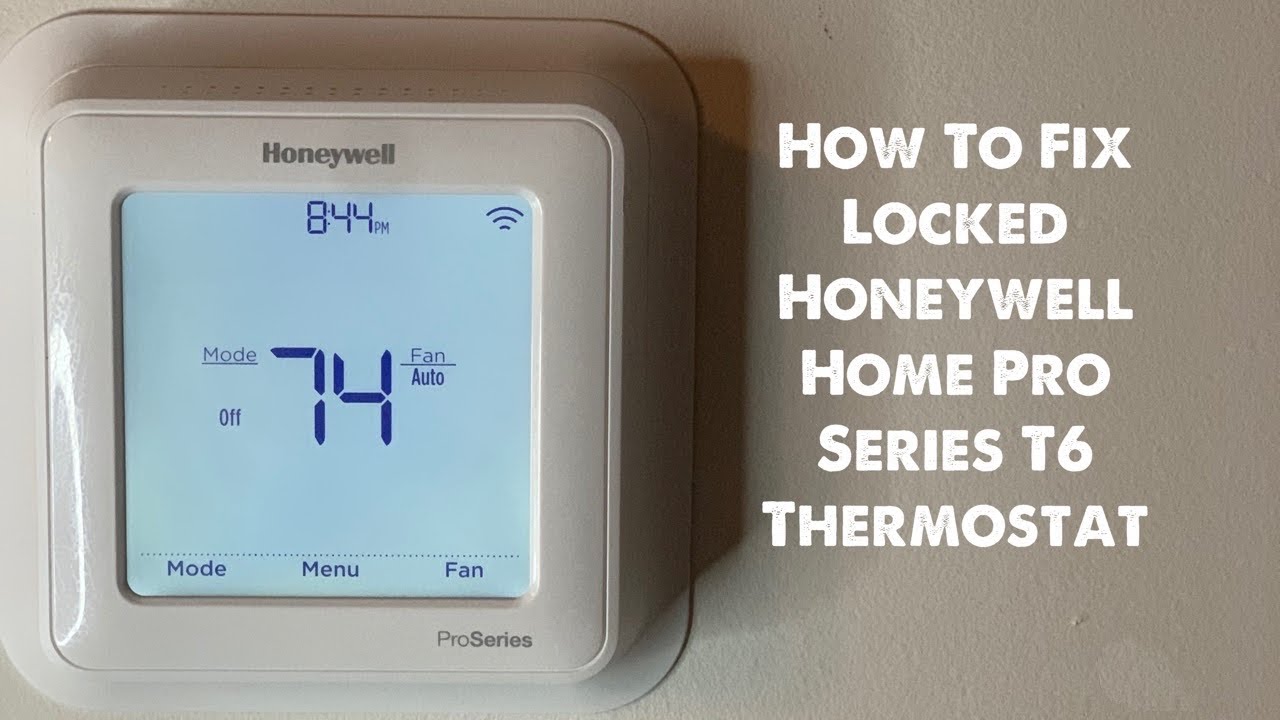
Common Issues and Causes
Most Honeywell Pro Series Thermostat Troubleshooting begins with one of these common problems:
- Blank or unresponsive display. Often power loss or dead batteries cause this.
- Incorrect temperature reads. Sensor placement, draft, or calibration may be the cause.
- Thermostat not calling heat or cool. Wiring errors, settings, or HVAC component failures are common.
- Short cycling. This may come from a faulty thermostat setting or sensor issues.
- Wi‑Fi or app connection problems. Router settings, firmware, or network band cause most issues.
- Erratic programming or schedule failures. Corrupt settings or outdated firmware can be behind this.
From my experience, check power and wiring first. Those two checks solve the majority of problems quickly.

Step-by-Step Honeywell Pro Series Thermostat Troubleshooting Guide
Follow these steps in order. They are simple and safe for most homeowners.
-
Check power and breakers
- Verify the HVAC breaker is on. Flip it off then on if unsure.
- Check the thermostat display. If blank, try new batteries.
-
Confirm C‑wire and wiring
- Remove thermostat from its base and inspect wires.
- Ensure the C wire is present for power. Tight or corroded terminals cause issues.
-
Restart the thermostat
- Power cycle at the breaker or remove batteries for 60 seconds.
- A restart clears many software glitches.
-
Verify system mode and fan
- Set the thermostat to heat or cool manually. Listen for HVAC response.
- Set fan to ON to test blower function.
-
Check filter and outdoor unit
- A clogged filter or blocked condenser stops the system.
- Clear debris and replace filters as needed.
-
Use diagnostic menus
- Many Honeywell Pro models have a diagnostics menu. Check for error codes.
- Write down codes before resetting. They help a technician if needed.
-
Factory reset as last resort
- Reset removes custom settings. Use it only if other steps fail.
- Reconfigure schedules and Wi‑Fi after reset.
People also ask
- How do I reset a Honeywell Pro Series thermostat? Power cycle first. Use the menu to find factory reset if needed.
- Why is my Honeywell thermostat showing blank? Most often loss of power or dead batteries cause this. Check breakers and C wire.
- Can a thermostat be fixed without a pro? Yes. Many Honeywell Pro Series Thermostat Troubleshooting steps are DIY safe.
These steps reflect common fixes I used on service calls. They are low risk and often restore normal operation.

Wiring, Installation, and Compatibility Tips
Correct wiring is central to Honeywell Pro Series Thermostat Troubleshooting.
- Check the wiring colors and terminals. R, Rc, C, W, Y, G are common labels.
- Confirm the C wire. Many smart thermostats need a C wire for constant power.
- Use a multimeter only if you are comfortable. Measure 24VAC between R and C to confirm power.
- Note compatibility. Some heat pump systems use different terminal setups. Verify before wiring.
Installation mistakes are common. I once fixed a thermostat that had its R wire on Rc only. Adding a jumper solved the problem in minutes.

Firmware, Wi‑Fi, and App Troubleshooting
Smart features add convenience but also more failure points. Use these checks for app and network issues.
- Confirm router band. Many Honeywell thermostats work only on 2.4 GHz networks.
- Restart your router and thermostat. Simple reboots fix most connection problems.
- Update firmware. Outdated firmware can cause interface freezes and erratic behavior.
- Re-add the thermostat to the app if it won’t connect. Remove the device, then follow the app prompts to set it up again.
- Check credentials. A wrong Wi‑Fi password is a common and simple blocker.
From my experience, power cycling both router and thermostat restores connectivity faster than chasing advanced settings.

Maintenance, Calibration, and Best Practices
Routine care reduces the need for Honeywell Pro Series Thermostat Troubleshooting.
- Replace thermostat batteries yearly, even if display looks fine.
- Change HVAC filters every 1–3 months depending on use.
- Keep the thermostat away from drafts, direct sun, and heat sources.
- Recalibrate or verify temperature readings if your room reads too hot or cold.
- Save a photo of wiring before you remove a thermostat. It speeds reinstallation.
A good habit is to check thermostat function at season changes. That minor check prevents breakdowns when you need heating or cooling most.

Advanced Diagnostics and When to Call a Pro
Some issues need tools or HVAC expertise. Know when to stop and call a pro.
- Use a multimeter to test 24VAC across R and C if you suspect power issues.
- Watch for repeated error codes. Record the code and sequence before resetting.
- If the HVAC equipment fails to respond to correct thermostat signals, the problem may be at the furnace, compressor, or control board.
- Call a licensed HVAC technician for gas, combustion, or refrigerant issues. These are not DIY safe.
If you’ve checked power, wiring, filters, and firmware and the problem remains, calling a pro saves time and prevents damage. I recommend contacting a certified technician rather than guessing at complex fixes.

Frequently Asked Questions of Honeywell Pro Series Thermostat Troubleshooting
How do I know if my Honeywell Pro Series thermostat has power?
Check the display first. If the screen is blank, verify the HVAC breaker and look for a C wire or replace batteries.
Why won’t my thermostat connect to Wi‑Fi?
Confirm your router uses 2.4 GHz, restart both devices, and ensure the Wi‑Fi password is correct. Firmware updates may also be required.
What does a short cycling thermostat mean?
Short cycling means the system turns on and off rapidly. Check thermostat settings, sensor placement, and HVAC components like the compressor or control board.
Can a thermostat be calibrated at home?
Yes, you can compare readings with a reliable thermometer and adjust offset if the thermostat menu allows calibration. For large discrepancies, call a pro.
When should I perform a factory reset?
Use factory reset only after basic troubleshooting fails and after you note any error codes. Resetting clears custom schedules and Wi‑Fi settings.
Is a C wire always required for Honeywell Pro Series thermostats?
Many Pro Series models work best with a C wire for stable power. Some models have battery options, but a C wire reduces connectivity and power problems.
Conclusion
Honeywell Pro Series Thermostat Troubleshooting is mostly about checking power, wiring, and settings first, then moving to app and HVAC checks. Follow the step-by-step guide here, and use the maintenance tips to avoid repeat issues. If complex electrical or HVAC faults appear, contact a licensed technician to avoid risks.
Take action now: perform the quick checks listed above, note any error codes, and try the simple fixes. If this guide helped, subscribe, leave a comment with your issue, or share your experience so others can learn from what worked for you.

