

Unitron Hearing Aids Troubleshooting: Simple fixes for sound, pairing, and feedback problems.
I’ve worked with hearing tech for years and helped many people solve Unitron Hearing Aids Troubleshooting issues. This guide walks you through practical checks, step-by-step fixes, and real-world tips to get your Unitron devices working well again. Read on for clear troubleshooting steps, app and Bluetooth help, cleaning routines, and when to call your hearing care professional.

36% off Today’s Exclusive Deals
Limited-time Exclusive Deals. Check current discount on Amazon.
Check Price on Amazon As an Amazon Associate I earn from qualifying purchases.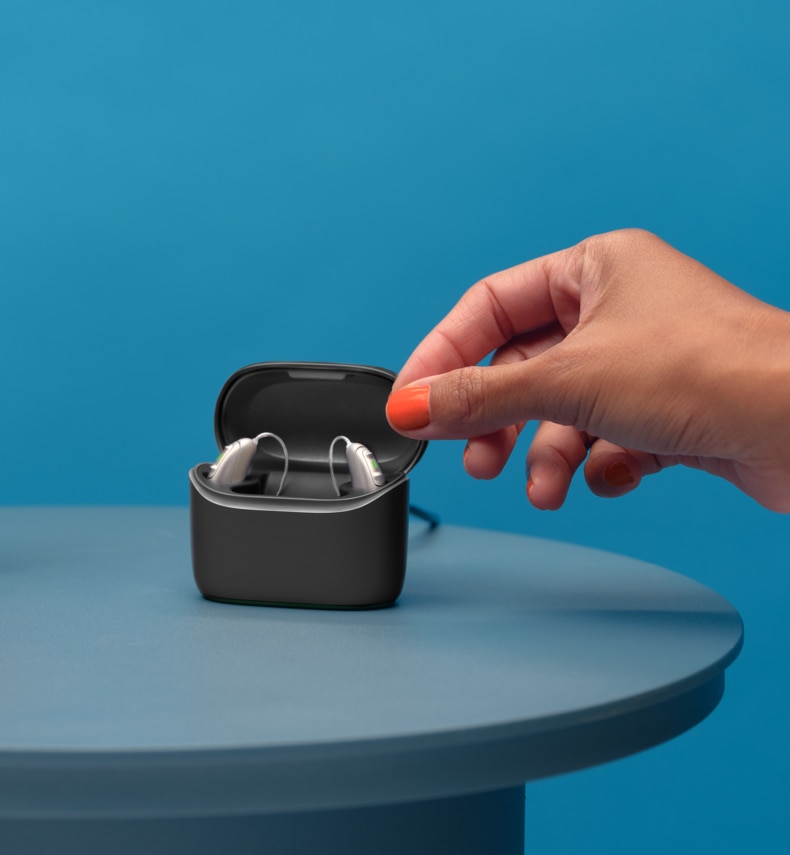
Common Unitron Hearing Aids Problems and Quick Fixes
Many users run into the same few problems. The top issues are no sound, weak sound, whistling (feedback), poor Bluetooth streaming, and intermittent audio. These are often easy to fix at home with simple checks.
Common quick fixes
- Check the battery or recharge the device. A low battery often causes weak or no sound.
- Clean the microphone and receiver openings. Wax and debris block sound.
- Replace domes, wax guards, or ear molds. Worn parts reduce clarity.
- Check program and volume settings on the device or app. You may be in the wrong program.
- Re-pair Bluetooth or restart the app. Connection drops are common with phone updates.
Why these quick fixes work
- Power and physical blockage are the most common causes of failure.
- Apps and phone settings can change after updates.
- Small changes in fit cause feedback or muffled sound.
Unitron Hearing Aids Troubleshooting often begins with these simple checks. Try them before moving to advanced steps.

Step-by-Step Troubleshooting Guide for Unitron Hearing Aids
Follow these steps in order. They help isolate the issue and reduce time spent on fixes.
-
Visual and power check
- Inspect the hearing aid for damage.
- Replace disposable batteries or fully charge the device.
- Turn the hearing aid off and on again.
-
Sound and fit check
- Remove and reinsert the device to ensure a proper seal.
- Try a different dome or ear mold if sound is muffled.
- Listen for internal noise that may indicate a loose part.
-
Clean and replace small parts
- Remove wax guards and replace them.
- Clean receiver and microphone ports with the recommended brush.
- Replace tubing or domes as needed.
-
Program, volume, and settings
- Cycle through programs on the hearing aid or app.
- Ensure the volume is raised and not muted.
- Reset to the default program if unfamiliar settings were applied.
-
Bluetooth and streaming check
- Toggle Bluetooth off and on on your phone.
- Forget and re-pair the hearing aid in the phone’s Bluetooth menu.
- Check the Unitron app volume and streaming permissions.
-
Reset and firmware
- Soft reset by turning off and on.
- Factory reset only if you know your programming settings or have provider support.
- For firmware updates, contact your hearing care professional if the app does not offer a safe update path.
If these steps do not fix the issue, document what happened and contact your provider. Unitron Hearing Aids Troubleshooting can require professional tools for firmware or hardware fixes.

People also ask
Q: How do I stop my hearing aid from whistling?
A: Check fit, replace domes or molds, clean vents, and lower volume. If it persists, see your provider for a fit or programming change.
Q: How often should I replace wax guards?
A: Replace wax guards at the first sign of clogging. For most users, a weekly check is a good routine.
Bluetooth, App, and Streaming Issues
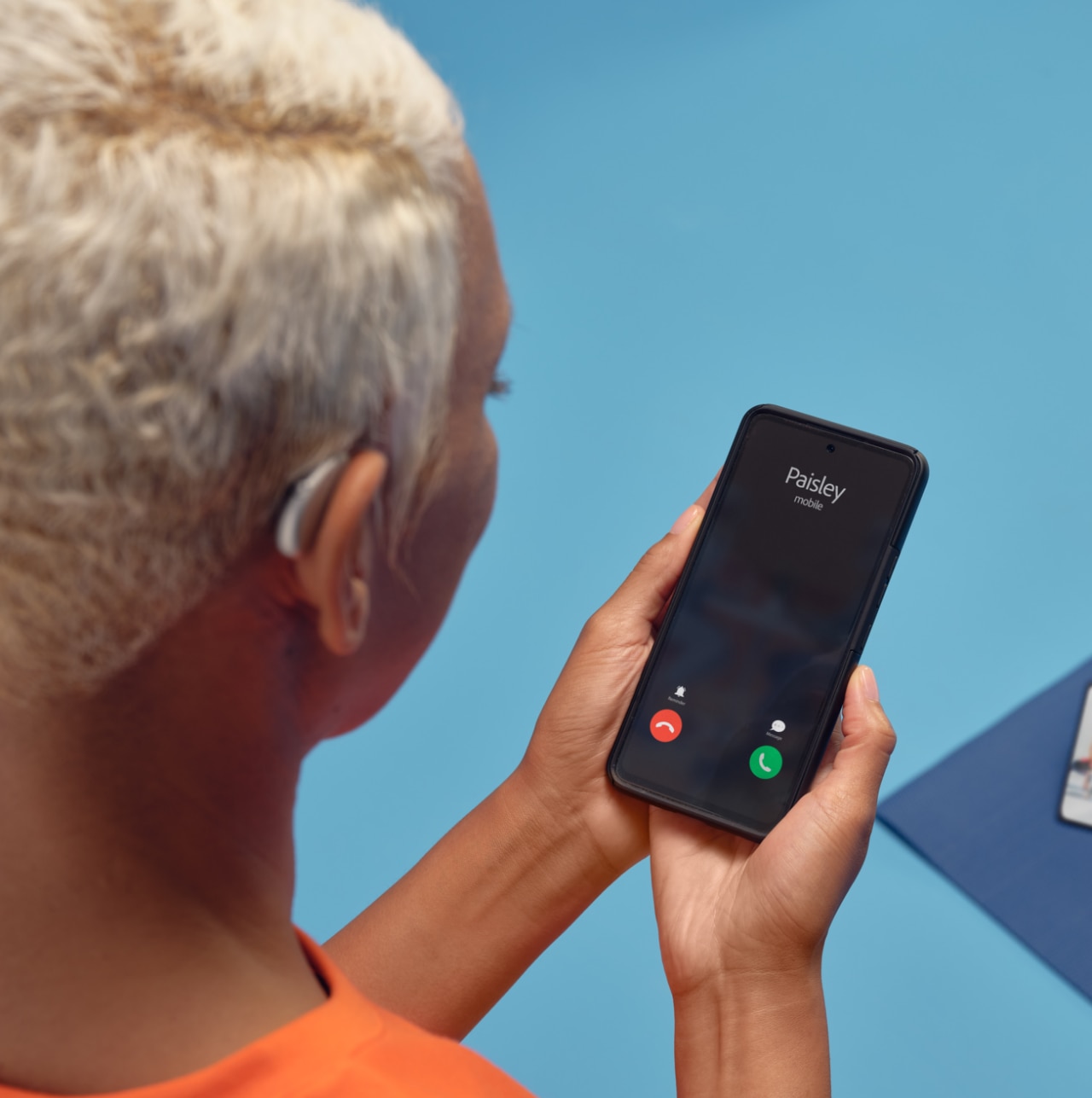
Bluetooth pairing and app issues are common after phone updates or app changes. Unitron Hearing Aids Troubleshooting often centers on these wireless connections.
Troubleshooting steps for streaming
- Confirm your Unitron model supports direct streaming or requires a streamer accessory.
- Ensure Bluetooth is enabled on your phone and the device is in pairing mode.
- Use the Unitron app to check device status and update settings.
- Restart the phone and hearing aids if streaming fails.
App-specific tips
- Allow microphone and Bluetooth permissions in phone settings.
- Keep the Unitron app updated and close other audio apps when streaming.
- Clear the app cache or reinstall if it freezes.
When streaming is choppy
- Move closer to the phone and avoid heavy interference.
- Turn off nearby Bluetooth devices that might conflict.
- Test with another phone to rule out phone-specific issues.
If you cannot pair or stream, Unitron Hearing Aids Troubleshooting may require a remote session with your clinician or a device-specific accessory.

Cleaning, Maintenance, and Preventive Care
Routine care prevents many Unitron Hearing Aids Troubleshooting cases. Clean and inspect the devices weekly and store them properly.
Daily and weekly care
- Wipe the hearing aids with a soft, dry cloth each day.
- Use the cleaning brush and pick to clear wax from ports every few days.
- Check and replace wax guards weekly if needed.
Battery and charging tips
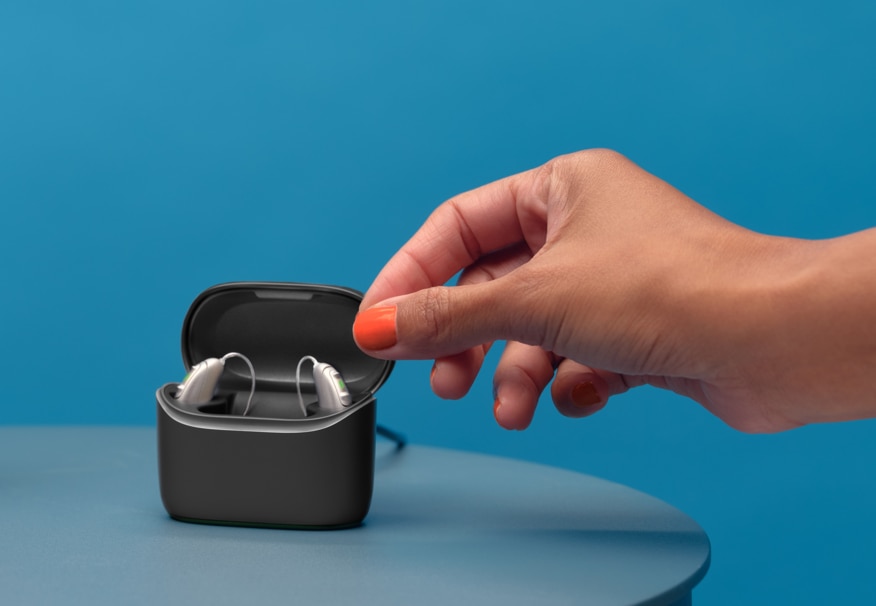
- Use only approved chargers and batteries.
- Keep contacts clean and dry.
- Avoid overcharging; follow the manufacturer’s guidelines.
Storage and moisture control
- Use a dry box or dehumidifier overnight if you live in a humid area.
- Remove hearing aids before showering, swimming, or heavy sweating.
- Keep spare wax guards, domes, and batteries on hand.
Routine care reduces the top causes of Unitron Hearing Aids Troubleshooting and extends device life.
Advanced Troubleshooting: Firmware, Resets, and When to Visit a Provider
Some problems need a trained technician. Firmware updates, internal repair, and programming changes should be handled by a clinician.
When to contact your provider
- Persistent no sound after cleaning and battery checks.
- Repeated feedback that doesn’t stop after fit and dome changes.
- Hardware faults like cracked shells, loose parts, or failed charging.
- Firmware update failures or app errors you cannot resolve.
Safe reset and firmware notes
- Soft reset is safe and often helpful.
- Factory resets remove custom programming. Back up settings with your clinician first.
- Firmware should be updated under professional guidance if the app does not provide a direct path.
What to bring to your appointment
- A list of troubleshooting steps you tried.
- Your phone or tablet to recreate Bluetooth and app issues.
- Spare batteries or charger so the clinician can test charging and power.
Unitron Hearing Aids Troubleshooting sometimes ends at the clinic, but many issues can be solved at home first.

Troubleshooting Tips from My Experience
I’ve assisted clients whose Unitron Hearing Aids Troubleshooting problems were simple to fix. One user had no sound because wax guards were fully blocked. Replacing the guards restored sound in minutes.
Lessons I learned
- Always start with power and physical checks. They solve most problems.
- Document steps. This saves time with your clinician.
- Don’t force parts. Trying to pry or open a device can void the warranty.
Mistakes to avoid
- Skipping the phone’s Bluetooth settings when streaming fails.
- Using household tools to clean ports.
- Resetting to factory defaults without backing up programs.
These practical tips will help you manage Unitron Hearing Aids Troubleshooting more confidently.
Frequently Asked Questions of Unitron Hearing Aids Troubleshooting
How do I reset my Unitron hearing aid?
Soft resets are usually done by turning the device off and on. Factory resets should be done by your hearing provider to avoid losing custom programs.
Why is my Unitron hearing aid whistling?
Whistling is often due to a poor fit, earwax buildup, or high volume. Check the fit, clean the device, and lower the volume to stop feedback.
How can I fix Bluetooth pairing problems?
Turn Bluetooth off and on, forget the device in your phone’s settings, and re-pair through the Unitron app. Restart both devices if pairing still fails.
What if my hearing aid has no sound after charging?
Check the battery contacts, verify the charger works, and try a different power source. If no sound returns, contact your provider for diagnostics.
How often should I clean wax guards and domes?
Check wax guards weekly and replace as soon as you see buildup. Domes should be inspected weekly and replaced when worn or discolored.
Can I update Unitron firmware myself?
Some firmware updates are available through the app, but many require the clinic. Contact your hearing care professional before attempting an update.
Conclusion
Unitron Hearing Aids Troubleshooting can be simple when you follow a clear routine: power checks, cleaning, fit adjustments, and app pairing. Start with basic steps, document what you try, and reach out to your hearing provider for advanced fixes. Take action today by testing the quick fixes listed here, keeping routine care, and scheduling a clinic visit if problems persist. Share your experience or questions below, or subscribe for more practical hearing aid tips.

