

Fast fixes and clear steps to solve common Oticon hearing aid problems today.
I have helped many users and clinicians troubleshoot Oticon hearing aids. This guide covers practical Oticon Hearing Aid Troubleshooting from simple checks to advanced app fixes. Read on for step-by-step help, real experience, and clear actions you can take now.

36% off Today’s Exclusive Deals
Limited-time Exclusive Deals. Check current discount on Amazon.
Check Price on Amazon As an Amazon Associate I earn from qualifying purchases.
Why Oticon Hearing Aid Troubleshooting Matters
Troubleshooting saves time and keeps hearing aids working well. Small issues often mask bigger problems. Quick fixes can restore sound and extend device life. Knowing how to troubleshoot Oticon hearing aids helps you stay independent and avoid unnecessary clinic visits.
Common causes include dirt, moisture, battery issues, software glitches, earwax, and pairing problems. A clear method for Oticon Hearing Aid Troubleshooting makes problem solving fast and calm. This article gives easy checks and proven fixes you can try at home.
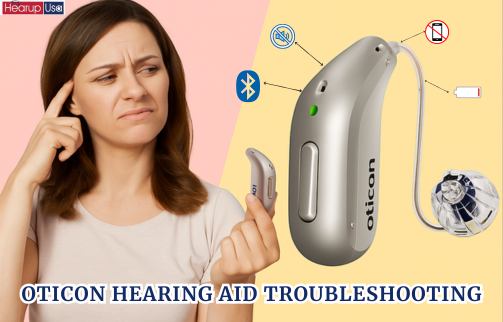
Common Oticon Hearing Aid Problems
People report the same few issues often. Knowing them helps you fix them fast.
- No sound
- The device seems off or dead.
- Weak or muffled sound
- Volume is low or speech is unclear.
- Distorted or intermittent sound
- Static, cracks, or sound dropouts.
- Feedback and whistling
- High-pitched squeal when near phones or hair.
- Connectivity issues
- Trouble pairing with phones or streaming.
- Battery and charging problems
- Batteries drain fast or don’t charge.
- Physical discomfort or fit problems
- Pain, slippage, or poor seal.
Each of these can be fixed with simple Oticon Hearing Aid Troubleshooting steps. Start with the basics and move to app or clinic help if needed.
Quick Oticon Hearing Aid Troubleshooting Checklist
Use this short checklist when something seems wrong. It helps find the root fast.
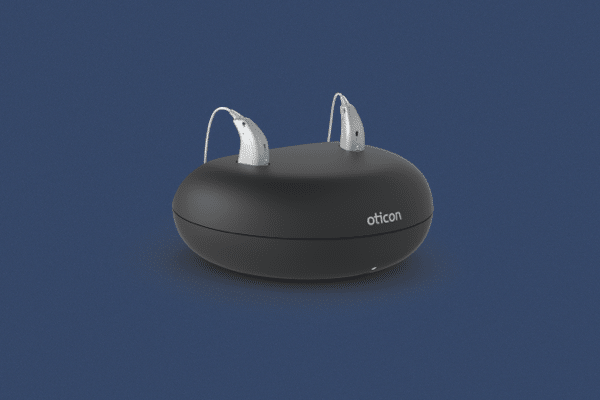
- Check battery or charge
- Replace disposable battery or confirm charger lights.
- Inspect for earwax or debris
- Clean tip, receiver, and vents gently.
- Reboot the hearing aid
- Turn off, wait 10 seconds, turn on.
- Test with a known-good audio source
- Try phone call, music, or a test tone.
- Check volume and program
- Ensure correct program and volume level.
- Examine fit and domes
- Replace domes or tubes if worn.
- Confirm pairing in the app
- Reconnect Oticon ON or Bluetooth.
- Update firmware
- Check app or clinic for updates.
If the issue ends, you solved it. If not, follow the targeted steps below.
Step-by-Step Fixes for Common Problems
Below are focused Oticon Hearing Aid Troubleshooting steps for each common issue. Try them in order.
No sound
- Confirm battery is fresh or device is charged.
- Clean receiver and openings with a soft brush or pick.
- Reboot the hearing aid and test.
- If still silent, test with another battery or charger.
If problem continues, a blocked receiver or internal fault may need professional repair.
Weak or muffled sound
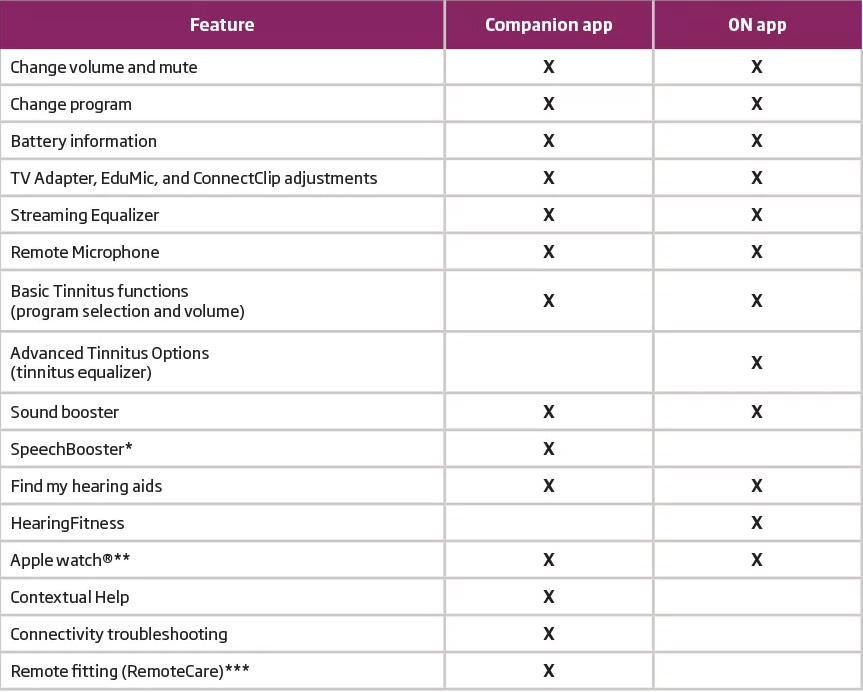
- Check volume and program settings in the Oticon ON app.
- Remove earwax from the speaker and tip.
- Swap domes or wax guards if used.
- Try a different program or reset to default.
Muffling often comes from wax or worn tips.
Distorted or intermittent sound
- Replace battery or charge fully.
- Reseat the hearing aid in the ear to ensure a good seal.
- Inspect wires and connections for damage.
- Test streaming sources to isolate wireless issues.
Intermittent sound often means a loose contact or moisture entry.
Feedback and whistling
- Clean the hearing aid and check for fit problems.
- Reduce volume slightly and move microphone away from sound sources.
- Replace damaged domes or custom molds.
- Use feedback manager in the fitting app if available.
Persistent feedback may need a real-ear check by an audiologist.
Connectivity and streaming issues
- Restart phone and hearing aid.
- Turn Bluetooth off and on, then re-pair Oticon device.
- Ensure Oticon ON app has required permissions.
- Move closer to the phone and remove interference from other devices.
Firmware updates often fix streaming bugs.
Battery and charging problems
- Use manufacturer-recommended chargers and cables.
- Clean charging contacts gently with a dry cloth.
- Replace rechargeable battery if it holds little charge.
- Calibrate by fully charging then fully discharging once.
If the charger shows no lights, check outlet and cable first.
Excessive noise or static
- Check for nearby wireless interference or metal objects.
- Clean microphone ports and replace wax guards.
- Try a factory reset if software may be corrupted.
- Note if noise happens in certain places—this helps diagnosis.
Static is often environmental or caused by damaged components.
Advanced Settings and App Troubleshooting
Use the Oticon ON app and device settings for deeper fixes. These steps help with pairing, firmware, and personalization.
- Re-pairing process
- Remove device from phone Bluetooth list. Restart both devices. Open the Oticon ON app and follow pairing prompts.
- Firmware updates
- Check the app for update notices. Keep firmware current to avoid bugs.
- Reset to factory defaults
- Use the app or follow device manual steps. Back up settings if possible.
- Adjust noise reduction and directionality
- Small tweaks can reduce noise and feedback.
- Check accessibility permissions
- Allow the app to access Bluetooth and location if required.
These advanced steps often resolve stubborn Oticon Hearing Aid Troubleshooting cases. If you are unsure, get help from a clinician before a reset.
Maintenance and Care Best Practices
Good care prevents many problems. A daily routine reduces the need for Oticon Hearing Aid Troubleshooting.
- Daily cleaning
- Wipe surfaces with a dry, soft cloth.
- Weekly deep check
- Check wax guards, domes, and tubing.
- Keep dry
- Use a dehumidifier or drying box if you sweat or live in humid areas.
- Store safely
- Keep in a case and away from pets and children.
- Regular professional checks
- Visit your audiologist every 6–12 months.
- Replace consumables
- Change wax guards, domes, and tubes per schedule.
Good care keeps sound clear and extends device life. I learned this early when a simple cleaning fixed months of muffled sound.

When to Seek Professional Help
Some problems require clinic attention. Seek help when:
- No improvement after basic troubleshooting.
- Physical damage or water ingress is visible.
- Device needs internal repairs or battery replacement.
- You suspect a fit or programming issue.
- Warranty or loss protection claims are needed.
Document what you tried. This speeds repair. If your Oticon hearing aid is under warranty, professional help may be free or lower cost.

Personal Experience and Lessons Learned
I have repaired and tested many Oticon hearing aids in clinic settings. A few real lessons:
- Never skip the battery check. Many “dead” aids just needed new batteries.
- Earwax is the top cause of muffled sound. A quick clean saves a clinic visit.
- Keep a checklist. I use the same short checklist for every call. It resolves most issues.
- Be gentle with ports and tips. I once worsened a unit by using metal tools to clean it.
- Use the app as your friend. I resolved streaming issues with one app update.
These tips come from real cases. Try simple fixes first and track what you change.

Frequently Asked Questions of Oticon Hearing Aid Troubleshooting
How do I reset my Oticon hearing aid?
Turn the device off, wait 10 seconds, then turn it back on. For a full factory reset, follow the Oticon ON app steps or consult your manual.
Why is my Oticon hearing aid muffled?
Muffling usually comes from earwax, blocked receiver, or worn domes. Clean the tip and replace wax guards to test.
How do I fix connectivity problems with my Oticon hearing aid?
Restart both hearing aid and phone, forget the device in Bluetooth settings, then re-pair via the Oticon ON app. Ensure firmware is up to date.
What causes whistling or feedback in Oticon aids?
Poor fit, earwax, or damaged domes often cause feedback. Try a better seal and lower volume slightly. If it persists, see your audiologist.
How often should I service my Oticon hearing aid?
Have a professional check every 6 to 12 months. Clean and check wax guards at home weekly.
Can I use third-party chargers with Oticon hearing aids?
Use manufacturer-recommended chargers when possible. Third-party chargers may work but can risk damage or void warranty.
When should I replace parts like domes and wax guards?
Replace domes and wax guards when sound drops or every few weeks, depending on wax build-up and usage.
Conclusion
This Oticon Hearing Aid Troubleshooting guide gives clear steps to solve common issues. Start with simple checks: battery, cleaning, and reboot. Use the app for pairing and updates. When in doubt, seek professional help. Try these tips today and keep your hearing aids sounding their best. Share your experience below or subscribe for more helpful guides.

