

Most Dell monitor issues can be fixed with simple Dell Monitor Troubleshooting steps and checks.
I write about Dell Monitor Troubleshooting from years of hands-on work with displays and support cases. I know how the screens behave, why they fail, and what simple checks save time. This guide walks you through clear steps, fixes, and tips so you can solve common Dell Monitor Troubleshooting problems fast.

36% off Today’s Exclusive Deals
Limited-time Exclusive Deals. Check current discount on Amazon.
Check Price on Amazon As an Amazon Associate I earn from qualifying purchases.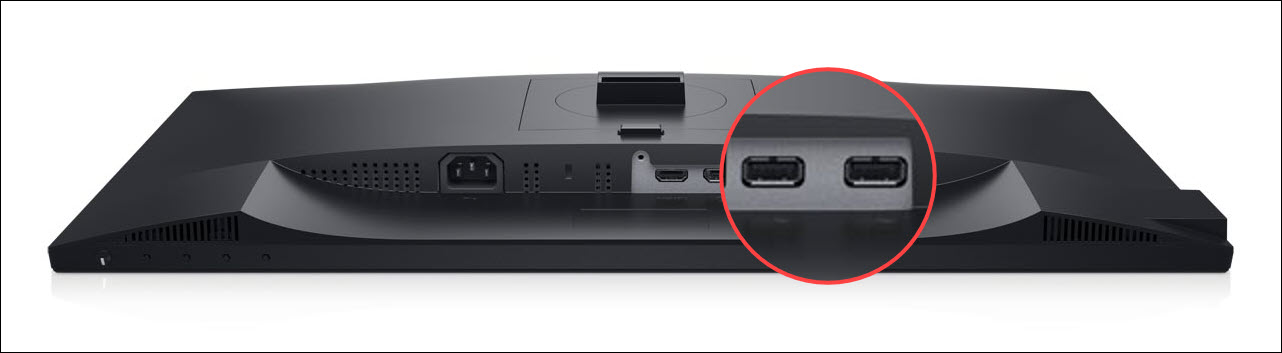
Common Dell Monitor Problems and Quick Fixes
Many people see blank screens, flicker, or strange colors. Dell Monitor Troubleshooting starts with checking power, cables, and input source. These three checks solve many issues before you try deeper fixes.
Common quick fixes:
- Check power LED and cable. Replace cable or try another outlet.
- Reseat the video cable on both monitor and PC. Swap HDMI, DisplayPort, or DVI if possible.
- Use the monitor OSD menu to confirm the correct input. Reset the monitor to factory defaults if needed.
I once fixed a Dell monitor that showed no picture by swapping the DisplayPort cable and restarting the PC. That simple Dell Monitor Troubleshooting step saved a service call. Try these quick fixes first to save time and stress.
Step-by-Step Dell Monitor Troubleshooting Guide
Follow a clear order. This helps find the cause fast and avoids wasted effort. Use these steps for structured Dell Monitor Troubleshooting.
Step-by-step process:
- Power and indicator
- Confirm the monitor power light is on. If off, try another power cable or outlet.
- If the light blinks, consult the Dell manual for blink codes.
- Cable and port check
- Inspect cables for bends or frays. Try a different cable type if available.
- Test other ports on the PC and monitor to isolate the bad port.
- Input and source
- Use the monitor input menu to switch inputs. Sometimes auto-detect fails.
- Connect the monitor to another device like a laptop to verify the monitor works.
- Display settings and drivers
- On Windows, check Display Settings for correct resolution and multiple displays.
- Update or reinstall the GPU driver as part of Dell Monitor Troubleshooting.
- Test with minimal setup
- Remove docks, adapters, and hubs. Connect the monitor directly to the PC.
- This isolates adapters or converters that often cause problems.
These steps will catch most common faults. Keep notes on what you tried. That helps if you need to escalate support.

Advanced Dell Monitor Troubleshooting: Firmware, Drivers, and Hardware
If basics fail, move to advanced checks. Dell Monitor Troubleshooting at this level looks at firmware, drivers, and internal hardware.
Advanced actions:
- Update monitor firmware
- Some Dell models have firmware updates. Use Dell support tools to check.
- Follow the update steps carefully to avoid interruptions.
- GPU and OS checks
- Reinstall the GPU driver using the latest stable driver for your card.
- Try a clean boot or safe mode to rule out software conflicts.
- Inspect for hardware faults
- Look for dead pixels, backlight issues, or uneven brightness.
- If the screen is black but the backlight is on, the panel or board may be faulty.
- Backlight and inverter
- Older monitors can have inverter or backlight failures. Professional repair may be required.
- For warranty, contact Dell support before opening the monitor.
From my experience, firmware updates fixed color and compatibility issues on two Dell models. Use caution and back up driver settings before major changes. Advanced Dell Monitor Troubleshooting can be technical but is often necessary for persistent issues.

Preventive Care and Best Practices for Dell Monitor Troubleshooting
Prevention reduces the need for troubleshooting. Adopt simple habits to keep your monitor healthy. These help avoid common Dell Monitor Troubleshooting cases.
Best practices:
- Use high-quality cables and keep spare ones. Cheap adapters cause many faults.
- Keep drivers and firmware up to date. Check updates periodically.
- Avoid physical stress on cables and ports. Move cables gently when needed.
- Use stable power and a surge protector. Voltage problems harm monitor electronics.
- Clean the screen with a soft cloth and approved cleaner to prevent damage.
I once replaced a monitor because a user left a heavy object on the cable, damaging the connector. A small habit change saved lots of trouble. Good maintenance makes Dell Monitor Troubleshooting rare.
Quick PAA Questions About Dell Monitor Troubleshooting
What causes a Dell monitor to say “No Signal”?
A “No Signal” message usually means the PC and monitor are not connected correctly. Check cables, input source, and the PC’s display output.
Why does my Dell monitor flicker intermittently?
Flicker can come from a loose cable, bad port, outdated driver, or power issue. Swap cables and update drivers to narrow the cause.
Can I update Dell monitor firmware myself?
Yes, many Dell monitors allow firmware updates, but follow Dell instructions carefully. Do not power off the monitor during an update.
Frequently Asked Questions of Dell Monitor Troubleshooting
What should I do if my Dell monitor is blank but power light is on?
First, check the video cable and input source. Then connect the monitor to another computer to confirm whether the issue is the monitor or the PC.
How do I fix color or gamma problems on a Dell monitor?
Reset the monitor to factory defaults and update the graphics driver. Use the monitor OSD to adjust color settings or run a color calibration tool.
Why is my Dell monitor showing lines or artifacts?
Lines often point to cable, GPU, or panel faults. Try a new cable and test the monitor with another device to isolate the issue.
Will a motherboard BIOS update affect Dell monitor performance?
A BIOS update can change how the computer outputs video and can fix compatibility issues. Only update BIOS if recommended and follow safety steps to prevent interruption.
How long should a Dell monitor last before replacing?
A well-cared-for Dell monitor can last many years, often 5–10 years or more. Replace it when repair costs exceed buying a new unit or when modern features are needed.
Conclusion
This Dell Monitor Troubleshooting guide gives clear steps you can use right now. Start with power, cables, and input checks. Move to drivers, firmware, and hardware only if needed. Use preventive habits to avoid future problems. Try these steps, share what worked, and ask questions below for help.

