

Epson Printer Troubleshooting Guide: Fix jams, clear clogs, update drivers, and restore connectivity fast.
I have spent years fixing home and office printers, and this Epson Printer Troubleshooting Guide brings that hands-on experience to you. Read on to learn clear, step-by-step fixes for the most common Epson issues, backed by practical tips and real troubleshooting examples. This guide covers error lights, paper jams, ink and head problems, connectivity, driver errors, and simple maintenance to keep your Epson running smoothly.

36% off Today’s Exclusive Deals
Limited-time Exclusive Deals. Check current discount on Amazon.
Check Price on Amazon As an Amazon Associate I earn from qualifying purchases.
Common Epson Printer Problems and Quick Fixes
Most Epson printers share common faults. Knowing the usual causes speeds repair and saves frustration. Here I list frequent problems with short fixes you can try at home. This Epson Printer Troubleshooting Guide focuses on fast wins so you can get back to printing.
- Paper jam or feed error: Power off, gently remove paper, inspect feed path, and check rollers for debris. If a small tear remains, use tweezers to pull it out slowly and avoid further damage.
- Nozzle clog or poor print quality: Run the nozzle check and head cleaning from the printer menu or Epson software. Repeat cleaning up to three times and then perform a power cycle.
- Offline or network errors: Restart router and printer, confirm Wi-Fi name and password, and use the printer’s network setup to reconnect. On Windows or Mac, set the printer as default and clear print queue.
- Cartridge recognition errors: Remove and reseat cartridges. Clean the contacts with a lint-free cloth and ensure cartridges are genuine or properly refilled. Replace if expired or damaged.
I have used each of these steps on Epson models from Workforce to EcoTank and seen fast results. Keep a small tool kit near your printer: lint-free cloth, distilled water, tweezers, and gloves. This Epson Printer Troubleshooting Guide saves time when problems repeat.
Step-by-Step Epson Printer Troubleshooting Guide
Follow a clear order. Start simple and move to advanced steps only if needed. This systematic Epson Printer Troubleshooting Guide helps you isolate the problem quickly.
- Basic checks and power cycle
- Confirm power and cables are secure. Turn off the printer, unplug for 60 seconds, then plug in and restart. This clears many temporary faults.
- Inspect paper and trays
- Check paper type, alignment, and tray guides. Avoid mixed paper sizes and bent sheets.
- Run built-in tests
- Print a nozzle check and alignment page. Use the control panel or Epson software to run diagnostics. Save results to compare after fixes.
- Software and drivers
- Update drivers and Epson firmware from official support pages. Remove old drivers and reinstall if the printer shows a communication error.
- Network and USB troubleshooting
- Try a direct USB connection to confirm the printer works locally. For Wi‑Fi, verify SSID and password, and set static IP if needed for stable printing.
- Ink and printhead care
- Use the printer’s cleaning cycles. If problems persist, do a manual head cleaning per the manual or consider replacing cartridges. Avoid excessive head cleans to save ink.
From experience, skipping straight to complex fixes wastes time. Follow this Epson Printer Troubleshooting Guide step-by-step for the best chance of quick success.
Advanced Diagnostics and Repairs
When basics fail, do careful checks. Advanced steps can fix hidden issues but proceed with care to avoid voiding warranty. Use this advanced section of the Epson Printer Troubleshooting Guide when simple actions don’t work.
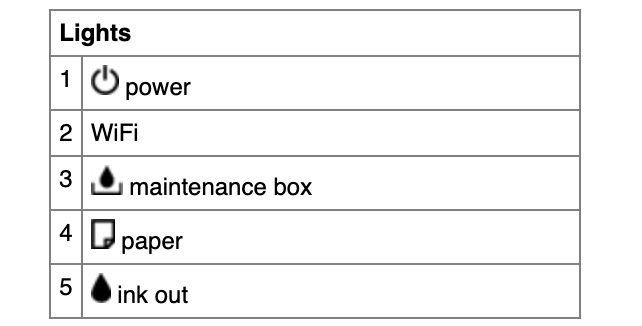
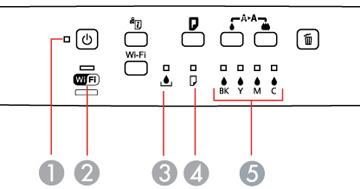
- Error codes and lights: Note the error code or blinking pattern. Look up the code in your manual or support pages. Error codes help narrow issues like ink system problems or hardware faults.
- Service mode and logs: Some Epson models allow service mode entry to reset counters or inspect errors. Only use service mode if you understand the risks, or follow official guidance to avoid unintended resets.
- Mechanical faults: Check belts, rollers, and carriage rail for obstructions or wear. Clean gently with isopropyl alcohol on a cloth. If you detect broken parts, arrange authorized repair.
- Printhead swaps and replacement: For removable heads, careful replacement can restore quality. For fixed heads, professional service may be needed to avoid damaging ink systems.
- Firmware rollback or update: Firmware fixes some bugs but may reset settings. Back up network settings and follow official instructions to avoid bricking the device.
I once fixed a recurring paper jam on an office Epson by cleaning a hidden sensor and replacing a small roller. That saved hundreds compared to service replacement. Use this Epson Printer Troubleshooting Guide to decide when to DIY and when to contact service.
Maintenance Tips to Prevent Issues
Good upkeep reduces downtime. A few simple habits extend life and prevent common errors. These maintenance steps make the Epson Printer Troubleshooting Guide proactive, not just reactive.
- Regular nozzle checks: Run tests weekly for moderate use printers. Early cleaning prevents deep clogs.
- Use recommended media and cartridges: Stick to paper types and inks supported by Epson to avoid feed and recognition errors.
- Keep firmware current: Updates fix bugs and improve stability. Schedule updates when downtime is acceptable.
- Clean paper path and sensors: Monthly cleaning prevents dust and debris that cause jams. Use compressed air carefully and a soft brush for sensors.
- Proper shutdown: Use the power button to park the printhead. Unplugging while the head is uncapped can cause dry clogs.
My rule is a quick 10-minute weekly check for office printers. That small habit cut service calls by half. Treat maintenance as insurance; it’s a key part of this Epson Printer Troubleshooting Guide.

Frequently Asked Questions of Epson Printer Troubleshooting Guide
Why is my Epson printer not printing but shows ready?
Check the print queue and clear any stalled jobs. Reinstall or update the driver and ensure the printer is set as default.
How do I fix clogged print nozzles?
Run the printer’s cleaning cycle two to three times and print a nozzle check. If issues persist, perform a deeper cleaning or professional service.
What causes "printer offline" errors?
Network changes, incorrect Wi‑Fi credentials, or IP conflicts can cause offline status. Restart the printer and router and set a static IP if needed.
Can firmware updates fix printing problems?
Yes. Firmware updates deliver bug fixes and stability improvements. Always follow official update instructions and back up settings first.
When should I contact Epson support or a technician?
If hardware faults remain after basic steps, error codes indicate internal failure, or the repair risks voiding warranty. Seek service for mechanical or electrical issues.
Conclusion
This Epson Printer Troubleshooting Guide arms you with practical, easy-to-follow fixes and preventive habits. Use the step-by-step checks first, move to advanced diagnostics only when needed, and keep regular maintenance to avoid recurring faults. Start with simple power cycles, run nozzle checks, update drivers, and keep ink systems healthy. Try these tips now, and share what worked for you or ask a question below to get tailored help.

