

Most Hisense Roku Tv issues are fixed by restarting, updating, or checking connections.
I have spent years diagnosing and fixing smart TV problems, and I know how frustrating a stuck stream or blank screen can feel. This guide on Hisense Roku Tv Troubleshooting condenses practical steps, clear explanations, and real-world tips you can use right now. Read on to save time, avoid common mistakes, and get your set back to smooth viewing.

36% off Today’s Exclusive Deals
Limited-time Exclusive Deals. Check current discount on Amazon.
Check Price on Amazon As an Amazon Associate I earn from qualifying purchases.
Common Hisense Roku Tv Troubleshooting Issues
Hisense Roku Tv Troubleshooting often starts with a few repeated faults. These include power failures, no picture, no sound, weak Wi-Fi, frozen Roku interface, remote control problems, and app crashes. Knowing which problem you face helps you choose the right fix fast.
- Power not turning on. Check power and outlet.
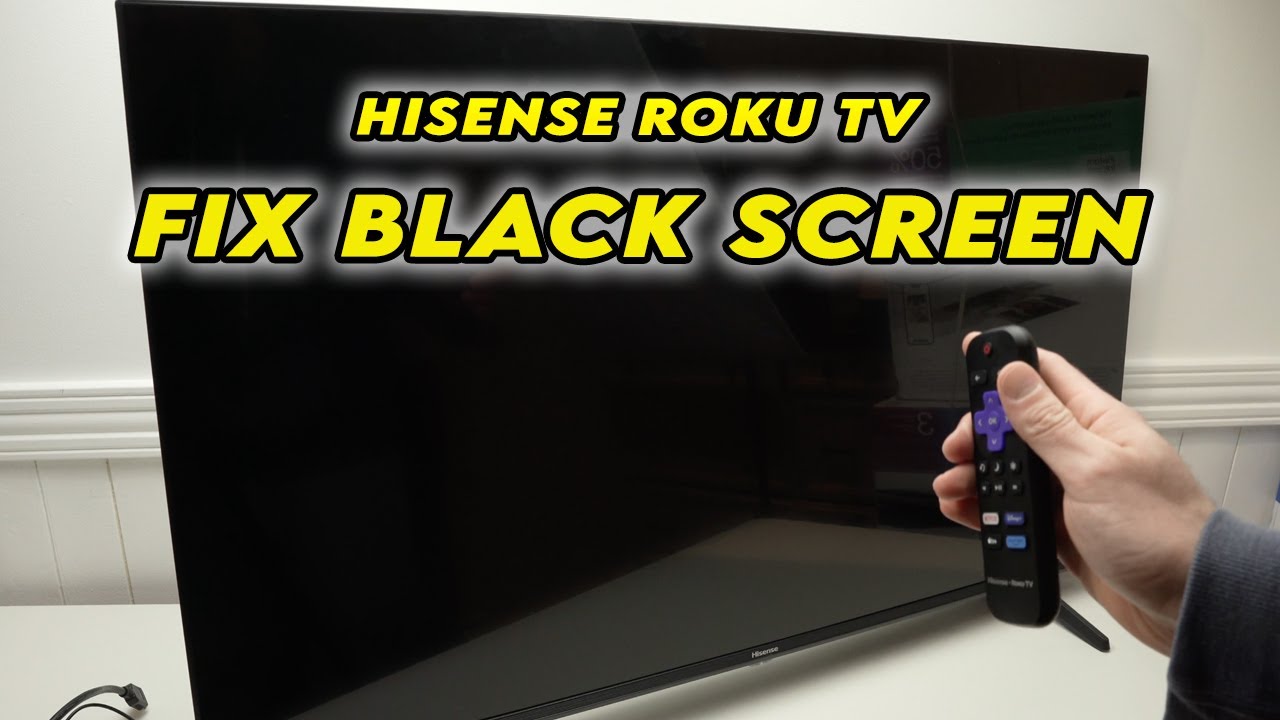
- Blank or black screen. Check input and cable.
- No sound or poor audio. Inspect audio settings and cables.
- Streaming buffer or app crash. Test internet speed and app updates.
- Remote not responding. Try new batteries or re-pair the remote.
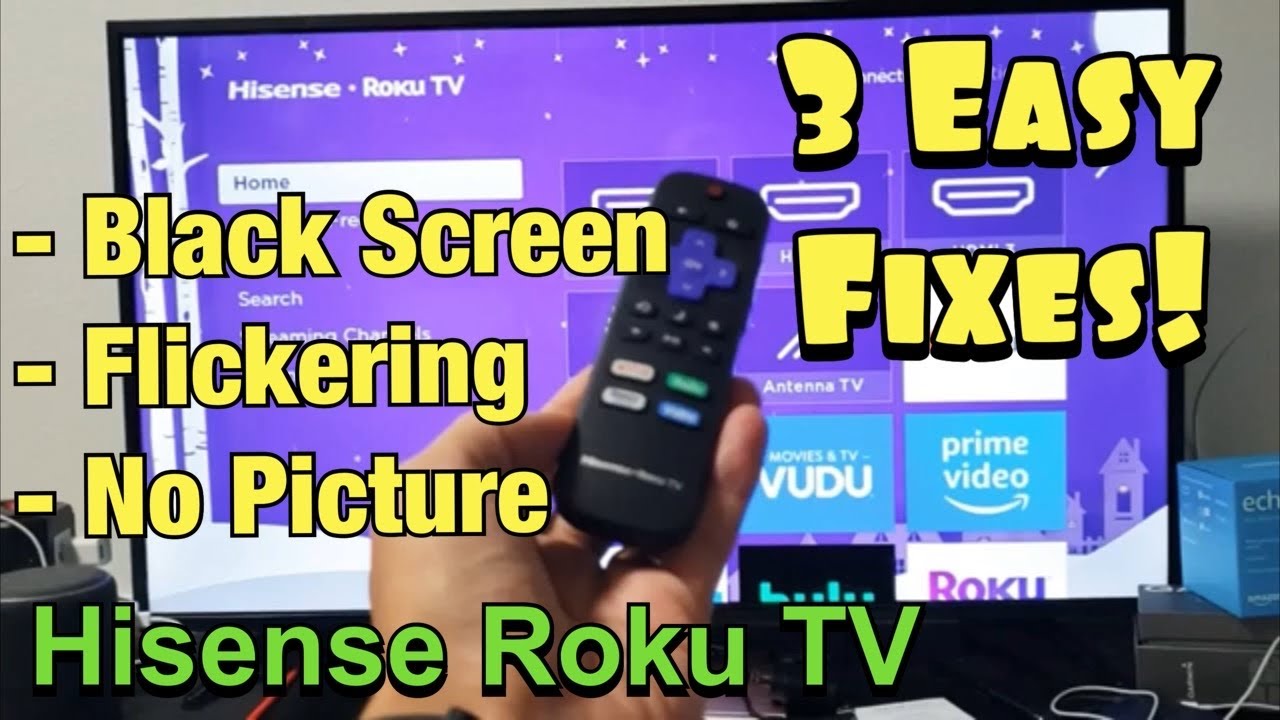
Quick Basic Fixes for Hisense Roku Tv Troubleshooting
Start simple. Many issues clear with a few small steps.
- Restart the TV. Use Settings > System > Power > System restart. If you can’t access menus, unplug for 60 seconds then plug back in.
- Power cycle your network gear. Restart your router and modem to fix many streaming problems.
- Check cables and inputs. Loose HDMI, optical, or power cables cause many faults.
- Swap HDMI ports and cables. A bad cable or port can look like a TV issue.
- Test another device. Connect a phone or laptop to the same HDMI port to isolate the problem.
From my experience, a reboot or cable swap fixes almost half of all Hisense Roku Tv Troubleshooting calls.

Network and Streaming Problems
Network problems are common in Hisense Roku Tv Troubleshooting. Slow or unstable Wi-Fi causes buffering and failed app loads.
- Run an internet speed test on another device. Aim for at least 10 Mbps for HD and 25 Mbps for 4K.
- Move the router closer or use a wired Ethernet connection for steady streaming.
- Reboot the router and TV. This clears cached network conflicts.
- Check the Roku OS update. Go to Settings > System > System update and install any available updates.
- Remove and reinstall problem channels. This resets app data and often fixes crashes.
I once solved repeated Netflix pauses by switching a TV from wireless to Ethernet. The playback became instant and stable.
Remote and Voice Control Issues
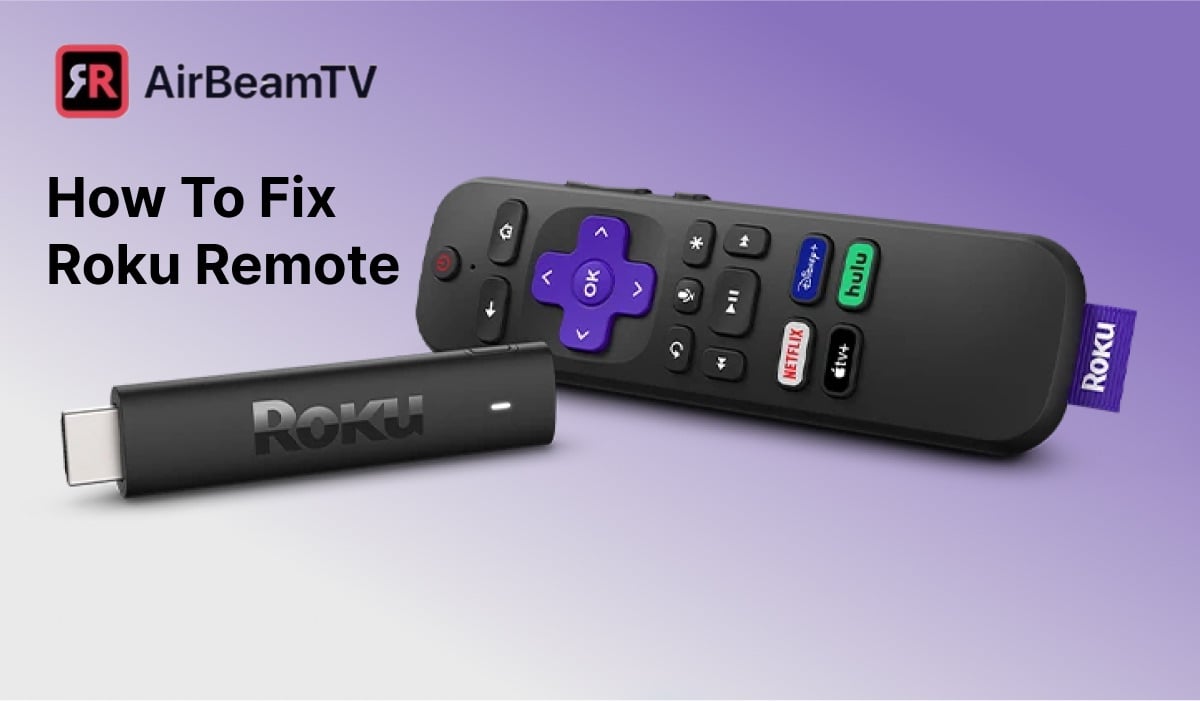
Remote faults are a frequent part of Hisense Roku Tv Troubleshooting. They can be simple or need re-pairing.
- Replace the batteries. Weak power is a common culprit.
- Re-pair the remote. Press and hold the pairing button inside the remote battery compartment until the light blinks.
- Use the Roku mobile app. The app can act as a remote if the physical remote fails.
- Replace the remote if it is cracked or water-damaged. Universal remotes often work fine.
I recommend keeping a backup remote app on your phone. It has saved me when I could not find a physical remote.

Picture and Sound Problems
Picture and audio glitches are major topics in Hisense Roku Tv Troubleshooting. They can be due to settings or hardware.
- Check TV picture mode. Use Settings > Display type or Picture mode and try Standard or Movie.
- Adjust HDMI color and format. Modern soundbars and receivers sometimes need a specific HDMI color format or HDR setting.
- Test sound settings. Switch between TV speakers and HDMI/optical output.
- Update firmware. Outdated firmware may have audio or HDR bugs.
- Inspect for physical damage. Cracked panels or blown speakers need service.
If colors look off, try a factory color reset or reduce motion smoothing. I fixed an oversaturated picture by switching from Vivid to Standard mode.

Software Updates, Reinstalling Channels, and System Reset
Software steps are central to Hisense Roku Tv Troubleshooting.
- Update Roku OS. Go to Settings > System > System update, then Check now.
- Remove and reinstall apps that crash. Press the star button on the channel, choose Remove channel, then add it again.
- Clear cache. Restarting the device clears temporary files.
- Factory reset as a last resort. Go to Settings > System > Advanced system settings > Factory reset, and follow prompts. Back up or note login info before you reset.
I use factory reset only after other steps fail. It often fixes deep software issues but requires re-signing into apps.
When to Seek Professional Support or Warranty Help
Sometimes DIY fixes are not enough in Hisense Roku Tv Troubleshooting.
- Contact Hisense support if the TV has a hardware fault or within warranty period.
- Use Roku support for account, channel, or Roku OS issues that are not tied to the Hisense hardware.
- Seek a certified repair technician for cracked screens, burnt components, or no power despite correct supply.
- Check your warranty status and proof of purchase before service calls.
Be honest with support about steps you tried. This saves time and speeds resolution.

Preventive Care and Best Practices
Good habits reduce future Hisense Roku Tv Troubleshooting needs.
- Keep Roku OS updated automatically.
- Use surge protection to prevent power damage.
- Avoid blocking vents; heat shortens electronics life.
- Regularly clear unused channels and delete old profiles.
- Keep passwords and account info in a safe place for quick reinstall.
I learned to document common settings after a reset. It cuts the recovery time when I must restore a TV.

Frequently Asked Questions of Hisense Roku Tv Troubleshooting
Why won’t my Hisense Roku Tv turn on?
Check that the power cable is firmly seated and try a different outlet. If the screen stays blank after a full power cycle, contact support, as it may be a hardware issue.
How do I update my Hisense Roku Tv software?
Go to Settings > System > System update and choose Check now. Install any available updates and restart the TV.
What do I do if apps keep crashing?
Remove and reinstall the crashing app, update the Roku OS, and test your internet speed. If the issue remains, try a factory reset as a last option.
Why is my Hisense Roku Tv buffering a lot?
Buffering usually means slow or congested internet. Reboot your router, move the TV closer to the Wi-Fi source, or use Ethernet for better stability.
How can I fix remote pairing problems?
Replace batteries and press the pairing button inside the remote until the light blinks. Use the Roku mobile app as a temporary remote if pairing fails.
Can a factory reset fix most software problems?
Yes. A factory reset clears settings and apps and can fix deep software issues, but you will need to re-enter accounts and settings afterward.
Conclusion
Hisense Roku Tv Troubleshooting is usually a step-by-step process. Start with restarts, check cables and network, update software, and move to factory reset only if needed. Use careful tests to isolate the issue and save time. Try the steps here, keep a simple checklist of settings, and reach out to support when hardware faults show up. If this guide helped, subscribe, try the fixes, and leave a comment with your device model and issue so others can learn from your experience.

