

Keeping your iPhone software up to date is not just about enjoying the newest features. It’s also about protecting your device, fixing bugs, and making everything work smoothly. Many users put off updating because they worry about losing data, running into problems, or don’t know how to start.
But updating your iPhone is easier than you might think, and the benefits are worth the few minutes it takes. This guide will help you understand every step, from preparing your phone to solving common issues, so you feel confident every time Apple releases a new update.

36% off Today’s Exclusive Deals
Limited-time Exclusive Deals. Check current discount on Amazon.
Check Price on Amazon As an Amazon Associate I earn from qualifying purchases.Why Iphone Software Updates Matter
Every iPhone software update brings new possibilities. Apple releases updates to improve security, add features, and fix problems from earlier versions. These updates protect your private information by closing security holes, sometimes before hackers even know about them. For example, in 2022, Apple’s iOS updates fixed over 30 security issues, some of which could have allowed attackers to steal data.
Updates also bring new options, like the ability to edit messages or use new emojis. Sometimes, updates improve battery life or make your iPhone run faster. People often notice that their devices become smoother and apps crash less after an update.
If you use banking apps or shop online, staying up to date is even more important, as older software may not be supported.
Preparing To Update Your Iphone
Before you start, a little preparation can make the process smooth and safe. Here’s what you should do:
- Check compatibility. Not all updates work on every iPhone. For example, iOS 16 does not support iPhone 6s or earlier. You can find your model by going to Settings > General > About.
- Backup your iPhone. Most updates work perfectly, but it’s smart to back up your data in case something goes wrong. You can back up to iCloud or your computer.
- Free up space. Some updates need several gigabytes of free space. Delete unused apps, photos, or videos if you’re running low.
- Charge your phone. Make sure your battery is at least 50%, or keep your iPhone plugged in during the update.
- Connect to Wi-Fi. Updates are large files. Using Wi-Fi avoids data charges and is usually faster.
How To Back Up Your Iphone
There are two main ways to back up your device: iCloud and computer backup. Here’s a simple comparison to help you choose:
| Backup Method | Pros | Cons |
|---|---|---|
| iCloud | Automatic, wireless, accessible anywhere | Needs Wi-Fi and enough iCloud storage space |
| Computer (Finder/iTunes) | No internet needed, full backup | Needs a computer and cable |
To back up using iCloud:
Go to Settings > [your name] > iCloud > iCloud Backup. Tap Back Up Now.
To back up to a computer:
Connect your iPhone. Open Finder (Mac with macOS Catalina or newer) or iTunes (older Macs/Windows). Select your device, then choose Back Up Now.
How To Update Iphone Software (step By Step)
Updating your iPhone is mostly automatic, but you can do it in different ways. Let’s break down each method.
Update Directly On Your Iphone (over-the-air)
This is the easiest and most common method.
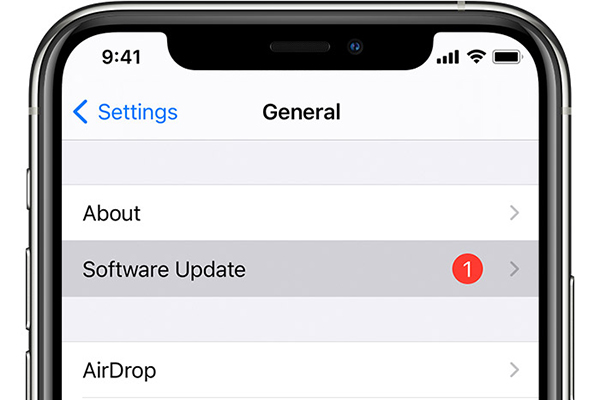
- Open Settings.
- Tap General.
- Tap Software Update.
- Wait while your iPhone checks for updates.
- Tap Download and Install if an update is available.
- Enter your passcode if asked.
- Agree to the terms and conditions.
- Wait for the download to finish, then tap Install Now.
Your iPhone will restart during the process. Do not turn it off or disconnect from Wi-Fi.
What If “install Now” Is Grayed Out?
This often means your battery is too low, you’re not connected to Wi-Fi, or you need more storage space.
Update Using A Computer
If your iPhone can’t update over Wi-Fi, you can use your computer.
- Connect your iPhone to your computer with a cable.
- Open Finder (macOS Catalina or later) or iTunes (older macOS or Windows).
- Select your iPhone.
- Click Check for Update.
- Click Download and Update.
Follow the on-screen instructions. Don’t unplug your phone until the update is done.
Using Automatic Updates
You can let your iPhone handle updates while you sleep.
- Go to Settings > General > Software Update.
- Tap Automatic Updates.
- Turn on Download iOS Updates and Install iOS Updates.
Your device will update overnight when connected to power and Wi-Fi.
Updating With Cellular Data
Newer iPhones (iPhone 12 and later) can sometimes download updates over cellular, but it depends on your carrier and region. Be careful, as updates can use a lot of data.
- Go to Settings > General > Software Update.
- If available, tap Download and Install.
- If prompted, allow use of cellular data.
Most users should use Wi-Fi to avoid extra charges.
What To Expect During The Update
When you start an update, your iPhone will download the software, prepare the update, and restart. This can take from 15 minutes to over an hour, depending on your internet speed and the size of the update.
During the update, you’ll see an Apple logo and a progress bar. Your phone may restart several times. Do not interrupt the process, or you could end up with errors.
After the update, your iPhone might ask for your passcode or Apple ID password. Some apps may need to update before working.
:max_bytes(150000):strip_icc()/001_iOS-wireless-updates-1999188-3c7a318619044883ac1c46f24230e37d.jpg)
Common Problems And How To Fix Them
Even though updates are usually easy, sometimes things don’t go as planned. Here are some common problems and solutions:
Not Enough Space
If you see a message about insufficient storage, try these tips:
- Delete unused apps.
- Remove old photos and videos (back them up first).
- Clear messages with large attachments.
You can also update using a computer, which doesn’t require as much free space on your device.
Update Stuck Or Frozen
Sometimes, the progress bar doesn’t move. Try these steps:
- Make sure you’re connected to Wi-Fi and power.
- Wait at least 1 hour. Some updates take longer than expected.
- If still stuck, force restart your iPhone (press and quickly release Volume Up, then Volume Down, then hold the Side button until you see the Apple logo).
“unable To Check For Update” Or “update Failed”
This usually means there’s a network problem.
- Check your Wi-Fi connection.
- Try using a different Wi-Fi network.
- Restart your iPhone and try again.
Battery Drains Faster After Update
It’s normal for your battery to drain faster in the first 1–2 days after an update. Your phone is reindexing files and updating apps in the background. If the problem continues, check Settings > Battery to see which apps are using the most power.
Activation Problems
Rarely, an iPhone may get stuck on the activation screen after an update. Try restarting your device, connecting to Wi-Fi, or inserting a SIM card. If this doesn’t work, connect your device to a computer and use Finder or iTunes to update or restore.
How To Downgrade Iphone Software (if Needed)
Sometimes, you may want to go back to an earlier version of iOS—for example, if you find a new update is too buggy. Apple usually allows downgrades only for a short time after a new release.
Warning: Downgrading can erase your data. Back up your device first.
- Download the correct IPSW file (iPhone firmware) from a trusted source.
- Connect your iPhone to your computer.
- Open Finder or iTunes and select your device.
- Hold the Option key (Mac) or Shift key (Windows) and click Restore iPhone.
- Select the IPSW file.
- Follow the on-screen instructions.
Most users should avoid downgrading unless absolutely necessary.
Comparing Different Update Methods
Choosing the right way to update depends on your situation. Here’s a quick look:
| Method | Best For | Needs Wi-Fi? | Needs Computer? | Speed |
|---|---|---|---|---|
| Over-the-Air (Settings) | Most users, convenience | Yes | No | Fast |
| Computer (Finder/iTunes) | Low storage, technical issues | No | Yes | Medium |
| Automatic Updates | Hands-off, busy users | Yes | No | Slow (overnight) |
Tips For A Smooth Update
A successful update is about more than pressing a button. Here are tips to avoid common mistakes:
- Update when you have time. Don’t start an update right before an important call or meeting. Plan for at least 30–60 minutes.
- Keep your Apple ID info handy. You might need your Apple ID and password after updating.
- Update apps too. After a big iOS update, update your apps in the App Store. Some apps may not work well with the new software until updated.
- Don’t ignore small updates. Even minor updates often include important security fixes.
- Check for carrier settings updates. Sometimes you’ll see a pop-up about a carrier settings update after iOS updates. These help your phone work better with your mobile network.
- Wait before updating if you use critical apps. If you rely on certain apps for work, check if they’re compatible with the new iOS before updating.
- Restart if you see glitches. If something feels off after updating (like missing notifications or weird battery use), restart your iPhone.
The Role Of Beta Updates
Apple lets users try new features early through its public beta program. These are test versions of iOS.
- Beta updates often have bugs.
- Only install betas if you’re comfortable with crashes and problems.
- Always back up before trying a beta.
To join the beta program, visit Apple’s official beta site and sign in with your Apple ID. Beta versions are fun but risky for your main device.
Security And Privacy: Why Timely Updates Matter
One non-obvious reason to update quickly is security. Many attacks happen after companies announce a fix. Hackers know exactly what’s vulnerable and move fast. Apple’s patches close these doors, but only if you install them. According to a 2021 report, over 40% of iPhones in use were running old software, putting millions at risk. Even if you don’t care about new features, update for your safety.
Another hidden benefit: privacy upgrades. Apple often makes it harder for apps to track you in new iOS versions. For example, iOS 14.5 introduced App Tracking Transparency, letting you block unwanted tracking.
What Happens If You Don’t Update?
Some users avoid updates because they’re afraid of changes, but this has risks:
- Security holes: Your phone could be hacked.
- App issues: Some apps (like banking) may stop working on old software.
- No support: Apple may not help with problems if you’re using an outdated iOS.
- Compatibility problems: Accessories and smart devices may require the latest software.
Most experts recommend updating within a few days of release, unless you see major problems reported online.
How To Check Your Current Ios Version
Not sure what version you have? Here’s how:
- Open Settings.
- Tap General.
- Tap About.
- Look for Software Version.
This number (like 16. 3. 1) tells you exactly which iOS version is installed.
Updating Older Iphones
If your iPhone is more than five years old, you may not get the latest iOS version. Apple usually supports devices for about five years. For example, the iPhone 7 can’t run iOS 16. You’ll still get important security updates for a while, but not new features.
If you can’t update, it may be time to consider a new device, especially if you use your phone for sensitive tasks.
Advanced: Updating With Recovery Mode
If your iPhone won’t update or is stuck on the Apple logo, you may need to use Recovery Mode:
- Connect your iPhone to your computer.
- Open Finder or iTunes.
- Put your iPhone in Recovery Mode (the steps depend on your model):
- For iPhone 8 or later: Quickly press and release Volume Up, then Volume Down, then hold the Side button until you see the Recovery Mode screen.
- For iPhone 7: Hold Volume Down and the Side button together.
- For iPhone 6s or earlier: Hold Home and Top (or Side) together.
- Choose Update when asked. This keeps your data. If it fails, you may need to choose Restore (which erases the phone).
This is a last resort, but it can save a device that won’t start normally.
When To Wait Before Updating
Most updates are safe, but sometimes early versions have bugs. Here’s when you might want to wait:
- If you use your iPhone for business-critical tasks.
- If you hear about major problems in the news or on forums.
- If you have a very old iPhone.
Usually, Apple releases a “. 1” or “. 2” update soon after fixing big problems.
How Iphone Software Updates Compare To Android
Apple’s update process is one of the best in the mobile world. For example, over 70% of all iPhones were running iOS 16 just three months after release. For Android phones, less than 15% were on the latest version in the same period.
Apple controls both hardware and software, so updates reach all users quickly. This means better security and fewer compatibility headaches for iPhone owners.
Getting Help With Iphone Updates
If you run into trouble, don’t panic. You can find help:
- Use Apple’s official support site or app.
- Visit an Apple Store or authorized service provider.
- Search for your exact error message online—Apple’s forums are full of solutions.
If you want step-by-step visuals or troubleshooting for specific errors, check the official support at Apple Support.
Frequently Asked Questions
How Long Does An Iphone Software Update Take?
Most updates take 15 to 60 minutes. The exact time depends on your internet speed, how large the update is, and your iPhone’s model. Older devices usually take longer. If you’re updating from a much older iOS version, allow extra time.
Will Updating Erase My Data?
No, updating your iPhone should not erase your data. However, it’s always wise to back up before updating. In rare cases, if something goes wrong, a backup means you won’t lose important information.
Can I Use My Iphone During The Update?
You can use your iPhone while the update is downloading. But when you tap Install Now and the process starts, your iPhone will restart and be unavailable for 10–30 minutes. Plan ahead so you don’t need your phone during this time.
What Should I Do If My Iphone Won’t Update?
First, check your Wi-Fi connection and make sure you have enough storage space. Try restarting your device. If you still have trouble, use a computer to update or use Recovery Mode as described above.
Is It Safe To Install The Latest Ios Right Away?
Usually, yes. Apple tests updates carefully. But if you depend on your iPhone for work, consider waiting a few days to see if other users report problems. For most people, updating soon after release is the best way to stay secure.
Keeping your iPhone software up to date is one of the simplest and most important things you can do for your device. It keeps your data safe, brings new features, and ensures your iPhone runs smoothly. With the right preparation and a few simple steps, you’ll always be ready for the latest improvements Apple has to offer.


