

Getting directions while driving used to mean folding paper maps and missing turns. Now, with Android Auto, you get GPS, music, calls, and messaging—right on your car’s dashboard. Android Auto transforms your driving experience, making it safer and simpler to stay connected. Whether you’re a new user or looking to master every feature, this guide will help you use Android Auto with confidence. You’ll learn how to set it up, connect your phone, navigate apps, fix common problems, and get the most out of every drive.
What Is Android Auto?
Android Auto is Google’s driving assistant that brings your phone’s apps and services to your car’s display. With it, you can use Google Maps, Spotify, WhatsApp, and more—without touching your phone. The interface is designed for driving: large buttons, voice control, and easy-to-read text.

36% off Today’s Exclusive Deals
Limited-time Exclusive Deals. Check current discount on Amazon.
Check Price on Amazon As an Amazon Associate I earn from qualifying purchases.Android Auto comes in two main forms:
- Built-in (on car display): Many new cars (since 2017) support Android Auto directly. Connect your phone and see Android apps on your dashboard.
- Phone Screen Mode: If your car doesn’t have a compatible display, you can use your phone screen as a simplified, driver-friendly interface.
The big benefit is safety. By using voice commands and simplified screens, Android Auto helps drivers keep their eyes on the road and hands on the wheel.
Setting Up Android Auto
Getting started is quick, but a few steps must be done in the right order. Here’s what you need:
1. Check Your Phone And Car Compatibility
First, your phone must run Android 8.0 (Oreo) or newer. Most modern Android phones are compatible. You also need a car or aftermarket stereo that supports Android Auto.
To check your car:
- Look for the Android Auto logo on the infotainment system.
- Visit your car’s official website or Google’s list of supported vehicles.
- For older cars, you can buy an aftermarket head unit from brands like Pioneer, Sony, or Kenwood.
2. Install Or Update The Android Auto App
Most phones with Android 10 or newer have Android Auto built-in. For older phones:
- Download “Android Auto” from the Google Play Store.
- Open the app and grant permissions for location, phone, and notifications.
3. Prepare A Usb Cable (or Wireless Connection)
- For wired connection: Use a high-quality USB cable. Cheap cables often cause connection drops.
- For wireless connection: Your car and phone must both support wireless Android Auto. This is common on newer vehicles.
4. Connect Your Phone
- Start your car.
- Plug your phone into the car’s USB port, or pair wirelessly if supported.
- Your car’s screen should prompt you to launch Android Auto.
- Follow the on-screen instructions for first-time setup (agree to safety warnings, allow permissions).
Pro tip: For the smoothest experience, unlock your phone before the first connection.
Navigating The Android Auto Interface
Once connected, your car’s display will change. The Android Auto interface is simple and focused. Here’s a quick tour:
Home Screen
The main screen shows:
- Navigation suggestions (like “Go to Work”)
- Media controls (recently played songs or podcasts)
- Quick-access buttons for calls and messaging
App Launcher
Tap the circle or “app grid” button to see compatible apps. These are optimized for driving—large icons, limited options, and voice support.
Status Bar
At the top, you’ll see:
- Current time
- Battery and signal
- Notification icons
Voice Control
Press the microphone button on your steering wheel or the screen to activate Google Assistant. You can say things like:
- “Navigate to the nearest gas station.”
- “Play jazz music on Spotify.”
- “Send a WhatsApp message to Sarah.”
Voice commands reduce distractions and keep your hands free.
Using Navigation With Android Auto
One of Android Auto’s top features is hands-free GPS navigation. Google Maps comes pre-installed, but you can also use Waze or other supported apps.
Getting Directions
- Tap the navigation icon or say, “Hey Google, navigate to [destination].”
- The map fills the screen, with clear turn-by-turn directions.
- Real-time traffic updates, alternate routes, and estimated arrival time are always visible.
Special Features
- Lane guidance: Tells you the right lane for exits or turns.
- Speed limit alerts: Shows the current speed limit where available.
- Find parking: Some cities show available parking spots near your destination.
Switching Navigation Apps
You can switch between Google Maps and Waze if both are installed.
- Open the app launcher.
- Tap your preferred navigation app.
Non-obvious insight: If you start navigation on your phone before connecting, Android Auto will automatically pick up your route on the car display.
Playing Music, Podcasts, And Audiobooks
Android Auto supports many audio apps, so you can listen to music, podcasts, or audiobooks without touching your phone.
Supported Apps
Popular choices include:
- Spotify
- YouTube Music
- Audible
- Pandora
- Google Podcasts
How To Play Audio
- Tap the music or audio app icon on the car display.
- Browse by playlist, album, or artist.
- Or, just say, “Play [song/artist/genre] on Spotify.”
Useful Features
- Media suggestions on the home screen help you resume what you last played.
- Album art and track info are easy to see.
- You can skip, pause, or repeat tracks using on-screen or steering wheel controls.
Practical tip: Download playlists or podcasts to your phone before a long trip. This avoids interruptions if you lose cell signal.
Making Calls And Sending Messages
Staying in touch while driving is safer with Android Auto. You can make calls, listen to messages, and reply—almost all by voice.
Making A Call
- Say, “Call [contact name].”
- Or tap the phone icon and pick a recent contact.
Answering Calls
Incoming calls appear on your screen. Use the steering wheel button or tap “Answer.”
Sending And Receiving Messages
Android Auto supports SMS, WhatsApp, Messenger, and other messaging apps.
- When a message arrives, Google Assistant can read it aloud.
- You can reply by voice: “Reply, I’ll be there soon.”
Hidden gem: You can ask, “Do I have any new messages?” and Google Assistant will read out all recent texts.

Compatible Apps And What You Can Do
Not all apps work with Android Auto. Those that do are chosen for safety and simplicity.
Categories Of Apps
- Navigation: Google Maps, Waze, Sygic
- Music/Audio: Spotify, Pandora, Deezer, Audible
- Messaging: WhatsApp, Telegram, Messenger
- Podcasts: Pocket Casts, Google Podcasts
What You Can’t Do
- Watch videos or browse the web.
- Use apps not optimized for driving (for safety reasons).
Pro insight: Check the Google Play Store’s “Android Auto” section for new compatible apps as the list grows each year.
Table: Top Android Auto Compatible Apps By Category
Below is a comparison of popular Android Auto apps and what they’re best for:
| App Name | Category | Main Feature | Free/Paid |
|---|---|---|---|
| Google Maps | Navigation | Real-time traffic & routing | Free |
| Spotify | Music | Streaming music & playlists | Free/Paid |
| Messaging | Send/receive texts & voice | Free | |
| Audible | Audiobooks | Listen to audiobooks | Paid |
| Waze | Navigation | Community-based alerts | Free |
Wireless Vs Wired Android Auto: What’s Best For You?
Choosing between wired and wireless Android Auto depends on your car, phone, and preferences. Here’s a breakdown to help you decide:
| Feature | Wired Android Auto | Wireless Android Auto |
|---|---|---|
| Connection Type | USB cable required | WiFi & Bluetooth |
| Phone Charging | Charges while in use | No charging (unless wireless charging pad) |
| Setup Speed | Plug and play | Automatic after first setup |
| Compatibility | Almost all Android Auto cars | Only newer cars/phones |
| Reliability | Very stable | Can drop with weak WiFi |
Real-world advice: If you drive short distances or your car doesn’t have a charging pad, wired may be better since your phone stays charged. Wireless is more convenient for daily commuters who want fewer cables.
Customizing Your Android Auto Experience
Android Auto is flexible. You can tweak settings to fit your style and make driving smoother.
Personalizing The App Launcher
- Open the Android Auto app on your phone.
- Go to “Customize launcher.”
- Drag and drop to reorder your favorite apps.
- Hide apps you never use.
Notification Settings
- Choose which apps can send notifications while you drive.
- You can mute group chats or turn off social media alerts.
Day And Night Modes
- Set Android Auto to switch automatically based on outside light.
- Or, pick always-light or always-dark for your eyes’ comfort.
Google Assistant Preferences
- Change the voice to male or female.
- Teach Google Assistant your favorite locations (work, gym, home) for faster navigation.
Lesser-known tip: You can set up “Do Not Disturb” mode to silence notifications except for calls, making long drives less stressful.
Common Problems And How To Fix Them
Even well-designed tech has glitches. Here are frequent Android Auto problems and how to solve them:
1. Connection Doesn’t Start
- Try a different USB cable—preferably the one that came with your phone.
- Restart both your phone and car.
- Check if your phone shows “USB for file transfer” (not just charging).
2. Wireless Connection Drops
- Move the phone closer to the car’s receiver.
- Turn off battery-saving mode.
- Update both your phone’s software and Android Auto app.
3. App Not Showing Up
- Open the Android Auto app and check the “Customize launcher” list.
- Update the app from the Play Store.
- Some apps need the latest version to work with Android Auto.
4. Google Assistant Not Working
- Make sure your phone’s microphone is not blocked.
- Check internet connection.
- Retrain your voice model in Google Assistant settings.
5. Audio Issues
- Switch to a different audio app to test.
- Make sure your car’s speakers aren’t muted.
- If calls have poor sound, try disconnecting and reconnecting.
Pro tip: For persistent issues, clear the Android Auto cache (Settings > Apps > Android Auto > Storage > Clear Cache).
Safety And Privacy Considerations
Android Auto is designed with driver safety as the priority, but some privacy issues matter too.
Safety Features
- No video playback while driving.
- Large buttons, simple menus, and voice controls keep distractions low.
- Many cars disable manual typing while moving.
Privacy Controls
- Only apps you approve can send notifications or access car data.
- You can clear recent addresses and search history easily.
- For shared vehicles, use a guest profile on your phone to avoid sharing personal info.
Non-obvious insight: Android Auto does not store your driving routes on the car itself. Data stays on your phone unless you sync with your Google account.

Android Auto Vs. Apple Carplay
If you’re choosing between Android Auto and Apple CarPlay, both systems have unique strengths. Here’s a quick side-by-side look:
| Feature | Android Auto | Apple CarPlay |
|---|---|---|
| Supported Phones | Android only | iPhone only |
| Voice Assistant | Google Assistant | Siri |
| Navigation Apps | Google Maps, Waze, Sygic | Apple Maps, Google Maps, Waze |
| Wireless Support | Most new models | Most new models |
| App Ecosystem | Google Play Store | Apple App Store |
| Customization | High (reorder apps, notification control) | Moderate |
Quick takeaway: If you use Android, Android Auto is the obvious choice. It offers deeper integration with Google services and more customizable options.
Tips For Getting The Most Out Of Android Auto
- Learn voice commands: The more you use Google Assistant, the faster you’ll get things done.
- Download offline maps: For rural trips, use Google Maps’ “Offline maps” feature.
- Keep your phone updated: New Android Auto updates add features and fix bugs.
- Use split-screen mode: Some cars support showing navigation and music side by side.
- Add shortcuts: Save your most-visited places in Google Maps for instant navigation.
- Manage data usage: Audio streaming and maps can use a lot of data. Download media before long trips.
- Try different apps: If one music or messaging app isn’t working well, try another—compatibility is always improving.
- Set up routines: Use Google Assistant Routines for “Good morning” or “Drive home” commands that handle multiple tasks.
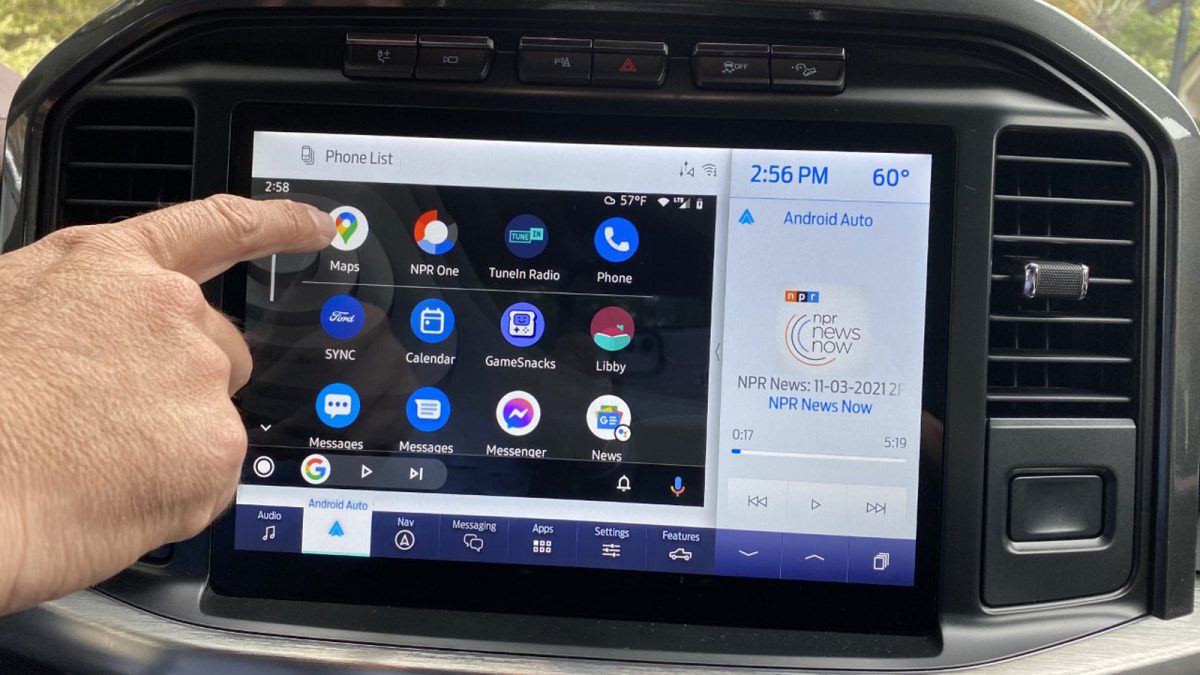
Future Of Android Auto
Android Auto keeps evolving. Google is rolling out new features with each update:
- Coolwalk interface: A more flexible layout, showing maps, music, and calls at once.
- More wireless support: Newer cars and stereos now add wireless Android Auto as a standard.
- Integration with smart home: Soon, you may control smart lights or thermostats from your car.
Staying updated means you’ll always have the latest safety and convenience features.
Where To Learn More
If you want deep technical info, check the official Google resource: Android Auto. It lists supported vehicles, troubleshooting steps, and the newest features.
Frequently Asked Questions
What Do I Need To Use Android Auto In My Car?
You need a compatible Android phone (Android 8.0 or newer), a car or stereo system that supports Android Auto, and a USB cable (or wireless support in both car and phone). Most cars made after 2017 support Android Auto.
Is Android Auto Safe To Use While Driving?
Yes, Android Auto is designed for safe driving. It uses large buttons, voice commands, and blocks distracting features like video playback. Always set up your route and playlists before starting to drive.
Can I Use Android Auto With An Older Car?
Yes, if your car doesn’t have a built-in display, you can buy an aftermarket head unit (from brands like Pioneer or Sony) that supports Android Auto. You can also use your phone screen in “Android Auto for Phone Screens” mode, though this is being phased out.
Why Won’t My Phone Connect To Android Auto?
Check your USB cable (try a different one if possible), make sure Android Auto is enabled on your car’s system, and update your phone’s software. Some cars require Android Auto to be activated in the infotainment settings.
Does Android Auto Use Mobile Data?
Yes, Android Auto uses mobile data for navigation, streaming music, and messaging. For long trips in areas with poor signal, download maps and playlists ahead of time to avoid interruptions.
Android Auto can make every drive easier, safer, and more enjoyable. With a little setup and these tips, you’ll unlock its full potential—turning any car into a smart, connected ride.

