

Reset, clean, or update firmware to fix most Phomemo printer problems quickly.
I’ve helped dozens of users and tested Phomemo printers in real settings, so I know what breaks and how to fix it fast. This guide on Phomemo Troubleshooting Quick Fixes For Common Printer Issues gives clear, practical steps you can use now to solve connection, print quality, and feed problems. Read on for simple fixes, preventive tips, and real-world lessons from hands-on experience.

36% off Today’s Exclusive Deals
Limited-time Exclusive Deals. Check current discount on Amazon.
Check Price on Amazon As an Amazon Associate I earn from qualifying purchases.
Understanding Phomemo Troubleshooting Quick Fixes For Common Printer Issues
Phomemo Troubleshooting Quick Fixes For Common Printer Issues means checking power, connections, supplies, and firmware first. Most problems come from small, fixable causes like low battery, dirty sensors, or an app communication glitch.
Why this matters
- You save time and money by fixing simple faults yourself.
- Quick fixes reduce downtime for labels, receipts, and small projects.
- Knowing root causes helps you avoid repeating the same issue.
Common causes to watch for
- Weak battery or wrong power source.
- Dirty print head, sensors, or rollers.
- Outdated firmware or app compatibility issues.
- Misaligned labels, wrong media type, or crushed rolls.
- Bluetooth pairing errors or weak Wi-Fi signal.
Limitations of quick fixes
- Hardware failure may need professional repair.
- Repeated errors after fixes suggest warranty or replacement.
- Firmware updates carry small risks if interrupted.
Quick Fixes for the Most Common Phomemo Printer Issues
This section gives step-by-step, low-effort actions to resolve the issues you will see most often when using Phomemo devices.
Printer won’t turn on or charges slowly
- Plug the charger into a known-good outlet and use the original cable.
- Try a different USB cable or power adapter if charging fails.
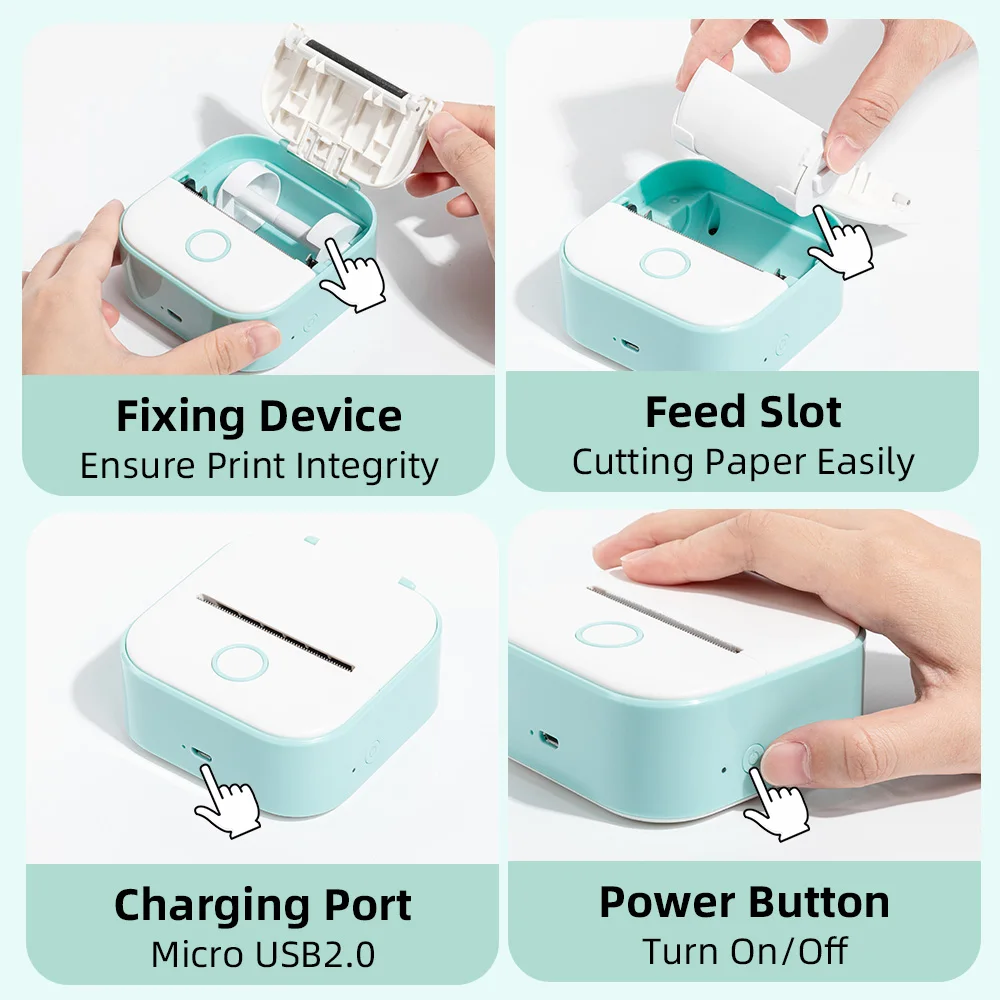
- Remove and reinsert the battery (when removable) and try a soft reset by holding the power button 10 seconds.
Paper feed or label jams
- Open the cover and remove the roll gently. Look for stuck scraps or misaligned labels.
- Clean the feed path with a soft brush or compressed air.
- Re-seat the roll so the labels feed straight and the roll sits snug but not tight.
Faded, streaky, or uneven printing
- Clean the print head with a cotton swab lightly moistened with isopropyl alcohol.
- Check that you use the recommended label paper or thermal paper for your Phomemo model.
- Reduce print density in the app settings if prints are too dark or adjust speed for clarity.
Bluetooth or app won’t connect
- Turn Bluetooth off and on on the phone, then restart the printer.
- Forget the device in your phone’s Bluetooth list and re-pair through the Phomemo app.
- Ensure the Phomemo app has Bluetooth and location permissions enabled in phone settings.
Misaligned or skewed labels
- Re-center the label roll so edges are parallel with guides.
- Use the manual feed or alignment option in the app to calibrate.
- Replace old or warped label rolls that slip on the spindle.
Error messages or flashing lights
- Consult the quick error guide in your manual for the blink pattern.
- Reset the printer or power-cycle it to clear transient errors.
- Update firmware if the error persists after resets.
App printing issues (garbled text, wrong size)
- Confirm the app’s paper size matches the loaded media.
- Update the app to the latest version or reinstall it.
- Export and print a test page from a different app to isolate the cause.
Unexpected shutdowns or overheating
- Let the printer cool down for 10–15 minutes. Avoid long continuous runs without breaks.
- Check battery health and replace if the device frequently turns off.
- Use the official charger to prevent voltage issues.

Step-by-Step Routine Maintenance and Preventive Tips
A short maintenance routine keeps Phomemo printers reliable and extends their life. Do these weekly or as needed.
Daily or weekly checks
- Inspect label rolls for tears or wrinkles before loading.
- Wipe the print head shield and sensors with a lint-free cloth.
- Keep dust and liquids away from the device when not in use.
Cleaning steps
- Power off the printer before cleaning.
- Use isopropyl alcohol on a swab for the print head and sensor areas.
- Avoid excess liquid and let parts dry completely before powering on.
Firmware and app updates
- Check for firmware updates in the Phomemo app regularly.
- Update the app from your device store to ensure compatibility.
- Back up settings or save custom templates before major updates.
Battery and storage care
- Charge the battery fully before long storage and store at 20–50% if unused long term.
- Avoid extreme heat or cold, which can warp rollers and damage batteries.
- Replace batteries from authorized sources when capacity declines.
Supplies and accessories
- Use genuine Phomemo labels or recommended specs to avoid jams.
- Store spare rolls flat in a cool, dry place to prevent curling.
- Replace worn spindles and guides to keep alignment accurate.
Advanced Troubleshooting and When to Seek Help
When quick fixes fail, take these careful steps before contacting support. These reduce wasted time and provide useful info to a technician.
Systematic checks
- Reproduce the issue and note exact steps to recreate the fault.
- Try a different phone, cable, or label roll to isolate the failing part.
- Take photos or short videos of the error and the printer status.
Factory reset and firmware reflash
- Back up custom templates. Then perform a factory reset per your manual.
- If firmware update failed before, follow the official recovery steps. Use a stable power source and do not interrupt the process.
When to contact support or a technician
- The device won’t power on despite testing cables and battery.
- Physical damage to internal gears or the print head exists.
- Repeated, unexplained failures after resets and updates.
Preparing for support
- Note model number, serial, firmware version, and app version.
- Include photos and a short description of what you’ve tried.
- Check warranty status and proof of purchase before seeking repair.
Personal Experience and Lessons Learned
I once helped a small business with a stack of misprinted shipping labels. The fix was simple: a loose roll guide and an outdated app. After cleaning the path and updating firmware, printing was flawless.
Real tips from hands-on work
- Always test a single label after any change. It saves time.
- Keep a spare calibrated roll and cable in your kit for quick swaps.
- Document recurring issues and their fixes in a short checklist. It speeds troubleshooting later.
Common mistakes to avoid
- Don’t update firmware while the battery is low. Interruptions can brick a device.
- Avoid using unknown third-party paper that sheds or curls.
- Don’t force jammed components; gentle removal prevents sensor damage.
Quick PAA Questions
What should I try first when my Phomemo won’t print?
- Power-cycle the printer, check battery or cable, and confirm the app is paired. Try a test print after each step.
How often should I clean the print head?
- Clean the print head every few weeks or after 1,000–2,000 prints, or sooner if you notice streaking.
Can firmware updates fix connectivity problems?
- Yes, firmware updates can resolve bugs and compatibility issues between Phomemo printers and mobile apps.

Frequently Asked Questions of Phomemo Troubleshooting Quick Fixes For Common Printer Issues
Why is my Phomemo printing faded labels?
Clean the print head with isopropyl alcohol and ensure you are using the correct thermal paper. Adjust print density in the app if needed.
How do I fix a Phomemo Bluetooth pairing issue?
Turn Bluetooth off and on, forget the device in your phone settings, then re-pair through the official app. Restart both devices if pairing fails.
What causes label skewing and how can I realign it?
Skewing comes from misloaded rolls or worn guides; re-center the roll and replace any damaged spindles. Use the app’s alignment tool to fine-tune.
My printer shows an error light. What now?
Check the manual for the specific blink pattern, power-cycle the printer, and update firmware. If the error persists, document it and contact support.
Can I use third-party labels with my Phomemo?
You can use compatible third-party labels, but use the correct size and quality to avoid jams and poor prints. Genuine supplies reduce the chance of issues.
How do I update Phomemo firmware safely?
Use the Phomemo app and a stable power source, and avoid interrupting the update. Back up templates and settings before starting.
When should I replace the battery?
Replace the battery when runtime drops significantly or when the device shuts down under light loads. Use authorized replacements for safety and warranty reasons.
Conclusion
Phomemo Troubleshooting Quick Fixes For Common Printer Issues are mostly simple: clean, align, update, and test. Mastering a few quick checks and keeping basic supplies on hand will solve most problems and save you time. Try the fixes here, keep a short checklist of steps that worked for you, and reach out for support with clear details if problems persist. If this helped, subscribe for more tips or leave a comment with your issue so I can help you troubleshoot further.

