

Most Rollo printer issues are caused by jams, misaligned labels, or driver and connectivity errors.
I have spent years fixing label printers for small shops and warehouses. This guide on Rollo Printer Troubleshooting walks you through clear steps, real examples, and simple tips. You will learn why errors happen, how to fix them fast, and how to prevent them from coming back.

36% off Today’s Exclusive Deals
Limited-time Exclusive Deals. Check current discount on Amazon.
Check Price on Amazon As an Amazon Associate I earn from qualifying purchases.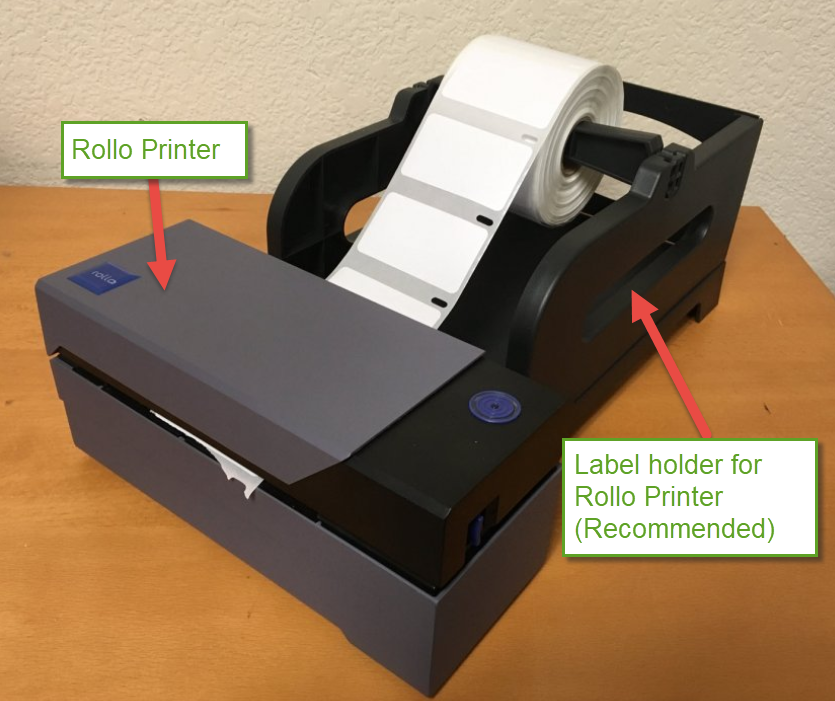
Common Rollo Printer Problems and Quick Fixes
Rollo Printer Troubleshooting starts with recognizing the top problems. Users most often see label jams, blank prints, skewed labels, slow printing, and connectivity failures. Each problem has a few common causes and easy fixes you can try now.
- Paper jams. Clean the path and re-seat the roll. Check for torn labels or liner scraps.
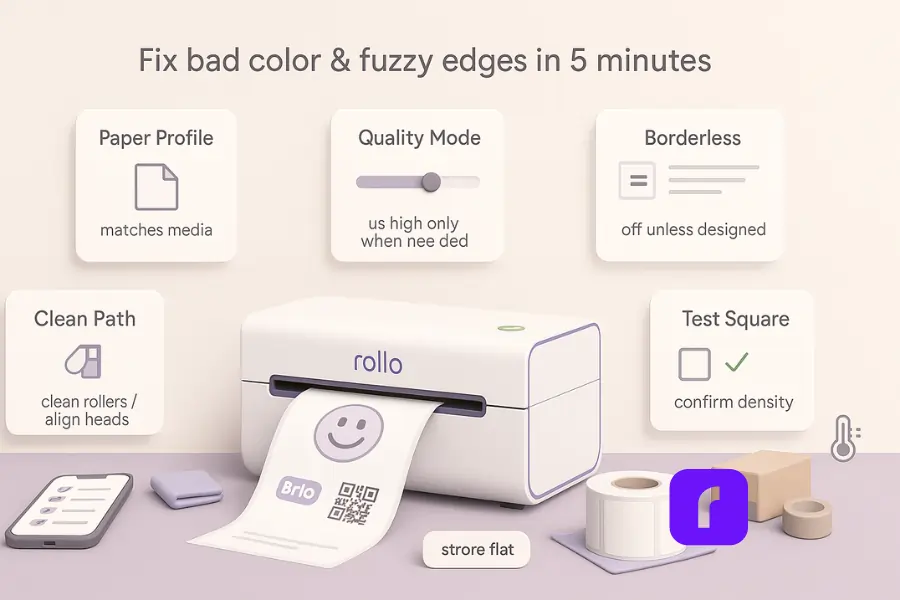
- Blank or faint prints. Replace or reseat labels and check print density in the driver.
- Skewed labels. Realign the roll and adjust the feed. Inspect the platen and guides.
- Connectivity issues. Restart the printer and the computer. Reinstall drivers if needed.
- Slow printing. Use correct label size settings and a stable connection.
I often fix jams by turning the feed wheel gently and removing small liner pieces. That simple step solves many Rollo Printer Troubleshooting cases.

Step-by-Step Rollo Printer Troubleshooting Guide
Start with basic checks. These steps save time and often solve the issue without tools.
-
Power and status check
- Confirm the printer is on and the LED shows normal status.
- Unplug for 10 seconds and plug back in to reset.
-
Physical inspection
- Open the cover and clear any label scraps.
- Check the sensor window for dust or adhesive.
-
Label loading and alignment
- Load labels face up with the liner under the guides.
- Make small adjustments and test feed.
-
Driver and software
- Verify driver settings match label size and label type.
- Reinstall the Rollo driver if prints are blank or misaligned.
-
Test print and log
- Print a test label from the driver or via the printer button.
- Note any error patterns and repeat steps as needed.
People also ask:
- Why does my Rollo print blank labels? Often the label type or print density is wrong in the driver. Reinstall and set the correct label size.
- How do I clear a jam? Power off, open the cover, and gently remove scraps. Use tweezers for small bits.
- Can labels affect print quality? Yes. Cheap or warped labels cause misfeeds and faint prints.
I learned to test with a fresh roll before complex fixes. This helped me spot bad rolls early and avoid wasted time.
Software, Drivers, and Network Issues
Rollo Printer Troubleshooting often means checking the software. Driver mismatch and connection type cause many errors.
- Drivers. Use the latest Rollo driver for your OS. Uninstall old drivers before installing new ones.
- Print settings. Match label size, orientation, and speed in the driver. Small mismatches cause blank edges or cut-off prints.
- USB and network. Try a different USB port or cable. For networked units, check IP settings and firewall rules.
- Label templates. Ensure your app uses the correct template and margins.
A tip from my work: keep one test computer with a known-good driver. That makes isolating network versus driver issues fast.
Hardware and Mechanical Issues
Not all problems are software. Rollo Printer Troubleshooting includes simple hardware checks to avoid parts failure.
- Feed roller and platen. Clean them with isopropyl alcohol on a soft cloth. Replace if worn.
- Sensors. Gently clean optical sensors with a soft brush or compressed air.
- Cutter and gears. Inspect for jams and foreign debris. Lubricate sparingly only where the manufacturer recommends.
- Power supply. Test with a known-good cable or power adapter.
Common limitation: heavy adhesive builds up over time and reduces sensor accuracy. Regular cleaning is the best preventive step.
Maintenance, Best Practices, and Preventive Tips
Good care reduces Rollo Printer Troubleshooting incidents. Simple habits can keep your printer running well.
- Use high-quality labels designed for direct thermal printing.
- Store labels in a cool, dry place to avoid curling.
- Clean the printer every 1–2 weeks if usage is high.
- Keep a spare roll and cable on hand to swap quickly.
- Log recurring errors to spot patterns and root causes.
From experience, a weekly quick-clean prevents most jams. It takes five minutes and saves hours of downtime.
When to Contact Support and Warranty Info
Some faults need professional help. Know when to escalate.
- Persistent hardware failure after cleaning and testing.
- Power issues that reset controls or burn smells.
- Mechanical noise or broken internal parts.
- Warranty-covered defects within the manufacturer period.
Before contacting support, record the printer model, firmware version, and steps you tried. This speeds up diagnosis and helps get parts or replacements faster.

Frequently Asked Questions of Rollo Printer Troubleshooting
Why is my Rollo printer not feeding labels?
Check for liner scraps and realign the roll. Clean the feed roller and ensure label guides are snug but not tight.
How do I fix blurred or faint prints?
Increase print density in the driver and use high-quality direct thermal labels. Clean the platen roller to remove residue.
What causes label skewing or misalignment?
Skewing often results from loose label rolls or worn rollers. Re-seat the roll and inspect for warped labels.
Can Rollo printers work over Wi-Fi?
Some Rollo models support network adapters or are network-ready. Check your model specs and set a static IP or DHCP as needed.
How often should I clean my Rollo printer?
Clean weekly with moderate use and daily if printing large batches. Use isopropyl alcohol and a soft cloth for rollers and sensors.
Conclusion
Rollo Printer Troubleshooting is mostly about method and care. Check power, clean parts, match drivers, and test with a fresh roll. Use simple checks first and keep a regular cleaning routine to prevent most issues. Try these steps, keep a log, and reach out for help when needed. Share your experience or ask a question below, and subscribe for more printer tips.

