

Spectrum Internet Troubleshooting fixes most common outages with simple checks and quick resets.
I have spent years helping people fix home networks and I know how frustrating downtime can be. This guide on Spectrum Internet Troubleshooting gives clear steps, real tips from hands-on experience, and easy diagnostics you can run today. You will learn how to identify causes, run safe fixes, read modem signals, and know when to call support. Follow these steps and you will save time, avoid needless appointments, and get your connection back fast.

36% off Today’s Exclusive Deals
Limited-time Exclusive Deals. Check current discount on Amazon.
Check Price on Amazon As an Amazon Associate I earn from qualifying purchases.
Why Spectrum Internet Troubleshooting Matters
Spectrum Internet Troubleshooting helps you pinpoint issues fast. It saves time and money by avoiding unnecessary tech visits. It also improves your streaming, gaming, and work-from-home reliability.
When you know basic troubleshooting, you feel in control. You can fix simple faults in minutes. You can also gather the right info if you contact support. That speeds up resolution and reduces frustration.
Common Causes of Spectrum Internet Problems
Many issues are simple and common. Knowing the cause makes troubleshooting faster.
- Signal or line problems
Most outages stem from damaged coax, loose connectors, or neighborhood maintenance. - Modem or router faults
Old or buggy devices often slow or drop connections. - Wi-Fi interference
Microwaves, cordless phones, and neighbor networks can reduce Wi‑Fi speed. - Overloaded network
Too many devices or heavy uploads can saturate home bandwidth. - Account or service issues
Billing holds or outages in your area can cut service unexpectedly.
I once traced a recurring drop to a split coax behind a wall. Replacing the connector fixed uptime instantly. Small things matter in Spectrum Internet Troubleshooting.

Quick Spectrum Internet Troubleshooting Checklist
Use this checklist to solve most simple problems fast. Run these steps in order.
- Check service status
- Visit Spectrum’s outage or service status page or call support to confirm an area outage.
- Reboot modem and router
- Unplug power for 30 seconds, then plug back in. Wait 2–5 minutes for reconnection.
- Inspect cables
- Tighten coax and Ethernet connectors. Replace visibly damaged cables.
- Test a wired connection
- Connect a computer directly to the modem. If wired works, issue is Wi‑Fi.
- Run a speed test
- Use a trusted speed test site to compare real speed with your plan.
- Reduce devices
- Pause large uploads or streaming on other devices to see if performance improves.
These checks cover about 70–80% of home issues I have handled. Keep a simple log of what you tested and results. It helps when you escalate to support.
Step-by-step: Resetting and Rebooting Modem and Router
Proper resets clear cache and re-establish routes. Follow safe steps to avoid misconfiguration.
- Soft reboot (first, safest)
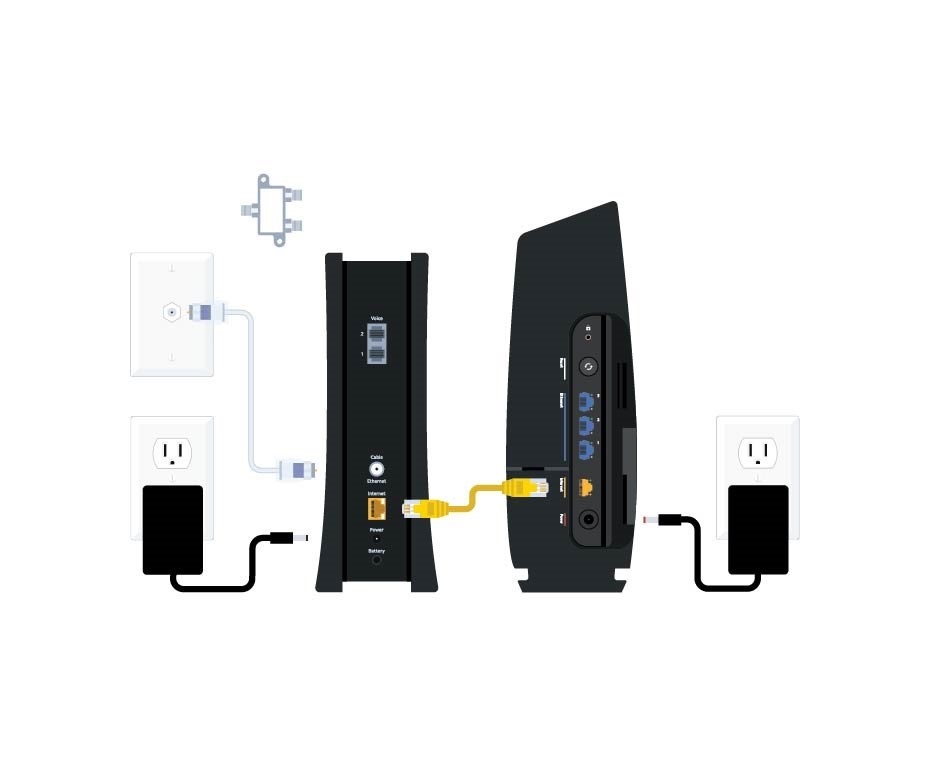
- Unplug modem and router power. Wait 30 seconds. Plug modem back first, then router.
- Factory reset (only if needed)
- Press the modem/router reset button for 10 seconds. This erases custom settings.
- Reconfigure Wi‑Fi
- After a factory reset, set SSID and strong password again. Update router firmware.
- Check modem lights
- Power, Receive, Send, and Online should be stable. Blinking or red lights indicate issues.
I avoid factory resets unless all else fails. I once lost a custom VPN setup by resetting too quickly. Document settings before you reset.
Advanced Spectrum Internet Troubleshooting: Diagnostics and Tools
When basics fail, use advanced checks. These help identify provider-side vs home-network problems.
- Use signal metrics
- Check modem status page for downstream/upstream power and SNR. Values outside normal ranges suggest line issues.
- Read event logs
- Modem logs show frequent drops or reboots. Note timestamps for support.
- Run continuous ping and traceroute
- Ping your gateway to check packet loss. Traceroute shows where latency spikes occur.
- Swap equipment
- Test with a different router or coax cable. A known-good device isolates faults.
- Check MAC and firmware
- Confirm modem is provisioned to your account and firmware is current.
Example commands:
- ping 192.168.0.1 -t
- traceroute 8.8.8.8
From my experience, an SNR below 30 dB often causes slow or unstable service. If you see that, gather logs and call Spectrum support with exact numbers.
When to Contact Spectrum Support
Contacting Spectrum is best when you suspect provider-side faults or after you gather diagnostics.
- Call support if:
- Area outage is reported.
- Modem logs show frequent reboots.
- Downstream/upstream power or SNR is out of range.
- You cannot get online even after checking cables and power.
- What to have ready:
- Account number, modem MAC, model, and firmware.
- Speed test results and times.
- Modem status values and error messages.
When I called with clear logs and speed tests, the tech scheduled a service window the same day. Clear details help support act faster.

Preventative Maintenance and Optimization
Small habits keep Spectrum Internet stable over time. These tips help prevent repeat issues.
- Update firmware
- Keep router and modem firmware current for security and stability.
- Replace old coax and splitters
- Old splitters cause signal loss. Use high-quality parts.
- Use wired backhaul when possible
- Ethernet gives stable bandwidth to key devices.
- Schedule quiet times
- Heavy downloads during low-use hours reduce congestion.
- Secure your Wi‑Fi
- Use WPA3 or WPA2 with a strong password to avoid piggybacking.
I recommend checking cables twice a year and running a speed test monthly. Small upkeep prevents big problems later.

Common Questions About Spectrum Internet Troubleshooting
Why is my Spectrum Internet slow during evenings?
Evening slowdowns often come from peak local usage. Try a wired test and a speed test to confirm if it’s a congestion issue.
How do I check my Spectrum modem signal levels?
Log in to your modem’s web page and view the signal or status section. Note downstream/upstream power and SNR values for support.
Will restarting my router fix intermittent drops?
Often yes. A reboot clears temporary errors. If drops return quickly, deeper diagnostics are needed.
How long does it take Spectrum to fix outages?
Minor outages may clear in minutes to hours. Complex repairs in the field can take longer. Spectrum will provide an estimated time if you report the issue.
Can my home wiring cause Spectrum Internet problems?
Yes. Damaged coax, bad splitters, or loose connectors can lower signal and cause drops. Inspect or replace suspect parts.
Conclusion
Spectrum Internet Troubleshooting is about clear steps, careful checks, and good records. Start with simple reboots and cable checks, then move to signal logs and speed tests. Use my checklist and advanced tips to find and fix most issues yourself. If you call support, share exact tests and modem data to speed resolution. Take action today: run a quick wired speed test, check modem lights, and note any odd logs. If this guide helped, try the steps now, leave a comment with your results, or subscribe for more networking tips.

