

Restart the TV, check connections, update firmware, and reset settings to fix most issues.
I have spent years fixing Vizio Smart TVs in homes and small offices. I know how these sets behave, what common faults look like, and how to fix them fast. This guide on Vizio Smart Tv Troubleshooting shows clear steps, real tips, and smart checks you can do now. You will learn simple fixes, deeper repairs, and when to call support. Read on to solve your Vizio problems with confidence and calm.

36% off Today’s Exclusive Deals
Limited-time Exclusive Deals. Check current discount on Amazon.
Check Price on Amazon As an Amazon Associate I earn from qualifying purchases.
Vizio Smart Tv Troubleshooting Basics
Start simple. Most Vizio Smart Tv Troubleshooting begins with a few checks. Power cycles and cable checks solve many problems. Try these steps first to save time.
- Unplug the TV for 60 seconds and plug it back in. This clears minor firmware glitches.
- Check power cord and outlet. Try a different outlet or power strip.
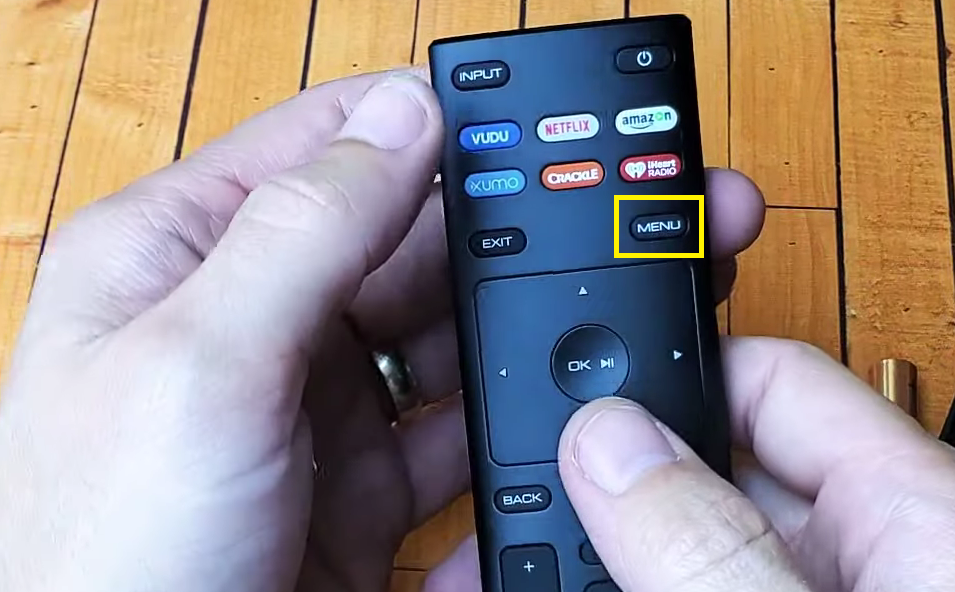
- Confirm input source. Use the Input or Source button to pick the right HDMI or antenna input.
- Inspect HDMI and A/V cables. Replace any frayed or loose cable.
These quick checks cover power, picture, and basic sound issues. If the problem stays, move to the targeted fixes below. Vizio Smart Tv Troubleshooting often follows a step-by-step method from simple to advanced.

Common Problems and How to Fix Them
Here are the usual faults and the most likely fixes. I list them by symptom so you can jump to what matters.
No Power or TV Won’t Turn On
- Check that the power light is on. If not, try a new outlet.
- Do a hard reset by unplugging for one minute, then plug back in.
- If the TV shows a red light but won’t start, firmware or board issues may exist.
No Picture but Sound Works
- Ensure the TV is on the right input and the source device works.
- Test with a different HDMI cable and port.
- Try a soft reset: Settings > System > Reset & Admin > Soft Power Cycle.
- If still black, backlight or panel problems may need a technician.
No Sound or Low Volume
- Check TV volume, mute, and external speakers.
- Inspect audio output settings: Settings > Audio > TV Speakers or Optical/ARC.
- Test different apps and inputs to rule out app audio bugs.
Wi-Fi or Smart Apps Not Working
- Reboot your router and TV. This is a core part of Vizio Smart Tv Troubleshooting.
- Move the router closer or use an Ethernet cable.
- Clear app cache or reinstall the app from the SmartCast store.
- Update TV firmware to improve app performance.
Apps Crash or Freeze
- Close and reopen the app. Use the app list to force close.
- Update the app or the TV system firmware.
- Factory reset if apps remain unstable after updates.
Remote Control Problems
- Replace remote batteries with fresh ones.
- Unpair and re-pair the remote by following the TV prompts.
- Try the Vizio mobile app as a temporary remote.
HDMI and Input Issues
- Disconnect all HDMI devices, then reconnect one at a time.
- Toggle HDMI-CEC (CEC) settings if devices control each other poorly.
- Update the source device firmware when possible.
These fixes address most issues readers face. Follow the steps in order. Vizio Smart Tv Troubleshooting works best when you rule out each simple cause first.

Advanced Vizio Smart Tv Troubleshooting
When basics fail, try deeper strategies. Advanced fixes need care and patience. Back up any settings before major resets.
- Firmware update via USB. Download the correct update file from the Vizio support site and follow the USB update steps in your manual.
- Factory reset. Settings > System > Reset & Admin > Reset TV to Factory Defaults. This clears persistent software faults but deletes apps and logins.
- Replace capacitors or power board. Only open the TV if you are comfortable and the set is out of warranty.
- Check internal connections. Loose ribbon cables can kill picture or sound. Tighten inside connectors if experienced.
I once fixed a Vizio set that rebooted every 20 minutes. The cause was a loose ribbon cable to the T-Con board. Re-seating it fixed the issue in 15 minutes. That is a good example of advanced Vizio Smart Tv Troubleshooting that pays off.

How to Update Firmware and Why It Helps
Firmware updates can solve streaming bugs, add app support, and fix HDMI issues. Keep the TV current.
- Check for updates: Settings > System > Check for Updates.
- Use Ethernet for stable downloads. Wi-Fi can drop mid-update.
- For offline updates, download the file and copy it to a USB drive. Follow the TV instructions for USB update.
- Always notate the model number. Use the exact firmware for your model.
Firmware fixes often resolve smart features problems. Updating is an essential part of Vizio Smart Tv Troubleshooting and usually the step that restores app stability.

Preventive Tips and Best Practices
Small habits reduce the need for Vizio Smart Tv Troubleshooting later. Try these easy steps.
- Keep the TV firmware updated every few months.
- Avoid power surges. Use a surge protector.
- Clean vents and keep the TV cool to prevent heat damage.
- Use quality HDMI cables and label inputs.
- Restart the TV weekly to clear cache and minor glitches.
These practices lengthen your TV life. They also cut downtime and the need for repairs.
Personal Experience and Pro Tips
I fix TVs for neighbors and friends. I learned a few simple rules that save time and money.
- Rule 1: Always start with a power cycle. It fixes half the cases.
- Rule 2: Swap cables and ports before blaming the TV. External gear causes many issues.
- Rule 3: Keep a spare HDMI and fresh batteries in a drawer.
One time, a client wanted a new TV because the picture kept flickering. Swapping the HDMI cable fixed it. The TV was fine. Simple checks are the most powerful part of Vizio Smart Tv Troubleshooting.

PAA-Style Questions (People Also Ask)
Why does my Vizio Smart TV keep buffering?
Buffering often comes from slow internet or overloaded Wi-Fi. Restart the router, move it closer, or use Ethernet to reduce buffering and improve streaming.
How do I reset apps on a Vizio Smart TV?
Go to Settings > System > Reset & Admin, or remove and reinstall the app from the SmartCast app store. This clears data and can fix app crashes.
Can I use my phone as a Vizio remote?
Yes. Install the Vizio SmartCast Mobile app on your phone and connect it to the same Wi-Fi network to control apps and inputs.
Frequently Asked Questions of Vizio Smart Tv Troubleshooting
What should I try first when my Vizio TV won’t turn on?
Unplug the TV for 60 seconds, check the outlet, and try another power cord if available. These simple steps fix many power issues.
How do I fix Wi-Fi connection problems on a Vizio Smart TV?
Restart the TV and router, move the router closer, or connect via Ethernet. Updating the TV firmware can also help.
Why are some apps not loading on my Vizio TV?
Apps may need updates or the TV firmware may be out of date. Clear app data or reinstall the app to resolve most issues.
Is a factory reset safe for troubleshooting?
A factory reset erases apps and settings. Use it when other steps fail, and note your app logins beforehand.
When should I contact Vizio support or a technician?
Contact support if hardware parts fail, the TV shows error codes you cannot fix, or the set is under warranty and needs service. A technician can help with internal board or panel issues.
Conclusion
You can fix many problems with clear Vizio Smart Tv Troubleshooting steps. Start small with power cycles and cable checks. Use firmware updates, soft resets, and careful app management for smart features. When you must, move to factory reset or seek professional help. Try the easy fixes today, and keep a log of what worked. If this guide helped, try the steps now, subscribe for more tips, or leave a comment with your TV issue.

