

Samsung Internet TV troubleshooting can fix playback, network, and app issues in minutes.
I have spent years fixing smart TVs and web browsers on Samsung displays. This guide on Samsung Internet Tv Troubleshooting walks you step by step through real fixes. You will learn quick checks, network fixes, app resets, firmware steps, and hands-on tips I used on multiple Samsung models. Read on to solve issues fast and avoid repeat problems.

36% off Today’s Exclusive Deals
Limited-time Exclusive Deals. Check current discount on Amazon.
Check Price on Amazon As an Amazon Associate I earn from qualifying purchases.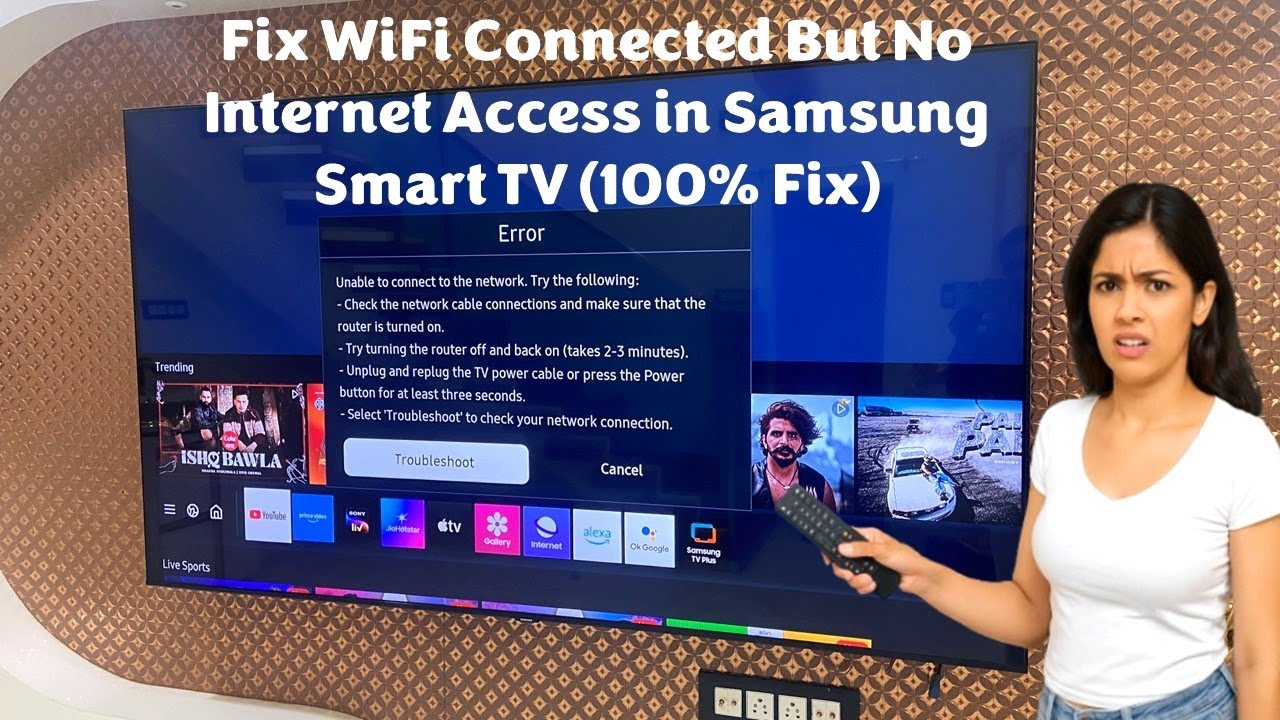
Common problems and quick checks
Many issues start small. Typical symptoms include slow pages, frozen video, blank pages, and error codes. Before deep troubleshooting, try these basic checks to save time.
-
Check your internet connection.
Ensure other devices stream well. If they do not, the issue is your network, not the TV. -
Restart the TV and router.
Unplug power for 30 seconds. This clears temporary glitches. -
Confirm the Samsung Internet app is current.
Outdated apps can freeze or crash. Update from the app store on the TV. -
Test another app or input.
If YouTube works but the browser does not, the problem is the browser.
These quick checks solve many common issues. If the problem persists, continue with targeted fixes below.

Network and streaming issues
Network faults cause most Samsung Internet Tv Troubleshooting tasks. Slow loading, buffering, and connection drops are typical.
-
Check Wi‑Fi signal strength.
Move the router or use an Ethernet cable. Wired is more stable for streaming. -
Restart network hardware.
Power cycle modem and router. Wait until lights show normal status. -
Set DNS to public servers.
Use simple DNS values to speed name lookups. This can fix slow page loads. -
Reduce network congestion.
Pause downloads and other streams while troubleshooting. -
Run a speed test on another device.
Confirm you have enough bandwidth for HD or 4K streaming.
From my experience, switching to Ethernet solved buffering on three different Samsung sets. For intermittent drops, changing DNS and rebooting the router fixed the issue. If networking steps fail, the problem may be the TV software or browser.

App and web page issues on Samsung Internet TV
When web pages render incorrectly or the app crashes, focus on app-level troubleshooting.
-
Clear browser cache and cookies.
This removes corrupted files that block pages. -
Force close and reopen the Samsung Internet app.
Use the TV settings to close running apps and restart the browser. -
Reinstall the Samsung Internet app.
Remove and reinstall to fix a broken app install. -
Test in a different browser or app.
If an alternative app works, the issue is isolated to Samsung Internet. -
Check site compatibility and extensions.
Some sites use features the TV browser does not support. Enable desktop mode if available.
I once fixed a site that would not load by clearing cookies and switching user agent settings in the TV browser. That was a quick win in Samsung Internet Tv Troubleshooting.
Software and firmware fixes
System software causes many deep issues. Keep the TV firmware and system apps up to date.
-
Update TV firmware via Settings > Support > Software Update.
Firmware updates fix bugs and add compatibility. -
Update the Smart Hub and system apps.
Go to app settings and update all installed apps. -
Reset Smart Hub if app problems persist.
This reinitializes the app environment without a full factory reset. -
Factory reset as a last resort.
Backup settings first. A reset removes corrupted settings that block the browser. -
Note model-specific quirks.
Different Samsung models may handle updates differently. Check model notes in the update menu.
When I updated firmware on older Samsung models, many browser errors disappeared. Always try updates before a factory reset.
Hardware and input problems
Sometimes the issue is not the browser or network. Hardware faults can mimic software errors.
-
Inspect HDMI connections and input settings.
Loose or damaged HDMI cables can cause black screens or distorted output. -
Test sound and display on other inputs.
If HDMI input A shows errors but TV apps work, the source device is likely faulty. -
Check remote control and TV buttons.
Unresponsive controls can seem like app freezes. Replace batteries or pair the remote again. -
Run built-in hardware diagnostics.
Use the TV’s diagnostic tools in Support > Self Diagnosis to test panels, speakers, and network. -
Watch for overheating.
Poor ventilation can cause random reboots. Move the TV to a cooler spot.
I replaced a faulty HDMI cable and fixed a black screen that looked like a browser crash. Hardware checks are easy and often overlooked in Samsung Internet Tv Troubleshooting.
Advanced troubleshooting and debugging steps
If basic and intermediate steps do not help, use advanced tools and logs.
-
Enable developer options or diagnostic logs if available.
Some Samsung models provide logs for apps and network. Check Settings or service menus. -
Use a USB log collector.
Save logs to a USB drive and review or share with support. -
Test with a fresh user profile or guest account.
Corrupted profiles can cause strange app behavior. -
Boot into Safe Mode or limited mode if supported.
Safe mode runs only essential services to isolate problems. -
Contact Samsung support with model and error codes.
Provide exact firmware version, app version, and steps tried.
In one case, a log file showed a memory leak in an app. After reporting it with logs, a firmware patch fixed the issue. Detailed information speeds resolution when contacting support.

Preventive tips and maintenance
Avoid repeat troubleshooting by following simple habits.
-
Keep firmware and apps updated on a schedule.
Updates address bugs and security. -
Use wired connections for critical streaming.
Ethernet gives consistent speed and low latency. -
Limit background downloads during streaming.
This preserves bandwidth and avoids stutter. -
Clean cache monthly for the Samsung Internet browser.
Regular cache clearing prevents slowdowns. -
Use surge protection for your TV.
Protects hardware and data from power spikes.
I recommend a short monthly check: update firmware, clear cache, and test network speed. This small routine prevents many Samsung Internet Tv Troubleshooting sessions.
People also ask
Why is Samsung Internet slow on my TV?
Slow Samsung Internet often points to a weak Wi‑Fi signal, outdated firmware, or a full browser cache. Try a wired connection, update software, and clear the cache.
How do I reset Samsung Internet browser?
Go to Settings, find Apps, select Samsung Internet, then clear cache and data or reinstall the app to reset the browser. This often fixes crashes and display errors.
Will a factory reset fix browser problems?
Factory reset can fix deep software corruption but will erase settings and apps. Use it only after updates and other troubleshooting fail.
Frequently Asked Questions of Samsung Internet Tv Troubleshooting
What should I try first when Samsung Internet is not loading pages?
Restart your TV and router, check the internet connection, and clear the browser cache. These steps fix most simple issues.
How do I update the Samsung Internet app?
Open the app store on your TV, find Samsung Internet, and choose update if available. Keep apps current to avoid bugs.
My Samsung browser shows error codes; what do they mean?
Error codes point to specific issues like network errors or unsupported features. Note the code and search model-specific troubleshooting or contact support.
Can network settings on the TV cause streaming issues?
Yes. Wrong DNS, weak Wi‑Fi, or incorrect IP settings can block pages and streaming. Switch to Ethernet or reset network settings to default.
When should I contact Samsung support?
Contact support if logs, updates, and resets do not fix the issue, or if you see hardware faults. Provide your model, firmware version, and steps you tried.
Is it safe to reinstall the Samsung Internet app?
Yes. Reinstalling removes corrupted files and usually resets app settings. You might lose saved tabs or logins, so note important info first.
Conclusion
You now have a practical, step-by-step plan for Samsung Internet Tv Troubleshooting. Start with simple restarts and network checks, then move to app fixes, firmware updates, and hardware tests. Keep logs and model info ready if you need help from support. Try these tips, keep a short maintenance routine, and comment below with your issue or success story. Subscribe or explore more guides to stay ahead of TV problems.

