

Most Fire TV remote problems fix with new batteries, a quick reboot, or re-pairing the device.
I’ve spent years fixing streaming gear and teaching people simple fixes. This guide on Amazon Fire Tv Remote Troubleshooting walks you step by step through causes, checks, and fixes. You’ll learn quick tests, battery and pairing tips, how to use the Fire TV app, and when to replace the remote. Read on for clear, practical solutions you can use right now.

36% off Today’s Exclusive Deals
Limited-time Exclusive Deals. Check current discount on Amazon.
Check Price on Amazon As an Amazon Associate I earn from qualifying purchases.
What Amazon Fire Tv Remote Troubleshooting Means
Amazon Fire Tv Remote Troubleshooting is the set of steps you take to find and fix remote issues. Issues range from dead buttons to no response, poor voice control, or lost pairing. Troubleshooting narrows down the cause and gives a fix you can test fast.
Why this matters
- A working remote saves time and frustration.
- Proper troubleshooting prevents unnecessary purchases.
- Simple fixes often restore full function in minutes.
Experience note: I once fixed a remote that seemed dead by swapping the batteries and re-pairing. Problem solved in five minutes. This article captures that kind of practical, tested advice.
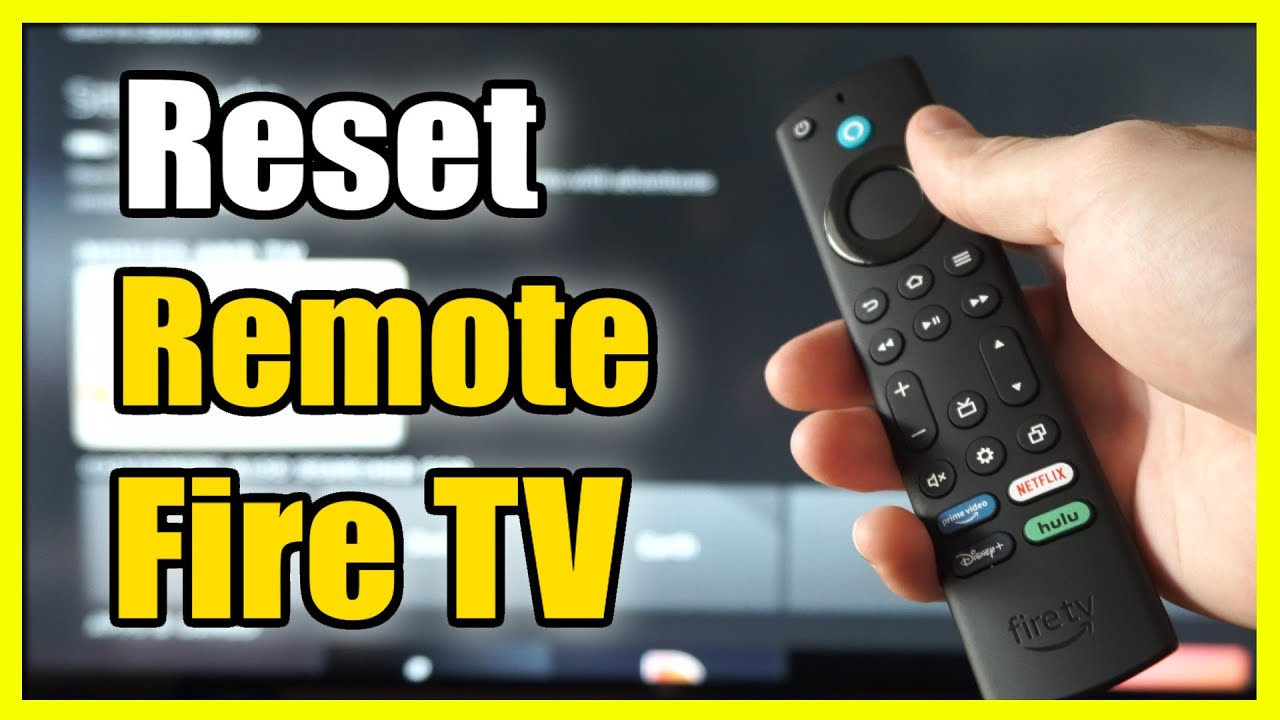
Common problems and likely causes
Most remote troubles fall into a few clear categories. Identifying which one helps you pick the right fix fast.
Common problems
- No response when pressing buttons
- Intermittent response or delay
- Voice or Alexa not working
- Volume or power buttons not controlling TV
- Remote pairing lost after a power outage
Likely causes
- Dead or weak batteries
- Bluetooth pairing lost
- Obstruction or interference
- Physical damage or worn buttons
- Software or firmware glitches on Fire TV
When you run Amazon Fire Tv Remote Troubleshooting, start with power and pairing checks. Those cover most cases. From my experience, batteries and re-pairing fix about 70% of user calls.
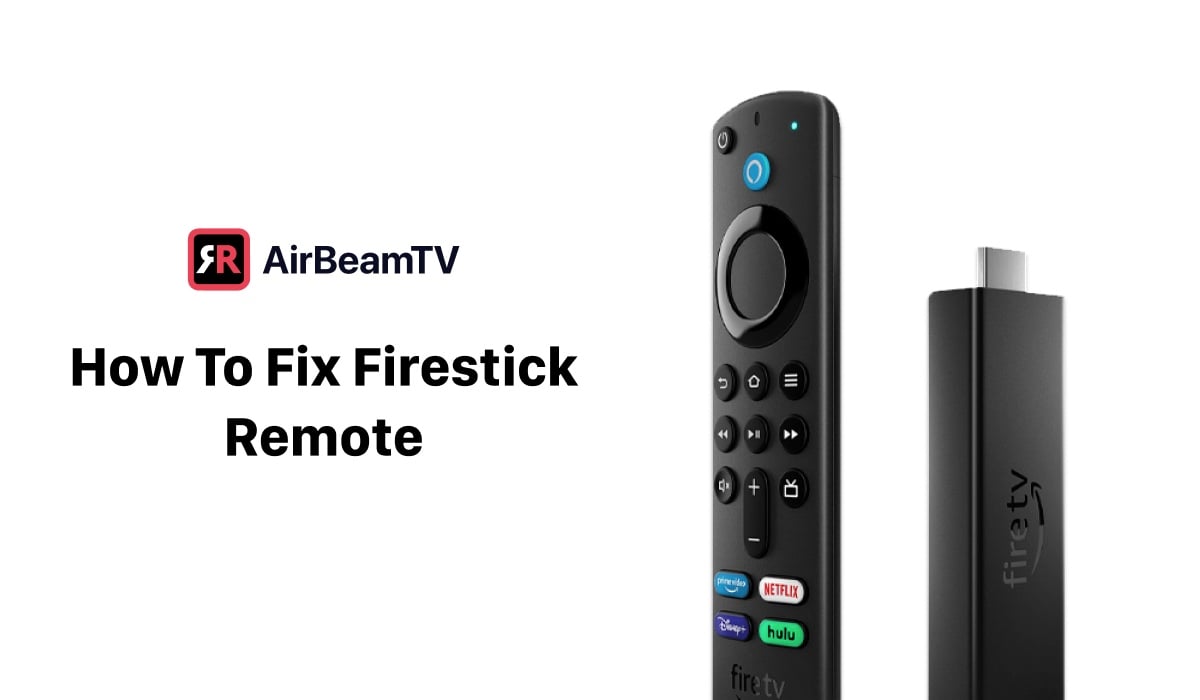
Quick step-by-step Amazon Fire Tv Remote Troubleshooting
Follow these short checks in order. Each step is simple and builds on the previous one.
- Check the batteries
- Replace both batteries with new AA or AAA as required.
- Ensure correct polarity and a snug fit.
- Try known-good batteries if available.
- Power-cycle the Fire TV
- Unplug your Fire TV or unplug the power strip.
- Wait 30 seconds, then plug back in.
- Test the remote after the Fire TV finishes rebooting.
- Re-pair the remote
- Hold Home for 10 seconds to pair.
- If pairing fails, go to Settings > Controllers & Bluetooth Devices > Amazon Fire TV Remotes > Add New Remote.
- Follow on-screen instructions.
- Test infrared vs Bluetooth
- Alexa Voice Remotes use Bluetooth for basic commands and IR for TV power/volume.
- Stand close to the Fire TV and test navigation (Bluetooth). Then point at the TV and press volume/power (IR).
- Use the Fire TV mobile app
- Install the Fire TV app on your phone.
- Connect to the same Wi-Fi network and use the app as a temporary remote.
If these steps don’t fix the issue, move to advanced checks below.

Advanced fixes and checks
If basic steps fail, try these targeted actions. They require more time but often resolve stubborn problems.
Reset the remote (factory-like)
- Remove batteries, hold the Home button for 60 seconds, then reinsert batteries and try pairing.
Clear Bluetooth devices
- On Fire TV go to Settings > Controllers & Bluetooth Devices and remove old remotes.
- Restart Fire TV and pair again.
Check for software updates
- Go to Settings > My Fire TV > About > Check for Updates.
- Keep Fire TV up to date to avoid firmware conflicts with remotes.
Look for interference
- Move wireless speakers, phones, or other Bluetooth devices away.
- Turn off nearby Bluetooth devices to test.
Inspect the remote
- Check for stuck buttons or sticky residue.
- If buttons are worn, the remote may need replacement.
Personal tip: I once solved a jittery remote by removing a decorative sticker that blocked the IR emitter. Small things matter.
Troubleshooting Alexa and voice issues
Voice problems are common but solvable. These checks focus on microphone and permissions.
Check microphone
- Ensure no dirt covers the microphone holes.
- Test voice by holding the Voice button and speaking clearly.
Verify language and settings
- Go to Settings > Preferences > Language and make sure Alexa language matches your speech.
Network and account
- Confirm Fire TV is online.
- Ensure you’re signed into the correct Amazon account.
Try the Fire TV app voice control
- Use the app’s voice button to see if the issue is the remote or Alexa service.
If Alexa still fails, a software update or remote replacement may be needed.
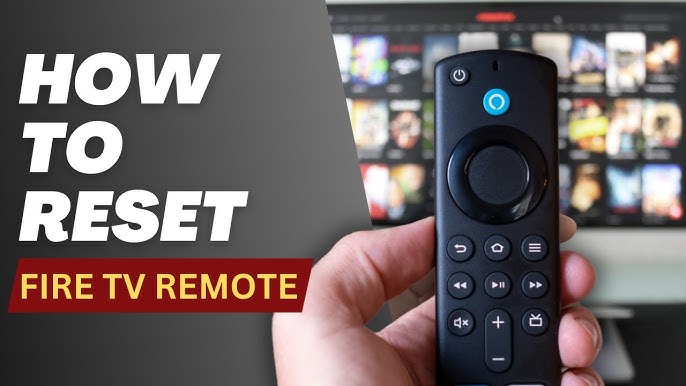
When to replace the remote or contact support
Not every problem is fixable. Know when to move to replacement or support.
Replace the remote if
- Buttons are physically broken or missing.
- Internal contacts corroded from moisture.
- Reset and re-pairing never work.
Contact Amazon support if
- Your Fire TV behaves oddly after multiple updates.
- The remote worked poorly after a recent software update.
- You suspect a hardware fault on the Fire TV unit.
Buying a replacement
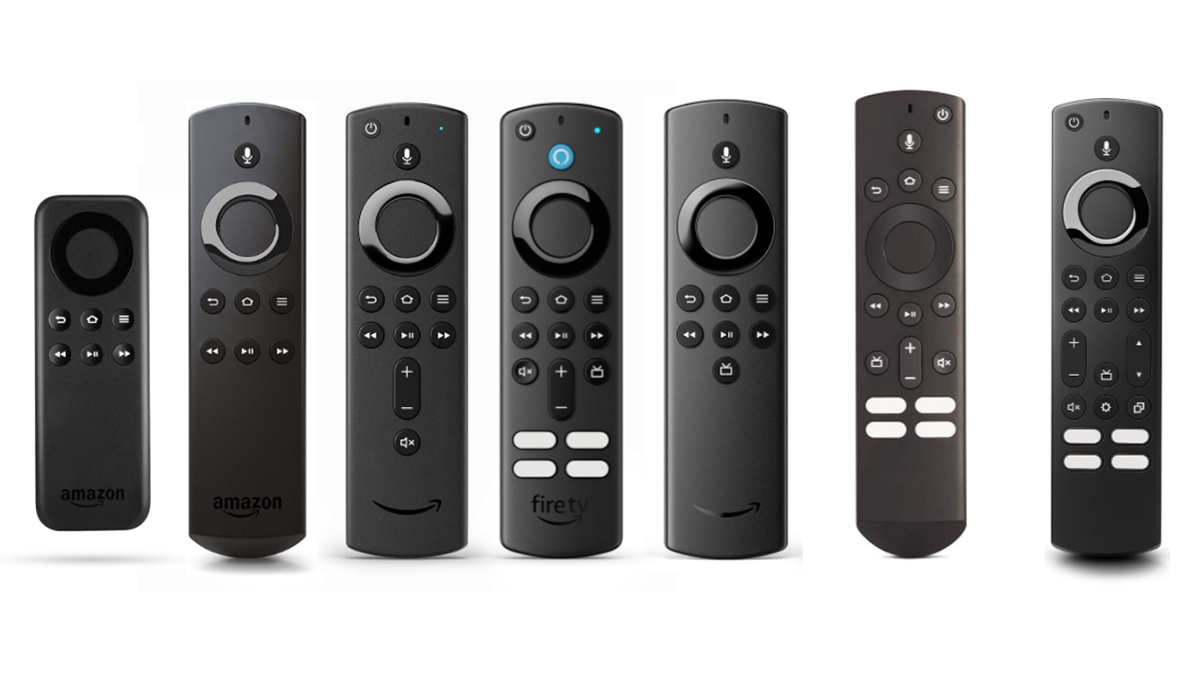
- Choose an official Amazon remote for full compatibility and voice features.
- Third-party remotes can work but may lack Alexa or TV control functions.
From my tests, original remotes cost more but save time and avoid compatibility headaches.
Preventive tips and maintenance
Small habits extend remote life and lower the need for Amazon Fire Tv Remote Troubleshooting.
Keep spare batteries on hand
- Replace batteries every 6–12 months depending on use.
Store the remote safely
- Avoid sitting on the remote or leaving it on the floor.
Clean regularly
- Use a soft, dry cloth and cotton swabs for tight spots.
Update devices
- Keep Fire TV software current to avoid pairing bugs.
Teach family members
- Show how to use the Fire TV app as a backup remote.
These habits reduce future problems and save time.

Frequently Asked Questions of Amazon Fire Tv Remote Troubleshooting
How do I pair my Fire TV remote again?
Hold the Home button for 10 seconds while near the Fire TV. If that fails, go to Settings > Controllers & Bluetooth Devices > Add New Remote and follow prompts.
Why does the remote work only when close to the TV?
This can mean a weak battery or Bluetooth interference. Replace batteries and remove nearby wireless devices to test.
Can I use my phone instead of the remote?
Yes. The Fire TV mobile app connects over Wi‑Fi and gives full navigation and voice control until you fix the remote.
What if volume buttons don’t control my TV?
Volume buttons may use IR and need a clear line of sight. Re-pair the remote for TV control in Settings > Equipment Control if needed.
How long do Fire TV remote batteries last?
Typical battery life is 6–12 months with average use. Heavy voice use or frequent streaming can shorten that time.
Conclusion
Amazon Fire Tv Remote Troubleshooting is mostly about quick checks: change batteries, reboot the Fire TV, and re-pair the remote. If those steps fail, try software updates, reset routines, or use the Fire TV app while you decide on repair or replacement. Small habits prevent most problems and save time. Try the steps today, and leave a note about what fixed your issue or any tricky case you want help with.

