

Pairing a smartwatch with your phone or tablet can seem easy, but the details matter. Small mistakes during setup can cause headaches later. Whether you just bought your first smartwatch or you’re helping a friend, knowing each step saves time and avoids frustration. In this guide, you’ll learn not only the standard process, but also practical tips, common problems, and how to get the most from your new device. If you’re ready to enjoy call alerts, health data, and quick notifications on your wrist, read on for a complete, straightforward roadmap to pairing any smartwatch.
What You Need Before Pairing
The right preparation makes pairing smooth and stress-free. Here’s what you should have ready:

36% off Today’s Exclusive Deals
Limited-time Exclusive Deals. Check current discount on Amazon.
Check Price on Amazon As an Amazon Associate I earn from qualifying purchases.- A Compatible Smartphone or Tablet: Most smartwatches work with Android (version 8.0 or later) or iOS (iPhone 6s or newer, iOS 13+). Check your smartwatch’s manual or website for compatibility.
- Charged Devices: Both the smartwatch and phone should be at least 50% charged. Low battery can interrupt pairing and cause software glitches.
- Internet Connection: Wi-Fi or mobile data is needed for downloading apps and updates.
- Bluetooth Turned On: Smartwatches connect via Bluetooth. Make sure Bluetooth is enabled on your phone or tablet.
- Official App Installed: Most brands require a companion app. For example, Apple Watch uses the Watch app, Samsung Galaxy Watch uses Galaxy Wearable, and many brands use Wear OS by Google.
- Account Details: Some watches need you to log in with your Google, Samsung, or Apple ID.
Insight: Many users forget to check device compatibility or battery levels, leading to failed pairings or incomplete updates.
Step-by-step Guide: Pairing Your Smartwatch
The pairing process is similar for most smartwatches, but some steps can differ based on brand. Here’s a general approach, with brand-specific notes.
1. Turn On Your Smartwatch
Press and hold the main button until you see the logo or welcome screen. Some watches may vibrate during startup.
Tip: If your watch doesn’t turn on, charge it for 10–15 minutes first.
2. Download And Open The Companion App
- For Apple Watch: Use the built-in Watch app on your iPhone.
- For Samsung Galaxy Watch: Download the Galaxy Wearable app from the Play Store or App Store.
- For Wear OS Watches: Download Wear OS by Google.
- For Fitbit: Download the Fitbit app.
- Other brands like Huawei, Garmin, or Amazfit have their own apps.
Non-obvious Insight: Choosing the wrong app (such as using Wear OS for a Fitbit) is a common mistake. Double-check your watch’s instructions.
3. Start The Pairing Process
- Open the app and select “Set up a new device” or “Add device.”
- The app will search for nearby watches. Make sure your watch is close to your phone and not paired to another device.
- When your watch appears on the app, tap its name.
4. Confirm The Pairing Code
A code will show on both your smartwatch and your phone. Check that the codes match, then tap “Pair” or “Confirm. ”
Practical Example: If the codes don’t match, cancel and restart. This prevents connecting to the wrong device nearby.
5. Grant Permissions
The app will ask for permissions (contacts, calls, notifications, location). Grant these for full functionality. For example, allowing notifications lets your watch show messages and calls.
Tip: You can adjust permissions later in your phone’s settings if you change your mind.
6. Wait For Sync And Updates
The first sync can take 2–10 minutes. Your watch may also download updates. Do not move devices far apart or close the app during this step.
7. Complete Setup And Customization
- Choose watch faces, apps, and notification settings.
- Set up health tracking or payment features if your watch supports them.
8. Test Basic Features
Try a test notification, call, or fitness tracking to confirm everything works.
Pairing Steps For Popular Brands
Different brands may add unique steps. Here’s a quick comparison:
| Brand | Companion App | Unique Pairing Steps |
|---|---|---|
| Apple Watch | Watch (iOS only) | Hold watch near iPhone, scan animation, no Android support |
| Samsung Galaxy Watch | Galaxy Wearable | Works with Android & iOS, may need Samsung account |
| Wear OS (Fossil, TicWatch, etc.) | Wear OS by Google | Google login needed, works with Android & iOS |
| Fitbit | Fitbit | Account required, health permissions essential |
| Garmin | Garmin Connect | Manual Bluetooth pairing sometimes required |
Non-obvious Insight: Some watches (like Apple Watch) don’t pair with Android at all. Always check brand compatibility.
Troubleshooting Common Pairing Problems
Even when you follow the steps, issues can happen. Here’s how to solve the most common ones:
Bluetooth Not Finding Your Watch
- Restart both devices.
- Move them closer together (less than 3 feet).
- Forget old pairings in Bluetooth settings and try again.
- Check if another phone is already paired.
App Can’t Detect Watch
- Update the companion app to the latest version.
- Make sure location services are enabled (some apps require GPS for pairing).
- Restart your phone and try again.
Pairing Code Doesn’t Match
- Cancel pairing and restart both devices.
- Avoid pairing in crowded places with many Bluetooth devices.
Updates Get Stuck
- Keep both devices charged and connected to Wi-Fi.
- Wait at least 10 minutes before retrying.
- If stuck, restart both devices.
Watch Not Syncing Data
- Check for app and firmware updates.
- Log out and back into your account.
- Unpair and pair again if needed.
How To Pair A Used Or Secondhand Smartwatch
Buying or receiving a used smartwatch? Resetting is crucial before pairing:
- On the watch, go to Settings > System > Reset (or similar).
- Confirm the reset. This erases old data and disconnects previous accounts.
- Follow the standard pairing steps above.
Important: Some watches (like Apple Watch or Samsung) have Activation Lock or Reactivation Lock. You must remove the old owner’s account first, or you can’t pair.
Pairing With Multiple Devices
Most smartwatches only pair with one phone at a time. If you want to switch:
- Unpair from the old device (in the app or Bluetooth settings).
- Pair with the new device as usual.
- For watches supporting multi-device (rare), check the manual.
Example: Apple Watch and most Wear OS watches do not support multiple phones at once.
Pairing A Smartwatch Without A Phone
Some smartwatches have limited functionality without a phone. Here’s what you can do:
- Some watches (like Apple Watch with Cellular) can work on their own for calls and texts once set up.
- Fitness trackers (like Garmin or Fitbit) can record activity, but you need a phone to sync and view detailed data.
- Many kids’ smartwatches pair with a parent’s phone for safety features.
Non-obvious Insight: You cannot pair or fully set up most smartwatches without a phone at least once.
Keeping Your Smartwatch Connected
Pairing is just the beginning. Here are tips for keeping your devices connected every day:
- Keep Bluetooth On: Disabling Bluetooth breaks the connection. Most features won’t work without it.
- Stay Within Range: Bluetooth range is about 30 feet (10 meters). Walls and other electronics can reduce range.
- Update Regularly: Install updates on both phone and watch for best performance.
- Restart Devices Occasionally: Solves minor connection drops.
- Avoid Connecting to Multiple Bluetooth Devices at Once: This can confuse the watch or phone.
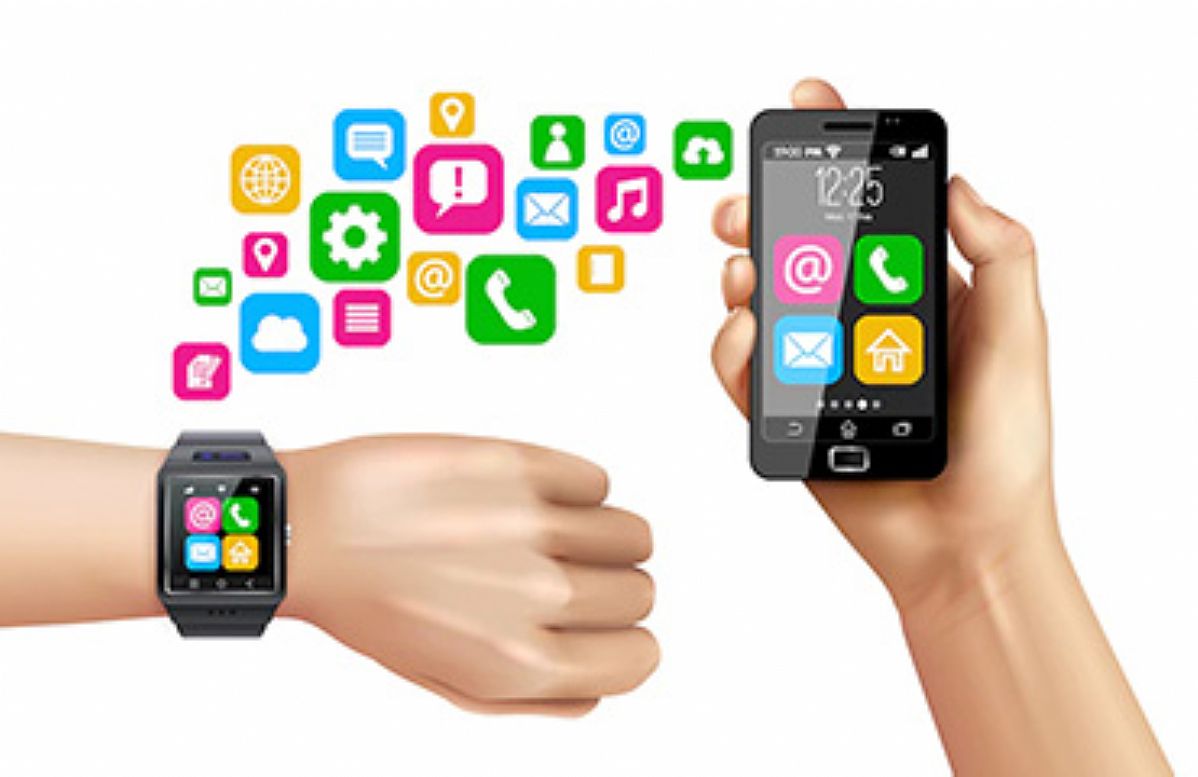
Comparing Smartwatch Ecosystems
Each ecosystem has strengths and weaknesses. Here’s a quick overview:
| Ecosystem | Best Features | Limitations |
|---|---|---|
| Apple (Watch + iPhone) | Deep integration, easy pairing, best app support | iPhone only, premium price |
| Wear OS (Google) | Works on Android & iOS, wide hardware choice | Some features limited on iOS |
| Samsung (Galaxy Watch) | Strong on Samsung phones, good battery life | Best with Samsung ecosystem, Android focus |
| Fitbit | Health tracking, easy app, long battery | Limited smart features, basic app support |
Practical Example: If you use iPhone, Apple Watch is the easiest to pair and use. If you switch between Android and iOS, Wear OS is more flexible.
Maximizing Features After Pairing
Pairing is only the start. To get the most from your smartwatch:
- Customize Notifications: Decide which apps can alert you. Too many notifications are distracting.
- Try Different Watch Faces: Many watches let you download or design faces to match your style.
- Set Up Fitness Goals: Use built-in tracking for steps, heart rate, or sleep.
- Test Voice Assistants: Most watches support Siri, Google Assistant, or Bixby.
- Explore Apps: Download useful apps for music, weather, or travel.
- Set Up Payment: Some watches support Apple Pay, Google Pay, or Samsung Pay for contactless payments.
- Use Find My Device: Many watches can help you find your phone, and vice versa.

Security And Privacy Tips
Smartwatches store private health and location data. Protect your information:
- Set a PIN or Passcode: Required for payments and unlocking the watch.
- Review App Permissions: Limit access to contacts, location, or health if not needed.
- Update Software: Security updates fix bugs and protect your data.
- Turn Off When Not Needed: If you’re not using the watch for a long time, turn it off.
- Erase Data Before Selling: Always reset to factory settings.
Non-obvious Insight: Many people forget to reset their watch before selling or giving it away, risking their personal data.
Common Mistakes To Avoid
- Not Reading the Manual: Every watch has unique steps and features.
- Skipping Updates: Outdated software causes bugs and missing features.
- Ignoring Permissions: Limited permissions mean missing notifications or app data.
- Pairing in Crowded Areas: Other devices can interfere and cause errors.
- Not Backing Up: Some watches let you back up data—use this before resetting.
What To Do If Your Watch Won’t Pair
If you can’t pair after several tries:
- Restart both devices.
- Reset the smartwatch to factory settings.
- Reinstall the companion app.
- Try pairing with a different phone (to rule out device problems).
- Contact customer support or visit the brand’s official help site.
For more advanced troubleshooting, see the official Apple Support page or your watch brand’s help center.
Frequently Asked Questions
How Do I Reset My Smartwatch Before Pairing?
Go to Settings > System > Reset (or a similar menu) on your watch. Confirm the reset. This erases all data and disconnects from previous devices. Always reset used or secondhand watches before pairing.
Can I Pair My Smartwatch With A Tablet Instead Of A Phone?
Yes, many smartwatches work with tablets if the tablet supports Bluetooth and the companion app. However, some features (like calls or text messaging) may not work without a phone.
Why Does My Smartwatch Keep Disconnecting From My Phone?
Common reasons include moving out of Bluetooth range, turning off Bluetooth, battery-saving modes, or outdated software. Keep both devices close, charged, and updated.
Do I Need An Internet Connection To Pair A Smartwatch?
You need an internet connection to download the companion app and install updates. Basic pairing can often work offline, but many watches require internet for setup.
Is It Safe To Pair A Smartwatch With My Work Phone?
Yes, but check your company’s policy first. Some organizations limit which apps or devices can connect due to security. Always set a passcode and review app permissions for safety.
Pairing a smartwatch is a simple process when you know what to expect. Take your time, follow the steps, and enjoy the benefits of having information, health data, and notifications on your wrist. With the right setup, your smartwatch will become a powerful, personal assistant every day.


