Losing important files can feel like a disaster. Whether you deleted a document by mistake, emptied your recycle bin, or suffered a system crash, the fear of losing photos, work, or memories is real. The good news is: most deleted files can be recovered—if you act quickly and follow the right steps. This guide will show you how to recover deleted files on Windows, Mac, mobile devices, and even from USB drives or SD cards. You’ll also learn common mistakes to avoid, when to try free tools, and when to call an expert.
How Deleted Files Work
Many people think deleting a file means it’s gone forever. In reality, deleted files usually stay on your device for some time. Here’s why:

36% off Today’s Exclusive Deals
Limited-time Exclusive Deals. Check current discount on Amazon.
Check Price on Amazon As an Amazon Associate I earn from qualifying purchases.- When you “delete” a file, your computer just marks the space as available for new data. The file’s data remains until new files overwrite it.
- Recycle Bin (Windows) or Trash (Mac) acts as a safety net. Files are not really deleted until you empty them from these folders.
- On SSDs, things work a bit differently because of a process called “TRIM,” which may erase data sooner.
Key insight: The less you use your device after deletion, the higher your chances of recovery. Any new file, app, or update can overwrite lost data.
Immediate Steps To Take After File Deletion
Your actions right after deleting a file can make the difference between a simple recovery and permanent loss. Here’s what to do:
- Stop using the device immediately. Avoid downloading, installing, or saving anything new.
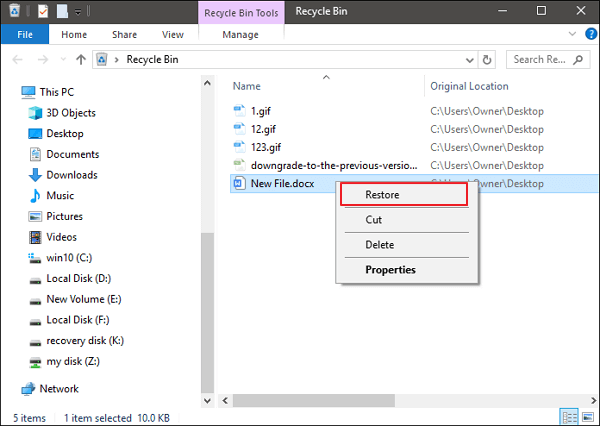
- Check your Recycle Bin or Trash. Most deleted files go here first.
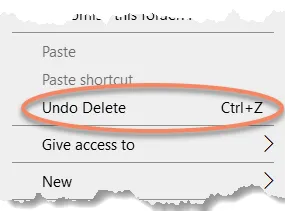
- Undo your last action. Pressing Ctrl + Z (Windows) or Command + Z (Mac) can sometimes instantly restore deleted items.
- Search for backups. Check cloud storage (like Google Drive, OneDrive, or iCloud) or external drives.
Non-obvious tip: If your deleted files are on a USB or SD card, eject it right away. Every second connected increases the chance of overwriting data.
Recovering Files On Windows
Windows users have several methods for getting files back. Each situation is a little different, so pick the one that fits your case.
Using Recycle Bin
- Open the Recycle Bin on your desktop.
- Search or browse for your deleted file.
- Right-click and choose Restore.
This returns the file to its original location.
File History (windows 10/11)
Windows File History is a built-in backup tool. If enabled, you can:
- Search for “File History” in the Start menu.
- Open “Restore your files with File History.”
- Browse for the missing file and click Restore.
Insight: File History only works if it was set up before the file was deleted.
Windows Previous Versions
Some Windows versions can restore files from previous versions (using System Restore or File History backups):
- Navigate to the folder where the file was.
- Right-click and select Restore previous versions.
- Choose a backup date and restore.
Data Recovery Software (windows)
If the above methods fail, recovery software is your next option. Popular choices include Recuva, EaseUS Data Recovery Wizard, and Disk Drill.
- Download and install the software (ideally on a different drive).
- Scan the drive or folder where the file was deleted.
- Preview found files and restore what you need.
Example: Recuva’s free version can recover many file types, but premium tools often recover more data.
Bitlocker And Encrypted Drives
If your drive uses BitLocker encryption, you’ll need the password or recovery key to access deleted data.
Recovering Files On Mac
Mac computers have their own tools and methods. Here’s how to recover deleted files on macOS:
Trash
- Open the Trash on your Dock.
- Find your file, right-click, and choose Put Back.
Time Machine
If you use Time Machine backups:
- Connect your backup drive.
- Open the folder where the file was deleted.
- Click the Time Machine icon and enter.
- Browse to a backup date before deletion, select the file, and click Restore.
Data Recovery Apps (mac)
Top options include Disk Drill for Mac, PhotoRec, and Stellar Data Recovery.
- Install on a different disk (if possible).
- Scan the affected drive.
- Preview and recover files.
Non-obvious tip: Mac’s APFS file system can be harder to recover from, so act quickly.
Icloud Drive
If your files were on iCloud Drive:
- Visit iCloud.com, log in.
- Go to Recently Deleted in iCloud Drive.
- Restore your file.

Recovering Files From External Drives (usb, Sd, Hdd, Ssd)
External drives are common places for accidental file loss. Here’s what you need to know:
Quick Recovery Steps
- Stop using the drive. Unplug it if possible.
- Check for hidden files. Sometimes files are hidden, not deleted. Enable “Show hidden files” in your system settings.
- Use recovery software. Most tools support external drives.
Ssds Vs Hdds
| Drive Type | Recovery Success Rate | Why |
|---|---|---|
| HDD (Hard Disk Drive) | High (if unused) | Data stays until overwritten |
| SSD (Solid State Drive) | Lower | TRIM command often erases deleted files immediately |
Insight: With SSDs, if you deleted files and your drive uses TRIM (most modern ones do), recovery might be impossible—even with tools.
Special Note On Sd Cards
For photos or videos deleted from camera SD cards:
- Stop using the card.
- Use software like PhotoRec or SanDisk RescuePRO.
- Recover files to a separate drive.
Recovering Files On Mobile Devices
Deleted something on your phone or tablet? Recovery methods depend on the operating system and backup settings.
Android Devices
- Google Photos: Deleted photos and videos go to Trash for 30 days.
- File Manager: Some file managers have a “Recently Deleted” folder.
- Data Recovery Apps: Apps like DiskDigger can work, but need root access for deep scans.
- Cloud Backups: Check Google Drive or other cloud backups.
Warning: Most recovery apps need root access, which can void warranties and carry risks.
Ios Devices (iphone, Ipad)
- Photos App: Check the “Recently Deleted” album (keeps files for 30 days).
- ICloud Backup: Restore your device from a backup made before deletion.
- ITunes/Finder Backup: Restore from a local computer backup.
Limitation: iOS locks down file access, so most third-party recovery tools are less effective without backups.
Comparing Top Data Recovery Software
Choosing the right tool makes a huge difference. Here’s a comparison of some popular data recovery solutions:
| Software | Platforms | Free Version? | Success Rate | Best For |
|---|---|---|---|---|
| Recuva | Windows | Yes | Good | Simple recoveries |
| Disk Drill | Windows, Mac | Yes (limited recovery) | Very Good | Multiple file types |
| Stellar Data Recovery | Windows, Mac | Yes (limited) | Excellent | Deep scans |
| PhotoRec | Windows, Mac, Linux | Yes | Good (complex interface) | SD cards, cameras |
Non-obvious tip: Free versions usually have limits (like max file size or number of files). Always check before starting a big recovery.
Common Mistakes To Avoid
Even experienced users can make recovery harder by making simple mistakes. Here are the most common:
- Continuing to use the device after deletion. This overwrites deleted data.
- Installing recovery software on the affected drive. Always install to a different drive or external device.
- Ignoring backups. Many people forget cloud or external backups exist.
- Trying too many tools. Each scan can lower the chance of recovery.
- Skipping file previews. Always preview found files before restoring to avoid corrupted or wrong files.
- Not seeking professional help for critical or business data.
Pro insight: If you’re dealing with business data, legal evidence, or irreplaceable photos, don’t risk DIY recovery. Contact a professional recovery service early.
When To Use Professional Data Recovery Services
Some situations call for expert help:
- Physical damage: Clicking, grinding, or no response from your drive.
- Electrical failure: Power surges or water damage.
- SSD issues: Many SSD failures are hard to fix at home.
- Business or legal data: Mistakes here can be costly.
What to expect: Professional recovery is expensive, often starting at a few hundred dollars and going up to thousands, depending on complexity.
Service Comparison
| Service Type | Cost | Success Rate | Turnaround Time |
|---|---|---|---|
| DIY Software | $0 – $100 | Good for logical deletes | 1-2 hours |
| Professional Lab | $300 – $2000+ | High (if no physical damage) | 2-14 days |
Non-obvious tip: Many labs offer free diagnostics and “no data, no fee” policies. Get a quote before sending your device.
How To Prevent Future Data Loss
Recovering files can be stressful, so prevention is always better. Here’s how to avoid this situation next time:
- Set up regular backups. Use Windows File History, Mac Time Machine, or cloud services.
- Enable cloud sync. Google Drive, OneDrive, Dropbox, and iCloud offer automatic backup.
- Use external drives. Keep a copy of important files on a USB or external HDD/SSD.
- Check your Recycle Bin/Trash regularly. Don’t empty it too quickly.
- Be careful with Shift+Delete (Windows) or Command+Delete (Mac). These bypass the recycle bin.
- Install good antivirus software. Prevents ransomware and accidental deletes from malware.
- Label and organize files. Well-organized folders make finding lost files easier.
Pro insight: The “3-2-1 backup rule” is best: 3 copies, 2 types of media, 1 copy off-site or in the cloud.
Real-life Examples
Example 1: Recovering Work Documents
Maria deleted her thesis draft by mistake on Windows. She checked the Recycle Bin—empty. She used File History, but it wasn’t set up. Finally, she tried Recuva, found her file, and restored it. Her tip: “Always check for backups first, and install recovery tools on a USB stick, not the main drive.”
Example 2: Lost Photos On Sd Card
John formatted his camera’s SD card before saving his travel photos. He stopped using the card, ran PhotoRec, and recovered 90% of his photos. He learned to always back up before formatting.
Example 3: Ssd Failure
A small business owner’s SSD failed suddenly. DIY tools didn’t work. A professional lab recovered almost all their invoices and customer records. The cost was high, but the data was worth it.
Frequently Asked Questions
How Long Do Deleted Files Stay Recoverable?
On HDDs, files can be recovered until new data overwrites them. On SSDs, TRIM may erase files almost instantly. Cloud services usually keep deleted files for 30 days. Acting quickly is key.
Can I Recover Files After Formatting A Drive?
Yes, if you use recovery software right away and don’t overwrite the drive. Quick formats are easier to recover from than full formats. But, with SSDs, recovery is less likely.
Is Free Recovery Software Safe?
Most well-known free tools are safe, like Recuva or PhotoRec. Download only from official sites. Avoid programs that ask for payment before showing what they can recover.
Are Deleted Files Really Gone After Emptying The Recycle Bin?
Not immediately. The data remains until overwritten, but it’s harder to recover without special tools. On SSDs with TRIM, they may be erased much faster.
Where Can I Learn More About File Recovery?
For more details and technical background, you can visit the Wikipedia Data Recovery page.
Losing a file doesn’t have to be final. With quick action, the right tools, and a bit of know-how, you can recover most deleted files. And by setting up good backup habits, you’ll make sure file loss is never more than a minor problem.