

Every day, millions of people rely on AirPods for music, calls, and podcasts. These small, wireless earbuds from Apple are everywhere—in offices, gyms, parks, and even on crowded trains. But what happens when your AirPods stop working the way you expect? Maybe the sound is uneven, they won’t connect, or one earbud just won’t charge. In many cases, a simple reset can solve these problems in just a few minutes.
Resetting AirPods is not just for fixing problems. It’s also helpful if you’re giving them to someone else, connecting to a new device, or cleaning up old connections. While the process might sound technical, it’s actually straightforward if you follow the right steps.

36% off Today’s Exclusive Deals
Limited-time Exclusive Deals. Check current discount on Amazon.
Check Price on Amazon As an Amazon Associate I earn from qualifying purchases.This guide will walk you through the best way to reset AirPods, explain why you might need to, and share some advanced tips most people miss. Whether you have the first AirPods or the latest AirPods Pro, this article will help you get your earbuds working like new again.
Why Reset Airpods?
AirPods are designed to be simple, but even simple devices can develop problems. Here are some of the most common reasons you might need to reset your AirPods:
- Connection issues: AirPods can sometimes refuse to connect to your iPhone, iPad, Mac, or other Bluetooth devices.
- Sound problems: One AirPod may sound quieter, or the audio balance feels off.
- Charging errors: Your AirPods or charging case may not show the correct battery level or fail to charge.
- Unresponsive controls: The double-tap or squeeze features may stop working.
- Pairing with a new device: If you want to use your AirPods with a different phone, tablet, or laptop.
- Selling or gifting: It’s important to erase your AirPods before giving them away.
Sometimes, you may notice your AirPods’ battery drains too quickly or the audio cuts in and out. These odd problems often mean it’s time to reset. Resetting wipes the internal memory, removes all connections, and gives you a fresh start.
Understanding Airpods Models And Their Differences
Before you reset, know which AirPods you own. Apple’s lineup includes several models, each with slightly different features and cases. This matters because the reset steps are nearly the same, but not identical.
Here’s a quick overview:
| Model | Key Feature | Reset Button Location | Release Year |
|---|---|---|---|
| AirPods (1st & 2nd Gen) | Universal fit, no noise canceling | Back of charging case | 2016 / 2019 |
| AirPods Pro | Noise canceling, silicone tips | Back of charging case | 2019 |
| AirPods (3rd Gen) | Spatial audio, shorter stems | Back of charging case | 2021 |
| AirPods Max | Over-ear, digital crown | Near charging port | 2020 |
If you’re not sure which model you have, look at the case or the earbuds. The AirPods Pro, for example, have silicone tips and a shorter stem. AirPods Max are large headphones, not earbuds. The reset process for AirPods Max is a little different—this guide will show you both.
How To Reset Airpods And Airpods Pro
Resetting your AirPods is a quick process, but it’s important to do each step carefully. Follow these instructions for AirPods (1st, 2nd, 3rd Gen) and AirPods Pro:
1. Place Airpods In The Case
Put both AirPods in the charging case and close the lid. Wait at least 30 seconds. This ensures they are powered off and reset internally.
2. Open The Case
After 30 seconds, open the lid of the charging case. Leave the AirPods inside.
3. Forget Airpods On Your Device
On your iPhone or iPad:
- Go to Settings > Bluetooth.
- Find your AirPods in the list.
- Tap the “i” (info) button next to them.
- Choose Forget This Device and confirm.
On a Mac:
- Go to System Settings or Bluetooth menu.
- Find your AirPods and right-click (or Control-click).
- Select Remove or Forget.
This step is important. If you skip it, your device may automatically reconnect and interrupt the reset.
4. Press And Hold The Setup Button
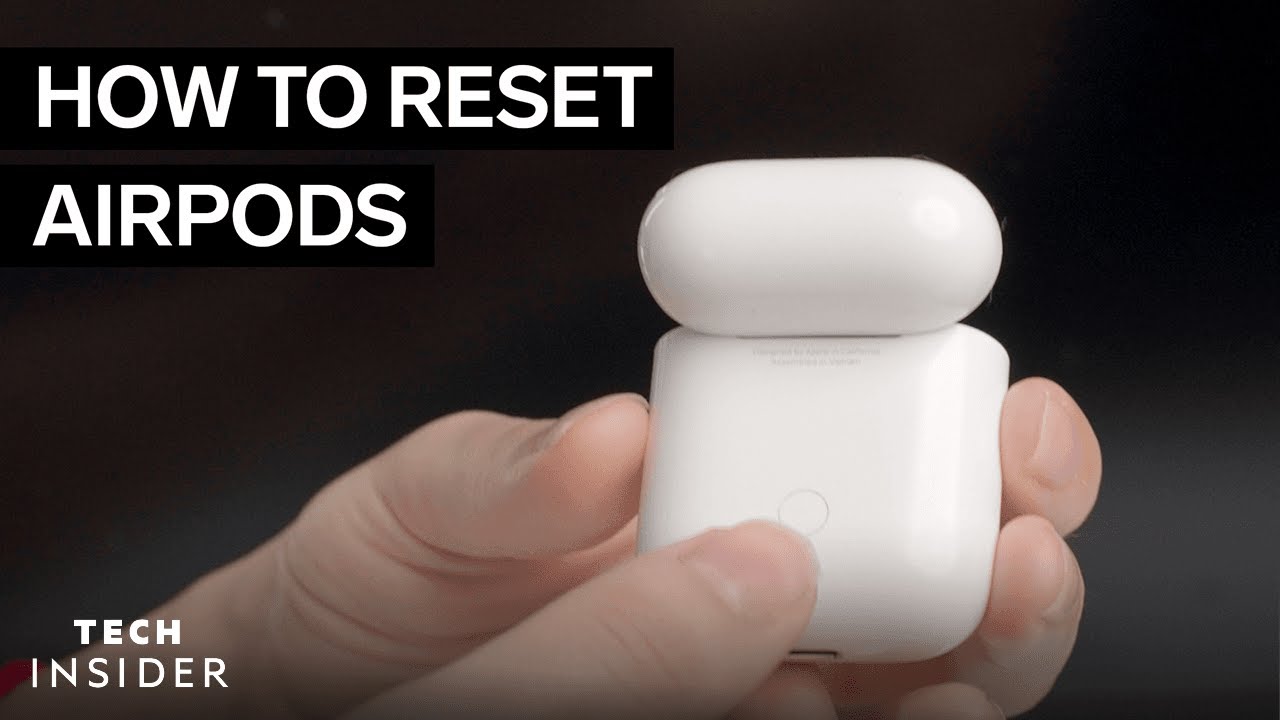
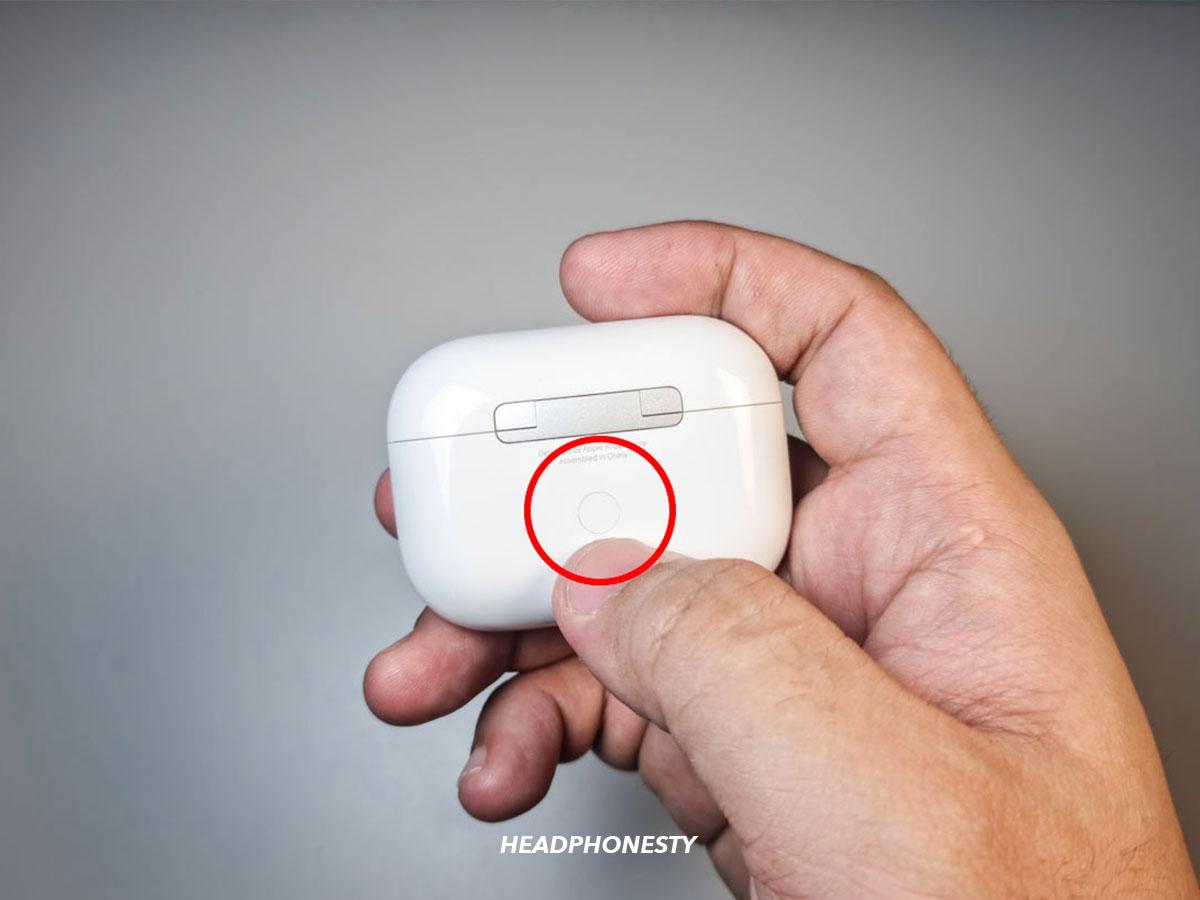
Find the small, round setup button on the back of the charging case.
- Press and hold this button for about 15 seconds.
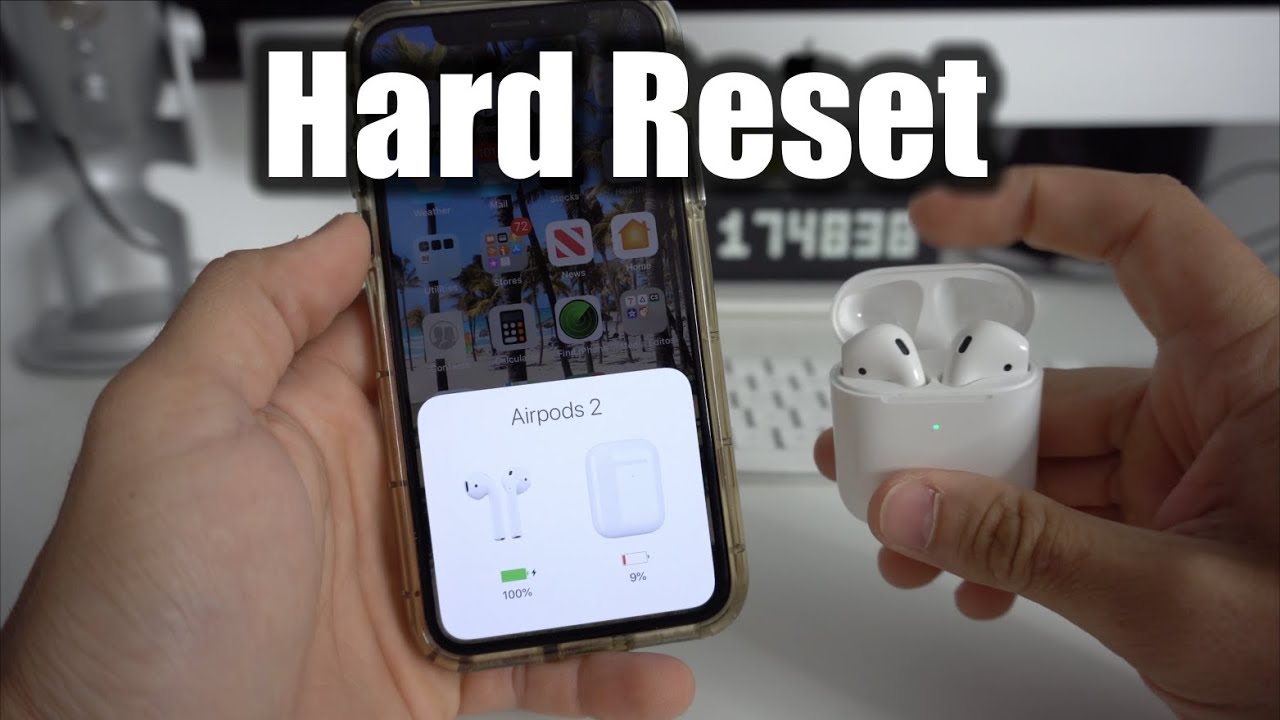
- Watch the light on the front of the case (or inside, for older AirPods).
- It will first blink white, then amber (orange), and finally back to white.
- When it flashes white again, release the button.
The white flashing light means your AirPods are reset and ready to pair.
5. Reconnect To Your Device
Open the lid near your iPhone or iPad. A setup animation should appear. Tap Connect and follow the instructions. On other devices, pair as you would any Bluetooth headphones.
Tip: If your AirPods don’t appear, restart your phone or try again. Make sure Bluetooth is on.
What If The Light Doesn’t Flash?
Sometimes, the light does not flash as expected. This can mean:
- The case is out of battery—charge it for at least 10 minutes and try again.
- The AirPods are not seated properly—make sure both are in the case.
- There’s a hardware problem—try cleaning the contacts with a dry cotton swab.
How To Reset Airpods Max
AirPods Max are over-ear headphones and have a different design. The reset process is a bit different but still simple.
1. Charge The Headphones
Plug in your AirPods Max for at least 10 minutes to make sure they have power.
2. Forget The Device
On your iPhone, iPad, or Mac, remove AirPods Max from your Bluetooth devices list (same as above).
- Press and hold buttons
- Find the Noise Control button and the Digital Crown (the round knob).
- Press and hold both at the same time.
- Keep holding for about 15 seconds.
- The LED light on the right ear cup will flash amber, then white.
- Release the buttons when the light turns white.
Your AirPods Max are now reset and ready to pair.
Tip: If you want to do a “soft reset” (just restart), hold the buttons for a few seconds until the light flashes amber, then release.
Resetting Airpods Without The Case
Many people ask if it’s possible to reset AirPods without the charging case. The short answer is: No, you need the case for a full reset. The case is not just for charging—it contains the hardware needed to erase and re-pair your AirPods.
However, if you lost your case, you can still:
- Remove AirPods from your device’s Bluetooth list
- Try pairing with another device (if not locked to iCloud)
But you won’t be able to do a factory reset until you get a new or replacement case.
Common Problems Resetting Airpods
Resetting usually works, but sometimes things don’t go as planned. Here are some common issues and what to do:
Airpods Won’t Reset
- Case battery is dead: Plug in the case and try again after 10 minutes.
- Sticky button: The setup button can get stuck or dirty. Press it firmly, and clean around it if needed.
- Firmware glitch: Leave the AirPods in the case with the lid open for several minutes, then try again.
Airpods Still Not Connecting
- Update your device: Make sure your iOS, iPadOS, or macOS is up to date.
- Restart everything: Turn your phone or computer off and on.
- Try another device: See if the AirPods work with a different phone or laptop. This helps you find if the problem is with the AirPods or the device.
One Airpod Is Not Working
- Clean the contacts: The AirPod may not be charging properly. Use a soft, dry brush to clean the metal contacts.
- Reset again: Sometimes, a second reset is needed.
- Check for firmware updates: Connect to your device and let the AirPods update automatically when charging.
What Happens When You Reset Airpods?
Resetting AirPods removes all paired devices and returns them to factory settings. Here’s what you can expect:
- All device connections are erased: Your AirPods will forget every phone, tablet, or computer they’ve been connected to.
- Settings reset: Double-tap or squeeze actions, noise control settings, and ear detection will return to default.
- ICloud lock removed: If you remove AirPods from your Apple ID, they can be paired with a new owner.
Resetting does not delete any music, files, or other data from your devices. It only affects the AirPods themselves.
Airpods Reset Vs. Restart: What’s The Difference?
Many users confuse resetting AirPods with simply restarting them. Here’s a quick comparison to clarify:
| Action | What It Does | When to Use |
|---|---|---|
| Restart (Soft Reset) | Powers off and on; does not erase settings or connections | Minor glitches, audio dropouts |
| Reset (Factory Reset) | Removes all pairings; restores factory settings | Major problems, switching owners/devices |
A soft reset can be as simple as putting AirPods back in the case, closing the lid, and waiting a few seconds. But for real issues—like persistent connection trouble—a full reset is usually required.
Advanced Tips After Resetting Airpods
Many guides stop after the basic reset steps, but there are extra actions that can make your AirPods experience better:
1. Update Your Airpods Firmware
Put your AirPods in the case, connect to power, and keep them near your iPhone. Updates happen automatically, bringing bug fixes and new features.
2. Customize Controls
After resetting, the default tap or squeeze actions return. Go to Settings > Bluetooth > [Your AirPods] > (i) to set up actions like play/pause, skip, or Siri.
3. Rename Your Airpods
You can give your AirPods a unique name to help you find them in the Bluetooth list.
4. Check Audio Balance
If one AirPod still sounds quieter, go to Settings > Accessibility > Audio/Visual > Balance. Make sure the slider is in the middle.
5. Use Find My To Track Airpods
Even after resetting, you can use Apple’s Find My app to locate lost AirPods if they are linked to your Apple ID.
Insight: Many users forget that after a reset, you have to re-activate features like noise cancellation or spatial audio on AirPods Pro and 3rd Gen. Don’t assume everything will work “out of the box”—always check your settings.
Resetting Airpods For Selling Or Gifting
If you’re selling your AirPods or giving them to someone else, a reset is not enough. You should also:
- Remove AirPods from your Apple ID
- Go to Find My app.
- Tap Devices.
- Select your AirPods.
- Scroll down and tap Remove This Device.
- Unpair from all devices
Manually remove your AirPods from each device’s Bluetooth list.
3. Reset As Described Above
This ensures the new owner can pair the AirPods without problems. If you skip these steps, the AirPods may stay linked to your account and the new user may see “This device belongs to another Apple ID. ”
When A Reset Won’t Fix Your Airpods
Sometimes, even after a reset, your AirPods may still have problems. Here’s when it’s time to consider other solutions:
- Physical damage: Cracked cases, broken stems, or water damage won’t be fixed by a reset.
- Battery issues: If your AirPods or case won’t hold a charge, the batteries may be worn out.
- Lost AirPod: A reset won’t help if you’ve lost one or both AirPods—you’ll need to buy a replacement.
In these cases, contact Apple Support or visit an Apple Store. Under warranty or AppleCare+, you might get a replacement at a reduced cost.
How Long Does It Take To Reset Airpods?
A full reset usually takes less than one minute. Most of the time is spent waiting for the light to flash and for your device to forget the connection. Re-pairing takes another minute or two.
For AirPods Max, the process is just as quick, but charging may take longer if the battery is low.
Real-world Examples
Let’s look at some real-life situations where resetting AirPods made a difference:
- Case 1: John’s AirPods Pro stopped connecting to his iPhone after a software update. A reset cleared the problem, and they connected like new.
- Case 2: Maria was selling her AirPods (2nd Gen). She did a reset and removed them from her Apple ID, so the buyer had no trouble pairing.
- Case 3: After a flight, one of Ahmed’s AirPods was much quieter. Cleaning and resetting fixed the sound balance.
These examples show that a reset is often the fastest and easiest way to solve AirPods problems—before spending money on repairs or replacements.
When You Should Not Reset Airpods
While resetting is safe, there are times when it’s not the best solution:
- If only one device has issues: Try forgetting and reconnecting on that device first.
- For minor glitches: Restarting your phone or the AirPods (soft reset) may be enough.
- If you’re troubleshooting for a friend: Don’t reset unless you have permission—they may lose their custom settings and connections.
Data And Trends: How Common Are Airpods Problems?
AirPods are very popular, but they aren’t perfect. Recent surveys show:
- About 20% of users experience connection issues in the first year.
- Battery degradation is the most common complaint after two years.
- Online forums like Apple Discussions and Reddit have thousands of posts about AirPods problems each month.
This is normal for any wireless device. The good news is that most problems are solved with a reset or by updating software.
Extra Tips Most People Miss
- Reset after every iOS major update: Big updates can sometimes “confuse” Bluetooth devices. A quick reset ensures smooth pairing.
- Don’t reset too often: Each reset erases calibration data. Use it as a last resort, not a regular fix.
- Keep your case clean: Dirty contacts can cause charging and connection problems that look like software issues.
- Test on another device: Sometimes, the issue is with your phone, not your AirPods.
Frequently Asked Questions
How Often Should I Reset My Airpods?
You should only reset your AirPods when you have problems—like connection issues, sound imbalances, or when selling/gifting them. There’s no need to reset regularly.
Will Resetting Airpods Erase My Music Or Files?
No. Resetting AirPods only affects the earbuds themselves. It does not remove any files or music from your phone, tablet, or computer.
Can I Reset Airpods If I Lost The Charging Case?
A full reset is not possible without the charging case. If you’ve lost your case, you can remove the AirPods from your device’s Bluetooth list, but you’ll need a replacement case to reset.
Is There A Way To Reset Only One Airpod?
No. Resetting always affects both AirPods and the case together. If one AirPod isn’t working, try cleaning it and resetting the full set.
Where Can I Find Official Airpods Reset Instructions?
You can find the latest steps on the Apple Support website. This is the best source for up-to-date information.
AirPods are built for convenience, but sometimes they need a little help. Resetting is a simple and effective way to solve many common problems. By following these steps, you’ll save time, avoid frustration, and get the most out of your wireless earbuds. Remember: only reset when needed, keep your devices updated, and don’t hesitate to contact Apple if you face hardware problems. With a bit of care, your AirPods can deliver great sound and smooth connections for years.

