

Using Apple AirPods is easy, but getting the most from them takes a bit more know-how. For many, AirPods are more than just wireless earbuds—they’re a part of daily life, from calls to music to voice assistants. If you’re new to AirPods or want to use them better, this guide gives you everything you need.
You’ll learn how to set up AirPods, connect with different devices, use touch controls, fix common problems, and even keep your AirPods clean and safe. Plus, you’ll find tips that most beginners miss, real comparisons with other wireless earbuds, and answers to questions people often ask.

36% off Today’s Exclusive Deals
Limited-time Exclusive Deals. Check current discount on Amazon.
Check Price on Amazon As an Amazon Associate I earn from qualifying purchases.By the end, you’ll feel confident using your AirPods every day.
Understanding Apple Airpods: Models And Features
Apple has released several AirPods versions since 2016. Each model has its own features, price, and design. Knowing the differences helps you use and care for your AirPods properly.
| Model | Release Year | Main Features | Battery Life (Single Charge) |
|---|---|---|---|
| AirPods (2nd Gen) | 2019 | Wireless charging (optional), Siri, Auto play/pause | 5 hours |
| AirPods (3rd Gen) | 2021 | Spatial audio, Sweat/water resistance, Adaptive EQ | 6 hours |
| AirPods Pro (1st/2nd Gen) | 2019/2022 | Active Noise Cancellation, Transparency Mode, Custom fit tips | 4.5-6 hours |
| AirPods Max | 2020 | Over-ear, High-fidelity sound, Digital Crown, Noise Cancellation | 20 hours |
Key Features Explained
- Active Noise Cancellation: Blocks outside sounds for better listening.
- Transparency Mode: Lets in outside sounds so you stay aware of your surroundings.
- Spatial Audio: 3D sound for movies and music, available in newer models.
- Adaptive EQ: Adjusts music to fit your ear shape.
- Wireless Charging: Charge your AirPods case on a charging pad (not available in all models).
Many people don’t realize that software updates can add new features or improve performance. Check for firmware updates regularly in your iPhone’s Bluetooth settings.
Setting Up Your Airpods For The First Time
Getting started with AirPods is simple, but small details matter. Follow these steps to pair your AirPods and start using them.
Pairing With An Iphone Or Ipad
- Open the case with AirPods inside, next to your iPhone or iPad.
- Wait for the setup animation to appear on your device.
- Tap “Connect” and follow the on-screen instructions.
- If you have AirPods Pro or 3rd Generation AirPods, set up “Hey Siri” if you wish.
- The AirPods will automatically connect to other Apple devices using the same Apple ID.
Pairing With A Mac
- Make sure Bluetooth is turned on.
- Open the AirPods case, press and hold the back button until the light flashes white.
- On your Mac, go to System Preferences > Bluetooth, then select your AirPods and click “Connect.”
Pairing With Android Or Windows Devices
AirPods work with non-Apple devices too, though some features are missing.
- Open the case and press the back button until the light flashes white.
- Go to your device’s Bluetooth settings and select your AirPods.
- Some features like Siri and ear detection will not work.
Connecting To Multiple Devices
AirPods can switch between Apple devices automatically. For example, if you answer a call on your iPhone, AirPods switch from your Mac to your iPhone. This only works with devices signed in to the same Apple ID.
Pro Tip
If your AirPods won’t connect, reset them: Put them in the case, hold the back button until the light flashes amber, then white. Re-pair with your device.
Using Airpods: Controls And Customization
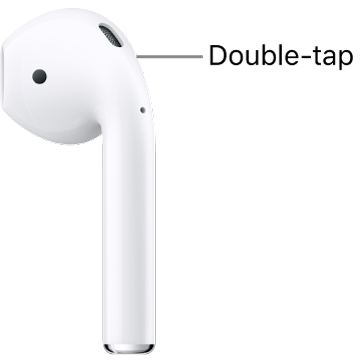
AirPods have simple touch controls, but each model is a bit different. Learning these controls saves time and makes daily use smoother.
| Action | AirPods (2nd/3rd Gen) | AirPods Pro | AirPods Max |
|---|---|---|---|
| Play/Pause | Double-tap | Press stem once | Press Digital Crown |
| Next Track | Double-tap (right) | Press stem twice | Double-press Digital Crown |
| Previous Track | Double-tap (left, customizable) | Press stem three times | Triple-press Digital Crown |
| Activate Siri | Double-tap (customizable) | Press and hold stem | Press and hold Digital Crown |
| Noise Control | Not available | Press and hold stem | Press Noise Control button |
Customizing Controls
You can change what double-tap or press-and-hold does in your iPhone’s Bluetooth settings:
- Open Settings > Bluetooth.
- Tap the “i” next to your AirPods.
- Choose your preferred actions for each earbud.
Volume Control
- AirPods Pro (2nd Gen) and AirPods (3rd Gen) support swipe volume control.
- For other models, use your connected device to adjust volume or ask Siri.
Using Siri
You can use Siri for hands-free controls like “Play music,” “Call John,” or “What’s the weather?” Activate Siri by saying “Hey Siri” (if set up) or using the controls mentioned above.
Insight
Many users don’t know that AirPods Pro can announce messages and calls automatically. Turn this on in Settings > Siri & Search > Announce Notifications.
Managing Battery Life And Charging
AirPods offer good battery life, but habits can extend or shorten how long they last.
Battery Life Overview
- AirPods (2nd/3rd Gen): 5–6 hours per charge, up to 24–30 hours with charging case
- AirPods Pro: 4.5–6 hours per charge, up to 30 hours with charging case
- AirPods Max: Up to 20 hours with active noise cancellation
You can check battery levels:
- On your iPhone (open the case near your phone)
- Using the Batteries widget
- On your Mac (click Bluetooth icon)
Charging Tips
- Use the original Lightning cable or a MagSafe/Qi wireless charger (if supported).
- Quick charge: 5 minutes in the case gives about 1 hour of listening.
- Keep the case charged for best results.
Maximizing Battery Life
- Store AirPods in the charging case when not in use.
- Avoid extreme heat or cold.
- Don’t let the case battery drop below 10% often.
Hidden Tip
Turning off “Automatic Ear Detection” can save battery if you use only one AirPod at a time.

Switching Between Devices
One of the best things about AirPods is easy device switching within the Apple ecosystem.
Automatic Switching
If your devices use the same Apple ID and are running iOS 14/macOS Big Sur or later, AirPods can switch automatically between them. For example, if you’re watching a movie on your iPad and get a call on your iPhone, AirPods move to the call.
Manual Switching
If automatic switching isn’t working or you use AirPods with Android/Windows, change devices manually:
- Go to Bluetooth settings on the device you want to use.
- Tap your AirPods to connect.
Example
You’re on a Zoom call on your Mac, then want to listen to music on your iPhone. Open Control Center on your iPhone, tap the audio output button, and select your AirPods.
Troubleshooting Device Switching
If AirPods don’t switch, try:
- Updating all devices to the latest OS.
- Unpairing and re-pairing the AirPods.
- Disabling then re-enabling automatic switching (Settings > Bluetooth > AirPods > Connect to This iPhone/iPad > Automatically).
Sound Quality And Advanced Features
AirPods are known for their reliable sound, but you can get more from them with a few tweaks.
Spatial Audio
- Only available on AirPods Pro, AirPods (3rd Gen), and AirPods Max.
- Works with Apple Music, Apple TV+, and some third-party apps.
- To turn it on: Go to Control Center, press and hold the volume slider, then tap “Spatial Audio.”
Adaptive Eq
This feature adjusts music to your ear shape automatically. It works in the background and needs no setup.
Noise Cancellation And Transparency
AirPods Pro and AirPods Max let you switch between noise cancellation and transparency. Press and hold the stem (Pro) or button (Max) to switch modes. Noise cancellation blocks outside sounds; transparency lets in voices and traffic.
Non-obvious Insight
You can set one AirPod to control noise modes and the other for Siri or playback. Great for users with different preferences in each ear.
Audio Sharing
Share audio from one device to two sets of AirPods. Tap the AirPlay icon in Control Center, then “Share Audio. ” This is perfect for watching a movie with a friend.
Ear Tip Fit Test (airpods Pro)
- Find in Settings > Bluetooth > AirPods > Ear Tip Fit Test.
- Run the test to find the best fit for comfort and sound quality.
Cleaning And Caring For Your Airpods
Keeping AirPods clean improves sound and extends their life. Many people ignore this until the sound fades or charging becomes unreliable.
Cleaning Steps
- Use a soft, dry, lint-free cloth to wipe the AirPods and case.
- For the speaker mesh, use a dry cotton swab or a soft-bristled brush.
- Never use water or cleaning sprays directly.
- For stubborn dirt, a slightly damp cloth is okay, but keep water away from openings.
- Avoid compressed air—it can damage internal parts.
Cleaning Ear Tips (airpods Pro)
- Remove the tips and rinse with water. Dry before reattaching.
- Don’t use soap or harsh cleaners.
Storage Tips
- Keep AirPods in their case when not in use.
- Avoid leaving them in hot cars or damp places.
Hidden Tip
If one AirPod is quieter, clean the mesh and check for earwax. This fixes most volume problems.
Fixing Common Airpods Problems
Even the best tech has issues. Here’s how to solve common AirPods problems.
Airpods Not Connecting
- Put AirPods in case, close the lid, wait 15 seconds, then try again.
- Forget the device in Bluetooth settings, then reconnect.
- Reset AirPods (press and hold back button until light flashes amber, then white).
Poor Sound Quality
- Clean the AirPods and ear tips.
- Check for Bluetooth interference (move away from microwaves, Wi-Fi routers).
- Update your device’s software.
One Airpod Not Working
- Clean the AirPod.
- Make sure both AirPods are charged.
- Reset and re-pair.
Airpods Not Charging
- Clean the charging contacts in the case.
- Try a different cable or charger.
- Check for firmware updates.
Lost Airpods
- Use the Find My app to locate missing AirPods.
- If only one is lost, play a sound to help find it.
- If lost outside Bluetooth range, Find My shows last known location.
Firmware Update Issues
- Place AirPods in the case, connect to power, and keep near your iPhone with Wi-Fi on. Updates install automatically.
Advanced Tip
If you use AirPods with Android, third-party apps like “Assistant Trigger” can add features like battery status and Google Assistant support.
Comparing Airpods To Other Wireless Earbuds
Many people wonder if AirPods are better than other brands. Here’s a quick comparison with popular alternatives.
| Feature | AirPods Pro (2nd Gen) | Samsung Galaxy Buds2 Pro | Sony WF-1000XM4 |
|---|---|---|---|
| Noise Cancellation | Excellent | Very Good | Excellent |
| Battery Life (buds/case) | 6/30 hrs | 5/18 hrs | 8/24 hrs |
| Water Resistance | IPX4 | IPX7 | IPX4 |
| Voice Assistant | Siri | Bixby/Google Assistant | Google Assistant/Alexa |
| Multi-Device Pairing | Yes (Apple devices) | Yes | Yes |
| Price (USD, approx.) | $249 | $229 | $279 |
AirPods excel in ease of use with Apple devices, seamless switching, and software support. Other brands may offer longer battery life or higher water resistance but usually lack the deep Apple integration.
Tips For Getting The Most Out Of Your Airpods
Many users miss features that make AirPods even better. Here are tips to level up your experience:
- Personalize Controls: Set each earbud’s tap or press action for what you use most.
- Use Announce Notifications: Let Siri read messages while you’re running or driving.
- Find Lost AirPods: Activate “Find My” right after setup to track your AirPods if lost.
- Try Different Ear Tips: AirPods Pro come with several tip sizes—experiment for the best sound and fit.
- Clean Regularly: Set a reminder to clean your AirPods weekly.
- Share Audio: Listen to music or watch movies together with a friend using two sets of AirPods.
- Update Firmware: Check for updates every few months for new features and bug fixes.
- Check Battery Health: If your AirPods’ battery drains fast after a year, it may be time for a replacement.
- Explore Accessibility Settings: Features like Live Listen can help people with hearing difficulties.
- Use with Apple Watch: Play music or answer calls directly from your watch with AirPods.
Non-obvious Insight
Using AirPods with a Mac or iPad for Zoom or FaceTime calls works best when you set the AirPods as both input and output devices in sound settings—this avoids echo and improves call quality.
Frequently Asked Questions
How Do I Reset My Airpods?
Place both AirPods in the charging case. Open the lid. Hold the button on the back of the case for about 15 seconds, until the status light flashes amber, then white. The AirPods are now reset and ready to pair with any device.
Can I Use Airpods With Android Phones?
Yes, AirPods work with Android devices via Bluetooth. However, you lose some features like Siri, automatic ear detection, and Find My. Apps like “Assistant Trigger” can add limited support for Google Assistant and battery status.
How Do I Clean My Airpods Safely?
Wipe the AirPods and case with a dry, lint-free cloth. For ear tips, remove and rinse with water (AirPods Pro only). Do not use sprays or submerge in water. Clean the speaker mesh gently with a soft brush.
What Should I Do If One Airpod Is Quieter?
Clean the mesh area with a dry brush or cotton swab. Check for earwax or debris. If the problem remains, reset the AirPods and reconnect. Sometimes ear balance settings in Accessibility can also affect volume.
How Do I Update Airpods Firmware?
Keep your AirPods in the case, connected to power, and near your iPhone with Wi-Fi on. Firmware updates install automatically; there’s no manual update option. Check the firmware version in Bluetooth settings.
Apple AirPods can change the way you listen, work, and communicate. With the right setup, regular care, and a few advanced tips, you can enjoy seamless audio everywhere you go. And if you want more details about AirPods features, visit the official Apple Support page. Whether you’re a first-time user or upgrading to the latest model, these wireless earbuds deliver a user-friendly experience that fits easily into your Apple ecosystem and daily routine.

