

Most Insignia TV problems can be fixed with simple power cycles and basic checks.
I have helped dozens of people fix Insignia TV issues. I write clear, practical steps based on hands-on experience and manufacturer guidance. This guide on Insignia Tv Troubleshooting walks you through simple fixes, deeper diagnostics, and maintenance tips. Read on to fix common faults fast and with confidence.

36% off Today’s Exclusive Deals
Limited-time Exclusive Deals. Check current discount on Amazon.
Check Price on Amazon As an Amazon Associate I earn from qualifying purchases.
Common Insignia TV Issues and What They Mean
Insignia Tv Troubleshooting starts with knowing common faults. Many owners see no picture, no sound, or a blank screen. Others report the TV not powering on or apps failing to load.
Common issues include:
- No power or TV won’t start. This often means a bad power supply or loose cord.
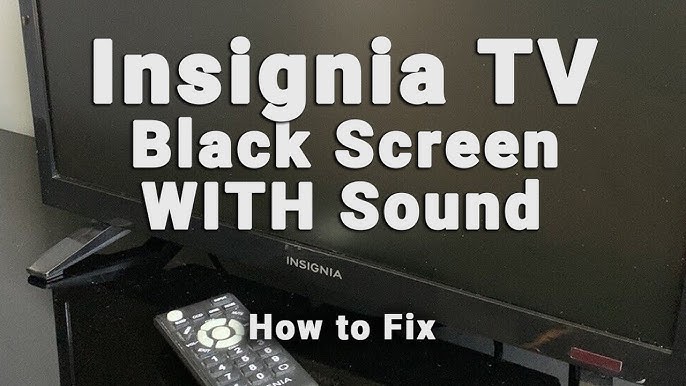
- No picture but sound plays. This can be a backlight or signal problem.
- No sound with picture. Often simple settings or speaker faults cause this.
- Apps crash or Wi‑Fi is slow. This points to software or network troubles.
- Remote control not working. Batteries or sync issues are common.
Understanding the cause helps you pick the right fix. Insignia Tv Troubleshooting is easier when you match problem signs to likely causes.

Basic Insignia Tv Troubleshooting Steps
Start here for quick wins. These steps solve many issues fast.
Step-by-step checklist:
- Unplug the TV for 60 seconds, then plug it back. This clears minor software glitches.
- Check the power cord and outlet. Try another outlet or device to confirm power.
- Confirm the correct input is selected. Use the Input or Source button on the remote.
- Test with a different HDMI cable and port. Faulty cables often mimic TV faults.
- Inspect the remote batteries and pair the remote again. Replace old batteries.
These basics fix most common problems. When a quick reset helps, you save time and effort.

Insignia Tv Troubleshooting for Specific Problems
Below are targeted fixes for frequent faults. Try them in order to avoid extra steps.
No power or TV won’t turn on:
- Check the power outlet with another device. Rule out the outlet first.
- Use the TV’s power button, not just the remote. This rules out remote issues.
- Look for a standby LED. A flashing LED may show an error code in the manual.
- If still dead, the internal power board or fuse may need a technician.
No picture but sound plays:
- Increase brightness and backlight settings. A low backlight hides the image.
- Shine a flashlight close to the screen. If you see a faint image, the backlight is out.
- Test a different input and cable to rule out the source device.
- If the screen is black after a drop, the panel may be damaged.
No sound with picture:
- Check volume and mute. Simple but often missed.
- Try headphones or external speakers to isolate speaker failure.
- Reset audio settings to default. Wrong audio output can mute TV speakers.
Apps not working or smart features fail:
- Restart the TV and router. Reboot both devices for a fresh network link.
- Update the TV software in Settings. Outdated firmware breaks app compatibility.
- Clear app cache or reinstall problem apps if the TV allows it.
Remote control problems:
- Replace or reposition batteries. Ensure proper polarity.
- Re-pair the remote if it uses Bluetooth. Follow the on-screen pairing steps.
- Test the remote with a smartphone camera for IR remotes. The camera shows IR light when buttons are pressed.
These targeted fixes cover most real-world scenarios I’ve handled. They are simple and practical.

Advanced Insignia Tv Troubleshooting Techniques
When basic steps fail, try deeper diagnostics. These methods need care and some tech confidence.
Factory reset:
- Use the Settings menu to reset to factory defaults. This removes custom settings and apps.
- Back up any account info if possible. You will sign back into streaming apps afterward.
Inspect internal hardware:
- Only do this if you are comfortable and the TV is out of warranty. Unplug first.
- Look for bulging capacitors on the power board. Replace only if you have electronics skills.
- Check for loose ribbon cables behind the panel. Reseating connectors can restore function.
Software flash or reinstall:
- Advanced users can reinstall firmware if the TV supports it. Follow exact manufacturer steps.
- Use a USB drive with the correct firmware file. Errors here can brick the TV, so proceed carefully.
When to call a professional:
- Panel cracks, severe electrical smells, or repeated power board failures require a certified repair.
- If the TV is under warranty, contact support before opening the case.
I once repaired an Insignia that showed lines across the screen. A loose ribbon cable caused it. Reseating the cable fixed the issue in ten minutes. These advanced tips saved me a replacement cost.

Maintenance and Prevention for Reliable Performance
Good habits reduce the need for Insignia Tv Troubleshooting. Small steps keep the TV healthy.
Routine maintenance tips:
- Keep firmware updated. New updates fix bugs and improve stability.
- Use a surge protector. Power spikes can damage internal boards.
- Clean vents and keep the TV cool. Overheating shortens component life.
- Avoid extreme brightness for long periods. It stresses the backlight and panel.
- Reboot monthly. A simple restart clears memory and logs.
I learned to plug TVs into surge protectors after a storm fried two sets in a neighborhood. Prevention is cheap and effective.
People Also Ask — Quick Answers
What should I try first when my Insignia TV won’t turn on?
- Unplug the TV for one minute and plug it back. Check the wall outlet and the TV power button.
How do I fix Insignia TV apps that freeze?
- Restart the TV and router. Update the TV firmware and reinstall the app if possible.
Can a power surge permanently damage an Insignia TV?
- Yes. Power surges can damage power boards and panels, so use a surge protector to prevent this.

Source: reddit.com
Frequently Asked Questions of Insignia Tv Troubleshooting
Why does my Insignia TV show a black screen but has sound?
This usually means the backlight or panel is failing. Test with a flashlight and try a different input and cable before calling repair.
How do I reset my Insignia TV to factory settings?
Go to Settings, then System, then Reset. Confirm the reset and follow on-screen steps; you will need to sign into apps again.
My Insignia TV remote won’t work. What now?
Replace batteries and try the TV power button. If it’s a Bluetooth remote, re-pair it using on-screen prompts.
Why are streaming apps slow on my Insignia TV?
Slow apps point to network or firmware issues. Restart the router, update TV software, and consider a wired Ethernet connection.
Is it worth repairing an Insignia TV with a cracked screen?
Screen repairs often cost more than replacement for budget TVs. Compare repair quotes with buying a new set before deciding.
How can I tell if my Insignia TV has a firmware update available?
Go to Settings and check System or About. The TV will often show update options if a new firmware exists.
What safety steps should I take before opening my Insignia TV?
Unplug the TV and wait several minutes. Work in a clean area and avoid touching capacitors and the power board unless you have training.
Conclusion
Insignia Tv Troubleshooting is mostly about clear steps and patient checks. Start with simple resets, check power and cables, and move to targeted fixes for sound, picture, or smart features. Use a surge protector, update firmware, and perform light maintenance to avoid many problems. If complex hardware faults appear, seek a certified technician or check warranty options. Try the tips here, leave a comment with your issue, or subscribe for more hands-on guides.

