

Most Verizon router issues fix with a power cycle, firmware check, or simple settings tweak.
I have spent years troubleshooting home networks for friends and clients. I know Verizon Router Troubleshooting inside out. This guide will walk you through easy fixes and deeper diagnostics. You will learn steps I use daily. Expect clear instructions, real tips, and fast wins to get your home online again.

36% off Today’s Exclusive Deals
Limited-time Exclusive Deals. Check current discount on Amazon.
Check Price on Amazon As an Amazon Associate I earn from qualifying purchases.
Why Verizon Router Stops Working
Routers fail for many small reasons. Power issues, firmware bugs, signal interference, and service outages are common. Sometimes the problem is the modem, the ONT, or a bad cable. Other times client devices cause slowdowns or Wi‑Fi drops.
Understanding these causes helps you fix the issue fast. This guide covers each likely cause and shows how to test and fix it. Use these steps for effective Verizon Router Troubleshooting.
Quick Verizon Router Troubleshooting Checklist
Start here for quick fixes. Use this list before deep diagnostics.
- Restart the router and modem. Wait 60 seconds before powering back on.
- Check status lights on the router and ONT. Look for red or blinking error lights.
- Verify service status on your Verizon account or outage map.
- Inspect cables for damage and tight connections. Replace suspect coax, Ethernet, or fiber cables.
- Reboot the client device and forget/rejoin the Wi‑Fi network.
- Update router firmware via the router portal or My Verizon app.
- Move the router to a central, open spot away from metal and microwaves.
If those steps fail, continue with full Verizon Router Troubleshooting below.

Step-by-Step Verizon Router Troubleshooting Guide
Follow this ordered approach. Work from simple to advanced.
-
Power cycle everything
-
Unplug the router and any modem or ONT.
-
Wait 60 seconds.
-
Plug the ONT or modem back in first. Wait for lights to stabilize.
-
Plug the router back in and wait two minutes.
-
Check service and lights
- Visit your Verizon account or app to see outage notices.
- Look at router LEDs: power, internet/WAN, Wi‑Fi, and WAN link. Different colors show status.
- Confirm device connection and IP
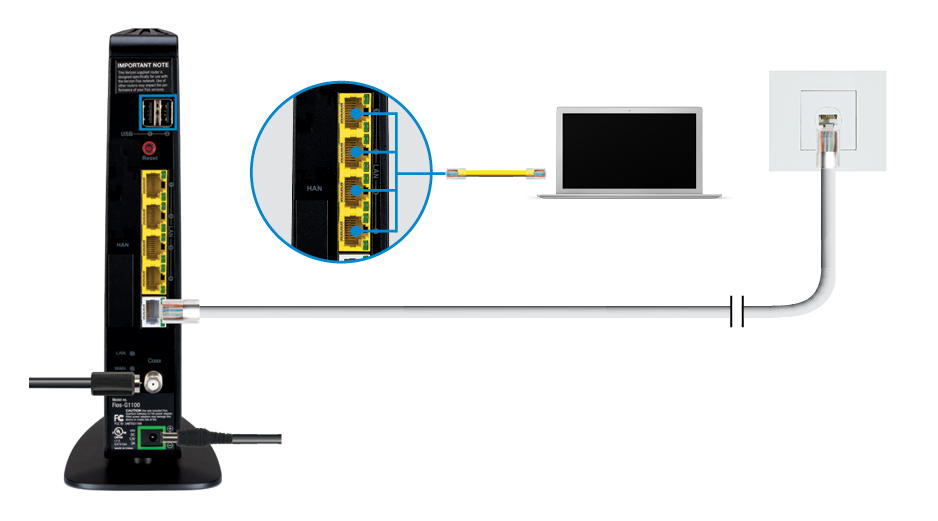
- Connect a laptop by Ethernet to rule out Wi‑Fi issues.
- Open a browser to 192.168.1.1 or the router’s admin URL. Log in using your credentials.
- Check WAN IP and DHCP status to confirm the router has a public IP.
- Update firmware and reboot
- In the admin portal, check for firmware updates and install them.
- Apply updates during low-usage hours. Reboot after updating.
- Reset network settings (soft reset)
- Change Wi‑Fi name and password to force devices to reconnect.
- Disable guest networks temporarily.
- Turn off QoS or custom firewall rules to test baseline behavior.
- Factory reset (only if needed)
- Use a paperclip to press and hold the reset button for about 15 seconds.
- Reconfigure Wi‑Fi and admin credentials after reset. Back up settings before doing this.
- Test with a different router or modem
- If possible, swap in a known-good router.
- If the issue persists on a replacement, the problem may be on Verizon’s side or with the ONT.
My note from experience: a single firmware update once fixed random disconnections that no other step did. Keep firmware current. Use this structured Verizon Router Troubleshooting plan to save time.

Improve Wi‑Fi Performance and Coverage
Better coverage solves many “slow” complaints. Try these practical fixes.
- Move the router to a higher, central spot. Avoid closets and floors.
- Place the router away from cordless phones, microwaves, and thick walls.
- Use 5 GHz for close devices and 2.4 GHz for range. Enable band steering if supported.
- Change Wi‑Fi channels to avoid neighbors. Use channels 1, 6, or 11 on 2.4 GHz.
- Add a mesh system or Wi‑Fi extender for large homes. Keep the same SSID for seamless roaming.
- Limit smart home devices on a single band to avoid congestion.
I once solved a complaint about a dead room by moving the router 8 feet and changing the channel. The speed doubled for that space. These simple moves help with Verizon Router Troubleshooting for most homes.

Advanced Diagnostics and Router Settings
When basic steps fail, dive deeper.
- Check logs in the router admin page for repeated errors or reboots.
- Look at DHCP leases to find devices causing traffic spikes.
- Run speed tests over Ethernet and Wi‑Fi to compare results.
- Test DNS settings: try Google DNS (8.8.8.8) or Cloudflare (1.1.1.1) to rule out name resolution issues.
- Disable IPv6 temporarily to test compatibility problems.
- Use QoS to prioritize video calls, gaming, or work traffic when needed.
- Inspect NAT type and port forwarding for gaming or remote access services.
If you see repeated modem sync loss or no WAN IP, the issue may be physical or with Verizon provisioning. Log findings and timestamps; these help tech support diagnose the problem. Advanced Verizon Router Troubleshooting often requires evidence to escalate.

When to Contact Verizon or Replace Your Router
Know when to escalate.
- Contact Verizon Support if the ONT or WAN link shows errors after basic tests.
- Schedule a tech visit if fiber or line damage is suspected.
- Request a replacement router if the device reboots randomly or fails factory reset tests.
- Replace aging or low‑spec routers for better Wi‑Fi performance in crowded homes.
- Ask about warranty or replacement options through your Verizon plan.
I recommend documenting test steps and times before calling support. This speeds up resolution. Use the term Verizon Router Troubleshooting when you explain steps you already tried. It helps the agent pick up the issue faster.

Frequently Asked Questions of Verizon Router Troubleshooting
What is the first thing I should try when my Verizon router is down?
Always power cycle the router and modem or ONT first. Wait about 60 seconds between unplugging and replugging devices.
How do I check if Verizon has an outage in my area?
Log into your Verizon account or use the My Verizon app to view service alerts. You can also check the outage map on the provider’s support portal.
Will a factory reset fix my Verizon router problems?
A factory reset can clear software errors and bad settings. Only use it after backing up settings, since it erases custom configurations.
How can I access my Verizon router settings?
Connect by Ethernet or Wi‑Fi and open the router’s admin URL, often 192.168.1.1 or via the My Verizon app. Use your admin username and password to log in.
When should I replace my Verizon router?
Replace it if it randomly reboots, won’t receive firmware updates, or cannot handle your home’s device load. Newer routers offer better Wi‑Fi and security.
Can changing Wi‑Fi channels improve performance?
Yes. Switching to less busy channels reduces interference and can increase speeds, especially on 2.4 GHz networks.
Is it better to use a mesh system with Verizon service?
For large homes, mesh systems usually provide more consistent coverage than a single router. You can use them with Verizon modem/router setups for better range.
Conclusion
You now have a clear Verizon Router Troubleshooting plan. Start with power cycles and checks. Move to firmware updates, settings changes, and simple placement fixes. Use logs and tests for tougher problems. If needed, contact Verizon with notes on what you tried.
Take action now: try the quick checklist, run the step‑by‑step guide, and share your results. If this helped, subscribe for more troubleshooting tips or leave a comment with your issue.

