

Most POS problems clear up with quick checks: power, network, printer, or software resets.
I have spent years supporting retail and hospitality systems and have fixed hundreds of terminal failures. This guide on Pos System Troubleshooting explains what goes wrong, why it happens, and exactly how to fix it step by step. You will get clear checks, real examples, and practical tips I learned on the job so you can restore service fast and avoid repeat issues. Read on to gain confidence and reduce downtime with proven Pos System Troubleshooting methods.

36% off Today’s Exclusive Deals
Limited-time Exclusive Deals. Check current discount on Amazon.
Check Price on Amazon As an Amazon Associate I earn from qualifying purchases.
Understanding Pos System Troubleshooting
Pos System Troubleshooting means finding and fixing faults that stop a point-of-sale system from working. It covers hardware, software, networks, and human errors. Good troubleshooting saves time and reduces lost sales.
Why it matters
- Small errors can block checkouts and frustrate customers.
- Fast fixes protect revenue and reputation.
- Preventive troubleshooting reduces emergency calls.
Common root causes
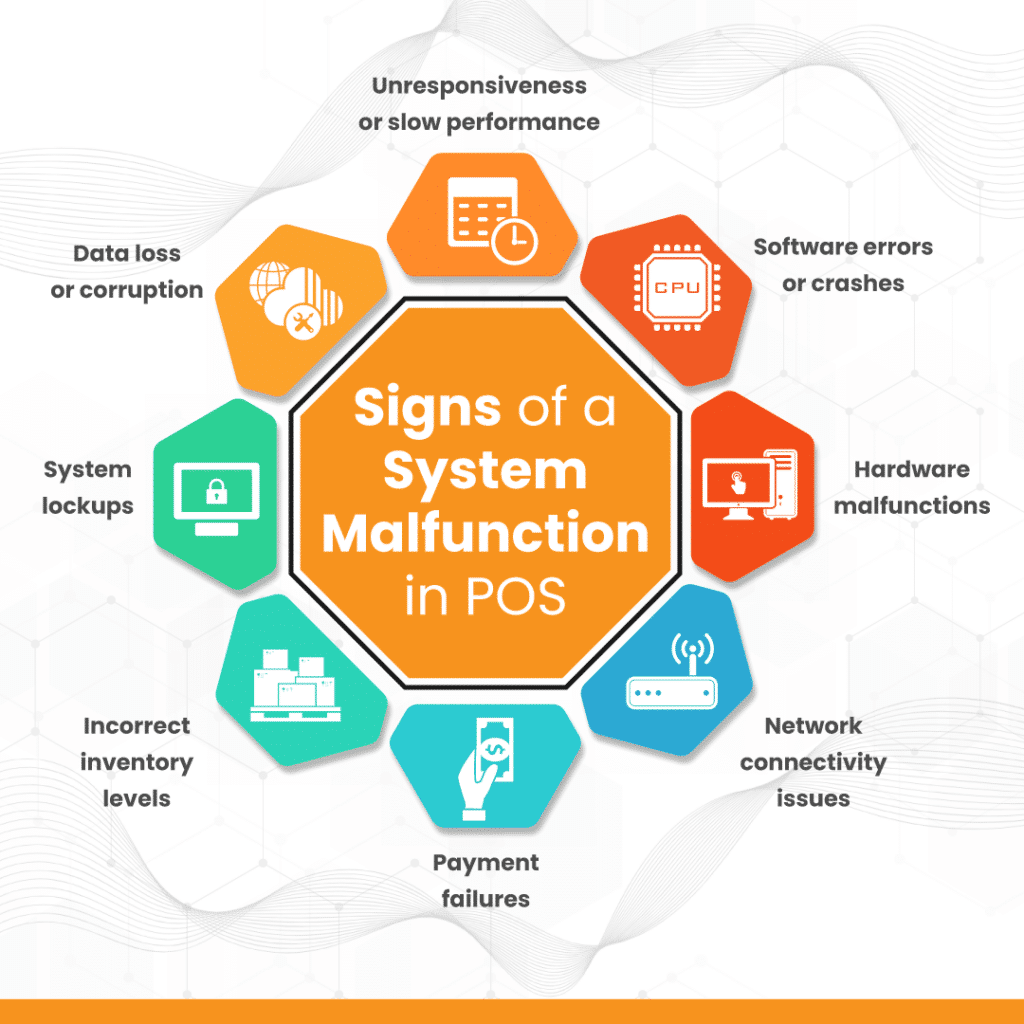
- Power problems like loose plugs or dead backup batteries.
- Network failures: Wi-Fi drop, DHCP issues, or firewall blocks.
- Hardware faults: printer jams, card reader misalignment, or worn cables.
- Software issues: outdated drivers, failed updates, or corrupted databases.
How I approach a problem
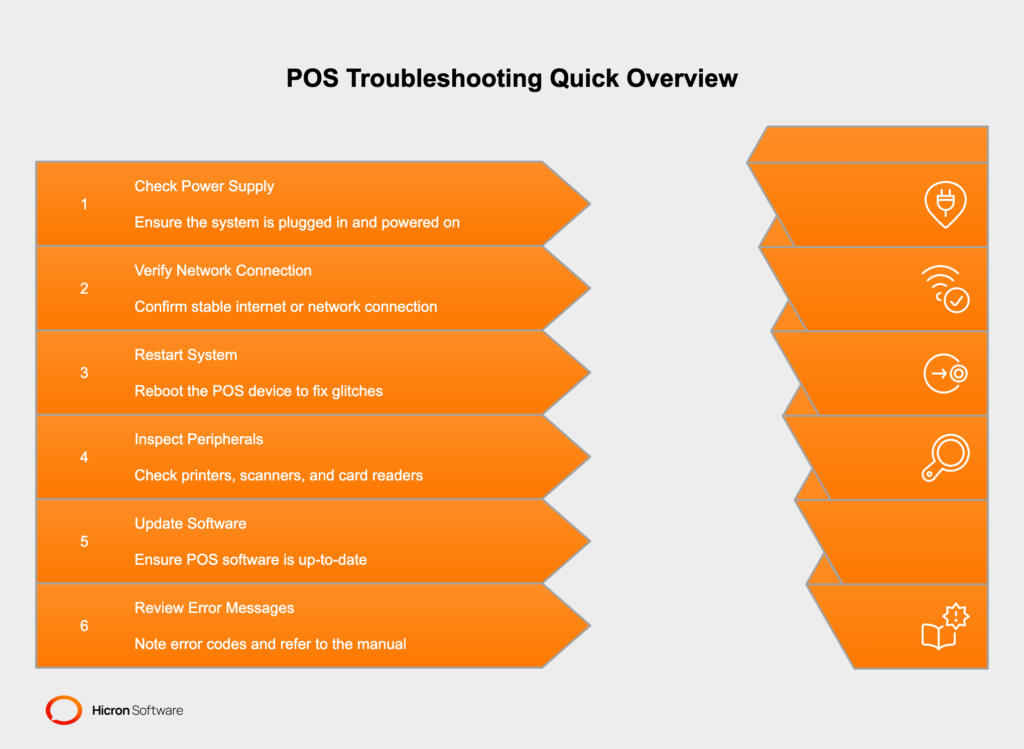
- I start with the basics: power, connections, and restart.
- I then isolate: is it one terminal or all terminals?
- I use logs and vendor tools only after the quick checks. This keeps fixes fast.
Source: koronapos.com
Common Pos System Troubleshooting Problems and Step-by-Step Fixes
This section lists frequent issues and clear fixes you can try now. Each fix is short and practical.
Power and boot failures
- Symptom: Terminal won’t power on or reboots randomly.
- Fix steps:
- Check power cable and outlet with another device.
- Inspect adapter LED and replace if worn.
- Test UPS or battery backup and swap if needed.
- Boot into safe mode or recovery to check system errors.
Network and connectivity issues
- Symptom: Card declines, cloud sync fails, or slow response.
- Fix steps:
- Ping your POS server and gateway to confirm reachability.
- Restart the router and switch serving terminals.
- Verify IP lease and DNS settings on the terminal.
- Temporarily connect via Ethernet to rule out Wi‑Fi problems.
Receipt printer and peripheral faults
- Symptom: No receipts, partial prints, or repeated paper jams.
- Fix steps:
- Confirm paper roll and correct loading direction.
- Clean the print head and cutter area.
- Replace cables and test another USB or serial port.
- Update or reinstall the printer driver.
Card reader and payment failures
- Symptom: Chip or swipe declines, EMV errors, or timeouts.
- Fix steps:
- Ensure the terminal’s time and date match the payment gateway.
- Reboot the payment module and retry a test transaction.
- Re-key the merchant account or reinitialize the device per vendor.
- Move to a backup terminal to isolate hardware faults.
Software crashes and data errors
- Symptom: App freezes, error codes, or mismatched totals.
- Fix steps:
- Force close and reopen the POS app; check for pending updates.
- Verify database integrity and run built-in repair tools.
- Restore the latest verified backup if corruption exists.
- Contact support with logs if the issue persists.
Performance and slow checkout
- Symptom: Lag when scanning items or saving transactions.
- Fix steps:
- Check CPU and memory use on the terminal.
- Clear temporary files and restart services.
- Move heavy tasks (like batch reports) to off-peak hours.
- Upgrade hardware if usage regularly hits limits.
Sync and cloud problems
- Symptom: Stock and sales not matching central reports.
- Fix steps:
- Check internet stability and retry the sync.
- Confirm API credentials and permissions.
- Force a manual sync and watch for specific error messages.
- Reconcile differences and apply fixes on the master dataset.
Source: amarsolution.com
People also ask (PAA) — Quick answers
How do I reset a POS terminal safely?
Power down the terminal, disconnect power for 10 seconds, then restart. If issues persist, follow a soft reset via the settings menu before a factory reset.
Why do my card transactions time out at peak hours?
Timeouts often stem from network congestion or gateway throttling. Improve bandwidth or set up a failover connection to reduce timeouts.
Can a software update break my POS?
Yes, poorly installed updates can cause crashes or compatibility issues. Always test updates on a spare terminal and back up data first.
Preventive Maintenance and Best Practices for Pos System Troubleshooting
Preventive steps reduce the need for emergency troubleshooting. These practices save hours and money.
Daily checks
- Confirm terminal clocks and receipts print correctly.
- Test one card payment at open to verify processor status.
- Walk the sales floor for visible cable or hardware wear.
Weekly maintenance
- Update software and firmware after business hours.
- Clean barcode scanners, printers, and card readers.
- Review logs for repeated warnings or failed jobs.
Monthly and quarterly tasks
- Verify backups and run restore tests on a spare system.
- Check UPS battery health and replace if capacity drops.
- Review user permissions and security patches.
Training and documentation
- Create a one‑page checklist for staff to run at opening.
- Train frontline staff to do basic Pos System Troubleshooting steps.
- Keep contact info for vendor support and escalation paths handy.
Security hygiene
- Use strong admin passwords and role-based access.
- Keep payment software PCI-compliant and patched.
- Monitor for unusual access patterns and investigate promptly.
Source: hicronsoftware.com
Tools and Resources for Pos System Troubleshooting
Good tools make troubleshooting fast and reliable. Use vendor tools and general diagnostics.
Diagnostic tools
- Terminal logs and app debug mode.
- Network tools: ping, traceroute, and speed tests.
- Device manager and driver utilities.
Remote support and monitoring
- Remote access software to view logs and control terminals.
- RMM (Remote Monitoring and Management) tools to watch uptime.
- Automated alerts for crashes, disk usage, and failed backups.
Documentation and vendor support
- Keep vendor manuals and firmware notes in a shared folder.
- Use a ticketing system to track recurring Pos System Troubleshooting issues.
- Maintain a vendor escalation list with contact and SLA details.

Source: youtube.com
Real-Life Case Studies and Personal Experience
I once handled a busy café where card declines spiked each morning. The root cause was timed backups that saturated the small office Wi‑Fi. We rescheduled backups and added a cheap second access point. Sales normalized within 24 hours and staff learned the power of simple isolation checks.
Another time, a hotel’s kiosk printer repeatedly jammed. Cleaning and replacing the cheap thermal roll solved nothing. A worn cutter was the culprit. Replacing the part prevented daily jams and saved hours in lost labor.
Lessons learned
- Start simple: most fixes are basic checks.
- Document fixes so the team can repeat them.
- Test changes during off-peak hours to avoid impact.

Source: rezku.com
Frequently Asked Questions of Pos System Troubleshooting
What is the first thing to check when a POS stops working?
Start with power and network. Make sure the terminal has power, then check connectivity to your server or cloud.
How often should I update POS software?
Apply critical security updates immediately and schedule feature updates after testing, typically monthly or quarterly depending on your vendor.
Can peripheral failures cause system-wide crashes?
Yes. A faulty printer or USB device can block POS operations. Disconnect peripherals to test if the system stabilizes.
Is remote troubleshooting safe for payments?
Remote troubleshooting is safe if you use encrypted, vendor-approved tools and follow compliance rules to protect cardholder data.
How do I reduce POS downtime during peak hours?
Use redundancy: an extra terminal, backup internet link, and scheduled maintenance off-hours. Train staff on manual fallback steps.
Conclusion
Pos System Troubleshooting is about methodical checks, smart tools, and steady preparation. Keep a short checklist, train staff on basic fixes, and use backups and monitoring to stop small issues from growing. Start today by creating a simple opening checklist and scheduling routine updates. Share your experience or questions below, subscribe for more guides, or try one troubleshooting step this week to lower your downtime.

