

Most Liftmaster Myq issues are fixable by checking power, Wi‑Fi, app updates, and simple resets.
I have spent years installing and repairing smart garage systems, and I know how frustrating Liftmaster Myq Troubleshooting can feel. This guide walks you through causes, clear fixes, and step‑by‑step checks so you can solve common MyQ problems fast. You will get practical tips, real‑world lessons from my installs, and easy troubleshooting sequences you can follow right now.

36% off Today’s Exclusive Deals
Limited-time Exclusive Deals. Check current discount on Amazon.
Check Price on Amazon As an Amazon Associate I earn from qualifying purchases.
How Liftmaster Myq Works
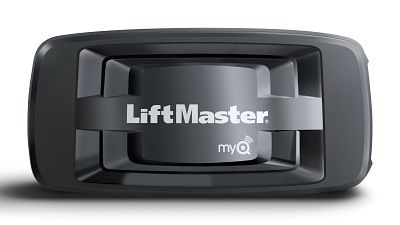
Liftmaster Myq links your garage door opener to the internet via a MyQ‑compatible hub or the opener's built‑in Wi‑Fi. The app talks to the opener to open, close, and show status. Understanding the parts helps troubleshoot: the opener, Wi‑Fi, MyQ app, sensors, and power.
Common Problems and What They Mean
Here are frequent faults you will see during Liftmaster Myq Troubleshooting and what they usually indicate.
- App cannot find the opener — likely network or account issue.
- Opener shows offline in app — Wi‑Fi or hub lost connection.
- Door won’t respond to app commands — sensor or motor failure may exist.
- Status wrong (shows open when closed) — sensor misalignment or a firmware bug.
- Repeated disconnections — weak Wi‑Fi, interference, or router settings.
Step‑By‑Step Troubleshooting Guide
Follow this ordered checklist for effective Liftmaster Myq Troubleshooting.
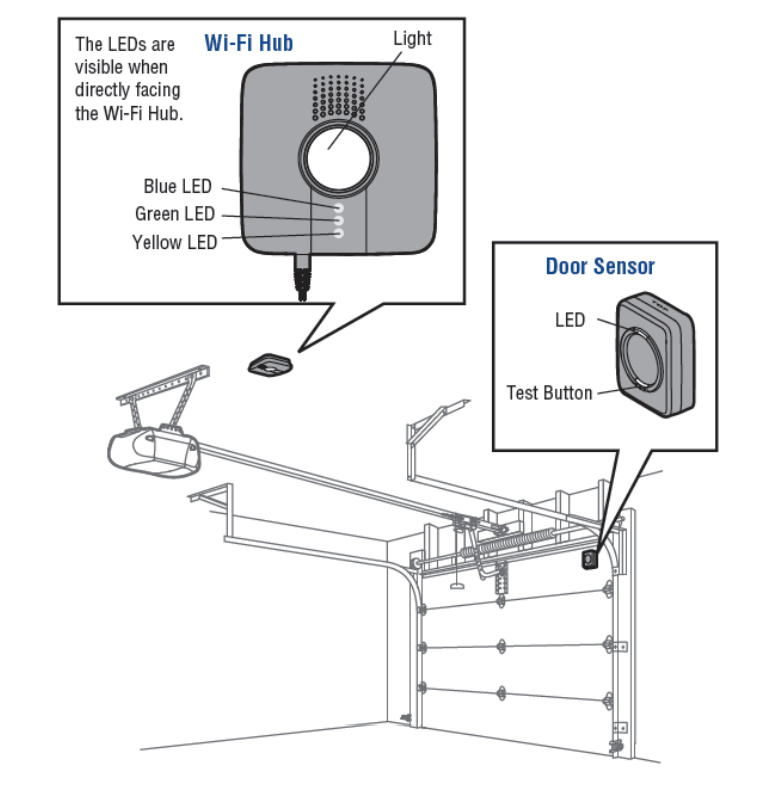
- Check power and lights on the opener. Make sure the opener is plugged in and LED lights are normal. If lights are off, check the breaker and outlet.
- Verify the MyQ app and account. Sign out and sign back in. Update the app and confirm the account email matches the opener registration.
- Confirm Wi‑Fi signal and network name. Use a phone in the garage to check signal strength and that the router broadcasts 2.4 GHz if required.
- Restart devices in this order: opener, Wi‑Fi router, MyQ hub (if present). Wait 30 seconds between reboots.
- Inspect safety sensors and wiring. Clean lenses and ensure sensors are aligned and show steady LEDs.
- Use the opener’s learn/program button to re‑link if needed. Follow the manual steps to pair the MyQ device again.

Connectivity Issues and Solutions
Connectivity is the top cause during Liftmaster Myq Troubleshooting. Focus on Wi‑Fi basics first.
- Check 2.4 GHz vs 5 GHz. Many MyQ modules need 2.4 GHz. Set your router to allow 2.4 GHz or create a guest network.
- Move the router or add a Wi‑Fi extender. A small move can improve signal inside the garage.
- Disable AP isolation and firewall rules that block local devices. Some routers block device discovery by default.
- Ensure the MyQ device has an IP address. Use your router’s device list to confirm.
App and Account Issues
App errors often look like hardware faults but are software related.
- Update the app and the phone OS. An old app can fail authentication or push commands incorrectly.
- Remove and re‑add the opener in the MyQ app. This clears stale settings.
- Check account permissions if multiple users are sharing access. Remove and re‑invite users if needed.
- Verify the MyQ service status. Occasionally cloud outages disrupt control; wait and retry if a service alert exists.

Hardware and Power Problems
Not all failures are software. In my early installs, I saw many cases where simple hardware checks solved the issue.
- Inspect the opener battery and backup if applicable. A failing battery can cause odd behavior.
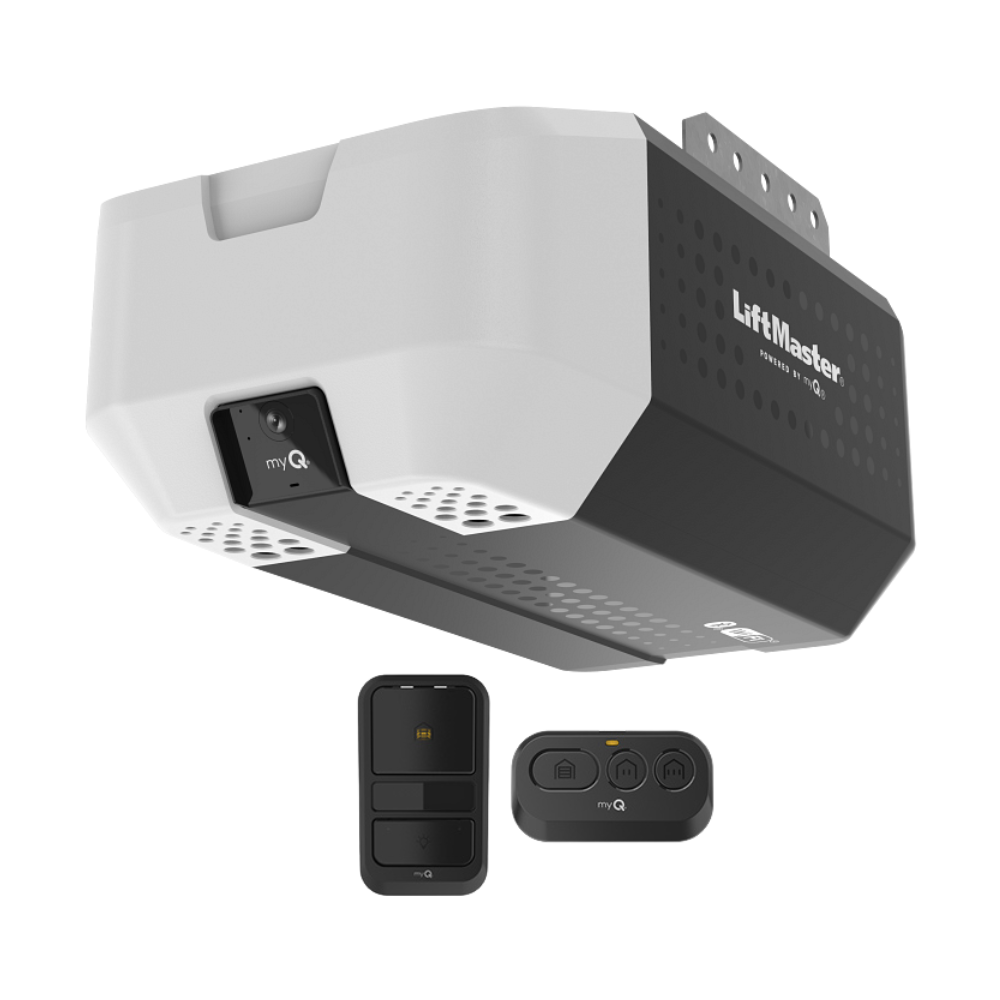
- Test wall and remote controls. If the wall switch works but the app does not, it narrows the problem to connectivity.
- Check for loose wires at the motor, sensors, and the MyQ module. Tight, corrosion‑free connections matter.
- Observe opener motor sounds. Grinding or weak movement may mean mechanical stress or a worn belt/chain.
Advanced Troubleshooting and Reset Procedures
When basics fail, take careful advanced steps. Back up any settings and note device names before resets.
- Soft reset the MyQ module first. Often this clears faults and keeps user data intact.
- Factory reset the opener only if other steps fail. This removes all custom settings and requires reprogramming remotes.
- Check firmware versions. Update opener firmware through the app if an update is available.
- Use diagnostic LED codes on the opener. Consult the manual for specific blink patterns that point to sensors, logic board, or motor issues.
Tips for Prevention and Maintenance
Routine care reduces the need for Liftmaster Myq Troubleshooting later.
- Keep sensors clean and aligned. Inspect them monthly.
- Test remote, wall switch, and app control monthly. Catch issues early.
- Keep firmware and app updated. Enable automatic updates where possible.
- Keep a printed quick‑start for reset and learn buttons. It saves time in emergencies.
- Secure your Wi‑Fi network and use strong passwords to prevent unauthorized access.
People Also Ask (PAA) — Quick Questions
Why does MyQ say my opener is offline?
A weak Wi‑Fi signal, router change, or power outage usually causes offline status. Restart the router and MyQ module, then verify 2.4 GHz connectivity.
How do I reset the MyQ module?
Perform a soft reset by unplugging power for 30 seconds or following the module’s reset steps in the manual. Use factory reset only if problems persist.
Can MyQ work with any Wi‑Fi router?
Most routers work but 2.4 GHz support and local network device discovery are needed. Some mesh systems require specific settings or placement for reliability.
Frequently Asked Questions of Liftmaster Myq Troubleshooting
What should I do if the MyQ app won’t load my garage?
Restart the phone and update the app. If the app still fails, sign out and sign back in and check for account issues.
How do I fix a MyQ device that disconnects randomly?
Check Wi‑Fi signal and interference from other devices. Move router or add an extender and update firmware.
Why does MyQ show the wrong door status?
Misaligned sensors or a firmware bug often cause false status. Clean sensors, realign them, and restart the system.
Is it safe to factory reset my opener?
Yes, but factory reset removes all customized settings and remote pairings. Reprogram remotes and MyQ after resetting.
When should I call a technician for MyQ problems?
Call a pro if you hear unusual motor noises, see mechanical failure, or if wiring issues exist. For complex controller or logic board faults, expert help is safer.
Conclusion
Liftmaster Myq Troubleshooting becomes simple when you follow a clear checklist: confirm power, check Wi‑Fi, update app and firmware, inspect sensors, and use orderly resets. My hands‑on experience shows that most issues are solved with basic checks and careful resets. Try the steps today, keep a maintenance habit, and you will cut future problems. If you found this guide helpful, leave a comment, subscribe for updates, or share your MyQ problem for personalized advice.

