

If you use a Brother label maker, you know how useful these compact devices can be for organizing, labeling, and streamlining your workspace. From labeling folders at the office to marking containers at home, they make daily tasks easier. But like any device, a Brother label maker can sometimes stop working as expected. When this happens, it can be frustrating—especially if you’re in a hurry. The good news is, most problems have simple solutions. This guide will help you troubleshoot the most common issues, save time, and keep your label maker running smoothly.
Understanding Your Brother Label Maker
Before jumping into troubleshooting, it’s important to know the basic parts of a Brother label maker. Most models, whether handheld or desktop, have similar components:

36% off Today’s Exclusive Deals
Limited-time Exclusive Deals. Check current discount on Amazon.
Check Price on Amazon As an Amazon Associate I earn from qualifying purchases.- LCD display: Shows text and menu options.
- QWERTY keyboard: Used to type labels.
- Tape cassette compartment: Where you insert the label tape.
- Cutter lever: Cuts the label after printing.
- Power supply: Batteries or an AC adapter.
A clear understanding of these parts helps you find problems quickly. For example, if the display is blank, you’ll know to check power before looking elsewhere.
Common Brother Label Maker Problems And Solutions
Brother label makers are reliable, but issues can happen. Here are the most frequent problems and how to fix them.
1. Label Maker Will Not Turn On
The device may fail to power up. This is often caused by battery issues or problems with the power adapter.
- Check batteries: Make sure they are fresh and inserted correctly. Weak or old batteries are a top reason for power failures.
- Try an adapter: If your model supports it, use an AC adapter to see if the problem is with the batteries.
- Clean battery contacts: Dust or corrosion can stop power flow. Gently clean with a cotton swab.
- Reset the machine: Some models have a reset button or a combination of keys for a soft reset.
2. Tape Jam Or Tape Not Advancing
A tape jam can stop printing or cause blank labels.
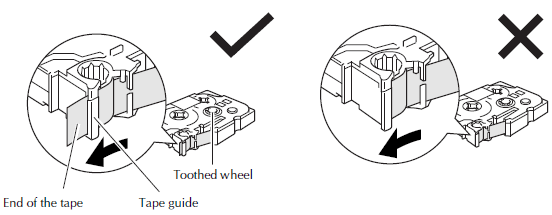
- Remove the cassette: Open the compartment and carefully pull out the tape.
- Check for obstructions: Small pieces of label or adhesive can block the tape path.
- Reinsert correctly: Make sure the tape cassette clicks into place.
- Use the correct tape type: Using non-Brother or incompatible tape can cause jams.
3. Poor Print Quality
If your labels look faded or have lines, the print head might be dirty or the tape could be old.
- Clean the print head: Use a soft, lint-free cloth with a little alcohol. Gently rub the print head.
- Replace old tape: Expired or dried tape can print poorly.
- Check battery level: Low batteries can reduce print quality.
4. Labels Not Cutting Properly
A dull or sticky cutter blade often causes this issue.
- Clean the cutter: Wipe off any adhesive with a dry cloth.
- Press firmly: Make sure you’re pushing the cutter lever all the way down.
- Replace the blade: Some models let you change the cutter if it’s worn out.
5. Error Messages
Error codes can be confusing. The most common ones are:
- “Tape End”: Tape cassette is empty or not installed correctly.
- “Cutter Error”: Cutter is jammed or blocked.
- “Battery Low”: Replace batteries soon.
Consult your user manual or the official Brother website for a full list of error messages.
Step-by-step Troubleshooting Guide
Let’s break down the solutions further so you can fix your Brother label maker with confidence.
Diagnosing Power Issues
- Remove all batteries and unplug the adapter.
- Wait 30 seconds, then reinsert new batteries or plug in the adapter.
- Try turning on the device. If it still doesn’t work, check the battery contacts for corrosion.
- If possible, test the adapter on another device to rule out adapter problems.
Fixing Tape Problems
- Open the tape compartment.
- Remove the tape cassette.
- Check for loose pieces of label or sticky residue.
- Rewind the tape slightly and reinsert it.
- Close the compartment securely and try printing again.
Improving Print Quality
- Power off the label maker.
- Open the tape compartment.
- Locate the print head (usually a thin metal bar).
- Use a soft cloth with alcohol to gently clean it.
- Allow it to dry before reinserting the tape.
Solving Cutting Issues
- Check for label pieces stuck in the cutter.
- Clean the blade gently.
- If the blade is dull, check your manual for replacement instructions.
Choosing The Right Tape And Accessories
Using the correct Brother tape and accessories is important for trouble-free operation. Brother label makers use TZ or TZe tapes, but not all tapes fit every model.
Here’s a quick comparison of popular tape types:
| Type | Width Options | Compatible Models | Features |
|---|---|---|---|
| TZe Tape | 3.5mm–36mm | Most new models | Laminated, durable, fade-resistant |
| TZ Tape | 6mm–24mm | Older models | Laminated, water-resistant |
| Non-laminated | 9mm–12mm | Budget models | Basic use, indoor only |
Pro tip: Always check your label maker’s manual for supported tape widths and types. Using the wrong tape can cause jams and poor print quality.

Updating Firmware And Software
Some Brother label makers, especially PC-connectable models, rely on software or firmware updates to fix bugs and add features.
- Connect to your computer: Use the USB cable provided.
- Download updates: Visit the official Brother support site and download the latest updates for your model.
- Follow instructions: Update carefully to avoid software errors.
Keeping your device updated helps avoid common errors and improves performance. Firmware updates also fix small bugs not listed in the manual.
When To Seek Professional Help
Most problems can be fixed at home. However, sometimes you may need expert help:
- Electrical issues: If you smell burning or see sparks, stop using the device and contact support.
- Physical damage: Cracked screens, broken buttons, or jammed mechanisms may need repair.
- Repeated errors: If the same problem returns after all troubleshooting steps, a technician can check for deeper issues.
Brother offers customer support and repair services. You can find your nearest service center on the official Brother support page.

Preventative Maintenance Tips
A little care keeps your label maker working longer. Here’s how to avoid future problems:
- Store in a dry place: Humidity can damage electronics and tape.
- Use fresh batteries: Remove them if you won’t use the device for a while.
- Clean regularly: Wipe dust from the outside and clean the print head every few months.
- Use genuine tape: Imitation tapes may save money but can cause jams or poor print quality.
Comparing Popular Brother Label Maker Models
Brother has a wide range of label makers. Here’s a quick comparison of three popular types:
| Model | Type | Features | Best For |
|---|---|---|---|
| PT-D210 | Handheld/Desktop | QWERTY keyboard, one-touch keys, 14 fonts | Home, office |
| PT-H110 | Handheld | Compact, 3 fonts, easy to carry | On-the-go labeling |
| PT-P710BT | PC/Mobile Connected | Bluetooth, app control, rechargeable | Tech-savvy users |
Choosing the right model for your needs can prevent many problems. For example, tech users may prefer Bluetooth models, while basic users might choose simple handheld devices.
Two Commonly Overlooked Issues
Many users miss these two simple but important factors:
- Environmental factors: Extreme heat, cold, or humidity can affect both the label maker and the tape. Store your device in a cool, dry place. Avoid leaving it in cars or near windows.
- Firmware mismatches: If you use a PC-connected label maker, make sure your software version matches your device firmware. Mismatches can cause crashes or failed prints.
What To Avoid When Troubleshooting
Some mistakes can make problems worse. Here’s what not to do:
- Don’t force jammed tape: Pulling too hard can break internal parts.
- Avoid non-Brother accessories: Cheap tapes or adapters can damage the machine.
- Don’t use water for cleaning: Moisture can short-circuit electronics.
Always follow the manual’s advice before trying new fixes.
Frequently Asked Questions
Why Does My Brother Label Maker Print Blank Labels?
This usually happens if the tape cassette is empty, inserted incorrectly, or the print head is dirty. Try a new tape and clean the print head gently with alcohol.
Can I Use Third-party Tapes In My Brother Label Maker?
While some third-party tapes may fit, they can cause jams or poor print quality. Brother recommends using official TZe or TZ tapes for best results.
How Do I Reset My Brother Label Maker?
Most models can be reset by turning off the device, removing the batteries (or unplugging it), waiting 30 seconds, and then reinstalling the power source. Check your manual for model-specific reset methods.
Why Is My Label Maker Printing Faded Or Uneven Text?
Faded text is usually caused by low batteries, old tape, or a dirty print head. Replace the batteries, try new tape, and clean the print head as needed.
Where Can I Find More Support For My Brother Label Maker?
You can visit the official Brother support page for manuals, troubleshooting guides, and contact information.
Keeping your Brother label maker in good shape is easy when you know the right steps. With these troubleshooting tips, you can solve most problems yourself and get back to labeling in no time. A little maintenance and the right supplies will keep your device reliable for years.

