

Most Brother printer issues are solvable with simple checks: power, connections, drivers, and supplies.
I have worked with dozens of Brother printers in offices and at home. This Brother Printer Troubleshooting Guide pulls together hands-on fixes and clear steps you can use now. Read on to learn how to diagnose errors, fix print quality, restore connectivity, and prevent repeat problems. You will get quick steps, deep tips, and easy checks that save time and money.

36% off Today’s Exclusive Deals
Limited-time Exclusive Deals. Check current discount on Amazon.
Check Price on Amazon As an Amazon Associate I earn from qualifying purchases.
Quick checklist for urgent fixes
Start with a short list. These checks fix most problems fast.
- Power cycle the printer. Turn it off. Wait 30 seconds. Turn it on again.
- Check cables and wireless. Ensure USB or Ethernet is snug. Confirm Wi‑Fi is stable.
- Confirm paper and supplies. Paper should fit and not be jammed. Ink or toner should show levels.
- Verify driver and firmware. Old drivers can cause many issues.
- Look at the LCD or status light. Error codes give fast clues.
I use this quick checklist before any deep troubleshooting. It often fixes the issue in under five minutes.

Diagnosing common error messages and fixes
The Brother Printer Troubleshooting Guide covers the most frequent error messages. Below are clear causes and fixes.
Paper jam or feed error
Cause: Paper misfeed, wrong paper size, or torn scrap inside.
Fix:
- Open covers and remove visible paper. Pull slowly to avoid tearing.
- Check rollers for debris. Clean with a soft, lint-free cloth.
- Reload paper correctly and test.
“No Toner” or “Ink Low” message
Cause: Cartridge not seated or depleted. Some models need a cartridge reset.
Fix:
- Reseat the cartridge until it clicks.
- Replace if empty. For toner, gently shake a new cartridge to distribute powder.
- Check drum unit life and replace if needed.
Printer offline or cannot connect
Cause: Network mismatch, wrong port, or driver issue.
Fix:
- On the printer, choose WLAN or network settings and confirm the SSID.
- Restart your router and printer.
- Reinstall the printer using the correct driver on your PC.
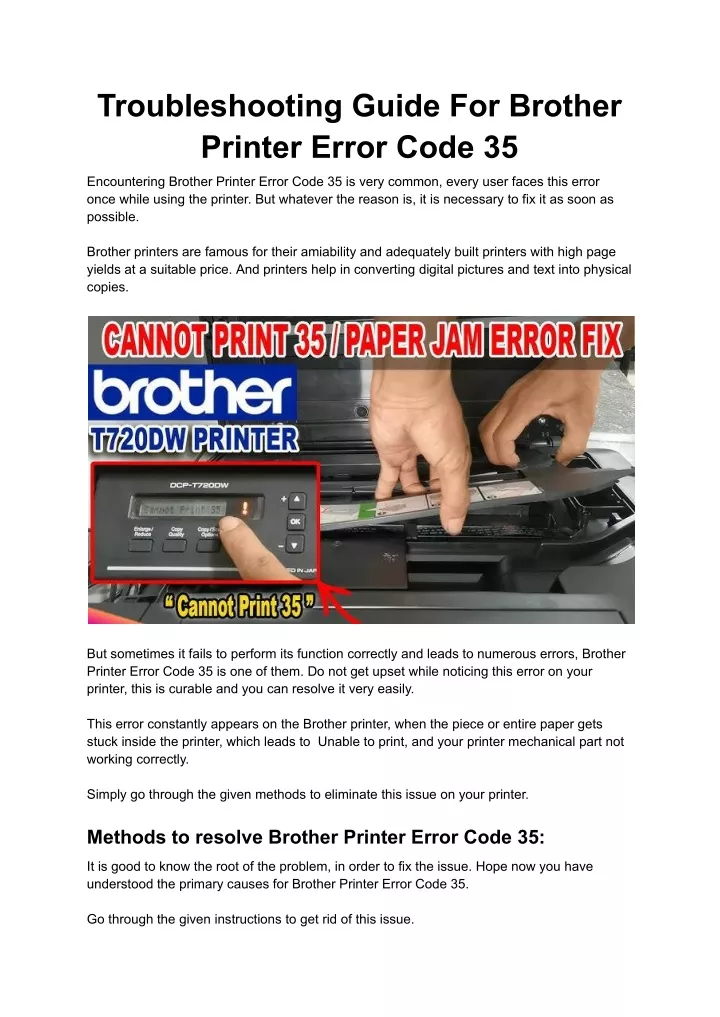
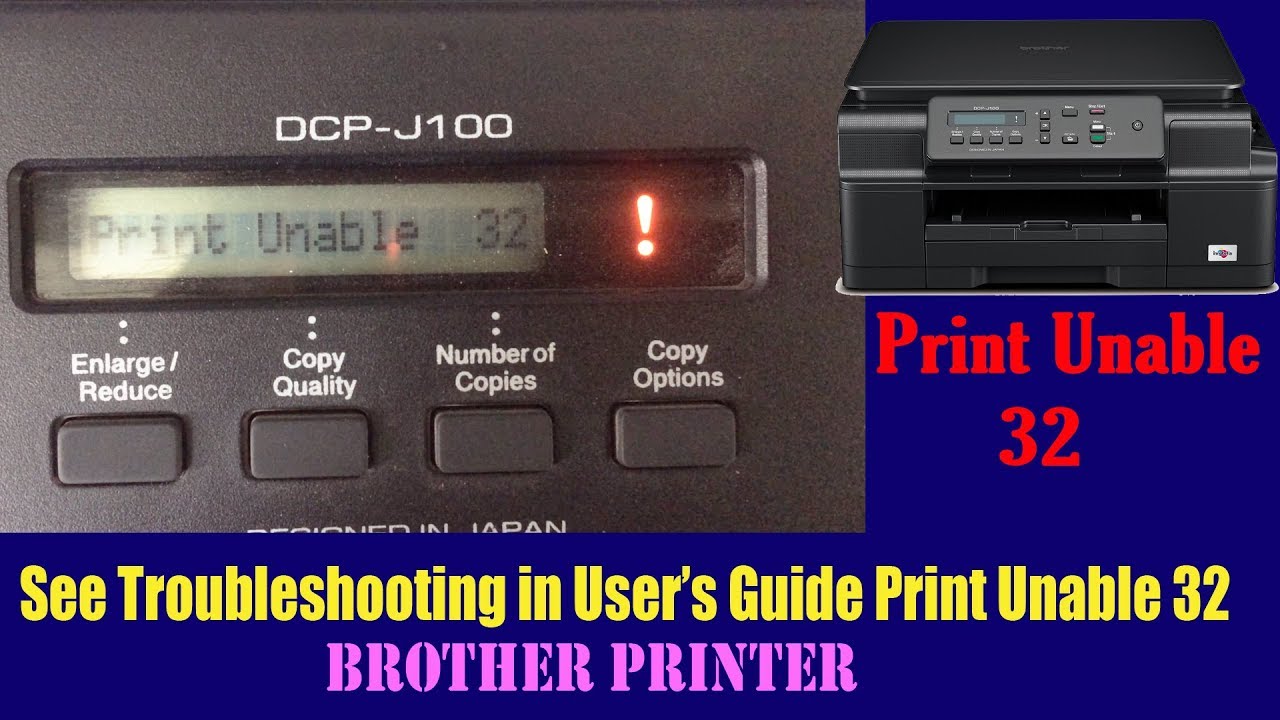
Error code display
Cause: Varied by code. Codes point to hardware, firmware, or consumable faults.
Fix:
- Note the exact code. Look it up in your manual or the Brother support pages.
- Many codes clear after a power cycle. If persistent, consider firmware update or service.
Paper size mismatch or tray error
Cause: Tray guides misaligned or wrong tray selected in print settings.
Fix:
- Adjust tray guides to fit paper snugly.
- In print settings, match paper size and source to the tray used.
These are the errors I see most often. I keep a small kit with spare paper, a replacement cartridge, and cleaning cloths. That saves repair calls.

Connectivity and driver solutions
Connectivity problems are common. This part of the Brother Printer Troubleshooting Guide shows how to restore printing fast.
- Check the basics first. Ensure the printer and computer are on the same network. Use the printer display to confirm IP address.
- Use the correct driver. Visit Brother’s support and install the recommended driver for your OS. Generic drivers often cause limited function.
- For wireless setup:
- Use WPS if supported. Press WPS on router then on the printer.
- Or run the Brother setup utility on your PC and follow the on-screen steps.
- For USB:
- Try a different USB port and cable.
- Turn off USB power saving on the computer if the printer disconnects.
- For network printing:
- Assign a static IP if your printer keeps losing connection.
- Confirm firewalls or VPNs are not blocking printer traffic.
If a driver reinstall fails, uninstall the existing driver first. Restart the computer. Then install the new driver. Small shops often overlook firmware updates. Updating firmware can fix odd bugs.

PAA-style quick questions
What if the printer shows “offline”?
- Restart the printer and PC. Check the network and set the printer as default.
How to find Brother printer IP?
- Use the network settings on the printer menu or print a network config page.
Why print jobs get stuck in queue?
- Clear the print queue on your computer, restart the print spooler service, and resend the job.
Source: slideserve.com
Print quality problems and consumables
Print quality issues are often simple to fix. This section explains causes and fixes.
- Faded prints or light text:
- Check ink levels or toner.
- Run a head cleaning cycle for inkjets.
- For lasers, check toner distribution and replace if old.
- Streaks or lines:
- Run nozzle check for inkjet heads.
- Clean the drum or replace it if scratched for laser printers.
- Smudging or smearing:
- Allow ink to dry. Use the right paper type for ink.
- For lasers, let pages cool before stacking.
- Color misalignment or banding:
- Run alignment and calibration from the printer menu.
- Ensure paper type matches the profile in print settings.
I once fixed repeated streaking by cleaning the scanner glass and roller. The issue disappeared after one deep clean. Small maintenance saves big headaches.
Hardware and mechanical issues
When the printer makes noise or repeatedly jams, check these items.
- Feed rollers and separation pads
- Clean them with a damp cloth. Replace if smooth or worn.
- Strange noises or grinding
- Turn the printer off. Open covers and inspect for stuck paper or foreign objects.
- If noise persists, schedule service.
- Scanner lid or carriage stuck
- Check for obstructions. Move the carriage gently by hand after power off to identify resistance.
- Drum unit and fuser errors
- Inspect for toner build-up or damage.
- Fusers wear out over time. Replace when advised by error codes.
If the printer is under warranty, contact support before opening complex parts. I replaced rollers in an office unit once and reduced jams by 80 percent.

Maintenance and preventive tips
Good care prevents most problems in this Brother Printer Troubleshooting Guide.
- Keep firmware and drivers updated. Check monthly.
- Use good paper. Cheap paper causes dust and jams.
- Store ink and toner correctly. Keep cartridges sealed until use.
- Clean the inside of the printer every few months. Remove dust and toner with a dry cloth or recommended tool.
- Run regular test prints to catch issues early.
- Keep spare consumables on hand for critical work.
A small maintenance plan helped my team avoid a print outage before a big client meeting. Planning beats panic.

Frequently Asked Questions of Brother Printer Troubleshooting Guide
What is the first step when my Brother printer won’t print?
Check power, cables, and the printer display. Restart both the printer and your computer, and then verify the printer is set as default.
How do I clear a paper jam safely?
Turn off the printer and open all access panels. Pull jammed paper slowly in the direction of paper travel to avoid tearing.
Why is my Brother printer printing faded pages?
Low ink or toner, clogged nozzles, or incorrect print settings often cause faded output. Check levels and run a cleaning cycle.
How do I update Brother printer firmware?
Use the Brother support tool or the printer’s web interface to check and install firmware updates. Follow on-screen instructions and avoid power loss during update.
Can I fix error codes myself?
Some error codes clear after basic steps like power cycling or reseating cartridges. Complex hardware codes may need professional service.
Conclusion
This Brother Printer Troubleshooting Guide gives clear steps for fast fixes and deeper solutions. Follow the quick checklist, diagnose using error signs, and keep drivers and firmware up to date. Regular care and a small kit of supplies will reduce downtime. Try the steps above, and share your results or questions below. Subscribe for more guides or leave a comment with your model and error code to get tailored help.

