

Most Tesla Wall Charger issues are fixable with simple checks: power, breaker, firmware, and connectors.
I’ve worked with EV owners and installers for years. I know Tesla Wall Charger Troubleshooting inside out. This guide gives clear fixes, safety steps, and real-world tips. Read on to learn how to diagnose and solve common charger problems quickly and safely.

36% off Today’s Exclusive Deals
Limited-time Exclusive Deals. Check current discount on Amazon.
Check Price on Amazon As an Amazon Associate I earn from qualifying purchases.
Why Tesla Wall Charger Troubleshooting Matters
Tesla Wall Charger Troubleshooting helps you keep your car ready and your energy costs low. A broken charger can strand you or force slow charging. Quick troubleshooting saves time and money and avoids unnecessary service calls. This section explains why proper checks matter for reliability and safety.
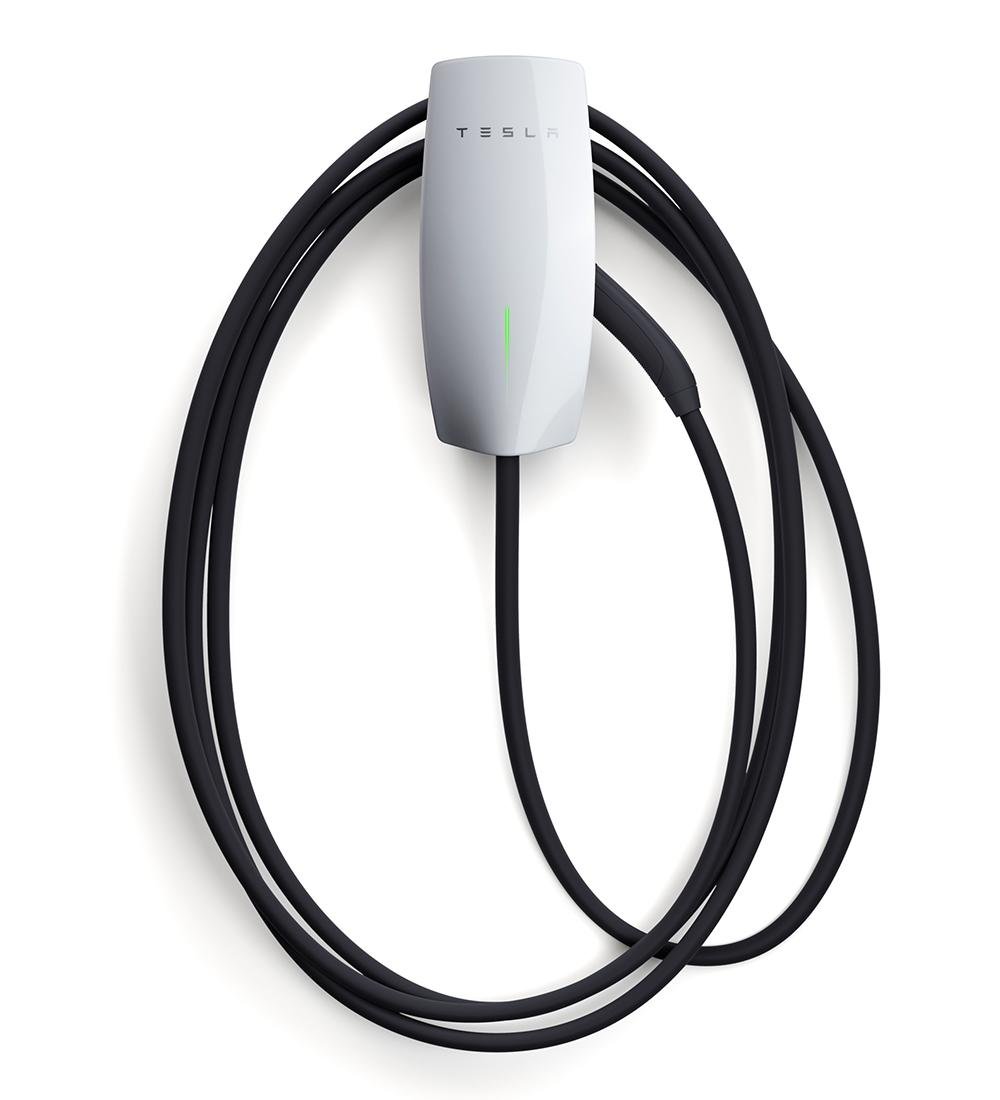
Common Tesla Wall Charger Troubleshooting Issues and Causes
Most people see the same set of errors. Here are common problems, likely causes, and simple fixes.
-
Charger shows no power
- Cause: Tripped breaker or lost supply.
- Fix: Check the breaker. Reset after turning off the charger.
-
Slow charging or low amps
- Cause: Supply limit, car settings, or thermal derating.
- Fix: Check car charging limit, supply amps, and ambient temperature.
-
Charger disconnects mid-charge
- Cause: Loose connector, poor contact, or ground fault.
- Fix: Inspect connector pins and cable. Clean and reseat.
-
Error codes on the app or unit
- Cause: Firmware mismatch or internal fault.
- Fix: Restart the charger and update firmware if available.
-
Wi-Fi or app pairing problems
- Cause: Network interference or wrong credentials.
- Fix: Reboot router and charger. Re-enter Wi‑Fi details in the app.
-
Overheating or warm connector
- Cause: High current or poor contact.
- Fix: Reduce charging rate and inspect for damage.
These items cover most visits and support calls. Troubleshooting these areas solves around 80% of issues I see.

Step-by-Step Tesla Wall Charger Troubleshooting Guide
Follow this ordered checklist to find the root cause fast.
- Turn off and unplug the charger from the breaker.
- Check the home circuit breaker and main service for trips.
- Inspect the cable and connector for damage, dirt, or corrosion.
- Power the charger back on and watch the LED status on the unit.
- Open the Tesla app for error messages and status updates.
- Reboot the charger by cycling power at the breaker for 30 seconds.
- Verify car settings for charge limit, scheduled charging, and preconditioning.
- If the charger shows ground fault or internal errors, log the error code in the app.
- If possible, try charging a different Tesla or EV to isolate charger vs car.
- If the problem persists, note the exact error and contact support or an electrician.
I use this exact checklist in field work. It’s simple and it works. It helps me avoid needless parts swaps.

Tools and Diagnostics for Tesla Wall Charger Troubleshooting
The right tools speed up the job and keep you safe.
- Multimeter — check voltage at the supply and confirm presence of L, N, and ground.
- Clamp meter — measure actual charging current without breaking the circuit.
- Outlet and circuit tester — confirm wiring and ground integrity.
- Smartphone and Tesla app — read logs and receive device alerts.
- Thermal camera or IR thermometer — spot hot spots on connectors or wiring.
- Label maker and notebook — record breaker IDs, firmware versions, and test results.
Use logs from the Tesla app when possible. App logs often record error codes and timestamps that tell the full story. In one case, the app revealed a recurring firmware error that a power cycle fixed.

Safety, Codes, and When to Call a Professional
Safety is the priority in Tesla Wall Charger Troubleshooting. Never work on live mains without proper training.
- Turn off the breaker before opening the unit or touching wiring.
- Wear eye protection and insulated gloves if you must work near live parts.
- Do not bypass safety devices like GFCI or breakers.
- If you see scorch marks, melting, or burning smells, stop and call a licensed electrician.
- Contact Tesla support or a certified installer for persistent internal errors or firmware failures.
Local electrical codes and utility rules matter. If you are unsure, get a pro. I’ve learned not to risk mains work after one near-miss early in my testing days.

Maintenance, Best Practices, and Tips
Good care keeps your charger reliable and extends life.
- Schedule an annual visual check for wear, corrosion, and loose mounts.
- Keep the charger firmware up to date to avoid known bugs.
- Store the cable properly to prevent kinks and wear on the connector.
- Avoid charging at max amps in very hot weather to prevent thermal derating.
- Label the breaker and keep a simple log of changes or repairs.
Small steps prevent big headaches. A quick cable wipe and firmware check can stop trouble before it starts.

People Also Ask — Quick Answers
How do I reset my Tesla Wall Connector?
Power cycle the breaker that feeds the connector. Wait 30 seconds and turn it back on. The unit will reboot and may clear transient faults.
What does the solid green light mean on a Tesla Wall Connector?
A steady green light usually means the charger is ready and the connection is secure. It indicates normal standby or active charging depending on unit behavior.
Can I fix a ground fault myself?
Only if you can safely isolate and test circuits. If the ground fault persists, call a licensed electrician. Do not bypass ground protection.

Frequently Asked Questions of Tesla Wall Charger Troubleshooting
What should I check first if my Tesla Wall Charger won't start charging?
First, check the main breaker and the wall connector breaker. Next, look for app error messages and inspect the connector for debris. These quick checks catch most simple causes.
Why does my Tesla charge slower than expected?
Slow charging can come from a limited circuit, a set charge limit in the car, or thermal derating. Verify home supply amps and vehicle settings to rule these out.
How do I read error codes from the Tesla Wall Connector?
Open the Tesla app for device logs and status messages. Write down any code or message and look it up in the troubleshooting guide. App logs usually include timestamps.
Is Wi-Fi required for Tesla Wall Charger charging?
Wi-Fi is not required for charging. It is needed for firmware updates and remote diagnostics. You can still charge if the unit is offline.
Can I install a Tesla Wall Charger myself?
Installation involves high-voltage wiring and must follow local codes. If you lack electrical training, hire a licensed electrician. Proper installation avoids safety and compliance issues.
What causes connectors to get hot during charging?
Hot connectors usually mean poor contact or high current draw. Inspect pins for damage and ensure secure mating. Reduce charging current until fixed.
When should I replace my Tesla Wall Charger?
Replace the charger if it has internal damage, persistent errors after firmware and power cycles, or if an electrician finds wiring faults that are uneconomical to fix. Regular wear or water ingress are valid reasons to replace.
Conclusion
Tesla Wall Charger Troubleshooting pays off with less downtime and fewer service calls. Start with simple checks: breakers, cables, app logs, and firmware. Use safe practices and call a pro when needed. Try the steps here on your next issue and leave a note below if you need help with a specific error. Subscribe for more practical EV tips and share this guide with fellow owners.

