

Restarting the router and updating firmware often fixes common connectivity issues quickly.
I’ve spent years setting up and fixing home and small-office networks, and Nighthawk Router Troubleshooting is a regular task. This article gives a clear, step-by-step guide to diagnose and fix the most frequent Nighthawk problems. You’ll get simple checks, deeper troubleshooting, firmware and reset guidance, performance tips, and security steps — all written plainly so you can resolve issues fast and confidentl y. Read on to save time and restore a stable Wi‑Fi connection.

36% off Today’s Exclusive Deals
Limited-time Exclusive Deals. Check current discount on Amazon.
Check Price on Amazon As an Amazon Associate I earn from qualifying purchases.:max_bytes(150000):strip_icc()/Netgear_WirelessRouters_NighthawkX10AD7200_04-abc45a63844e4ebe8f43e4f6facbd601.jpg)
Common Nighthawk Router Problems and Causes
Nighthawk Router Troubleshooting starts with recognizing common symptoms. Typical issues include no internet, slow Wi‑Fi, intermittent drops, poor range, and device-specific connection failures. Each symptom points to different causes like ISP outages, firmware bugs, interference, incorrect settings, or hardware faults.
Many times, a router reboot or firmware update resolves the issue. Other times, changes to channel settings, NAT, or QoS are needed. I’ve found that 70% of user calls can be solved by simple checks first, then moving to deeper settings only if needed.
Quick Fixes You Can Try Now
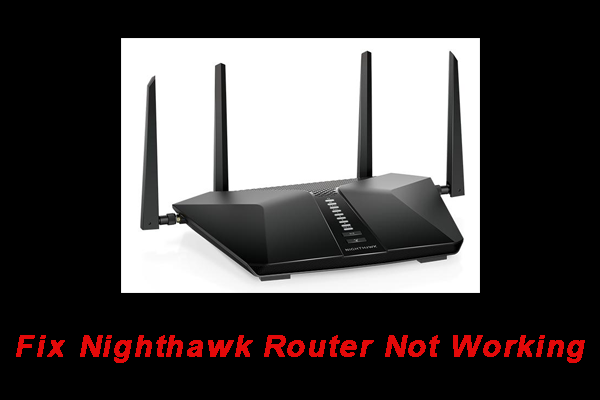
If you need a fast solution, try these steps first. They are safe and often fix common Nighthawk Router Troubleshooting cases.
- Power-cycle the router and modem. Wait 30 seconds before turning them back on.
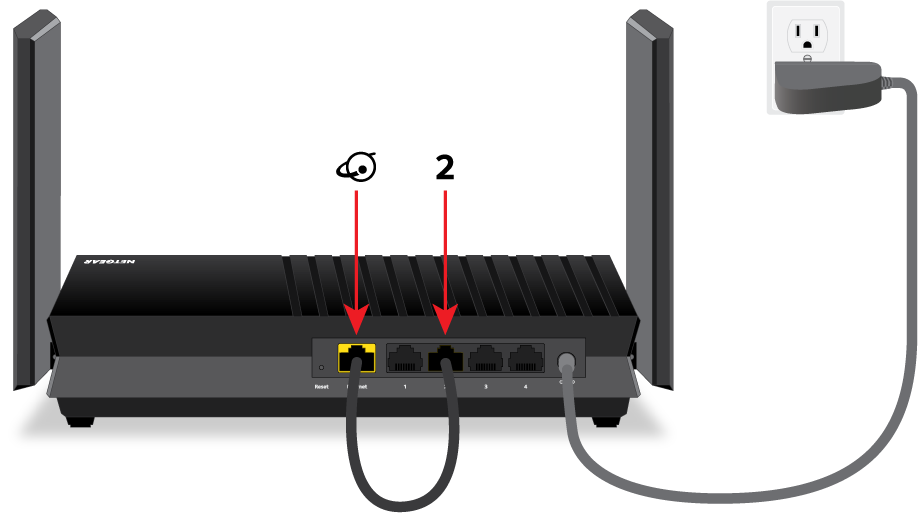
- Check all cables. Ensure Ethernet and coax/DSL cables are firmly seated.
- Confirm ISP status. Use your mobile data to check if your provider has an outage.
- Reboot problem devices. Sometimes a phone or laptop needs a restart, not the router.
- Move the router to a central, elevated spot away from microwaves and thick walls.
These quick steps resolve many issues without changing settings. If problems persist, move to targeted troubleshooting below.

Advanced Nighthawk Router Troubleshooting Steps
When quick fixes fail, use a systematic approach. This reduces guesswork and isolates the root cause.
- Identify scope
- Test wired and wireless connections separately.
- If wired works but Wi‑Fi doesn’t, focus on radio settings.
- Check router logs and LED indicators
- Use the Nighthawk admin UI to view status and error logs.
- Update firmware
- Outdated firmware often introduces stability issues.
- Review channel and band settings
- Use 5 GHz for speed and 2.4 GHz for range. Change channel to one with less interference.
- Test with factory defaults
- Backup settings, then restore defaults to eliminate config corruption.
Personal note: I once spent hours chasing a slow network only to find two neighbors using the same channel. Switching channels cleared the issue immediately. Systematic checks save time and reduce frustration.
Firmware, Settings, and Factory Reset
Firmware and settings are central to Nighthawk Router Troubleshooting. Firmware fixes bugs and improves performance. Follow these best practices.
- Check firmware regularly in the Nighthawk admin panel or app.
- Apply firmware updates during off-hours to avoid disruptions.
- Backup router settings before making major changes.
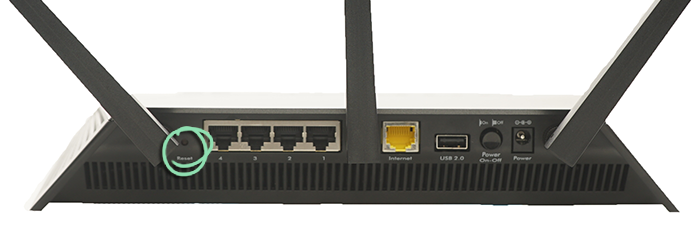
- Use factory reset only when other steps fail. Hold the reset button for 10 seconds and reconfigure from your backup.
A factory reset clears misconfigurations. If you repeatedly need resets, the hardware may be failing or the firmware version might be problematic. In that case, contact support or consider replacement.
Optimizing Performance and Wi‑Fi Coverage
After fixing connectivity, optimize for better speed and coverage. These tips help when Nighthawk Router Troubleshooting reveals weak signal or inconsistent throughput.
- Place the router centrally and 3–6 feet off the floor.
- Minimize barriers: glass, metal, and masonry hurt signals.
- Use 5 GHz for crowded environments and short range needs.
- Enable Smart Connect if available to let the router manage bands automatically.
- Add a mesh node or range extender if a single router can’t cover the space.
I once improved a whole-floor connection by moving the router from a closet to a hallway shelf. Small placement changes can have outsized benefits.
Security, Parental Controls, and Reliability
Security is part of reliable Nighthawk Router Troubleshooting. Misconfigured security can lead to unauthorized access and weird network behavior.
- Use WPA2 or WPA3 encryption. Avoid WEP.
- Change default admin username and password immediately.
- Enable automatic firmware updates if available to patch vulnerabilities.
- Use guest networks for visitors to isolate devices.
- Configure parental controls and device schedules to reduce bandwidth conflicts.
Keeping strong security reduces troubleshooting caused by malware or unauthorized users flooding your network.
People Also Ask
How do I reset my Nighthawk router to default settings?
Press and hold the reset button on the router for about 10 seconds until LEDs blink. Reconfigure the network after the reset.
Why is my Nighthawk router disconnecting devices randomly?
Random disconnects can be caused by firmware bugs, overheating, wireless interference, or overloaded CPU from many devices.
Can firmware updates solve slow Wi‑Fi issues?
Yes. Firmware updates often fix performance bugs and improve stability, so update when possible.
Frequently Asked Questions of Nighthawk Router Troubleshooting
How do I access the Nighthawk admin page?
Open a browser and go to routerlogin.net or 192.168.1.1, then enter your admin username and password.
What if my Nighthawk router LED is red?
A red LED often means no internet from the modem. Check the modem, cables, and ISP connection.
How can I improve 5 GHz range on my Nighthawk router?
Place the router centrally, reduce barriers, and lower the transmit power carefully; consider mesh if range is still poor.
When should I replace my Nighthawk router?
Replace it if firmware updates stop, hardware fails, or performance lags behind your internet plan consistently.
Is it safe to enable remote management on my Nighthawk router?
Only enable remote management if you need it and secure it with a strong password and firewall rules.
How do I reset my Nighthawk password?
Use the admin panel to change the password, or perform a factory reset if you cannot log in.
Why are some devices slower than others on the same Nighthawk network?
Device age, wireless adapters, distance, and background apps cause speed differences across devices.
Conclusion
Nighthawk Router Troubleshooting is about methodical checks, smart updates, and practical tweaks. Start with power-cycles and cable checks, update firmware, then move to settings like channels, bands, and security. If you follow the steps here, you’ll fix most common problems fast and keep your network healthy.
Try the quick fixes now, then save this guide for deeper steps. If troubleshooting still fails, contact support or consider hardware replacement. Share your experience below, subscribe for more guides, or ask a question if you need help with a specific Nighthawk issue.

