

Creating a PowerPoint presentation can feel overwhelming, especially if you are not used to design or public speaking. But with the right approach, anyone can make a clear, engaging, and professional presentation. Whether you need to present in school, at work, or for a community project, PowerPoint is a tool that can help you tell your story visually.
You don’t need to be a graphic designer or a tech expert to make slides that people remember. In this article, you’ll learn step-by-step how to create a PowerPoint presentation, from planning your content to adding visual effects. You’ll also discover common mistakes beginners make, tips for making slides look good, and practical advice for sharing your work.

36% off Today’s Exclusive Deals
Limited-time Exclusive Deals. Check current discount on Amazon.
Check Price on Amazon As an Amazon Associate I earn from qualifying purchases.By the end, you’ll feel confident to start your own PowerPoint and impress your audience.
Understanding Powerpoint And Its Purpose
PowerPoint is software developed by Microsoft for creating slideshows. Each slide can hold text, images, charts, videos, and more. The main goal is to communicate information visually and keep your audience engaged. Presentations are used in business meetings, classrooms, conferences, and even online webinars.
Why is PowerPoint so popular? First, it’s easy to use. Second, it allows you to organize your ideas step-by-step. Third, it supports many media types, so you can mix words, pictures, and sounds. According to Microsoft, PowerPoint is used by over 500 million people worldwide, making it one of the most common tools for communication.
The purpose of a PowerPoint presentation is not only to show information. It’s about making your message clear, memorable, and easy to understand. Slides help you guide your audience, highlight key points, and support your speech.
Planning Your Presentation
Before you open PowerPoint, you should plan your presentation. Good planning saves time and makes your slides better.
Define Your Goal
Ask yourself: Why are you making this presentation? Do you want to inform, persuade, teach, or entertain? Your goal will shape your content.
For example, if you’re presenting a business plan, your goal is to persuade investors. If you’re teaching a lesson, your goal is to help students understand.
Know Your Audience
Who will see your slides? Age, background, language skills, and interests matter. For non-native English speakers, use simple words and clear visuals. If your audience is experts, you can use technical terms and data.
Outline Your Content
Make a list of main points. Group related ideas. Decide what’s most important. A simple outline helps you organize your slides. For example:
- Title slide
- Introduction
- Main idea 1
- Main idea 2
- Main idea 3
- Conclusion
- Q&A
This structure keeps your presentation easy to follow.
Estimate Slide Count
A common mistake is making too many slides. The average is 1 slide per 1-2 minutes of talking. For a 10-minute presentation, aim for 7-10 slides. Too few slides can make your talk boring; too many can confuse your audience.
Starting With Powerpoint: The Basics
Now it’s time to open PowerPoint and start your presentation.
Creating A New Presentation
- Open PowerPoint.
- Click “New Presentation.”
- Choose a template or start with a blank slide.
Templates offer ready-made designs. They save time, but you can always change colors and fonts later.
Understanding The Interface
PowerPoint has several main parts:
- Ribbon: The top menu with tools like “Insert,” “Design,” “Animations.”
- Slides Pane: On the left, shows your slides in order.
- Main Area: Where you edit each slide.
- Notes: At the bottom, add speaking notes for yourself.
Learning these parts helps you work faster.
Saving Your Work
Always save your presentation often. Click “File” > “Save As. ” Give your file a clear name (like “Sales_Report_2024. pptx”). Use. pptx format for full features.
Designing Slides: Layout, Colors, And Fonts
A good slide design makes your message easy to see and remember. Here’s how to do it:
Slide Layout
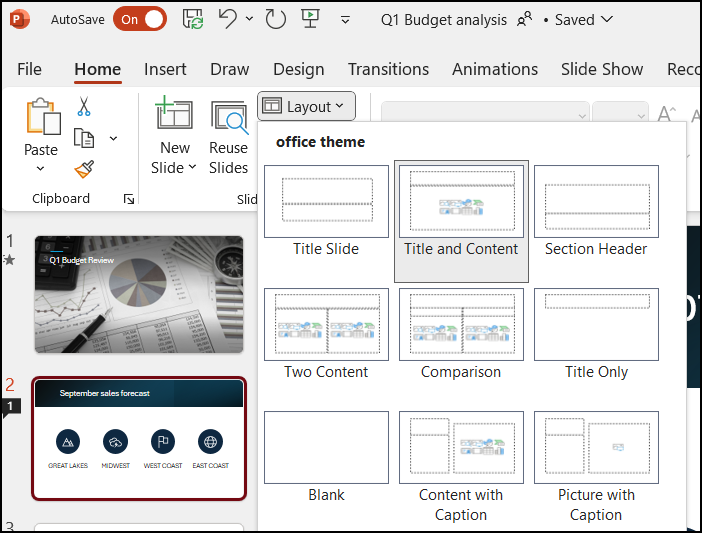
Each slide should focus on one main idea. Use headings, subheadings, and space between elements. Don’t fill the slide with too much text.
PowerPoint offers layouts like “Title and Content,” “Two Content,” “Comparison,” “Picture with Caption. ” Choose layouts that fit your content.
Choosing Colors
Colors affect how people feel and understand your slides. Use contrast: light text on dark background or dark text on light background. Limit your colors to 2-3 main shades. For example, blue and white, or green and gray.
Avoid colors that are hard to read (like red text on black). If possible, use your company or school colors.
Fonts
Pick easy-to-read fonts. Sans-serif fonts like Arial, Calibri, or Helvetica work well. Avoid fancy fonts that are hard to read. Use font sizes:
- Title: 32-44 pt
- Main text: 18-28 pt
- Labels: 14-18 pt
Make sure all slides use the same font style.
Visual Hierarchy
Use bold, larger fonts for important points. Use smaller, lighter fonts for details. This helps your audience know what to focus on.
Adding And Formatting Content
Now add your information to the slides. PowerPoint supports many types of content.
Text
Keep sentences short. Use bullet points for lists. Avoid full paragraphs. For example:
- Sales grew 20% in 2023
- New products launched in June
- Customer feedback improved
Images
Pictures can explain ideas faster than words. Use high-quality images. Avoid blurry or stretched pictures. You can insert images by clicking “Insert” > “Pictures. ”
Images should support your message, not distract. For example, use a photo of your product, or a chart showing growth.
Charts And Graphs
Numbers are easier to understand with visuals. PowerPoint lets you add charts like bar, line, pie, and more. Click “Insert” > “Chart. ”
Here’s a simple comparison:
| Chart Type | Best Use | Weakness |
|---|---|---|
| Bar Chart | Comparing categories | Can be crowded with too many bars |
| Pie Chart | Showing parts of a whole | Hard to compare many slices |
| Line Chart | Showing changes over time | Not good for categories |
Use clear labels, and avoid too much data on one chart.
Videos And Audio
You can add video clips to show examples or explain ideas. Click “Insert” > “Video. ” Keep videos short (less than 2 minutes). Make sure audio is clear.
Use audio only if it helps your presentation. For example, add a voiceover or a short music clip.
Smartart And Icons
SmartArt lets you make diagrams (like flowcharts, lists, cycles). Icons are simple pictures that show ideas, like a phone symbol for “Contact. ”
Use SmartArt for processes or relationships. Use icons to make slides look modern and easy to understand.
Using Transitions And Animations
Transitions and animations make slides more dynamic. But too many can distract your audience.
Transitions
Transitions are effects when you move from one slide to another (like fade, wipe, or push). Use simple transitions. Avoid flashy effects like “Bounce” or “Spin. ”
For business or school, “Fade” is a safe choice.
Animations
Animations are effects on objects in your slide (text, images, charts). For example, text can appear one bullet at a time.
Use animations to highlight key points or show steps. Don’t animate everything. Too many effects can look unprofessional.
Here’s a quick comparison:
| Effect | Best Use | Risk |
|---|---|---|
| Fade In | Introduce points smoothly | Too slow can bore audience |
| Zoom | Draw attention | Overuse can distract |
| Fly In | Show steps or sequence | Looks childish if overused |

Reviewing And Editing Your Slides
Once your slides are ready, review them carefully. Editing is key to a strong presentation.
Check For Errors
Look for spelling, grammar, or data mistakes. Ask a friend or colleague to review your slides.
Test Readability
Can you read all text from a distance? Is the font big enough? Are colors easy to see?
Keep Slides Consistent
Slides should look like a set. Use the same background, font, and color scheme. Consistency makes your presentation look professional.
Remove Unnecessary Content
Less is more. If a slide is not needed, delete it. If a chart is too complex, simplify it. Focus on your main message.
Use Slide Master
PowerPoint’s Slide Master lets you change the style of all slides at once. Click “View” > “Slide Master. ” Change fonts, colors, and backgrounds for all slides. This saves time and keeps your presentation uniform.
Practicing Your Presentation
Practice is as important as design. Even the best slides need a confident speaker.
Rehearse Timing
Go through your slides and practice your speech. Use PowerPoint’s “Rehearse Timings” feature to check how long each slide takes.
Aim to finish on time. If you’re too fast or too slow, adjust your slides or talking speed.
Prepare Notes
Use the “Notes” section to write reminders for yourself. Notes help you remember key points without reading slides.
Record Yourself
Record your presentation using PowerPoint or your phone. Listen for unclear points, filler words, or mistakes. Adjust your speech and slides as needed.
Anticipate Questions
Think about possible questions your audience may ask. Prepare answers. This makes you look knowledgeable and confident.
Common Mistakes In Practice
- Reading slides word-for-word
- Speaking too fast or too slow
- Ignoring audience reactions
- Not checking equipment (projector, microphone)
Avoid these mistakes and you’ll deliver a stronger presentation.
Sharing And Exporting Your Presentation
Once your PowerPoint is ready, you need to share it with others. PowerPoint offers several ways to export and share.
Exporting As Pdf
You can save your slides as a PDF. Click “File” > “Export” > “Create PDF/XPS Document. ” PDFs are easy to share and can’t be edited by others.
Sharing Online
PowerPoint lets you share presentations via email or cloud services like OneDrive. Click “File” > “Share” > “Email” or “OneDrive. ” This is useful for remote teams or online classes.
Presenting Online
You can present slides directly in Microsoft Teams or Zoom. PowerPoint has built-in tools for online presentation.
Printing
Print slides for handouts or notes. Use “File” > “Print. ” Choose “Handouts” to print multiple slides per page. This saves paper and helps your audience follow your talk.
File Formats
PowerPoint supports several formats:
| Format | Use Case | Editable |
|---|---|---|
| .pptx | Standard PowerPoint | Yes |
| Sharing, printing | No | |
| .ppsx | Show-only presentation | No |
| .odp | Open format (LibreOffice) | Yes |
Choose the format that fits your needs.
Practical Tips For Better Presentations
Here are some extra tips that beginners often miss:
- Use white space. Don’t fill slides edge to edge. Space makes content easy to read.
- Limit bullet points. Too many bullets make slides hard to follow. Aim for 3-5 points per slide.
- Tell a story. Even in business, structure your presentation like a story: Beginning, middle, end.
- Use images with purpose. Don’t add random pictures. Each image should support your message.
- Check accessibility. Use high contrast colors and readable fonts. This helps people with vision problems.
- Avoid jargon. Use simple words, especially for non-native English speakers.
- Backup your file. Save your work in two places (computer, cloud) to avoid losing it.
- Test on another computer. Fonts, images, and videos can look different on other devices. Test before your presentation.

Examples Of Great Powerpoint Presentations
Looking at real examples helps you learn what works.
- TED Talks Slides: These use big images, few words, and clear messages.
- Sales Reports: Good sales presentations use charts and short points, not full sentences.
- Education Slides: Teachers use diagrams, SmartArt, and simple language.
You can find many examples on the official Microsoft Blog, which shows creative uses of PowerPoint.
Frequently Asked Questions
How Many Slides Should I Use In My Powerpoint Presentation?
It depends on your presentation length. For a 10-minute talk, 7-10 slides is ideal. Each slide should cover one main idea. Too many slides can overwhelm your audience.
What Is The Best Font For Powerpoint Slides?
Choose simple, sans-serif fonts like Arial, Calibri, or Helvetica. These fonts are easy to read on screens and from a distance. Avoid fancy fonts that can distract.
How Do I Add Charts And Graphs In Powerpoint?
Click “Insert” > “Chart. ” Choose your chart type (bar, line, pie, etc. ). Enter your data in the table that appears. Charts help explain numbers visually. Make sure labels are clear.
Can I Use Powerpoint For Online Presentations?
Yes. PowerPoint works with tools like Microsoft Teams and Zoom. You can share your screen or upload your slides. PowerPoint also has a “Presenter View” that shows your notes while the audience sees your slides.
How Can I Make My Powerpoint Presentation More Engaging?
Use visuals like images, charts, and SmartArt. Keep text short and clear. Use simple transitions and animations. Tell a story, not just list facts. Practice your speech to connect with your audience.
Creating a PowerPoint presentation is more than just putting words on slides. It’s about telling a clear story, making your message easy to understand, and connecting with your audience. With the steps above, you can plan, design, and deliver a presentation that stands out. Remember, less is more: focus on your main ideas, use visuals wisely, and practice your talk. Whether you’re a student, teacher, or business professional, these skills will help you succeed. Start your next PowerPoint with confidence—you have everything you need to create slides people remember.

