

Connecting a printer might seem simple, but the process can be confusing, especially with new models, different connection types, and various operating systems. Whether you’re setting up at home, in an office, or helping someone else, learning the right steps makes the job faster and prevents common mistakes.
This guide takes you through everything you need to know, from picking the right connection method to troubleshooting issues. You’ll discover practical tips, step-by-step instructions, comparisons, and answers to questions most beginners never ask. Let’s make your printer work smoothly, no matter your skill level.

36% off Today’s Exclusive Deals
Limited-time Exclusive Deals. Check current discount on Amazon.
Check Price on Amazon As an Amazon Associate I earn from qualifying purchases.Types Of Printers And Their Connection Methods
Printers come in many shapes and sizes, and how you connect them depends on their features. Understanding these types helps you choose the best connection for your needs.
Wired Printers
Wired printers use cables to connect directly to a computer or network. The most common cable types are:
- USB: Most home printers use USB. Plug the cable into your computer and the printer.
- Ethernet: Office printers sometimes connect via Ethernet. This links the printer to your network, allowing multiple users to print.
Wireless Printers
Wireless printers use radio signals or Wi-Fi to connect. You don’t need a cable, but you do need a stable network.
- Wi-Fi: Modern printers connect to your wireless network, letting any device on the same network print.
- Bluetooth: Some portable printers use Bluetooth for short-range connections.
- Cloud Printing: Services like Google Cloud Print (now discontinued) allowed printing from anywhere. Many brands now offer their own cloud solutions.
All-in-one Printers
An all-in-one printer can print, scan, copy, and sometimes fax. Connection steps are similar, but you may need extra drivers for scanning or faxing.
Printer Connection Comparison
Here’s a quick comparison to help you decide which connection suits you:
| Connection Type | Speed | Ease of Setup | Supported Devices | Security |
|---|---|---|---|---|
| USB | Fast | Easy | PC, Laptop | High |
| Ethernet | Very Fast | Medium | Multiple | High |
| Wi-Fi | Medium | Medium | All | Medium |
| Bluetooth | Slow | Easy | Mobile, PC | Low |
Preparing For Printer Setup
A smooth setup starts with good preparation. Missing a step can mean wasted time or errors.
Check Printer Compatibility
Not all printers work with every device. Before you start:
- Check system requirements: Make sure your computer’s operating system supports your printer.
- Download drivers: Visit the manufacturer’s website for the latest drivers. Windows and macOS often install them automatically, but manual downloads can prevent issues.
- Read the manual: Manuals give model-specific advice many people skip.
Gather Necessary Materials
You’ll need:
- The printer
- Power cable
- USB/Ethernet cable (if using wired connection)
- Wi-Fi password (for wireless setup)
- Computer or mobile device
- Printer driver software
Unpack And Place Your Printer
Remove packaging materials, tape, and inserts. Place the printer in a stable spot near your computer or router. For wireless printers, avoid locations with weak Wi-Fi signals.
Step-by-step Guide To Connecting A Printer
The actual process depends on your connection type and device. This section gives clear steps for each method.
Connecting Via Usb
USB is the simplest and most common method.
- Plug in the printer: Connect the power cable and turn it on.
- Connect USB cable: Plug one end into the printer, the other into your computer.
- Install drivers: Windows and macOS usually detect the printer and install drivers. If not, download from the manufacturer’s site.
- Test print: Print a test page to confirm the setup.
Example
If you’re using an HP DeskJet 2700, Windows 10 should recognize the printer when you plug in via USB. If it doesn’t, download drivers from HP’s website.
Connecting Via Ethernet
Ethernet is best for office printers shared by many users.
- Plug in the printer and connect it to your network router with an Ethernet cable.
- Install drivers on each computer.
- Find printer IP address: Usually shown on the printer’s display or printed from a network configuration page.
- Add printer: On Windows, go to “Devices and Printers” > “Add a printer.” Enter the IP address if needed.
Practical Tip
Some printers use “Auto IP” or “DHCP” to get an IP address. If you can’t find it, print a network configuration sheet from the printer menu.
Connecting Via Wi-fi
Wireless setup is common but can be tricky.
- Power on the printer and start Wi-Fi setup. Most printers have a screen or button for this.
- Select your Wi-Fi network on the printer. Enter the password.
- Install drivers on your computer or device.
- Add printer: On Windows, go to “Add a printer.” On macOS, use “System Preferences” > “Printers & Scanners.”
- Test print.
Example
A Canon PIXMA TS9120 uses the “Wireless Connect” button. Press it, choose your Wi-Fi, and install drivers on your computer.
Connecting Via Bluetooth
Bluetooth works well for portable printers and mobile devices.
- Turn on the printer and enable Bluetooth.
- Pair with your device: Open Bluetooth settings on your computer or phone, find the printer, and connect.
- Install drivers if needed.
- Print a test page.
Non-obvious Insight
Bluetooth connections are less secure and slower. Only use Bluetooth for small print jobs or temporary setups.
Connecting With Mobile Devices
Most printers support mobile printing via apps or built-in features.
- Apple AirPrint: For iOS devices, AirPrint lets you print without extra drivers.
- Google Print Service: Android uses Google Print Service Plugin or manufacturer apps.
- Manufacturer Apps: Epson, HP, Canon, and others offer apps for easy mobile printing.
Practical Example
To print from an iPhone to an Epson EcoTank, connect your phone to the same Wi-Fi as the printer and use AirPrint or Epson’s app.
Printer Setup On Different Operating Systems
Operating system differences matter. Each platform has unique steps and issues.
Windows
Windows offers automatic detection but sometimes needs manual setup.
- Open Control Panel > Devices and Printers.
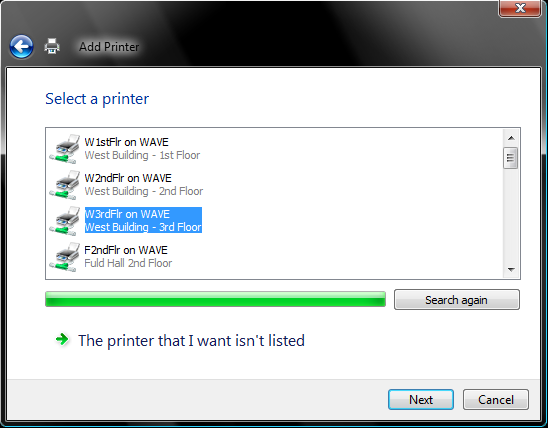
- Click Add a Printer.
- Follow the wizard. If your printer isn’t listed, click “The printer I want isn’t listed” and add by IP address or manually.
- Install drivers if prompted.
Macos
Macs use a similar process with some variations.
- Open System Preferences > Printers & Scanners.
- Click the + sign to add a printer.
- Select your printer from the list. If it’s not there, use “IP” tab and enter the printer’s address.
- Install drivers if needed.
Linux
Linux requires more manual steps, but many distributions support printers well.
- Use CUPS (Common UNIX Printing System) for setup.
- Open your browser and go to localhost: 631.
- Add your printer using the web interface.
- Install drivers from manufacturer or open-source repositories.
Data Table: Os Printer Support
Here’s a quick look at operating system compatibility:
| Operating System | Automatic Setup | Driver Availability | Mobile Printing |
|---|---|---|---|
| Windows | Yes | High | Medium |
| macOS | Yes | High | High |
| Linux | No | Medium | Low |
| iOS | Yes (AirPrint) | N/A | High |
| Android | Yes | N/A | High |
Troubleshooting Printer Connection Issues
Even with careful setup, problems can happen. Here’s how to solve the most common issues.
Printer Not Detected
If your device doesn’t see the printer:
- Check cables and power.
- Make sure the printer is turned on.
- Try a different USB port or cable.
- Restart both printer and computer.
Driver Problems
Missing or outdated drivers cause errors.
- Download the latest drivers from the manufacturer’s website.
- Uninstall old drivers before installing new ones.
Wireless Connection Problems
Wi-Fi issues are common in busy homes and offices.
- Move the printer closer to the router.
- Restart the router and printer.
- Re-enter the Wi-Fi password.
- Make sure your device is on the same network.
Non-obvious Insight
Wi-Fi printers sometimes fail because of band steering—routers with both 2.4 GHz and 5 GHz networks may confuse printers. Try connecting only to the 2.4 GHz network.
Print Quality Issues
If prints are blank, streaky, or poor quality:
- Check ink or toner levels.
- Clean print heads (use the printer’s menu).
- Use the right paper for your printer.
Example: Fixing A Common Error
If your HP printer shows “offline,” check Windows settings. Go to “Devices and Printers,” right-click your printer, and select “Use Printer Online.”
Connecting A Printer To A Network
Networked printers are helpful in offices and homes with many devices.
Wired Network Setup
- Connect the printer to the router with an Ethernet cable.
- Find the printer’s IP address.
- Add the printer on each computer using its IP address.
Wireless Network Setup
- Use the printer’s Wi-Fi setup menu to join your network.
- Confirm connection by printing a network status page.
- Add the printer on each device using Wi-Fi.
Network Printer Vs Local Printer
Here’s a quick comparison:
| Feature | Network Printer | Local Printer |
|---|---|---|
| Accessible by | Multiple users | Single user |
| Setup complexity | Medium | Easy |
| Print speed | Depends on network | Fast |
| Security | Needs firewall | Low risk |
Advanced Printer Connection Options
Some situations call for advanced solutions.
Sharing A Printer
Windows and macOS let you share a printer over your local network.
- On Windows: Right-click your printer in “Devices and Printers,” select “Printer Properties,” and enable sharing.
- On macOS: Open “Printers & Scanners,” select your printer, and check “Share this printer.”
Connecting Multiple Devices
Wireless and networked printers allow many devices to print at once. Make sure your router can handle the traffic, and set up proper permissions if needed.
Using Print Servers
A print server is a device or software that manages printer connections. Offices use print servers to control print jobs, set quotas, and monitor usage.
Practical Tips For Smooth Printer Setup
Experience shows some small things make a big difference.
- Update firmware: Manufacturers often fix bugs and add features through firmware updates.
- Label cables: In offices, label USB/Ethernet cables to avoid confusion.
- Backup drivers: Keep drivers on a USB stick for quick reinstallation.
- Use static IPs for network printers: This prevents the printer’s address from changing, making it easier to find.
Avoiding Common Mistakes
Beginners often:
- Skip driver installation, relying on automatic setup. Always check for the latest drivers.
- Connect wireless printers to the wrong Wi-Fi network.
- Forget to check ink/toner before printing important documents.
- Place printers too far from routers, causing weak signal and slow printing.

Security Considerations
Printers are often ignored when thinking about security, but they can be entry points for hackers.
- Change default passwords: Many printers come with default admin passwords. Change them.
- Update firmware: Old firmware can have security holes.
- Enable encryption: Use WPA2 for Wi-Fi printers.
- Monitor print jobs: In offices, use software to track who prints what.
Eco-friendly Printing Practices
Printing uses paper, ink, and energy. You can reduce waste:
- Print double-sided (duplex printing) when possible.
- Use draft mode for documents that don’t need high quality.
- Recycle ink and toner cartridges.
- Choose energy-efficient printers (look for Energy Star rating).

Frequently Asked Questions
How Do I Connect My Printer To Wi-fi Without A Computer?
Most modern printers have a Wi-Fi setup wizard on their display screen. Use this to select your network and enter the password. Some models use WPS (Wi-Fi Protected Setup)—press the WPS button on your router and then on your printer. Once connected, you can print from mobile devices using apps or AirPrint.
Why Does My Printer Say “offline” Even Though It’s Connected?
This happens when your computer loses track of the printer. Check that the printer is powered on and connected to the same network. On Windows, go to “Devices and Printers,” right-click your printer, and select “Use Printer Online. ” Restart both devices if the problem persists.
Can I Print From My Phone Or Tablet?
Yes. Use AirPrint for iOS devices or the manufacturer’s app for Android. Make sure your device and printer are on the same Wi-Fi. For older printers, you may need to install a plugin or use a wireless adapter.
What Is The Best Way To Connect A Printer In An Office With Many Users?
A network printer connected via Ethernet or Wi-Fi is best. Set it up with a static IP address, install drivers on all computers, and use print server software for control. This allows multiple users to print without moving cables or devices.
Where Can I Find Official Printer Drivers?
Always download drivers from the printer manufacturer’s website. For example, HP, Canon, Epson, and Brother all offer drivers and support pages. Avoid third-party sites, as they may offer outdated or unsafe files. One reliable source is HP Support.
Connecting a printer is easier when you know the steps and understand the details. With the right preparation, careful setup, and a few practical tips, you’ll avoid common mistakes and enjoy reliable printing. Remember to check compatibility, follow the instructions for your connection method, and keep your printer secure and efficient.
If problems arise, use the troubleshooting guide, and don’t hesitate to seek official support. Happy printing!

